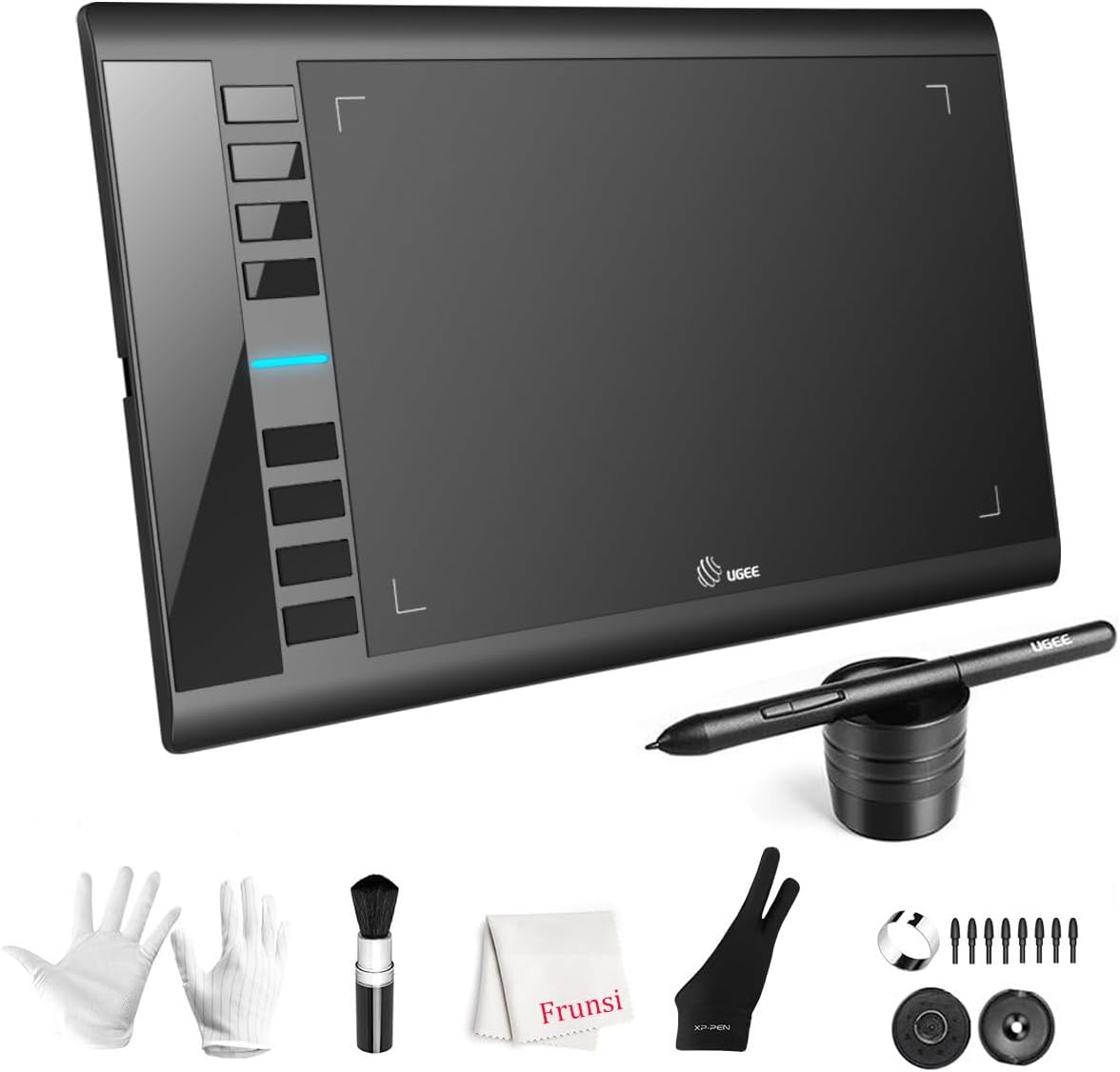
UGEE M708 Drawing Tablet
4.4Editor score
10 by 6-inch active area
16,384 pressure levels
Eight customizable express keys
A tablet for Zbrush should translate delicate stylus movement into precise sculpting strokes while remaining comfortable through long modeling sessions. Important factors include pen pressure sensitivity, tracking accuracy, active-area size, shortcut access, screen quality, and whether you prefer drawing on a separate display or working directly on one.
This guide compares ten pen tablets and standalone drawing tablets based on the supplied specifications, emphasizing Zbrush-relevant features such as pressure response, stylus control, compatible operating systems, shortcut options, and screen resolution. The list includes screenless models, pen displays, wireless pen tablets, and self-contained tablets for different creative workflows.
Each numbered review explains the strongest feature, practical tradeoffs, and the kind of artist who may benefit from that particular design. The top picks highlight the most balanced, budget-conscious, and premium choices, while ratings and configurations may change over time. Always confirm current device specifications, software support, and pricing before purchasing.
4.4Editor score

4.5Editor score

4.5Editor score
As an Amazon Associate we earn from qualifying purchases.
The comparison below organizes each option by format, working area or display size, stylus pressure, connectivity, and workflow features, making it easier to identify the right tablet for Zbrush sculpting.


The Wacom Intuos Small is a straightforward pen tablet for Zbrush users who value a dependable stylus experience more than a built-in display. Its 4.6 rating is the highest among the ten products listed, and the battery-free EMR pen is designed to provide precise, pen-like control without charging or pairing the stylus.
We may earn a commission when you buy through this link, at no additional cost to you.
The main appeal is a focused, distraction-free workflow. Zbrush can remain full-screen on a separate monitor while the artist works on the compact tablet. Its compatibility with drawing, painting, photo editing, video editing, and design software makes it a broadly useful tool, while the included software and online training can help new users establish pressure control and navigation habits.
The tradeoffs are the small active area and wired connection. Zbrush sculpting often requires broad, sweeping movements, frequent zooming, and repositioning of the pen, so a small surface may require more arm movement than a 10-by-6-inch tablet. The fixed cable also prevents the freedom offered by a Bluetooth model. These limitations are acceptable when the goal is dependable precision in a straightforward setup.
This is a strong choice for a beginner, student, or budget-conscious artist who can already arrange a suitable computer display or use a laptop. It is less attractive to a professional who needs a large sculpting area, wireless freedom, or the ability to work directly on a screen. For those needs, one of the larger pen displays in this guide may be a better fit.
Keeping Zbrush on a separate display can give the artist a stable visual reference while the tablet provides uncluttered input space. That arrangement is especially useful when working on fine surface detail or testing brush behavior across large canvas areas.
The wired design removes wireless pairing from the equation, which can make the tablet straightforward to introduce to a new workstation. A single computer connection also reduces the number of accessories that must be configured before beginning a sculpting session.
We may earn a commission when you buy through this link, at no additional cost to you.
The HUION Kamvas 13 (Gen 3) combines a 13.3-inch pen display with 16,384 pressure levels and a low 2g activation force, creating a convincing all-around option for Zbrush. Its 4.5 rating and generous feature set make it the most balanced direct-on-screen choice in this guide for artists who want both precision and an expansive canvas.
We may earn a commission when you buy through this link, at no additional cost to you.
The fully laminated screen reduces the separation between the pen nib and cursor, while the anti-sparkle Canvas Glass 2.0 surface is intended to reduce glare and improve accuracy. Color coverage of 99 percent sRGB, support for Rec.709, and an average Delta E below 1.5 are meaningful for judging rendered colors and surface presentation. The pen also supports 16,384 pressure levels.
Workflow controls are particularly useful in a demanding sculpting program. Two dials can be assigned to frequently adjusted values, while five programmable shortcut keys reduce dependence on keyboard commands. USB-C single-cable connectivity and the included adjustable stand simplify setup, although users must remember that the device is not standalone and needs a computer or laptop.
This model suits illustrators, character artists, and hobbyists who regularly sculpt in Zbrush and prefer drawing directly on the display. It is particularly attractive for desks where space is limited compared with a large pen monitor. Artists who need maximum screen area, ultra-fine pen resolution, or complete independence from a computer should consider the Kamvas Pro 16 V2 or a standalone tablet instead.
The 2g activation threshold can make light contact easier to register, a useful characteristic when adding subtle scratches, pores, wrinkles, and other low-amplitude details. The high pressure range still gives sculptors room to build heavier grooves and broader changes.
A factory calibration report and stated color accuracy add confidence for artists reviewing material and color decisions. The anti-glare laminated surface also supports more comfortable viewing in bright environments than many conventional touchscreens.
We may earn a commission when you buy through this link, at no additional cost to you.
The HUION Kamvas Pro 16 offers a generous 15.6-inch display for sculpting directly inside Zbrush. Its 4.5 rating, full-lamination design, 8,192-level battery-free stylus, and 266PPS report rate make it a compelling pen-display option when a larger canvas is the priority.
We may earn a commission when you buy through this link, at no additional cost to you.
The reduced parallax keeps the stylus tip and on-screen cursor closely aligned, which can improve confidence when working on small forms and fine detail. The anti-glare glass is designed to remain clear under bright light, while 120 percent sRGB color volume and 16.7 million colors provide a vivid presentation of textured materials and rendered scenes.
Six customizable Express Keys and a programmable Touch Bar allow direct access to common Zbrush functions such as zooming, brush adjustment, and page scrolling. The 60-degree tilt support broadens the range of mark-making techniques. Compared with the newer Kamvas 13 (Gen 3), however, this model offers 8,192 rather than 16,384 pressure levels, and it is not a standalone device.
The Pro 16 is best for professionals and advanced students who want a roomy direct-to-screen workspace without moving to the newest 16-inch V2 model. It makes sense when its larger display and established feature set outweigh the pressure-resolution difference. It is less suitable for artists seeking battery-powered independence.
A 15.6-inch screen provides more usable space for viewing a head, creature, environment, or prop while keeping the active Zbrush interface visible. That makes it easier to judge silhouette and scale without constantly zooming the viewport.
The combination of six Express Keys and a Touch Bar shortens repetitive navigation. Mapping frequently used brushes, zoom controls, and view changes can keep the artist focused on the model rather than the keyboard.
We may earn a commission when you buy through this link, at no additional cost to you.
The UGEE M708 is a compelling option for a Zbrush beginner who wants a large active area and modern pressure response without moving to a pen display. Its 4.4 rating, 10-by-6-inch drawing space, and 16,384 pressure levels give it a competitive specification profile for sculpting.
We may earn a commission when you buy through this link, at no additional cost to you.
The papery texture supports a more traditional drawing feel, and the passive stylus can vary line weight and opacity according to applied pressure. Eight customizable Express Keys can be assigned to functions such as erasing, zooming, scrolling, and undoing, which helps reduce reliance on the keyboard during a Zbrush session.
Compatibility is a major strength. The supplied information specifically identifies Pixologic ZBrush among supported creative applications, along with Photoshop, Illustrator, SAI, 3D MAX, and Autodesk MAYA. USB-to-USB-C connectivity and included adapters also make the tablet relevant to laptops, desktops, Chromebooks, and other compatible devices.
This is a strong recommendation for students, hobbyists, and artists building a first dedicated sculpting setup. The absence of a display means a separate monitor is necessary, but that arrangement can provide a large Zbrush viewport at lower cost. More experienced artists may eventually prefer a laminated pen display for a more integrated and visually precise workflow.
The wide pressure range is valuable in Zbrush because the same brush can serve delicate surface work and broad shaping. Artists can begin with lighter force for shallow marks, then increase pressure for stronger changes without switching input tools.
Eight side keys provide more dedicated controls than many compact alternatives. Mapping them to Zbrush brush presets, zoom actions, and undo commands can create a fast, repeatable sculpting environment.
We may earn a commission when you buy through this link, at no additional cost to you.
This version of the HUION Kamvas 13 (Gen 3) is especially appealing for Zbrush users who need a color-conscious, portable pen display. It provides a 13.3-inch fully laminated screen, 16,384 pressure levels, a 2g activation force, and an 865g body that is easier to reposition than many larger pen monitors.
We may earn a commission when you buy through this link, at no additional cost to you.
The specification includes 99 percent sRGB and Rec.709 coverage, 90 percent Adobe RGB coverage, and factory calibration to a stated Delta E below 1.5. These figures make the display relevant to artists reviewing colored textures and rendered output. Anti-glare Canvas Glass 2.0 uses nano-etching to reduce glare, sparkle, and image noise.
Two dial controllers and five silent press keys offer quick access to brush, flow, opacity, frame, canvas, and slider adjustments. The pen adds three side buttons, a dust-proof grip, and automatic tilt alignment. The 11.7mm profile also helps make the unit easier to carry or reposition between a desk and a different workspace.
The principal limitation is that it still requires a computer or laptop, so it is portable only as part of a complete workstation. Artists who want a 13.3-inch direct-sculpting surface but travel frequently should pair it with a compact computer. Users seeking complete standalone operation should examine the PicassoTab X11 or RubensTab T11 Pro instead.
Wide sRGB and Rec.709 coverage supports more representative color review when working with textured surfaces. Factory calibration and the included certificate can also help users verify that the display maintains consistent presentation.
The low weight and slim profile make this display less cumbersome to reposition than a full-size desktop pen monitor. It remains a better fit for a compact mobile workstation than a permanently installed studio display.
We may earn a commission when you buy through this link, at no additional cost to you.
The HUION Kamvas Pro 16 V2 represents the most premium pen-display option in this roundup. Its 4.5 rating is supported by a 15.6-inch fully laminated anti-glare screen, 16,384 pressure levels, and 5,080 LPI pen resolution, specifications aimed at fine Zbrush detail and precise line control.
We may earn a commission when you buy through this link, at no additional cost to you.
The battery-free PW600A stylus provides three side keys and a dust-proof grip, while the screen minimizes parallax and offers a paper-like texture. Coverage of 99 percent sRGB and Rec.709, 16.7 million colors, and a stated 178-degree viewing angle help maintain consistent visuals from different seated positions.
Workflow control is a major strength. Six customizable Express Keys and a Smart Touch Bar can place zoom, brush size, scrolling, and other frequent actions near the user's fingers. A three-in-one cable reduces desk clutter, while the recessed Type-C port is designed to resist accidental disconnections. The included ST200 stand adjusts across six angles.
This is the premium recommendation for professional character artists, environment sculptors, and studios that value fine pen resolution, a large display, and configurable controls. It is less appealing when portability, independence from a computer, or minimal setup complexity matters more. The lower weight and thin profile help, but it remains a pen display rather than an all-in-one creative computer.
The combination of high pressure resolution and 5,080 LPI tracking supports controlled marks in tight areas of a sculpt. A large display simultaneously shows more of the model, reducing the frequency of zooming out to evaluate a full form.
The multi-angle aluminum stand allows the screen to be positioned closer to a more upright or reclined position. This flexibility can support different working styles and reduce the need for separate equipment when changing between sculpting and review.
We may earn a commission when you buy through this link, at no additional cost to you.
The Wacom Intuos Medium adds Bluetooth flexibility to the established EMR pen experience, making it useful for Zbrush artists who want to move around a room or work away from a desk. It retains a 4.5 rating and can also operate through a direct USB-A connection when responsiveness or a stable wired session is preferred.
We may earn a commission when you buy through this link, at no additional cost to you.
The battery-free pen removes charging from the workflow and supports a natural pen-on-paper sensation according to the supplied information. The medium active area is more accommodating than a small tablet for broad sculpting strokes, while the option to work wirelessly can reduce cable management around a multi-monitor desk.
As a screenless tablet, the model does not directly address the issue of cursor-to-nib separation. Artists must view Zbrush on another monitor and get comfortable mapping the tablet's relative position to the on-screen canvas. The supplied information does not specify pressure levels, so buyers seeking a particular pressure range should confirm that detail before purchase.
This model fits commuters, students, and established Wacom users who value wireless freedom and dependable pen technology. It may be less appropriate for a professional who insists on a large pen display, high-resolution pen tracking, or extensive physical shortcut controls. For those needs, a HUION display offers a more visually integrated setup.
Bluetooth allows the artist to reposition the tablet without reorganizing a cable. This is useful when switching between a seated sculpting position and a larger sketching area on the same computer setup.
The battery-free EMR stylus is designed around the feel of a traditional pen. For sculptors accustomed to that response, it provides a comfortable transition to digital brushwork without stylus charging or an active pen battery.
We may earn a commission when you buy through this link, at no additional cost to you.
The RubensTab T11 Pro is a standalone drawing tablet with a 10.1-inch Full HD IPS display, making it distinct from the computer-dependent models in this guide. Its 4.4 rating, internal battery, pressure-sensitive pen, and preinstalled creative software support a self-contained approach to digital artwork.
We may earn a commission when you buy through this link, at no additional cost to you.
The tablet can draw, sketch, and design without an external computer, according to the supplied information. Its 5,800mAh battery is stated to provide up to five hours of continuous use, while USB-C charging and power-bank support offer more flexibility. Multi-touch supports zooming, panning, and scrolling, and the included stand case protects the device during travel.
The major concern is Zbrush itself. Zbrush is a demanding desktop sculpting application, and the supplied information emphasizes mobile-oriented creative applications rather than naming Zbrush as supported. A standalone tablet can be excellent for concept sketches, but buyers who intend to perform serious Zbrush sculpting should verify operating-system and application compatibility before choosing it.
The T11 Pro is most appropriate for illustrators and students who value portability, battery operation, and an independent device for lighter creative work. It may also support a broader mobile sketching workflow alongside a desktop Zbrush setup. Those who require a confirmed desktop Zbrush environment should favor a tablet explicitly designed to connect to a computer.
The internal battery and standalone design allow an artist to sketch away from a stationary workstation. This is useful for developing silhouettes, character ideas, and reference studies before moving detailed sculpting work to a desktop.
A pressure-sensitive pen supplies line variation, while multi-touch handles navigation. The combination can offer a more natural workflow for small canvases, although the 10.1-inch display remains compact for a full character model.
We may earn a commission when you buy through this link, at no additional cost to you.
The Wacom Intuos Small Bluetooth is a compact, travel-friendly input device for Zbrush users who already have a computer and prefer a familiar pen tablet. Its 4.4 rating, battery-free EMR stylus, and support for both Bluetooth and USB-A give it flexible connection options.
We may earn a commission when you buy through this link, at no additional cost to you.
The small surface is the defining limitation. Fine detail and isolated brush strokes can feel natural, but broad sculpting movements and navigation gestures may require repeated repositioning. A separate display is also necessary, so the artist must coordinate the tablet's physical position with the Zbrush canvas shown on that display.
The pressure-sensitive battery-free pen is designed to feel like traditional writing, and the tablet can be used with software for drawing, painting, editing, and design. Software and online training are included after registration, giving new users a place to learn the relationship between pen force, brush size, and Zbrush effects.
This model is best for a student working in a limited space, a traveler who needs compact input, or a Wacom user who prefers wireless operation. It is less suitable for professionals who spend hours making broad anatomical changes and require a larger working area. Those users should favor the Medium model or a pen display.
The compact footprint leaves more room for a keyboard and other studio tools than a full-size tablet. Bluetooth also makes it easy to move the input surface to a different position without rearranging a permanent desktop setup.
The included training resources can help a new Zbrush user practice controlling stroke width and intensity. A consistent pen response is valuable when learning to coordinate light marks with stronger sculpting pressure.
We may earn a commission when you buy through this link, at no additional cost to you.
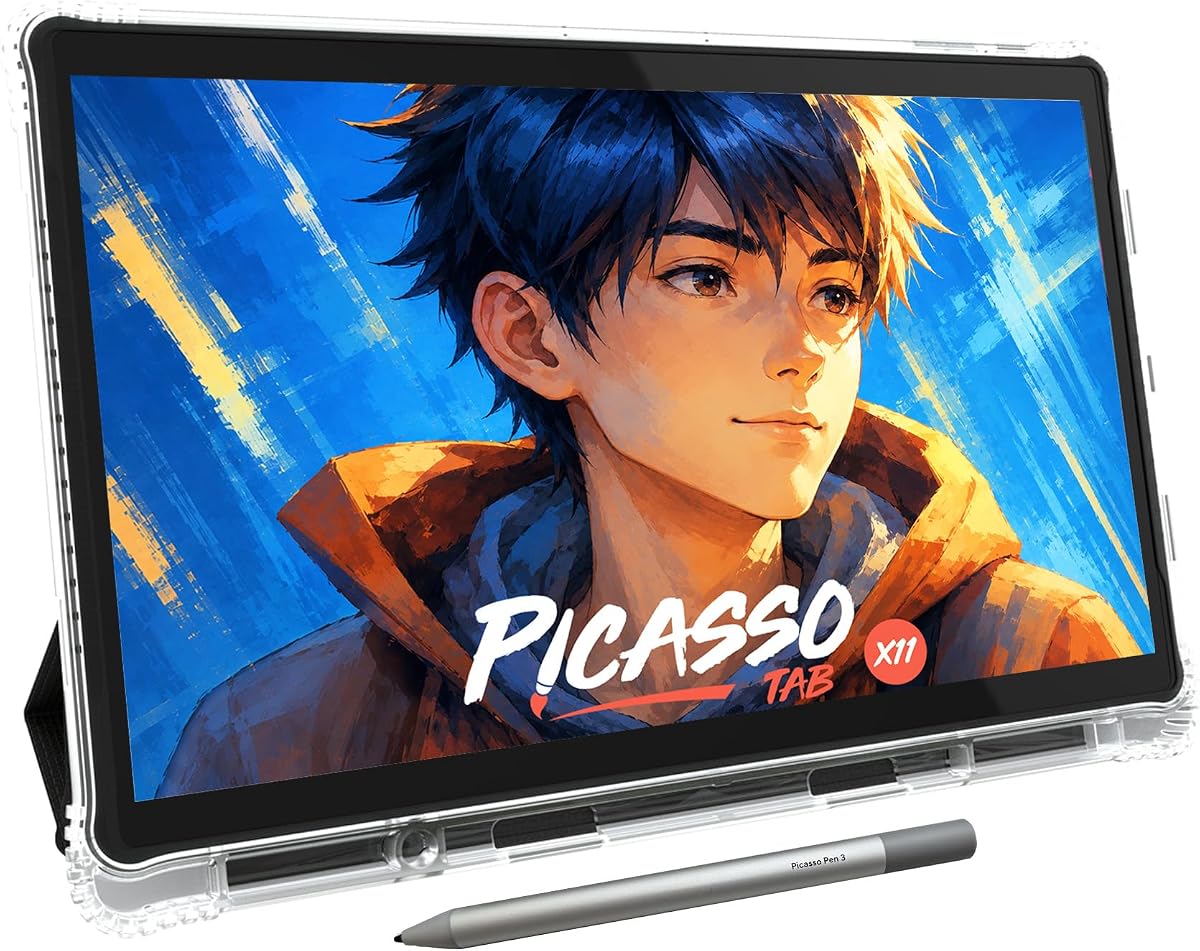
The PicassoTab X11 is an 11-inch standalone drawing tablet designed to run creative applications without a computer. It earns a 4.2 rating and offers a fully laminated 2K screen, a 4,096-level pressure stylus, an octa-core processor, 6GB of RAM, and 128GB of expandable storage.
We may earn a commission when you buy through this link, at no additional cost to you.
Its standalone architecture is the defining feature. Preloaded applications support sketching, painting, animation, tutorials, and guided lessons, while the laminated display is designed to reduce parallax and glare. The 2K panel provides more visible detail than many standalone drawing tablets, which can benefit the inspection of fine sketch lines.
The main limitation for this keyword is application support. The supplied information does not confirm that Zbrush can run natively on the X11, and Zbrush's demanding desktop nature makes that distinction important. Its 4,096 pressure levels are also lower than the 8,192 and 16,384 counts offered by several connected pen tablets and displays in this roundup.
The X11 is best for mobile illustration, animation studies, and learning away from a desktop, particularly if the buyer wants a full creative tablet with generous memory and storage. It can complement a desktop Zbrush setup, but it should not be purchased as a Zbrush-specific machine unless current compatibility has been confirmed. Artists who need desktop Zbrush should prioritize a computer-connected display.
Combining a display, processor, memory, storage, applications, and battery in one device removes the need to carry a separate computer for supported creative tasks. It is therefore useful for learning, concept development, and portable illustration.
The octa-core processor, 6GB RAM, and expandable storage give supported applications more room to multitask than a basic standalone tablet. The 2K laminated display offers a clear, low-parallax surface for detailed sketching.
We may earn a commission when you buy through this link, at no additional cost to you.
Choosing a tablet for Zbrush means balancing input precision, usable working space, display workflow, and software compatibility. The most important distinction is whether the device is a connected pen tablet, a pen display, or a fully standalone creative system.
Start by confirming that the tablet can run the version of Zbrush you intend to use. Pen tablets and pen displays that connect to a compatible Windows, macOS, or Linux computer are the safest general approach because the sculpting software runs on the computer while the tablet serves as the input or display surface. Standalone tablets may run selected drawing applications, but the supplied information for the RubensTab T11 Pro and PicassoTab X11 does not establish native Zbrush support.
Pressure sensitivity lets a single brush behave differently under light and heavy force. This matters in Zbrush because subtle scratches and wrinkles need a narrow dynamic range, while broad grooves and major volume changes require stronger strokes. The UGEE M708, both listed Kamvas 13 (Gen 3) configurations, and the Kamvas Pro 16 V2 provide 16,384 pressure levels, while the older Kamvas Pro 16 provides 8,192. The standalone X11 lists 4,096, and the supplied Wacom information emphasizes its EMR pen without giving a numeric level.
The active area determines how much of the pen's physical movement maps to the Zbrush canvas. The UGEE M708 offers a roomy 10-by-6-inch surface, while the Wacom Intuos models range from small to medium. A larger area is useful for broad sculpting motions, zooming, and brush navigation, but it takes more desk space. Artists who constantly zoom around a model may manage a smaller area, whereas those who prefer sweeping arm movements benefit from more room.
A screenless pen tablet displays Zbrush on a separate computer monitor, which can provide a large view and a clean separation between input and display. A pen display puts Zbrush directly under the stylus, reducing cursor-to-tip separation and making surface detail easier to judge. Pen displays are particularly useful for tight sculpting work, but they occupy desk space and still require a computer. The choice is therefore between workflow preference and available equipment rather than simply between cheap and expensive devices.
For artists reviewing colors, textures, and lighting, display specifications matter. The Kamvas 13 (Gen 3) configurations state 99 percent sRGB coverage and factory calibration to Delta E below 1.5, while the Kamvas Pro 16 V2 lists 99 percent sRGB and Rec.709 coverage. Anti-glare and full-laminated surfaces can improve viewing in bright rooms and keep the pen cursor close to the nib. A screenless tablet leaves color performance entirely to the separate monitor, which can be advantageous if the artist already owns a calibrated display.
Fine detail benefits from accurate tracking and a pen that can register light contact. The Kamvas Pro 16 V2 specifies 5,080 LPI resolution, while the Kamvas 13 (Gen 3) offers a 2g activation force, thin nib, and tilt auto-alignment. The older Kamvas Pro 16 supports 60-degree tilt and a 266PPS report rate. These specifications can improve control, but they should be considered alongside the software's own brush behavior, because sensitivity settings and stabilization ultimately shape the final stroke.
Zbrush relies on repeated brush selection, zooming, undoing, and canvas navigation. Dedicated controls can reduce keyboard interruptions. The UGEE M708 includes eight customizable Express Keys, the Kamvas Pro 16 has six Express Keys and a Touch Bar, the newer Kamvas Pro 16 V2 has six Express Keys and a Smart Touch Bar, and the Kamvas 13 configurations provide dials and shortcut keys. Newer Wacom models may also offer Express Keys, although the supplied product information does not specify them.
A wired tablet gives a stable connection but remains tied to a workstation. Bluetooth models support more flexible positioning, while the 13.3-inch Kamvas 13 (Gen 3) is relatively slim and light for a connected display. Standalone tablets add battery operation but may not support Zbrush. Check the ports, adapters, operating-system requirements, screen size, battery life, and weight before choosing a portable rig for sketching or sculpting away from a fixed desk.
Begin by installing the manufacturer's current driver and connecting the tablet using its supported port. In Zbrush, open the relevant preferences or tablet-control area, confirm that the stylus is detected, and adjust pressure sensitivity to a level that feels natural. Start with a low brush opacity and make several strokes at increasing force so you can learn how aggressively the pen affects line width, opacity, and sculpting depth.
Map the Express Keys, dials, pen buttons, or Touch Bar to Zbrush actions that you genuinely use. A practical setup might reserve one control for undo, another for zoom, and dials for brush size or stroke intensity. When using a separate monitor, place the tablet in the same general position as the screen so that hand movement corresponds naturally to cursor movement. For a pen display, adjust the stand and screen angle to keep the stylus nearly perpendicular to the surface.
Protect the nib and surface by avoiding excessive sideways pressure, dust, and contact with abrasive objects. Replace worn nibs according to the manufacturer's guidance, clean the active area with a soft nonabrasive cloth, and route cables so they cannot pull against the connection. Store a pen tablet in its case, keep a pen display on a stable stand, and charge a standalone device before long mobile sessions. Periodic driver and application updates can also help maintain compatibility and stylus behavior.
A normal pen tablet is enough for many Zbrush workflows. You can run Zbrush on a separate monitor and use the tablet as the input surface, which often provides a large viewport and a comfortable arm position. A pen display is preferable when you want the cursor and stylus tip to appear directly under your hand, especially for fine sculpting details, but it still requires a computer.
More pressure levels can provide finer control over a stylus's force response, but no single number guarantees ideal results. Look for at least 8,192 levels as a strong starting point, and consider 16,384 for more nuanced transitions. You should also test light activation force, tilt behavior, and Zbrush's own sensitivity curve because those factors influence the actual sculpting experience.
Only if the standalone tablet can run Zbrush or provides a way to connect to a compatible computer. The standalone products listed here emphasize mobile drawing, painting, animation, and learning applications, and the supplied information does not confirm native Zbrush support. Check the current operating-system and application requirements before treating a standalone model as a full Zbrush workstation.
A 10-by-6-inch area can be sufficient for many artists, especially those who prefer frequent zooming or work on smaller forms. It provides more room than a compact tablet without taking up the desk space of a large pen display. Artists who make broad, continuous sculpting movements may still prefer a medium tablet or 15.6-inch pen display.
A fully laminated pen display can reduce the visual gap between the pen tip and the cursor by bonding the display and surface layers together. This can make small details easier to place accurately. Even with lamination, correct display angle, Zbrush cursor settings, and the user's own hand position remain important, so a display should not be considered a substitute for proper setup.
Bluetooth can be convenient because it allows the tablet to be repositioned without a cable, and it may suit sketches or lighter sculpting sessions. Artists who want the most consistent response may prefer a wired connection, while Bluetooth users can usually switch to USB when needed. The quality of the experience also depends on the computer, driver, operating system, and local wireless conditions.
Both can matter, but the answer depends on your work. High pressure levels and responsive tracking help with controlled brush force, while screen resolution and accurate color help you inspect fine geometry and textures. A screenless tablet can also be paired with a high-quality external monitor, so the entire workstation matters more than any single tablet specification.
Use Zbrush's sensitivity controls to create a curve that maps light, medium, and heavy strokes to useful pressure ranges. Practice on a separate document, test the pen at different angles, and assign frequently used brushes or navigation tools to accessible buttons. Allow time to adjust the configuration because a setup that feels excellent for illustration may require fine-tuning for sculpting.
The HUION Kamvas 13 (Gen 3) stands out as the most balanced connected option, combining a 13.3-inch laminated display, 16,384 pressure levels, dual dials, and strong stated color performance. The UGEE M708 is the budget-focused selection for artists who want a large active area and eight shortcut keys, while the HUION Kamvas Pro 16 V2 represents the premium option with a 15.6-inch display, 5,080 LPI pen resolution, and extensive programmable controls.
Prioritize the workflow that matches your sculpture rather than chasing one universal specification. Confirm Zbrush compatibility, decide whether direct-to-screen work is essential, and choose an active area that supports your typical movement. Pressure response, shortcut access, color quality, and comfortable positioning can affect long sessions more than a single headline number.
Ratings, configurations, software compatibility, and prices can change, so review the current listing and the latest Zbrush system requirements before buying. Comparing the current tablet specifications with your monitor, computer, desk space, and preferred sculpting style will produce the most dependable choice.