
OCuLink eGPU Dock PCIe 4.0 x4
4.5Editor score
PCIe 4.0 x4 bandwidth
Detachable shielded cable
Open-frame GPU support
Our Oculink Enclosure guide compares ten docks and adapters for bandwidth, cabling, GPU support, power, portability, and build quality helpfully.
An Oculink enclosure connects a desktop graphics card to a compact computer through a dedicated PCIe interface, making it useful for gaming, rendering, AI, and other graphics-intensive work. A worthwhile model should provide stable signal transfer, secure GPU support, suitable power connections, and a layout that fits the hardware you already own.
We compared all ten products by examining their stated PCIe generation and lane width, connector and cable arrangements, GPU compatibility, power requirements, installation method, monitoring features, and intended use. The list includes conventional external GPU docks, an M.2 adapter, a reinforced enclosure, and a USB-C SSD enclosure that offers a useful point of contrast.
Each review explains what the product does best, where its limitations matter, and whom it is likely to suit. The leading choices balance bandwidth, cable flexibility, enclosure design, and broad hardware support, while availability and configuration details can change over time, so buyers should verify every requirement before ordering.
4.5Editor score

5.0Editor score
5.0Editor score
The following comparison covers bandwidth, cable design, power support, chassis construction, and intended hardware, making the differences among the ten Oculink-related products easier to assess.


This open-frame OCuLink eGPU enclosure earns a 4.5 rating by combining a direct PCIe 4.0 x4 connection with a flexible, detachable cable and a structure that can accommodate a large desktop graphics card. Its SFF-8612 enclosure side and SFF-8611 cable deliver the bandwidth advantage of OCuLink without relying on a USB-C or Thunderbolt pathway.
We may earn a commission when you buy through this link, at no additional cost to you.
The included 50-centimeter cable is only about 0.5 millimeters thick, making it easier to route than a bulky conventional cable. Full shielding and an EMI-conscious flat construction are intended to preserve signal stability, while the detachable ends improve storage and portability. LED indicators reveal dock activity, and the automatic and forced operating modes give users more control over how the enclosure behaves.
The main compromise is that this is a complete expansion dock rather than a turnkey graphics system. A compatible GPU and ATX power supply are not included, and some screwdriver assembly is required. The enclosure also works only with devices featuring native OCuLink connectivity or with an appropriate separately purchased adapter. Hot-plugging is explicitly unsupported.
It is a strong choice for a mini PC owner with native OCuLink who wants flexible routing and a broad range of GPU sizes. The combination of performance, monitoring, cable handling, and an open chassis makes this one of the most practical options for building a reusable external graphics station.
The slim detachable cable is particularly useful when the mini PC and enclosure are positioned on separate desks or mounted in different areas. Its length provides enough reach for common placements while reducing strain on the host connection.
Because the open-frame structure is not designed around one fixed GPU length, it can support a wider range of cards. A dedicated ATX bracket also helps reduce movement during installation and operation.
We may earn a commission when you buy through this link, at no additional cost to you.
This PCIe 4.0 x4 eGPU dock has a 4.4 rating and focuses on dependable electrical contacts, practical cable handling, and flexible GPU clearance. It connects an OCuLink-equipped system to a desktop graphics card through the supplied SFF-8611 male-to-male cable and an SFF-8612 enclosure connector.
We may earn a commission when you buy through this link, at no additional cost to you.
Its PCB uses 10-micron gold-plated contacts intended to improve conductivity and reduce resistance associated with oxidation. That attention to contact quality is notable in a device that must maintain a stable high-speed link. Multi-status LEDs provide visual feedback, and the detachable cable design makes the enclosure easier to pack and deploy.
The enclosure accepts standard ATX power supplies and uses dual screw mounting at the top and bottom for stability. It reportedly has no graphics card length restriction, making it suitable for large cards, although the graphics card and power supply must be supplied separately. As with the other OCuLink products in this guide, hot-plugging is prohibited.
This dock is well suited to builders who value clean electrical construction and a detachable cable over a fully enclosed appearance. Confirm that the host has the required OCuLink port, arrange for an adequately sized ATX supply, and follow the power-off procedure whenever connecting or removing the cable.
Gold-plated contact points are intended to preserve conductivity and limit resistance-related instability. This makes the dock appealing to users who will repeatedly reconnect it or maintain it as part of a permanent workstation.
Top-and-bottom PSU screws help prevent the supply from shifting while the graphics card is installed. The result is a more deliberate chassis layout than a simple floating adapter.
We may earn a commission when you buy through this link, at no additional cost to you.
This OCuLink eGPU dock is our Editor's Choice because it combines a 5.0 rating with a clear, well-described foundation: PCIe 4.0 x4 bandwidth, a shielded 50-centimeter cable, an open chassis, and support for NVIDIA, AMD, and Intel graphics cards. It is a focused enclosure that avoids unnecessary restrictions on GPU dimensions.
We may earn a commission when you buy through this link, at no additional cost to you.
The cable uses a metal shielding layer and EMI-shielded conductive polymer to support stable high-speed transmission. Its detachable form factor makes storage more convenient, while the open-frame arrangement allows a broad range of desktop cards to be fitted. The package includes the enclosure, the cable, and a user manual, making the core components clear before assembly.
Users must provide their own standard ATX power supply and graphics card. Appropriate GPU drivers should be installed before first use, as the dock may not detect the card if its software is missing. The complete absence of hot-plugging support is sensible for stability, but it means both the host and enclosure need a proper shutdown before the connection is changed.
This is the most balanced recommendation for a user who wants a straightforward, adaptable OCuLink enclosure without a specialized industrial shell. It suits home users and creative professionals who can meet the native-port requirement and who value a direct PCIe connection over a more universal but potentially slower external interface.
Shielding around the thin OCuLink cable helps limit interference and signal degradation. That makes the dock a sensible platform for sustained graphics work, gaming, and rendering rather than a simple occasional display accessory.
The included manual and limited number of required parts keep the initial build approachable. Buyers still need to install the card, connect ATX power, attach the host cable, and install the proper graphics drivers.
We may earn a commission when you buy through this link, at no additional cost to you.
The AOOSTAR EG02 stands out as the most compact, purpose-built enclosure in the group. It has a 5.0 rating, measures 26.8 by 17.5 by 2.2 centimeters, and supports PCIe 4.0 x4 graphics through an OCuLink port. Its enclosed form gives it a more finished appearance than the open-frame docks.
We may earn a commission when you buy through this link, at no additional cost to you.
Support for both ATX and SFX power supplies gives builders more flexibility in component selection. A smaller SFX unit may help control the footprint, while an ATX supply can suit a more conventional high-capacity build. As with every true OCuLink graphics solution here, the host must have the correct port, and a suitable adapter cannot replace an incompatible USB interface by itself.
The supplied information is less detailed than that available for several competing docks, so prospective buyers should examine the internal clearance, included mounting hardware, and exact power requirements before purchasing. The compact exterior may also constrain unusually large or unusually thick graphics cards even if the dock supports multiple GPU generations.
The EG02 is most attractive to buyers who prioritize a compact, visually tidy external graphics system and can verify their hardware fit in advance. Its dual power-format support and strong customer rating make it an appealing premium option, but meticulous compatibility checking is especially important.
The stated dimensions make the EG02 easier to consider for travel or a crowded desk than a large open chassis. That compactness should be balanced against the physical dimensions of the selected graphics card and power supply.
ATX and SFX compatibility allows builders to optimize around case depth, thermal capacity, and cable needs. SFX can be useful for compact arrangements, while ATX is often more familiar for high-power desktop cards.
We may earn a commission when you buy through this link, at no additional cost to you.
This long-cable OCuLink enclosure has a 4.5 rating and is designed for installations where the mini PC and graphics card cannot be placed directly beside one another. Its 100-centimeter, or 39.4-inch, SFF-8611 cable gives substantially more placement freedom than the 50-centimeter versions in this roundup.
We may earn a commission when you buy through this link, at no additional cost to you.
Despite its length, the cable is only about 0.5 millimeters thick and uses full shielding with EMI suppression. That construction is intended to preserve link stability when the cable crosses a desk edge, runs behind furniture, or occupies a less direct route. Multiple indicators show operating status, and both automatic startup and manual forced-start behavior are supported.
An independent side bracket holds the ATX power supply and graphics card more securely, helping prevent unwanted movement in the open frame. The enclosure accepts different GPU sizes and works with AMD, Intel, and NVIDIA cards. The host connection must be OCuLink, and the cable cannot be attached or removed while the computer is running.
This model is a strong fit for users separating a compact host from a full-size graphics station. Its main trade-off is cable management: more reach can be helpful, but a 100-centimeter run must be routed carefully to avoid creating a sharp bend, pulling the connector, or introducing avoidable strain.
The extended cable makes it possible to place the enclosure under a desk, on a shelf, or beside a larger display. It also helps avoid USB-style cable bulk while preserving a native PCIe link.
The independent bracket supports both the graphics card and ATX power supply. This is especially helpful with full-size cards whose weight could otherwise place stress on the enclosure or connectors.
We may earn a commission when you buy through this link, at no additional cost to you.
This middle-length OCuLink enclosure offers a 4.5 rating and a 75-centimeter cable that sits between the compact 50-centimeter options and the 100-centimeter long-cable model. That makes it a versatile choice for desks where the host and enclosure need separation without a very long run.
We may earn a commission when you buy through this link, at no additional cost to you.
Its male-to-male SFF-8611 cable is flat, flexible, and only about 0.5 millimeters thick. Shielding and EMI suppression are intended to protect the high-speed connection during demanding gaming or rendering. The open-frame dock places no stated restriction on GPU size and supports NVIDIA, AMD, and Intel graphics hardware.
A dedicated side bracket secures the graphics card and ATX power supply, while status LEDs and the automatic and forced operating modes make the enclosure easier to manage. The user supplies the GPU and power supply, and the correct drivers must be installed for proper display operation. Hot-plugging remains unsupported.
For most buyers, this cable length provides a practical balance between reach and control. It is particularly attractive when the compact computer sits at one end of a desk and the enclosure needs to sit closer to the monitor, but the full distance of a 100-centimeter cable would be unnecessary.
The 75-centimeter lead is long enough to overcome several common cable obstacles without creating excess behind the enclosure. It can simplify a setup that places the mini PC away from the display used with the external card.
The side bracket limits movement of the ATX supply and graphics card. This helps create a more rigid setup than a loose card-and-adapter arrangement and protects delicate component connections during handling.
We may earn a commission when you buy through this link, at no additional cost to you.
This adapter is not a conventional external GPU enclosure, but it is one of the most versatile OCuLink products in the comparison. It uses SFF-8611 and SFF-8612 connectors to bring an M.2 M-Key NVMe solid-state drive into a PCIe 4.0 x4 system, with stated transfer capability up to 64Gbps.
We may earn a commission when you buy through this link, at no additional cost to you.
The adapter supports 2280, 2260, 2242, and 2230 NVMe drives. It can be installed internally through the OCuLink interface, and the supplied information describes configurations with one OCuLink and one NVMe drive or two of each. PCIe 3.0 backward compatibility broadens its usefulness with older host platforms.
Important limitations make this a specialist purchase. It cannot convert NVMe to SATA or SAS, and it cannot turn NGFF SATA or Slimline SAS drives into OCuLink devices. SAS and Slimline SAS storage are also outside the supported use case. No customer rating is provided, so buyers should treat the stated technical specifications as the primary guide.
Choose this adapter when the goal is fast internal storage expansion through a native OCuLink connection. It is not a substitute for a GPU dock, but for a compatible mini PC or desktop, it can provide another route to add PCIe storage beyond the device's built-in M.2 slots.
A native PCIe 4.0 x4 path can suit storage tasks that benefit from more bandwidth than a typical external USB enclosure provides. The adapter allows compatible systems to place an NVMe drive directly onto the PCIe bus.
Support for four common M.2 lengths means the adapter can accommodate more than one physical drive format. The drive must still be an NVMe M-Key model; SATA and SAS versions are not interchangeable.
We may earn a commission when you buy through this link, at no additional cost to you.
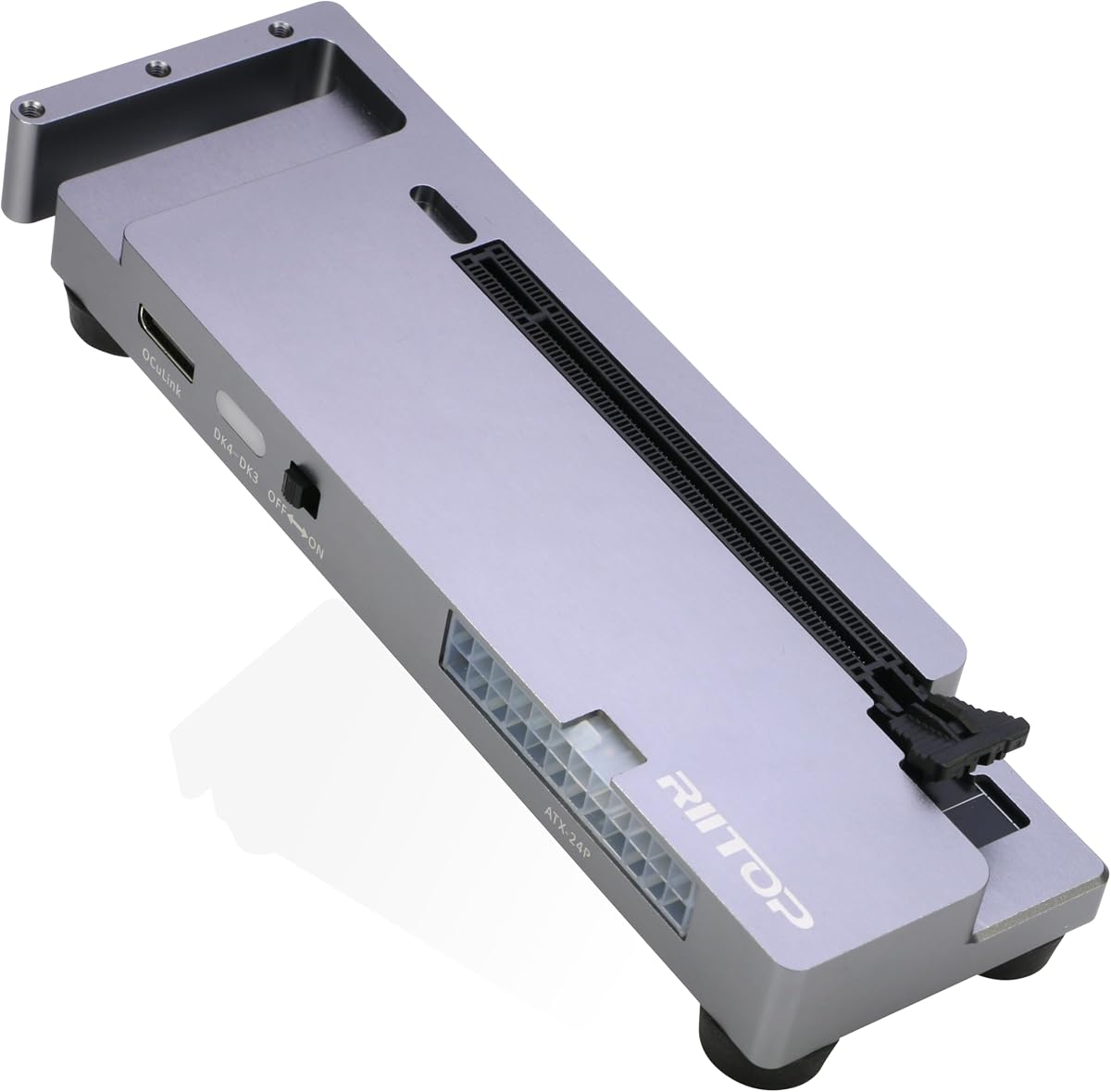
The RIITOP OCuLink eGPU Dock has a 5.0 rating and stands out for detailed installation hardware, broad operating-system guidance, and support for high-end graphics families. Its enclosure presents a PCIe 4.0 x16 slot and uses an OCuLink SFF-8612 port on the host side, making it a focused choice for serious external graphics builds.
We may earn a commission when you buy through this link, at no additional cost to you.
The open design has no stated graphics card size restriction. It is listed for NVIDIA RTX 50-series models, including the 5090 D, 5080, 5070 Ti, and 5070, as well as AMD RX 7000-series cards. Both ATX and SFX power supplies are supported, giving builders flexibility based on the available space and the power demands of their chosen GPU.
The package includes an OCuLink cable, fixing pillars for the graphics card, a power-supply bracket, screws, and a user manual. Installation covers fitting the card, mounting the supply, connecting power and the host, attaching display cables, and installing drivers. Mac support begins at version 10.13.4 but is limited to AMD graphics, while NVIDIA is not supported on Mac.
This dock is best for experienced builders who want a roomy chassis, careful mounting support, and straightforward access to current graphics hardware. It is less appropriate for a casual buyer because it requires native OCuLink, a suitable power supply, a separate graphics card, and a compatible operating system.
The unrestricted open layout and dedicated support pillars are useful for large, heavy cards. This makes the dock more relevant to advanced gaming, rendering, video editing, and AI systems than a compact adapter intended for modest mobile graphics.
Windows and Linux users have broad platform support, while Mac users must use an AMD card. Checking operating-system and driver support before assembling the system can prevent difficult compatibility issues later.
We may earn a commission when you buy through this link, at no additional cost to you.
This OCuLink and MCIO enclosure is distinguished by a heat-resistant ASA glass-fiber-reinforced frame, hidden rear power routing, and optional higher-lane operation. It can be used with devices featuring native OCuLink or MCIO, or with compatible desktop PCIe and M.2 slots when the appropriate adapter is obtained separately.
We may earn a commission when you buy through this link, at no additional cost to you.
The included SFF-8611 cable provides standard PCIe 4.0 x4 operation at up to 64Gbps. An MCIO-to-dual-OCuLink cable is required for PCIe 4.0 x8 operation at up to 128Gbps, so buyers interested in that mode must plan for an additional cable. The standard package includes the enclosure, one 19.7-inch cable, twelve screws, and assembly guidance.
Structurally, the 3D-printed ASA-GF frame is intended to handle demanding desktop components with more rigidity than a basic open adapter. Rear-routed power leads improve the appearance of the front, while an accessible power button and LED indicators help with daily use. The open structure continues to allow different GPU sizes.
This enclosure is an advanced option for builders with an MCIO-equipped system or a plan to use a separate adapter. Its reinforced construction and optional x8 mode make it especially interesting for specialized high-bandwidth projects, although no customer rating is supplied for direct comparison with the rated docks.
The glass-fiber-reinforced ASA construction is intended to improve structural resistance under the weight of a desktop graphics card. It also gives the enclosure a more substantial appearance than a lightweight metal-free adapter.
Standard OCuLink operation uses four PCIe lanes, while the optional MCIO cable arrangement can support eight lanes. The faster mode requires compatible hardware and the additional cable, so it should be treated as a planned upgrade rather than a standard included feature.
We may earn a commission when you buy through this link, at no additional cost to you.
The ASUS TUF Gaming A2 has a 4.5 rating but belongs in this roundup as a contrast rather than a true OCuLink GPU dock. It is a rugged USB-C storage enclosure for one or two M.2 drives, using USB 3.2 Gen 2×2 for transfer speeds up to 20Gbps. It cannot connect a graphics card through an OCuLink port.
We may earn a commission when you buy through this link, at no additional cost to you.
Its strongest feature is physical durability. The chassis is described as having passed U.S. MIL-STD-810H testing and an IP68 water and dust resistance rating, while a protective silicone-rubber exterior adds another layer of handling protection. These qualities suit travel, workshops, and other environments where a conventional bare adapter could be easily damaged.
The enclosure supports M.2 NVMe PCIe and SATA drives in 2242, 2260, and 2280 sizes. Its Q-Latch design allows screw-free changes, and an aluminum alloy chassis with a thermal pad helps dissipate heat. The dual-drive capability makes it especially useful for mirroring, transfers, or a flexible mix of drive protocols.
For readers searching specifically for an OCuLink enclosure, this is not a substitute. It is worth considering for portable high-speed storage, particularly when durability matters more than PCIe graphics expansion. Its USB interface is far more universal, but it does not provide the direct host-to-GPU path required by an OCuLink dock.
The combination of IP68 sealing, military-standard testing, and a rubberized exterior gives the enclosure a clear advantage in travel or rough environments. It protects storage modules that may otherwise be exposed in a laptop bag.
USB 3.2 Gen 2×2 provides up to 20Gbps transfer capability, while the dual M.2 layout supports both NVMe PCIe and SATA drives. Q-Latch access makes swapping modules fast and reduces the need for small tools.
We may earn a commission when you buy through this link, at no additional cost to you.
The right OCuLink enclosure depends primarily on host compatibility, physical layout, cable length, power requirements, and the graphics equipment you already own. Reviewing these factors before ordering prevents the most common installation problems.
An OCuLink graphics enclosure requires a host connection capable of carrying native PCIe signals through SFF-8611 or SFF-8612. USB-C, USB4, and Thunderbolt ports are not automatically compatible, even when a particular adapter can perform visual output or storage functions. The host manufacturer should be consulted to confirm that the port is wired for OCuLink rather than another protocol.
If the compact computer lacks a native port, some products can work with a spare M.2 NVMe or desktop PCIe slot through a suitable adapter. That adapter is generally sold separately, and the exact lane layout, keying, and signal requirements must match. USB bandwidth cannot be converted into native PCIe graphics bandwidth merely through an ordinary cable.
Most of the docks in this guide advertise PCIe 4.0 x4 operation at up to 64Gbps. The enclosure presents a full-length PCIe x16 slot to the graphics card, but the OCuLink path is the limiting link when it provides only four lanes. This distinction matters because a large modern GPU can perform differently when connected through fewer PCIe lanes than it would inside a desktop.
The MCIO-capable enclosure can reach PCIe 4.0 x8 operation when paired with the required dual-OCuLink cable and compatible host hardware. Buyers should verify both host and dock support before assuming that additional lanes are available. For most gaming and creative tasks, x4 remains the central design point across the leading choices.
The selection includes 19.7-inch, 29.5-inch, and 39.4-inch options. A 19.7-inch cable is usually sufficient when the host and enclosure sit together, while the longer leads offer flexibility when the mini PC is on one desk and the graphics card sits closer to a monitor. The thin, flat cables are easier to route than bulky conventional leads.
Cable length should not be selected without considering bend radius and strain. A long cable should be routed without a sharp fold or connector tension. Shielding and EMI protection are also relevant for stable operation, particularly beside high-power components and switching power supplies.
Most open-frame docks are advertised without GPU length restrictions, which makes them suitable for large desktop cards. Physical length is only one part of the fit. Card height, thickness, power connectors, slot spacing, and the position of the bracket must also be considered before assembly.
A compact enclosed dock may accommodate popular card sizes without supporting every extreme model. Reviewing the enclosure dimensions and GPU mounting arrangement is especially important for triple-slot cards, long models, factory-designed coolers, and graphics cards with power cables that need extra side clearance.
Most of the OCuLink GPU docks use standard ATX power supplies, while the AOOSTAR model supports both ATX and SFX formats. The RIITOP enclosure also lists ATX and SFX support. The selected supply must have sufficient capacity and the appropriate power connectors for the graphics card, and the enclosure must have room for its dimensions.
Several product descriptions advise using a power supply with roughly 40 percent more capacity than the card's full-load consumption. That headroom can help accommodate power spikes and sustained workloads, although the graphics card maker's own guidance should take priority. Always follow safe shutdown and connection procedures.
An open-frame design offers flexibility but places more emphasis on brackets, support pillars, and correct assembly. A metal case can look tidier, while a reinforced ASA-GF frame can provide rigidity in a specialized build. Look for a dedicated GPU support and a fixed method of securing the power supply rather than relying on loose components.
A larger card can place considerable stress on the PCIe slot and mounting points. The frame should hold the card level, allow cables to connect without bending the board, and remain stable during maintenance. Screw holes, included fasteners, and illustrated instructions are signs that the enclosure was designed for repeatable assembly.
The hardware connection is only one part of an external graphics system. The host operating system must support the selected graphics card, and the appropriate driver should be installed before first use. The RIITOP enclosure lists Windows, Linux, and Mac support, but its Mac compatibility is limited to AMD graphics and does not extend to NVIDIA cards.
Some dock descriptions explicitly warn that the display may not be detected if the GPU drivers are missing. A planned software setup reduces the likelihood of confusing a driver problem with a cable or enclosure fault. Users should also know that OCuLink does not support hot-plugging.
A full OCuLink enclosure is the right solution when a user needs a stable PCIe graphics connection and may move between a desktop GPU and a compact host. A lightweight adapter may be sufficient for a stationary card, while the OCuLink M.2 converter serves a completely different storage-expansion role. The ASUS TUF model offers convenient USB-C storage but no graphics capability.
The more complete enclosure route adds mechanical support, power distribution, and a reusable connection. That makes it preferable for frequent deployments, large cards, and systems expected to be moved. Before purchasing, list the host, GPU, power supply, required cables, and intended workloads to make sure every part works together.
Begin by confirming that the host has a native OCuLink port and that its operating system supports the chosen graphics card. Install the appropriate GPU drivers before the first connection. Assemble the enclosure by securing the graphics card and ATX power supply, connecting the required power leads, and attaching the SFF-8611 cable without forcing either connector.
Power down the complete system before connecting or removing the OCuLink cable. Hot-plugging is not supported, and attempting it can threaten stability or damage a connection. Once the card, power supply, and cable are properly seated, start the host, confirm that the graphics card appears with the correct driver, and then connect the desired display output.
Good cable care is essential. Route the thin cable without sharp bends, excess tension, or repeated twisting. Keep the enclosure stable while connecting display cables, avoid resting a heavy graphics card on unsupported connectors, and provide suitable ventilation around both the GPU and power supply. Periodically check the fasteners and cable seating, particularly after moving the system.
No. A laptop must have a native OCuLink connection, or a way to access a compatible PCIe slot through an appropriate adapter. USB-C, USB4, and Thunderbolt are different interfaces and are not automatically compatible with the OCuLink docks in this guide. Check the manufacturer specifications for the exact internal port wiring.
Most of the open-frame docks are designed to accept desktop graphics cards from NVIDIA, AMD, and Intel without a stated length restriction. Actual fit still depends on height, thickness, power connectors, and available mounting space. The compact AOOSTAR model requires especially careful checking because its enclosed dimensions may be more restrictive.
No. The reviewed GPU docks are enclosures and adapters, not complete graphics systems. Most require the user to provide a compatible graphics card and an appropriately sized ATX power supply, while the AOOSTAR and RIITOP models also list SFX support. The included cable, screws, brackets, and instructions vary by model.
You should not. Every relevant product description warns that OCuLink does not support hot-plugging. Shut the computer down fully and disconnect external power before attaching or removing the cable. This protects the connection and reduces the risk of system instability or damage.
The x4 configuration provides four PCIe lanes and is the standard mode for most of the OCuLink docks in this comparison. The MCIO-capable enclosure can use x8 operation with the appropriate additional cable and compatible host hardware. More lanes can improve transfer performance with bandwidth-sensitive devices, but support must exist on both ends.
A 19.7-inch cable is usually adequate for a compact desktop arrangement. The 29.5-inch and 39.4-inch versions help when the host and external graphics card need greater separation. Longer is not always better, so choose the shortest length that comfortably reaches without tension, tight bends, or cable clutter.
Both types of compact computers can use an OCuLink dock, but the host must provide the correct native port or a suitable PCIe adapter pathway. The enclosure is often more practical with a stationary mini PC because the host and graphics card can remain in a fixed arrangement. Laptop users should also consider portability, weight, and battery behavior.
The first checks are the GPU driver, the OCuLink connection, and the power arrangement. Several products require drivers to be installed before the card is detected. Also confirm that the computer was fully powered off during connection, that the card is seated properly, and that the appropriate display output is attached to the external GPU.
The OCuLink eGPU Dock with 19.7-inch cable is the strongest balanced selection for value, cable flexibility, open-frame flexibility, and useful status features. The similarly configured 64Gbps model is the Editor's Choice for its 5.0 rating and especially clear construction details, while the RIITOP dock is the best premium option for advanced builds and high-end graphics cards.
Prioritize native host compatibility first, followed by the required PCIe mode, cable length, graphics-card clearance, and power-supply format. A longer cable can improve placement flexibility, but a reinforced frame, secure support bracket, and reliable power arrangement are equally important for a stable desktop-like installation.
Finally, verify the current listing, included components, and compatibility details before purchasing. Hardware configurations, bundled accessories, and availability can change, and the graphics card, power supply, and any special adapter cable are generally separate from the enclosure. Checking those elements in advance helps create a smoother setup.