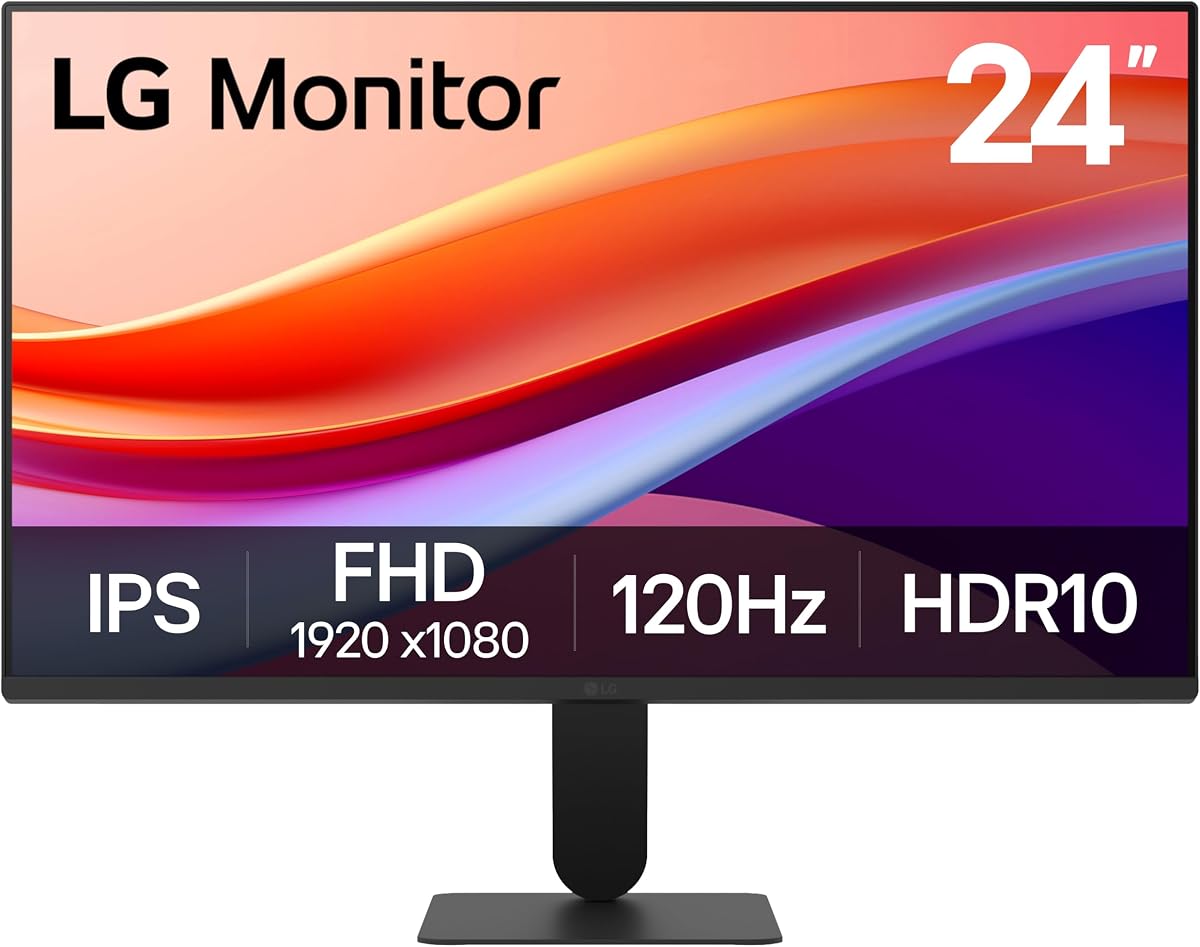
LG 24U411A-B 24-inch Full HD IPS Monitor
4.6Editor score
Virtually borderless three-side design
120Hz refresh with 1ms MBR
Switch app supports six sections
A no bezel PC monitor creates a cleaner, more expansive viewing experience by minimizing the frame around the display. The best examples balance slim borders with useful features such as high refresh rates, accurate color, flexible multitasking, eye-comfort settings, and dependable connectivity for work or gaming.
This guide compares ten bezel-conscious monitors across screen size, panel technology, resolution, refresh rate, adaptive synchronization, color coverage, viewing angles, ports, mounting options, and comfort features. The selections range from compact Full HD models to a 32-inch QHD curved gaming display, giving both everyday users and competitive gamers relevant options.
Each review explains the monitor's strongest qualities, practical trade-offs, and ideal buyer profile. Badge recipients represent the top three choices across value, overall versatility, and premium gaming, while the remaining monitors provide strong alternatives for particular needs. Product listings and prices can change, so confirm current specifications and availability before purchasing.
4.6Editor score

4.6Editor score

4.4Editor score
As an Amazon Associate we earn from qualifying purchases.
The table below compares all ten monitors by panel, resolution, refresh rate, and their most relevant no-bezel or productivity feature. It also identifies the top three award recipients so readers can quickly distinguish the strongest general-purpose, value-oriented, and premium gaming options.



The LG 27U411A-B is a balanced 27-inch IPS monitor for buyers who want a clean, modern display without sacrificing everyday performance. Its 4.6 rating reflects a favorable combination of features rather than one attention-grabbing specification. The virtually borderless three-side design expands the visible workspace, while Full HD resolution, HDR10 support, and up to 99% sRGB coverage make it suitable for general office work, browsing, media consumption, and casual gaming.
We may earn a commission when you buy through this link, at no additional cost to you.
The strongest feature is the combination of a 120Hz refresh rate and 1ms Motion Blur Reduction. That gives menus, scrolling, and ordinary games a more fluid appearance than a conventional 60Hz display, while Dynamic Action Sync is intended to minimize input lag. IPS technology also provides vivid color and stable viewing angles. For a 27-inch productivity monitor, the Switch app adds unusual flexibility by splitting the screen into as many as six customizable sections, with convenient access to video calls and other functions.
There are some limitations to consider. Full HD across 27 inches produces less desktop space than QHD or higher-resolution alternatives, so highly detailed spreadsheets or side-by-side creative projects may benefit from more pixels. The product data specifically identifies HDMI but does not list DisplayPort, USB hubs, or height adjustment. Its tilt range of -5 to 20 degrees helps with positioning, although a monitor arm may be preferable for a more tailored ergonomic arrangement.
This is an easy recommendation for most people seeking a no-bezel PC monitor. It suits students, office workers, home users, and casual gamers who value smooth motion, accurate color, and a tidy appearance. Choose the smaller LG 24U411A-B if desk depth is limited, or the Samsung Odyssey G55C when competitive gaming, QHD detail, and a curved immersive panel are the priorities.
The 120Hz rate and 1ms Motion Blur Reduction extend beyond specialist gaming. They make window movement, cursor motion, and scrolling feel more responsive throughout the day, while the Switch app turns the display into a useful multitasking hub for documents, communication tools, and streaming windows.
IPS color consistency, HDR10 support, Reader Mode, and Flicker Safe provide a strong foundation for extended sessions. The screen is also well suited to a dual-monitor arrangement because the narrow three-side border helps adjacent displays appear more continuous.
We may earn a commission when you buy through this link, at no additional cost to you.
The LG 24U411A-B delivers many of the features buyers look for in a modern bezel-light monitor at a compact size. It carries a 4.6 rating, uses a 24-inch IPS panel, and combines a 120Hz refresh rate with 1ms Motion Blur Reduction. That makes it a particularly compelling option for a small office, dorm room, or focused dual-monitor setup where a larger screen would crowd the desk.
We may earn a commission when you buy through this link, at no additional cost to you.
Its three-side virtually borderless design supports a clean appearance and makes the monitor well suited to placing beside a larger display. The Switch app can divide the screen into up to six sections, providing meaningful productivity value in a compact footprint. HDR10 and up to 99% sRGB color coverage are useful for vibrant entertainment, while Reader Mode, Flicker Safe, and Dynamic Action Sync improve comfort and responsiveness.
The main compromise is screen area. Twenty-four inches is easy to view at a normal distance, but users accustomed to 27-inch panels may find side-by-side document work less spacious. Full HD resolution is appropriate for this size, yet a QHD monitor would offer more room for detailed work. The product information lists HDMI connectivity and a slim stand, but it does not confirm DisplayPort, integrated speakers, a USB hub, or height adjustment.
This monitor is best for value-conscious buyers who still want modern motion handling, strong color, and practical multitasking software. It is particularly suitable for students, hybrid workers, and casual gamers. For a larger but similarly capable alternative, consider the 27-inch LG 27U411A-B; for a more aggressive gaming specification, the MSI PRO MP243L E14 offers a 144Hz refresh rate and four-side slim bezel.
The Switch app is especially useful in a compact setup, allowing users to keep communication, reference material, and active work visible without requiring a large display. Its narrow border also makes the LG easier to pair with another monitor for a nearly continuous desktop.
A 120Hz panel and 1ms Motion Blur Reduction create a clearer sense of motion than a standard office monitor. While it is not positioned as a dedicated esports display, the specification is more than sufficient for many fast-paced games and everyday console experiences.
We may earn a commission when you buy through this link, at no additional cost to you.
The Samsung Odyssey G55C is the premium gaming choice in this group, pairing a 32-inch 1000R curved display with QHD resolution and a 165Hz refresh rate. Its 4.4 rating reflects a specification set aimed at immersive PC gaming. The 1ms MPRT response time, Radeon FreeSync support, and HDR10 capability separate it from the simpler no-bezel office and media displays in the list.
We may earn a commission when you buy through this link, at no additional cost to you.
QHD is a particularly valuable upgrade for a 32-inch monitor because it provides considerably more detail than Full HD. The result is sharper interfaces, more visible in-game scenery, and enough space to keep applications side by side. The 1000R curve brings the edges closer to the viewer, filling more of the peripheral field while reducing the need to turn the head. HDR10 adds greater contrast and vibrancy, while FreeSync helps synchronize the panel with a compatible graphics card.
Its size and curvature are the main trade-offs. A 32-inch curved display requires a generous desk and adequate viewing distance; users who frequently work close to a screen may prefer a flat 24- or 27-inch model. The supplied information emphasizes gaming and visual features but does not list USB connectivity, built-in speakers, or advanced ergonomic stand adjustments. Fast motion performance also does not make the display suitable for every competitive title at every resolution.
Choose the Odyssey G55C when immersive gaming, high pixel density, smooth motion, and rich color are more important than maximum desk efficiency. It is a strong match for a modern gaming setup that can accommodate a large curved display. For a smaller gaming alternative with a four-side slim bezel and 144Hz refresh rate, the MSI PRO MP243L E14 is easier to accommodate on a compact desk.
A larger screen does not automatically produce a sharper image. The G55C's QHD resolution supplies enough pixel density to make text, menus, and detailed game environments more legible while preserving a generous work area for open applications.
The 1000R curve is aggressive enough to feel engaging without reaching the extreme geometry associated with very large ultrawide displays. It gives gaming content a wider, more enveloping presentation and can reduce reflections at the edges.
We may earn a commission when you buy through this link, at no additional cost to you.
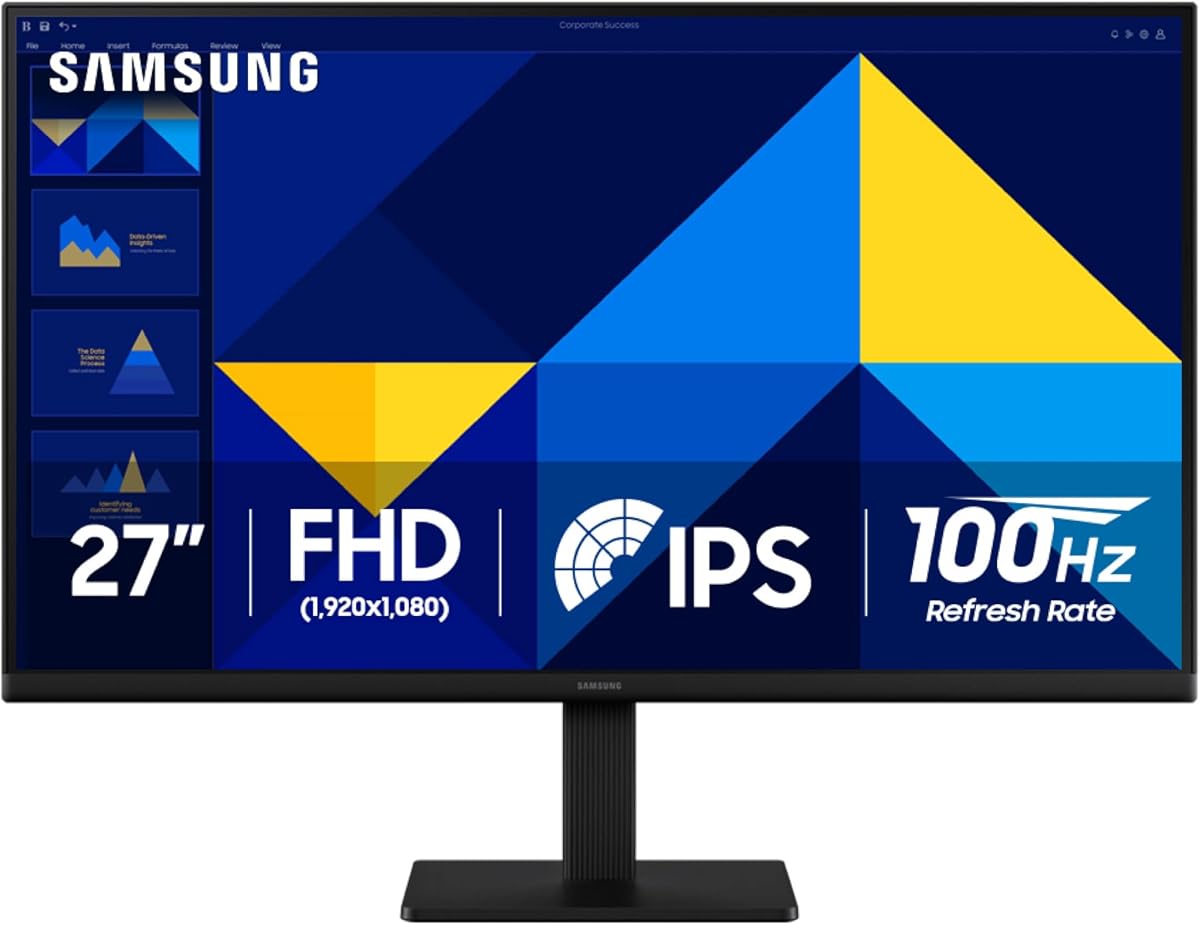
The Samsung S30GD 27-inch is a straightforward IPS monitor for users who prioritize a slim bezel, consistent color, and fluid everyday motion. Its 4.5 rating indicates a broadly appealing balance, and the product information emphasizes vivid colors, a 100Hz refresh rate, gaming adjustments, and reduced blue light and screen flicker. It can serve as a productive home-office display, a media screen, or a capable general-purpose gaming monitor.
We may earn a commission when you buy through this link, at no additional cost to you.
The IPS panel is designed to preserve color brightness and consistency when the viewing angle changes, which is useful when the monitor is used in a multi-display arrangement or viewed slightly off-center. Its ultra-thin border bezels create a modern appearance, while 100Hz motion is smoother than the traditional 60Hz standard. Game Mode and adjustable color and image contrast provide simple ways to optimize the display for different types of content.
The tradeoff is that this is an essential monitor rather than a specialized high-end model. Full HD is less expansive than QHD on a 27-inch screen, and the product data does not advertise adaptive synchronization, HDR, a USB hub, or extensive ergonomic adjustment. That means it may not satisfy a competitive gamer seeking very high refresh rates or a creative professional requiring advanced color calibration.
This Samsung is a strong choice for a clean, modern general-purpose setup, particularly if you want a 27-inch panel without moving into a larger curved format. It is best suited to browsing, office applications, schoolwork, video, and casual gaming. Buyers seeking more multitasking software may prefer either LG, while those prioritizing competitive gaming should examine the MSI or Odyssey options.
Color stability matters when a display is not viewed perfectly straight on. The S30GD's IPS panel is designed to maintain vivid, consistent tones across the screen, making it a sensible option for a compact two-monitor office arrangement.
Game Mode, contrast adjustment, and a 100Hz refresh rate give the display enough flexibility for casual gaming without the complexity of a dedicated esports monitor. They are useful shortcuts rather than a substitute for the very fast motion specifications found in the premium gaming choice.
We may earn a commission when you buy through this link, at no additional cost to you.
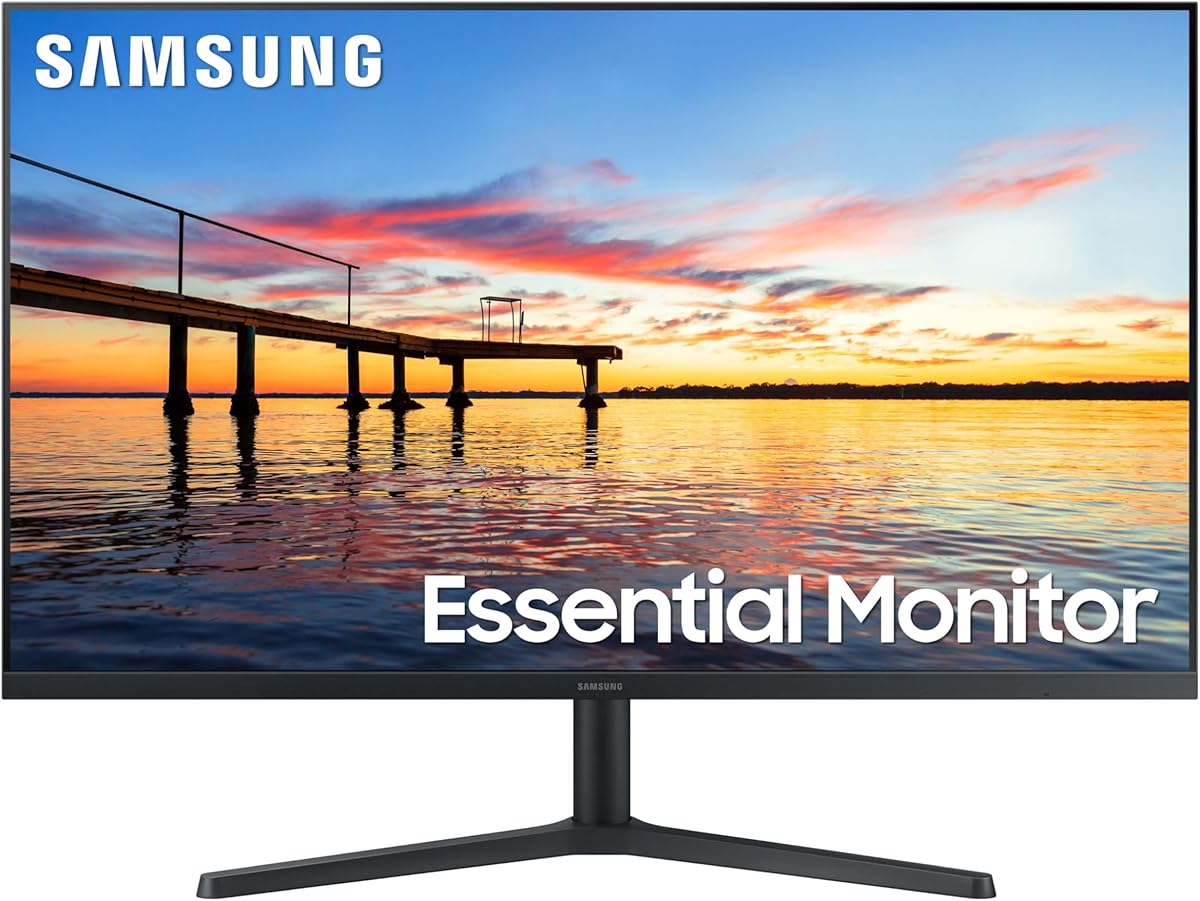
The Samsung 32-inch Flat Computer Monitor is built around a clean, spacious format rather than high-end gaming specifications. It has a 4.5 rating, a three-sided borderless design, AMD FreeSync support, and a 75Hz refresh rate. That makes it most convincing as a large productivity display or the central screen in a multi-monitor office where smooth lines between panels matter.
We may earn a commission when you buy through this link, at no additional cost to you.
The borderless construction allows adjacent displays to line up with minimal visual interruption, creating a more unified desktop. AMD FreeSync keeps compatible monitor and graphics-card refresh rates synchronized to reduce tearing, while the 75Hz rate keeps general content fluid. Game Mode, adjustable contrast, Flicker Free technology, and Eye Saver Mode add practical controls for entertainment and long work sessions.
The 75Hz refresh rate is the clearest limitation. Fast competitive games may look less fluid on this display than on the 120Hz, 144Hz, 165Hz, and up-to-144Hz alternatives. The supplied product data also does not explicitly state the native resolution or panel type, so buyers should verify those details for exacting creative or technical work. A flat 32-inch panel also demands a fairly broad desk and a sensible viewing distance.
This monitor is best for users who value a large, flat, clean-looking work surface and plan to pair it with another display. It is well suited to documents, communication, browsing, and media. If smooth gaming is a higher priority, the Samsung S30GD offers 100Hz, the MSI offers 144Hz, and the Odyssey adds QHD resolution and a 165Hz refresh rate.
Three-sided borderless construction is especially useful when two similarly styled panels sit side by side. It reduces the visual interruption of traditional frames and makes a larger, more continuous virtual workspace possible.
Flicker Free technology and Eye Saver Mode focus on sustained comfort, which is valuable for office workers and students. FreeSync adds a more useful entertainment benefit by helping keep motion synchronized with a compatible graphics card.
We may earn a commission when you buy through this link, at no additional cost to you.
The Sceptre E225W-FW144 is a compact 22-inch gaming monitor for buyers who want a small-screen alternative to the usual 24- and 27-inch models. It holds a 4.4 rating and pairs Full HD resolution with a refresh rate of up to 144Hz. Its minimal bezel, blue-light reduction, modern ports, and integrated speakers make it especially interesting for dual-monitor and space-conscious setups.
We may earn a commission when you buy through this link, at no additional cost to you.
The 144Hz ceiling gives the monitor a higher motion ceiling than most business displays. Full HD resolution also remains sensible at 22 inches, avoiding the need to render very large pixel counts. HDMI and DisplayPort provide flexible connection options, while the built-in speakers offer a convenient way to add audio without separate desktop speakers. Its nearly bezel-free presentation is designed to sit neatly beside another display.
The compromises are obvious but manageable. Twenty-two inches is smaller than the mainstream market, so the monitor offers less room for complex spreadsheets, timelines, or several open applications. Full HD is adequate at this size but does not provide the extra detail of QHD. The product information does not specify panel type, adaptive synchronization, HDR support, stand adjustment, or a wall-mount pattern, all of which may matter to a particular setup.
The E225W-FW144 is a compelling choice for a compact gaming station, dorm room, or secondary display. It is particularly useful when built-in audio and current video connectivity are priorities. For a larger productivity-focused no-bezel screen, the Samsung S30GD provides 27 inches; for stronger multitasking software, the LG 24-inch model includes the Switch app.
The combination of up-to-144Hz motion, DisplayPort, and integrated speakers is uncommon in a compact monitor. It gives users useful gaming and media capabilities without requiring a large screen or a separate speaker setup.
The minimal bezel reduces visual gaps when the display is paired with another panel. Blue-Light Shift also complements those extended working sessions by reducing blue light emissions during long hours at the desk.
We may earn a commission when you buy through this link, at no additional cost to you.
The MSI PRO MP243L E14 combines a four-side slim bezel with the specifications of a modern gaming-office monitor. Its 4.6 rating reflects a strong feature balance: a 23.8-inch IPS panel, Full HD resolution, 144Hz refresh rate, FreeSync, 1ms-class motion handling, and broad 178-degree viewing angles. It is especially attractive to users who want slim borders on all four sides rather than only a three-sided edge-to-edge design.
We may earn a commission when you buy through this link, at no additional cost to you.
At 144Hz, the display is well suited to fast-paced shooters, racing games, and other action-oriented titles. FreeSync matches the monitor's refresh behavior to compatible graphics-card output, helping reduce tearing, stuttering, and input lag. The IPS panel is specified with a 1500:1 contrast ratio and wide viewing angles, while HDR Ready support provides a foundation for more vivid content. TÜV Rheinland-certified Flicker Free and Low Blue Light features improve long-session comfort.
Its practical hardware options are also notable. VESA 100-by-100 compatibility supports monitor arms, wall brackets, and multi-monitor arrangements, while HDMI 2.0 and HDMI-CEC simplify connected-device use. VGA adds compatibility with older computers and legacy equipment. The trade-offs are Full HD resolution, which limits pixel density on a larger screen, and a listed tilt adjustment range of -5 to 20 degrees rather than full height, swivel, or pivot control.
This MSI is a strong all-around recommendation for a gaming office, a dual-monitor workstation, or a user who prioritizes a uniformly thin frame. It is also well suited to students and professionals balancing motion-heavy entertainment with daily productivity. The LG 24-inch model is a close alternative with 120Hz and richer multitasking software, while the MSI is the stronger choice when 144Hz motion, four-sided slimness, and legacy connectivity matter most.
A slim frame on every side gives the display a clean, balanced appearance from both front and rear angles. It also makes the MSI particularly suitable for vertical arrangements, unusual multi-monitor layouts, or installations where a traditional bottom bezel would look inconsistent.
VESA mounting, HDMI-CEC, and legacy VGA support make the monitor adaptable to different offices and older systems. The Eye-Q Check vision assessment tool adds a convenient way to tune the display for prolonged professional or student use.
We may earn a commission when you buy through this link, at no additional cost to you.
The Philips 241V8LB is a 23.8-inch Full HD monitor aimed at users who value contrast, document reading, and a virtually borderless three-sided design. It has a 4.6 rating and uses a VA panel, which distinguishes it from the IPS models in the list. The principal appeal is a promise of brighter whites, deeper blacks, and smoother gradients, making it well suited to movies, media, and office work.
We may earn a commission when you buy through this link, at no additional cost to you.
The VA panel supports 16.7 million colors and 178-degree horizontal and vertical viewing angles, so color shifts should be less pronounced when viewing the display from an offset position. A 100Hz refresh rate provides a more fluid baseline than a standard 60Hz office monitor. Flicker-Free operation and EasyRead mode are especially useful for people who spend long periods reading emails, reports, and other text-heavy material.
The monitor's limitations center on its performance category. A 100Hz refresh rate is not particularly competitive against the 120Hz, 144Hz, and 165Hz gaming choices, and the product data does not mention adaptive synchronization, HDR, or a fast gaming response time. It also lacks the multitasking features of the LG Switch app. For fast action or a high-refresh competitive setup, it is less compelling even though the 4.6 rating is among the strongest in the group.
The Philips is best for office productivity, reading, and entertainment in a clean dual-monitor arrangement. It is a sensible alternative for users who prefer deeper blacks than an IPS panel typically provides. If smooth motion and advanced software multitasking are priorities, the LG 24U411A-B is the stronger choice; if gaming is the main activity, the MSI PRO MP243L E14 offers a substantially higher refresh rate.
The VA panel's higher native contrast can make dark scenes and gradients appear more defined than on many general-purpose IPS monitors. This makes the Philips particularly attractive for video viewing and applications where black levels influence perceived image depth.
EasyRead mode is designed to create a more paper-like presentation for lengthy documents. Combined with Flicker-Free operation and wide viewing angles, it creates a comfortable foundation for office work and study.
We may earn a commission when you buy through this link, at no additional cost to you.
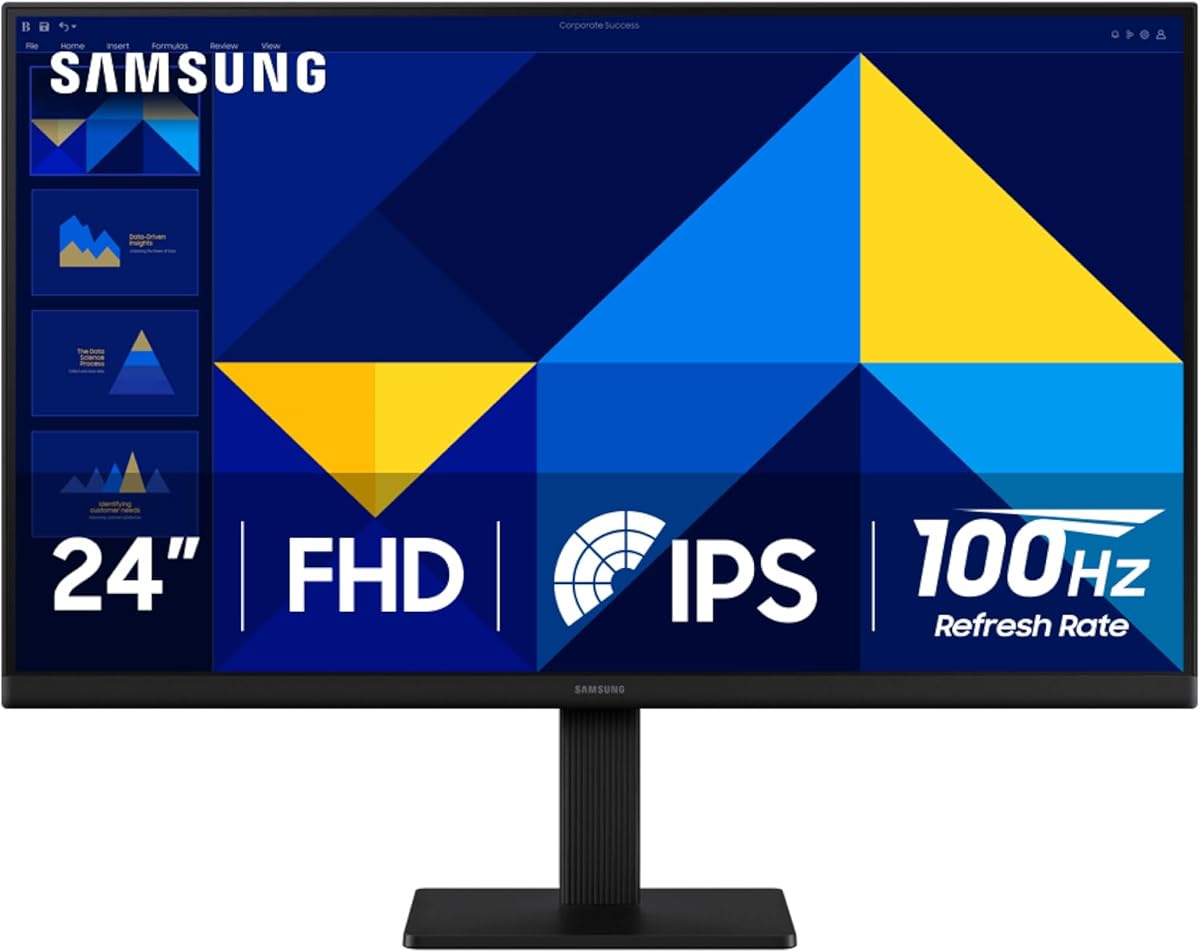
The Samsung S30GD 24-inch is a straightforward, compact IPS display that works well as a primary office screen or a second panel. Its 4.5 rating, 100Hz refresh rate, and ultra-thin borders place it between a conventional office monitor and a more gaming-focused display. The tilt-only stand is the most important ergonomic detail to consider, particularly for users who already own a monitor arm.
We may earn a commission when you buy through this link, at no additional cost to you.
IPS technology is the core strength, maintaining consistent color and brightness from a broad range of angles. That makes the monitor suitable for a multi-screen workspace where it may not be positioned directly in front of the viewer. The 100Hz rate offers smoother scrolling and motion, while Game Mode, contrast controls, reduced blue light, and lower screen flicker support both entertainment and extended productivity sessions.
The simple stand offers less adjustment than models designed for highly ergonomic setups, and the product information does not identify VESA compatibility. There is also no mention of adaptive synchronization, HDR, a USB hub, or screen-splitting software. Full HD is a sensible resolution at 24 inches, though it offers less total workspace than a 27-inch or QHD display. The monitor therefore prioritizes simplicity rather than advanced flexibility.
This Samsung is a good fit for a clean secondary display, a small home office, or a student station where an IPS panel and slim frame matter more than extensive connectivity. It works especially well beside a larger monitor. Buyers who need more motion performance should consider the MSI at 144Hz, while those who want software-driven multitasking should look to the LG 24-inch model.
Its 24-inch footprint leaves room for a keyboard, notebook, and other desk essentials even when paired with a larger display. Slim borders help the Samsung sit neatly beside another monitor while IPS color consistency supports off-axis viewing.
The 100Hz refresh rate makes cursor movement and ordinary games feel smoother, while reduced blue light and flicker are useful during long work periods. These features improve the display without adding the complexity of a specialized gaming model.
We may earn a commission when you buy through this link, at no additional cost to you.
The Samsung S36GD combines a 27-inch Full HD panel with a noticeable 1800R curve, offering a middle ground between a conventional flat office display and a deeply immersive gaming monitor. It carries a 4.5 rating and focuses on engagement, smooth motion, gaming adjustments, and eye comfort. The result is a versatile display for gaming, media, and general productivity.
We may earn a commission when you buy through this link, at no additional cost to you.
The 1800R curvature wraps the display more closely around the user's field of vision, creating a wider-feeling presentation and potentially reducing peripheral distractions. A 100Hz refresh rate keeps games, video, and desktop motion fluid, while Game Mode and adjustable contrast help reveal details in dark scenes. TÜV-certified eye comfort technology focuses on minimizing blue light and irritating screen flicker during extended sessions.
There are trade-offs. Full HD at 27 inches is less detailed than QHD, which may be noticeable for fine text or complex creative work. The curved design also requires a little more thought about desk depth and viewing position, and it can make on-screen geometry feel different from a flat panel. The supplied information does not specify adaptive synchronization, HDR, or detailed stand adjustment, so buyers should verify those points if those features are priorities.
This Samsung is best for someone who wants the visual engagement of a curved screen without moving to a high-end 32-inch QHD model. It works well for mixed gaming and entertainment, while office users who need maximum flat-screen workspace may prefer the S30GD. For faster competitive motion, look to the MSI; for finer gaming detail and deeper immersion, the Odyssey G55C is the stronger premium choice.
At 1800R, the screen is curved enough to make content feel more enveloping while remaining manageable on a standard desk. It offers many of the visual benefits of a curved display without requiring the space associated with very large models.
TÜV-certified eye comfort addresses long-session fatigue, while Game Mode and contrast adjustment make the display more adaptable to games. The 100Hz rate adds a useful layer of motion smoothness for both entertainment and casual gaming.
We may earn a commission when you buy through this link, at no additional cost to you.
The best no-bezel PC monitor is not determined by border thickness alone. Screen size, resolution, panel behavior, refresh rate, synchronization, comfort features, connectivity, mounting support, and desk space all influence whether a display feels right for productivity, gaming, or both.
Most bezel-conscious monitors eliminate the top, left, and right borders while retaining a slightly larger lower edge for controls or structural support. A three-sided borderless design is especially useful in a horizontal dual-monitor arrangement because it minimizes the interruption between adjacent images. The MSI PRO MP243L E14 goes further with a four-side slim bezel, producing a more uniform appearance from every direction. Curved models can make two aligned screens appear more continuous, but the shared edge may not be entirely invisible.
Prioritize a slim, uniform frame, but evaluate the complete chassis rather than isolated border measurements. The listed products emphasize modern aesthetics, virtually borderless layouts, or minimal bezels, and that is enough to create a clean desk in most situations. Exact bezel dimensions and the amount of visible panel edge should be confirmed in the current listing when appearance is critical.
Screen size determines how much information is visible and how much desk space the monitor requires. A 22-inch display is convenient for compact spaces, 24 inches remains a versatile mainstream size, 27 inches provides a roomier desktop, and 32 inches is best for immersive entertainment or multi-application work. Resolution should be considered alongside size: Full HD is sensible at 22 and 24 inches, but a 27-inch or 32-inch QHD display provides noticeably greater detail and more usable workspace.
Match resolution to the size and intended workload rather than treating the highest resolution as automatically best. Compact office users may find Full HD on a 24-inch model easier to read, while a 32-inch QHD gaming monitor can show more detail without requiring the same dense layout as a 4K panel. Consider the distance at which you will sit and whether you plan to open multiple dense applications.
IPS panels are the most common choice in this roundup because they provide consistent color and useful viewing angles. They suit productivity, creative tasks that do not require specialized calibration, and general media viewing. VA panels, such as the one in the Philips 241V8LB, offer deeper blacks and stronger native contrast, which can make movies and dark scenes look more dimensional. Their behavior may differ in response and viewing-angle uniformity, so personal preference and typical content matter.
Look for stated viewing angles of at least 178 degrees horizontally and vertically on an IPS model. That gives you more flexibility when the monitor is not directly in front of you, particularly in a multi-display setup. If accurate color is important, check the stated gamut coverage and whether the manufacturer supports calibration or factory-tuned modes rather than relying on broad marketing descriptions alone.
Refresh rate determines how often the display updates and how fluid motion appears. A 100Hz or 120Hz monitor feels more responsive than a standard 60Hz display during scrolling, interface animation, and ordinary gaming. The 144Hz MSI and 165Hz Odyssey provide a larger advantage for fast-paced games, while the 75Hz Samsung is still fluid for general use. A 22-inch Sceptre can also reach up to 144Hz, making it unusually capable for its compact size.
Pair refresh rate with response-time information and adaptive synchronization. Features such as 1ms Motion Blur Reduction, 1ms MPRT, FreeSync, or Radeon FreeSync can make fast motion look cleaner and reduce tearing on compatible systems. These specifications are most valuable to competitive and enthusiast gamers; office users can prioritize resolution, color, and comfort instead.
A flat monitor offers a conventional viewing geometry and usually makes text, spreadsheets, and design work straightforward. A curved display can feel more immersive for games and movies because the edges wrap toward the viewer, and it may reduce peripheral distraction. The Samsung S36GD uses a moderate 1800R curve, while the Odyssey G55C adopts a tighter 1000R curve intended to envelop a larger gaming view. Curvature does not change the underlying resolution.
Think about desk depth, seating distance, and the number of displays in the room. A large curved screen works best when viewed from a proper distance, and it may be less convenient for shared desks where users move around. Flat models are generally easier to position and often better for general office tasks. Try to adjust the stand so the entire screen remains comfortable rather than placing a curved panel at an extreme angle.
Slim bezels create the opportunity for a multi-monitor workspace, but software can make that arrangement more effective. The LG 24U411A-B and LG 27U411A-B support the Switch app, which can divide the display into up to six sections and launch functions such as video calls through a hotkey. This is particularly helpful on a 24-inch screen where screen area is limited and on a 27-inch panel for separating communication, reference, and active work.
A wide selection of physical ports can be just as important as software. Consider whether you need HDMI, DisplayPort, VGA, USB connectivity, or HDMI-CEC. The Sceptre includes both HDMI and DisplayPort, the MSI adds VGA and HDMI-CEC, and the Sceptre also provides integrated speakers. Choose based on your existing equipment rather than assuming every display will connect equally well to a laptop, desktop, console, or legacy system.
Long work and gaming sessions benefit from technologies that reduce visible flicker or blue light. Samsung includes reduced blue light and screen-flicker features across several models, while the MSI and Samsung S36GD reference TÜV-certified eye-comfort technology. LG offers Reader Mode and Flicker Safe, and Philips adds EasyRead mode for document-heavy use. These features improve viewing comfort, although room lighting and individual sensitivity also influence the experience.
HDR support, high sRGB coverage, and gaming picture modes are separate considerations. The LG displays offer HDR10 and up to 99% sRGB coverage, while the Odyssey includes HDR10 for gaming. Brightness is not specified for most models in the supplied data, so buyers seeking accurate professional work should review the full manufacturer specifications and consider whether a calibration tool is necessary.
A slim bezel can create an attractive multi-monitor arrangement, but only if the stands and mounts cooperate. The MSI supports VESA 100-by-100 mounting and a -5 to 20-degree tilt range, making it a flexible choice for monitor arms. The LG models also offer tilt adjustment, while the Samsung 24-inch S30GD explicitly has a tilt-only stand. VESA support is particularly useful when the bezel's narrow edges need to line up at eye level.
Before buying, measure the available width and depth and account for the stand footprint. Also consider whether the included stand offers enough movement for your preferred posture. If you plan to mount displays, verify the pattern and weight rating; if you want frequent angle changes, prioritize height, swivel, and pivot adjustment over a larger screen size.
Begin by positioning the display directly in front of you, with the panel at or slightly below eye level and the screen approximately an arm's length away. Connect the device through the interface that matches your computer's capabilities, using DisplayPort or HDMI where appropriate, and configure the operating system for the native resolution and highest stable refresh rate. On Windows, the display settings menu makes it possible to confirm resolution, refresh rate, color depth, and scaling.
For a dual-monitor arrangement, align the top edges and set both screens to a matching refresh rate when possible. Use the included tilt adjustment or a compatible VESA mount to position each panel at a comfortable angle. Avoid touching the active display surface, and do not place pressure against the narrow bezels, because their slim construction does not necessarily mean they can support significant sideways force. Lock the stands or mounts securely after positioning them.
Clean the panel with a soft, lint-free microfiber cloth lightly dampened with water. Avoid spraying liquid directly onto the screen, and do not use ammonia-based cleaners, abrasive pads, or aggressive solvents. Keep the monitor away from direct sunlight, excessive heat, dust, and moisture, and use the on-screen controls to fine-tune brightness, contrast, color, and eye-comfort modes for the room. Periodically check cables, vents, and connections to keep the setup safe and stable.
A no bezel monitor has extremely narrow edges around the active display area. Most models use a three-sided borderless design, while some reduce all four borders. The term primarily describes the appearance and physical frame; it does not guarantee that two monitors will form a completely seamless image. Alignment, curvature, and panel design can still create small visible gaps.
They usually look cleaner when placed side by side because less physical frame interrupts the desktop. A model with a narrow top, bottom, and side border, such as the MSI PRO MP243L E14, can produce a more continuous appearance. You will still need matching resolutions and careful physical alignment for the best result, and uneven desk height can create visible steps between panels.
A 120Hz display is a substantial improvement over 60Hz and works well for many competitive and casual games. Models such as the LG 24U411A-B and 27U411A-B also offer 1ms Motion Blur Reduction. Competitive players who want the highest possible motion clarity may prefer the 144Hz MSI or 165Hz Odyssey, provided their computer and graphics card can drive the selected resolution adequately.
Yes, for browsing, office applications, communication, and media, a 27-inch Full HD monitor remains a practical choice. However, it provides less pixel density and total workspace than a 27-inch QHD monitor. Users working with dense spreadsheets, multiple code windows, or demanding creative applications may find extra resolution worthwhile.
IPS is generally the more balanced choice for productivity because it offers consistent color and wide viewing angles. VA can provide deeper blacks and stronger contrast, making it appealing for movies and dark content. The Philips 241V8LB is the VA option here, while most alternatives use IPS. Your decision should reflect which visual qualities and workloads matter most to you.
Neither feature is essential for every display, but both can improve a compatible gaming setup. FreeSync helps reduce tearing by synchronizing the monitor and graphics card, while HDR can expand contrast and color when the game, graphics card, and display support the format. The Odyssey G55C includes both features, while several general-purpose alternatives do not list them.
A curved display can make games and movies feel more immersive by wrapping the edges closer to the viewer and reducing peripheral distraction. The degree of curvature matters: the 1800R Samsung S36GD is moderate, while the 1000R Odyssey G55C is more immersive and larger. A flat monitor is often more practical for general office work and shared desks.
Only if the specific model supports the required VESA pattern and weight capacity. The MSI PRO MP243L E14 is listed with 100-by-100-millimeter VESA compatibility, making it straightforward to attach to a compatible arm or bracket. Other slim-bezel monitors may not include mounting holes, so verify the listing and manual before purchasing an accessory.
The LG 27U411A-B is the strongest all-around recommendation because it combines a slim three-side border, a smooth 120Hz refresh rate, IPS color, HDR10, and useful six-section multitasking software. The LG 24U411A-B provides the same core experience in a more compact and value-oriented format, while the Samsung Odyssey G55C stands apart as the premium gaming selection with QHD detail, 165Hz motion, HDR10, and a dramatic 1000R curve.
The right priorities depend on the desk and the user. Compact spaces benefit from the 22-inch Sceptre or 24-inch LG and MSI, while maximum screen area points toward the Samsung 32-inch flat model. The MSI stands out for four-sided slimness, 144Hz performance, VESA mounting, and broad connectivity. The Philips is best for deep blacks and document reading, while the curved Samsung S36GD offers moderate immersion and certified eye comfort.
Before ordering, verify the current listing, native resolution, connectivity, stand adjustment, mounting support, and compatibility with your computer or console. Product configurations and prices can change, and a monitor's usefulness ultimately depends on your screen size, viewing distance, desk layout, and type of work. Prioritize the features you will use every day rather than selecting solely for the thinnest frame or highest stated refresh rate.