
Logitech Wireless Presenter R800
4.6Editor score
Bright green laser pointer
Built-in presentation timer
Up to 100-foot range
Compare the best laser pointer for presentations by laser color, wireless range, USB connectivity, slide controls, battery design, portability, and features.
A laser pointer for presentations can make a large room feel more focused by giving the presenter a visible way to identify important text, diagrams, and data without stopping to use a keyboard. The most useful models combine a clear pointer with dependable slide controls, straightforward computer connection, and enough wireless range to move beyond the lectern.
This guide compares ten presentation remotes based on the specifications and features listed for each model. The comparison covers green and red laser options, USB-A and USB-C receivers, rechargeable or battery-powered designs, control ranges, supported functions, compatibility, and practical considerations such as receiver storage and portability.
Each entry explains where a particular clicker is strongest and where its trade-offs may matter. The list includes models suited to classrooms, business meetings, large training rooms, and mobile presenters. Product ratings and availability can change, so readers should confirm current specifications and pricing before purchasing.
4.6Editor score

4.6Editor score

4.3Editor score
The table below compares all ten models across pointer color, wireless connection, control range, power source, and major presentation functions, making it easier to identify the clicker that fits your room and computer setup.

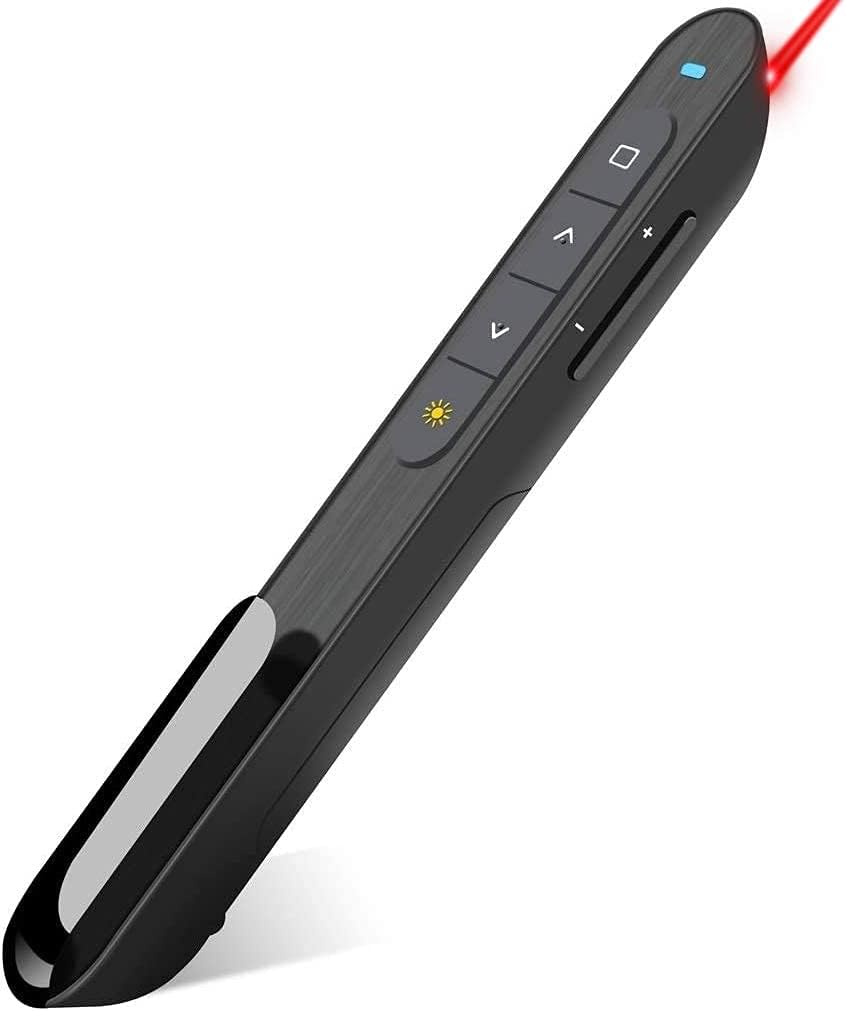


The Green Light Presentation Clicker combines a bright 532nm green laser, USB-C recharging, and a full set of presentation controls in one compact remote. Its 4.6 rating reflects a balanced design for teachers and office presenters. The green pointer is the defining feature, providing a crisp dot intended to remain visible on projection screens and whiteboards, including in rooms with substantial ambient light.
We may earn a commission when you buy through this link, at no additional cost to you.
The clicker's practical strengths begin with its rechargeable battery and included charging cable. A stated one-hour charge is designed to support weeks of daily classroom use, reducing the need to keep spare batteries close at hand. Its USB receiver uses a true plug-and-play approach for Mac, Windows, and Chromebook systems, while the magnetic receiver compartment makes it less likely that the small dongle will be misplaced after a presentation.
Controls are arranged around the thumb, including forward and backward arrows, hyperlink activation, full-screen and black-screen toggles, window switching, and volume adjustment. That breadth means the presenter can perform more than simple slide advancement without touching the keyboard. The trade-offs are relatively minor: a computer without USB-C may require an adapter, and a highly visible green dot can feel excessive in a small room when the display does not need precise pointing.
This is the strongest general recommendation for anyone who values pointer visibility, low ongoing maintenance, and comprehensive controls. It is particularly well suited to teachers delivering daily lessons, trainers working across large whiteboards, and business presenters whose rooms may be brightly lit. Those who only need a basic red pointer and prefer replaceable batteries may find simpler models more economical.
The 532nm green laser is intended to produce a more distinct pointer than weak red alternatives, particularly against projection screens and whiteboards. That makes the clicker useful for classroom instruction, large training sessions, and presentations where the audience must easily follow the presenter's attention.
USB-C charging eliminates recurring battery purchases, while the magnetic receiver bay keeps the USB connector attached to the remote. Together, these details make the clicker practical for presenters who want to carry one complete device from room to room.
We may earn a commission when you buy through this link, at no additional cost to you.
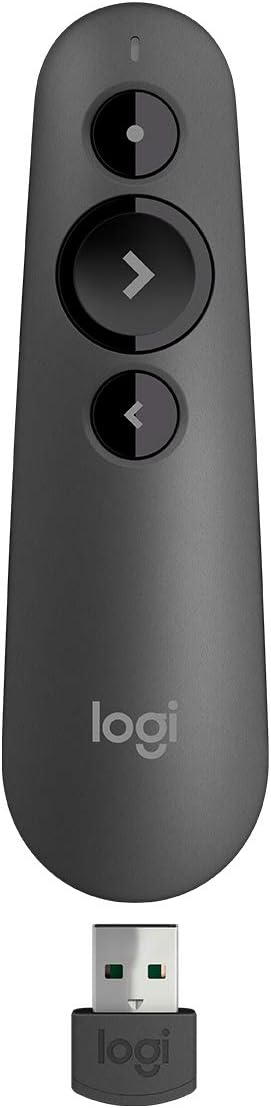
The Logitech Wireless Presenter R400 is a straightforward 2.4GHz wireless clicker with a built-in Class 2 red laser. It carries a 4.6 rating and focuses on the essentials rather than an expansive control set. Touch keys make slide navigation easy to learn, and the 50-foot operating range gives ordinary presenters room to move around a classroom or moderate meeting space.
We may earn a commission when you buy through this link, at no additional cost to you.
Its setup is refreshingly uncomplicated. The USB-A receiver plugs into a computer without requiring any software, and the receiver can be stored inside the presenter when it is not in use. The docking arrangement reduces the chance of leaving a small accessory behind and makes the remote convenient to pack. The red laser is described as bright and easy to see against most backgrounds.
The compromises are typical of a focused, conventional design. It requires AAA batteries, and its USB-A receiver may not suit a newer computer that only provides USB-C. Like other red-laser models, it may be less noticeable on LCD, LED, or television displays than on projection screens, matte boards, or lighter walls. It also offers fewer specialized controls than several higher-feature competitors.
The R400 is a sound choice for presenters who want an uncomplicated, recognizable remote without app-based configuration. It suits teachers, sales teams, and office workers who primarily need forward, back, and pointer functions. Buyers should verify that their computer has a usable USB-A connection and that their display environment is favorable to a red laser.
The R400 avoids installation requirements, allowing a presenter to connect the receiver and begin quickly. Its simple touch-key layout reduces the chance of pressing the wrong control during a busy lecture or meeting.
The built-in docking bay stores the USB receiver inside the remote after use. This small feature improves packability and is especially helpful for presenters who move regularly between classrooms, offices, and meeting rooms.
We may earn a commission when you buy through this link, at no additional cost to you.
This 2.4GHz wireless presenter delivers a broad collection of controls at an approachable tier, earning a 4.4 rating. It supports page navigation, volume control, hyperlink activation, window switching, and full-screen or black-screen functions. The compact black body and raised, rubberized buttons are designed to remain easy to operate without looking down at the remote.
We may earn a commission when you buy through this link, at no additional cost to you.
A bright red pointer and a stated control range of up to 100 feet make this model useful for larger rooms, although the pointer is explicitly not recommended for LCD or LED screens. Its one-piece magnetic USB storage is a thoughtful solution to the common problem of a loose receiver. The remote also includes an energy-saving auto-sleep function, and the listed battery life is measured in weeks rather than months.
Potential drawbacks include the need to supply a single AAA battery, which is not included, and a receiver that appears to use a conventional USB connection. The broad 100-foot range is a listed maximum, so real performance can depend on the room and surrounding conditions. The red pointer also needs careful consideration for anyone presenting on modern flat-panel displays.
This clicker appeals to budget-conscious presenters who want more than basic forward and back buttons. It is a sensible option for teachers, meeting facilitators, and training instructors who may need volume, hyperlink, or screen controls. The magnetic receiver and raised button layout are particularly helpful for repeated daily use.
Hyperlink, volume, window-switching, and screen controls extend the remote beyond slide advancement. These functions are useful when a presentation includes embedded links, audio, or switches between a slideshow and another application.
Bumped buttons and a soft rubber finish help presenters identify controls by touch. That tactile design supports smooth operation in dim rooms, where repeatedly looking down at a remote can interrupt audience engagement.
We may earn a commission when you buy through this link, at no additional cost to you.
The Logitech Wireless Presenter R800 is the most feature-oriented traditional presentation remote in this roundup, combining a 4.6 rating with a green laser, long wireless reach, and an integrated presentation timer. The timer can be set and adjusted directly on the device, while silent vibrating alerts help presenters monitor time without creating visible or audible disruption.
We may earn a commission when you buy through this link, at no additional cost to you.
Its green laser is designed to remain visible on LCD and plasma displays and in brightly lit rooms, addressing a common weakness of basic red-pointer models. A range of up to 100 feet gives the presenter considerable freedom to walk among the audience. The smooth contours and intuitive, easy-to-locate slideshow controls support confident use from the opening slide through the final screen.
The main drawback is that this level of functionality places it in a higher tier than simpler clickers. It still relies on AAA batteries rather than a rechargeable cell, and the LCD timer and green laser add complexity that may not be necessary for short, screen-centered presentations. Buyers should also consider local presentation rules and the suitability of any laser pointer in their venue.
The R800 is best recommended for experienced presenters, instructors, and executives who regularly speak in large or bright rooms. It is particularly attractive when time management is important and the audience expects the presenter to move away from the lectern. For someone who only needs forward, back, and pointer buttons, a simpler remote may be sufficient.
The integrated LCD timer turns the clicker into a modest presentation assistant, allowing the speaker to set intervals and receive vibrating alerts. Silent cues are particularly helpful during formal talks where audible time warnings would distract the audience.
The green pointer is designed to stand out on LCD and plasma displays as well as in bright rooms. That makes the R800 a strong fit for modern presentation environments where a dim red dot can disappear against the screen.
We may earn a commission when you buy through this link, at no additional cost to you.
The Logitech Wireless Presenter R500s stands out for its dual connectivity, offering both a USB receiver and Bluetooth Low Energy in a familiar presentation remote. Its 4.4 rating reflects a flexible device that works with Windows, Mac OS, iOS, Android, and leading slide software including PowerPoint, Keynote, Google Slides, and Prezi.
We may earn a commission when you buy through this link, at no additional cost to you.
Presenters who install the Logitech Presentation App can customize button functions, check battery status, and configure an on-screen timer. A practical operating range of up to 65 feet suits medium and large rooms, while the built-in dock stores the tiny USB receiver. The remote also has a smart battery system that can disable the laser when power is low, extending the usable presentation time.
The R500s is less completely plug-and-play than models that require no software whatsoever because its advanced features depend on the Logitech app. Compatibility for the customization tools is limited to specified Windows and Mac versions. A single AAA battery is used, and actual endurance varies with usage and computing conditions. These are meaningful considerations for organizations that standardize on older systems.
This model is a good middle ground for a presenter who wants flexible connectivity without moving to a premium model with a larger timer display. It suits hybrid workers, teachers, and business presenters who alternate between computers, tablets, and different presentation platforms. The choice is especially attractive when both wired receiver and wireless Bluetooth operation are useful.
USB receiver and Bluetooth Low Energy give users flexibility when connecting to different computers and mobile devices. The built-in receiver dock keeps the wired option organized and portable.
The Logitech Presentation App allows button remapping, battery monitoring, and timer configuration. These options are valuable for users who present different software or want a control layout matched to their workflow.
We may earn a commission when you buy through this link, at no additional cost to you.
The QUI Presentation Clicker offers an unusually broad set of functions in a budget-oriented package, reflected in its 4.3 rating. It supports page up and down, hyperlink navigation, volume control, power control, and full-screen or black-screen switching. Installation is limited to plugging in the USB receiver because no software or driver is required.
We may earn a commission when you buy through this link, at no additional cost to you.
Its most eye-catching listed specification is a control distance of up to 328 feet, which would give a presenter exceptional freedom in a large conference room or lecture hall. The bright red pointer is intended to help viewers follow important slide elements, and the remote supports Mac OS, Windows, PowerPoint, Keynote, Google Slides, Excel, ACDSee, and Prezi.
As with other long-range specifications, the stated maximum should not be treated as a guarantee for every environment. The clicker requires one AAA battery that is not included, and its red pointer may not be equally visible on every display. A convenient clip allows attachment to a pocket or notebook, although the remote itself should still be handled carefully.
The QUI is best for teachers, trainers, and meeting presenters who want a capable all-purpose clicker without paying for a premium model. Its range, software support, and pocket clip make it particularly useful for large venues. It is also a sensible entry point for occasional presenters who want volume and screen controls in a simple package.
A stated range of 328 feet separates this model from many conventional classroom clickers. That reach is useful in auditoriums, lecture halls, and large training rooms where the presenter may be far from the computer.
Volume, hyperlink, window, and screen controls cover several actions that presenters often need during a live session. Having them on the remote reduces dependence on the keyboard and keeps the flow of a presentation smoother.
We may earn a commission when you buy through this link, at no additional cost to you.
The Norwii N95 combines a bright green laser, rechargeable power, and one receiver with both USB-A and USB-C connectors. Its 4.5 rating makes it a notable option for users who want a modern connection solution without carrying different receivers. It supports major presentation software, including PowerPoint, Prezi, Keynote, Google Slides, ProPresenter, and MediaShout.
We may earn a commission when you buy through this link, at no additional cost to you.
The 300mAh lithium polymer battery is designed to work for weeks after a full charge of two to three hours, and a slow-blinking indicator provides a low-power warning. Its control range is listed at up to 100 meters, with actual performance varying by the teaching environment. The forward button has a distinct shape, helping the presenter identify it by touch and avoid accidental navigation.
The Norwii Presenter app can remap functions and offers four modes for the forward and backward buttons, including directional, page, and scroll behavior. However, reprogramming is optional rather than required. The listed package does not include a charging cable, and the green laser is not intended for television screens, so buyers should verify the display environment.
The N95 is well suited to presenters who move between modern laptops, older USB-A computers, tablets, and phones. Its rechargeable design suits daily teaching, while the broad range and green pointer support larger venues. It is an especially compelling choice for users who value button customization and a single receiver that covers both common connector types.
The two-in-one receiver supports USB-A and USB-C, reducing the need to hunt for adapters. That makes the N95 convenient for presenters who alternate between newer and older devices.
The internal lithium polymer battery removes recurring battery replacements. A low-power blinking indicator gives the user time to recharge, while the two-to-three-hour full charge is designed to cover weeks of normal presenting.
We may earn a commission when you buy through this link, at no additional cost to you.
This compact RF 2.4GHz presenter offers USB-A and USB-C support, separate slide controls, and a bright red pointer. It earns a 4.4 rating and targets presenters who want a straightforward device that fits comfortably in a pocket. Page forward, page backward, and full-screen or black-screen functions are all available from clearly separated buttons.
We may earn a commission when you buy through this link, at no additional cost to you.
Setup is generally plug-and-play without downloading software, although the product information notes that Mac users may need to complete an initial setup. The remote supports a wide range of operating systems, including multiple Windows versions, Linux, and Android, along with PowerPoint, Keynote, Google Slides, Prezi, Word, Excel, ACDSee, and browser-based content.
Its listed control range of up to 49 feet is the shortest among the models in this guide, making it more naturally suited to classrooms, small meeting rooms, and conventional teaching spaces than very large auditoriums. The red laser is also not recommended for TV, LED, or LCD displays. The USB receiver stores under the battery cover, although that placement means it must be removed before the compartment can be opened.
The remote is a good fit for mobile presenters who prioritize size, connector flexibility, and straightforward controls over long-range operation. Teachers working in smaller rooms may appreciate the dedicated button design and pocketable shape. Those presenting to a large audience should consider a model with a higher stated range and a more visible green laser.
USB-A and USB-C support gives this compact remote broader device compatibility than a single-connector design. It is easy to carry in a pocket without becoming dependent on a specific computer port.
The separated button layout assigns one function to each key. This makes the remote easier to learn and can reduce errors when the presenter is focused on the audience rather than the device.
We may earn a commission when you buy through this link, at no additional cost to you.
The Dual-Connector Wireless Presenter combines a red pointer with a receiver featuring both USB-A and USB-C connectors. It has a 4.4 rating and offers page navigation, full-screen and black-screen switching, volume adjustment, and window switching. The 2.4GHz connection uses a plug-and-play setup across Mac, Windows, and Linux systems.
We may earn a commission when you buy through this link, at no additional cost to you.
Its magnetic storage slot helps keep the receiver attached to the remote, and the 55-gram body is small enough for a pocket or laptop bag. A wireless control range of up to 100 feet is appropriate for medium and large rooms. The ergonomic casing uses a soft-touch coating and contoured keys intended to remain comfortable during extended presentations.
The remote uses two AAA batteries, which are not included, and its auto-sleep function is designed to support more than 30 days of standby time on one set. The red pointer may be less visible on modern flat-panel displays than a green laser. The listing also gives separate figures for control distance and pointer distance, so those values should not be interpreted as identical operating limits.
This is a strong choice for presenters who want many controls, modern connector support, and a long range without moving to a premium tier. It suits teachers, business professionals, and keynote speakers who regularly move around a room. The magnetic receiver and light weight are particularly useful for people who carry presentation equipment between locations.
Page, screen, volume, and window controls cover the most common live-presentation actions. This breadth lets a speaker manage more of the session without returning to the computer keyboard.
At 55 grams, the remote is easy to carry, and the magnetic receiver slot helps prevent the adapter from being left behind. Its compact dimensions suit presenters who keep clickers in a laptop bag or jacket pocket.
We may earn a commission when you buy through this link, at no additional cost to you.
The Wireless Red Laser Clicker is one of the lightest options in the guide, weighing 38 grams and measuring 109 millimeters according to its product information. It has a 4.5 rating and delivers the essential presentation functions in a simple black-and-gray design. The dark buttons and restrained body create a clean appearance suited to offices, classrooms, conferences, and speeches.
We may earn a commission when you buy through this link, at no additional cost to you.
No drivers are required. After plugging in the USB dongle and pressing the connection button, the remote can control slide navigation in PowerPoint, Keynote, Google Slides, and other supported environments. The listed operating systems include several versions of Windows, Mac OS, and Linux. Applications also include Word, Excel, browser-based content, and PDF viewing.
A single AAA battery is used, with a stated battery life of about two months under typical use. The receiver is stored in a slot inside the battery compartment, so the user must remove it before opening the cover, an important detail for anyone who wants to change batteries quickly. The red laser and 100-foot control range are the remaining considerations for display visibility and room size.
This clicker is best for presenters who value portability, uncomplicated setup, and a lightweight body more than sophisticated extra controls. It works well for short talks and mobile teaching, while users in large venues may prefer a green laser for stronger visibility. The compact design also makes it a practical choice for carrying as a backup.
The 109-millimeter body and 38-gram weight are ideal for mobile presenters. Carrying the remote adds little bulk, and the understated design is suitable for both professional and academic settings.
The USB dongle enables driver-free operation across common Windows, Mac, and Linux systems. It supports several presentation and productivity applications, covering the needs of many everyday sessions.
We may earn a commission when you buy through this link, at no additional cost to you.
The right presentation pointer depends on the display, room size, computer ports, power preference, and slide software. Evaluating these factors before buying helps avoid a remote that looks suitable but is inconvenient in daily use.
Choose a green laser when precise pointing and strong visibility are priorities. Choose red only when the display and room are favorable to it.
Match the stated range to your largest regular venue, with extra margin for large or crowded rooms.
Check the ports on every computer you expect to use, and prefer a dual-connector receiver when your setup changes.
Choose rechargeable power for frequent use and replaceable batteries for infrequent, unpredictable sessions.
Prioritize controls used in every session, and treat customization as a bonus rather than a necessity.
Verify both your operating system and presentation software, especially when buying an app-based or programmable model.
Look for an attached or magnetically secured receiver, especially if you regularly present in different rooms.
Before the first presentation, install the batteries or fully charge the remote, then connect the supplied receiver to the computer. Most models are plug-and-play, although the R500s requires the Logitech Presentation App for customization and some Mac systems may need a brief initial setup. Test forward, back, full-screen, black-screen, hyperlink, and volume functions in the actual slide application before the audience arrives.
Point only at content the audience needs to see, such as a chart, line of text, or image detail. Move the laser smoothly and avoid holding the dot in one place for long periods. Use the black-screen function to clear the display while discussing something unrelated, and use the page controls instead of moving to the laptop keyboard. For green lasers, reduce unnecessary movement because their bright dot can attract more attention on smaller displays.
Store the remote with its receiver attached or secured in the provided compartment, and keep spare batteries if the model uses them. Recharge rechargeable units between major speaking engagements, remove batteries from a remote that will remain unused for a long period, and clean the body and buttons with a soft dry cloth. Do not point the laser at eyes, aircraft, or sensitive equipment, and follow venue and local safety rules.
Green is usually the more visible option, especially on projection screens, whiteboards, LCD displays, and in brightly lit rooms. Red can still work well on lighter walls and conventional projection surfaces, but it may be difficult to see on some LED, LCD, or television screens. The best choice depends on the display and room rather than color alone.
Most models in this guide list Google Slides and Keynote among supported presentation software. They generally send standard forward, back, and system commands, but specialized buttons can vary by application. Test every important function in the exact software and operating system you plan to use before a live presentation.
It depends on the receiver supplied with the model. Devices with only a USB-A receiver may require an adapter on a USB-C-only computer, while models with USB-A and USB-C receivers support both connector types. The Norwii N95 and Dual-Connector Wireless Presenter are convenient choices when you need to switch between newer and older computers.
A range of 49 to 50 feet is usually enough for a classroom or small meeting room, while 65 to 100 feet gives more freedom in larger venues. The QUI model lists up to 328 feet, but maximum specifications can vary with the environment. Choose enough range to reach your normal presentation area without relying on an extreme maximum claim.
Some laser models work poorly or are not recommended on LCD, LED, plasma, or television displays. Red lasers are especially susceptible to becoming faint on modern screens, while the Norwii N95 explicitly states that it is not for TV screens. A green model designed for visible display use is generally safer, although venue rules and eye-safety guidance still apply.
Models that explicitly require no software or driver are the simplest choices. The Green Light Presentation Clicker, R400, Norwii N95, Dual USB Wireless Presenter, and other plug-and-play options can generally be used by connecting the receiver and pressing the appropriate control. The R500s offers more customization, but its advanced functions require the Logitech Presentation App.
Rechargeable models are convenient for frequent presenters because they avoid recurring battery replacements and often include low-power warnings. Battery-powered clickers remain useful for occasional use and can be simpler to keep ready between events. Check whether the required battery type and any charging cable are included before choosing.
The Green Light Presentation Clicker is the most complete overall option because it combines a visible 532nm green laser, USB-C recharging, plug-and-play operation, magnetic receiver storage, and a broad set of controls. The Logitech R800 stands out as the premium choice for presenters who value a green pointer, a built-in timer, and up to 100 feet of range, while the QUI clicker delivers an unusually capable and inexpensive package for large rooms.
The right choice for everyone else depends on priorities. The R400 is simple and proven for ordinary rooms, the R500s supports USB and Bluetooth, the Norwii N95 provides rechargeable power with programmable buttons, and the compact dual-connector models are useful for mobile presenters. Match the pointer to the display, verify computer ports, and select the controls that will genuinely be used.
Ratings, product configurations, and prices can change over time, so shoppers should confirm the current listing and specifications before ordering. It is also wise to test the remote with the exact presentation software and computer used at the venue. A short rehearsal can prevent avoidable issues with slide commands, receiver connections, batteries, and laser visibility.