
Acer Chromebook 315
4.4Editor score
Large 15.6-inch touchscreen
Twelve-and-a-half-hour battery
Lightweight portable chassis
Google Classroom compatibility
A laptop for an autistic child should be predictable, approachable, and adaptable to the learner’s individual needs. The best options balance educational content with manageable controls, comfortable visuals, durable construction, and age-appropriate screen experiences without assuming that every child learns in the same way.
We compared ten products across dedicated learning laptops, touchscreen Chromebooks, and compact Android computers. The review considers the supplied specifications, age ranges, learning activities, offline capabilities, parental controls, portability, display quality, and practical limitations, with each recommendation reflecting a different use case and budget.
Each pick reveals what it is best suited for, from simple preschool role-play to full-featured remote learning. Ratings and specifications reflect the supplied product information, while availability and prices can change, so readers should verify current listings, accessories, operating-system details, and suitability for the child before purchasing.
4.4Editor score

4.4Editor score

4.5Editor score
As an Amazon Associate we earn from qualifying purchases.
The comparison below separates compact educational toys from full-size Chromebooks and Android mini laptops, making it easier to match age, learning goals, portability, connectivity, and control features to an individual child’s needs.




The Lenovo 14-inch Chromebook combines a conventional laptop layout with a large, responsive touchscreen, making it a strong general-purpose choice for school-age children who need more than a toy-like learning device. Its supplied rating is 4.4, and the balance between a 1920-by-1080 IPS display, Chrome OS, Wi-Fi 6, and a 2.86-pound body makes it versatile without becoming unwieldy.
We may earn a commission when you buy through this link, at no additional cost to you.
Its natural touch navigation can support visual learning, while the 720p webcam with privacy shutter and dual-array microphone prepare it for online classes, Google Classroom, and remote learning. The MediaTek Kompanio 520 is an eight-core processor, and the supplied memory and storage configuration includes 4GB RAM, 64GB eMMC, and a 64GB card. Ports for USB-A, USB-C, a microSD reader, and a headset allow children to connect familiar accessories without relying on the cloud alone.
The included Marxsol bundle adds a six-in-one USB-C docking hub, HDMI and USB cables, a mouse pad, a wireless mouse, and the storage card. These accessories may make the transition to a laptop less intimidating. However, 4GB RAM is modest for demanding multitasking, and children using the device for extended school sessions would still benefit from adult help with organization and software choices.
This Chromebook is well suited to a child moving beyond simple educational games and into web-based lessons, documents, video calls, or structured Chromebook applications. Its touchscreen, included peripherals, broad connectivity, and familiar Chrome interface offer the strongest all-around balance in this roundup. It is our top overall pick for a learner ready for a genuine laptop experience.
The 14-inch Full HD IPS touchscreen gives children a visually clear surface for reading, diagrams, lessons, and familiar touch gestures. Wide viewing angles can also make shared viewing more practical when a child sits beside an adult or sibling.
Chrome OS supports Google Classroom-compatible workflows, online classes, and common web applications. The webcam privacy shutter, microphone, Wi-Fi 6, and wired peripheral options help create a practical remote-learning setup.
We may earn a commission when you buy through this link, at no additional cost to you.
The LEXiBOOK LapTab 10 offers a compact touchscreen laptop designed for both learning and entertainment, with a supplied rating of 4.2. Its 10.1-inch HD display, octa-core processor, and 128GB storage provide more conventional computing capability than most dedicated preschool learning toys while remaining small enough for a child to carry around.
We may earn a commission when you buy through this link, at no additional cost to you.
Learning support is unusually broad for a child-focused device. The Power Academy app, 300 ebooks through ReadEra, and a 15-language translator sit alongside thousands of Google Play apps and games. Customizable profiles, parental controls, time management, application controls, and the Qwant Junior browser add a useful family-oriented framework for creating a more predictable and bounded digital environment.
The slim design also includes two USB-A ports, one USB-C port, Bluetooth 5.0, Wi-Fi, and a 2MP front camera for video calls. The trade-off is that its Android-based app experience does not provide the same consistency as Chrome OS, and a 4000mAh battery does not reveal a precise runtime. Families will still need to establish which apps and online activities are appropriate.
This is a strong choice for a school-age child who benefits from variety, language tools, books, and creative applications but does not need a large workstation. Its touchscreen interface, family controls, and compact proportions make it especially useful for supervised learning at home or on the move. Among the higher-feature options, it offers a particularly child-oriented balance.
A built-in 15-language translator can support multilingual practice, while 300 ebooks create a substantial reading collection. These tools can be introduced gradually, making the device useful for children who enjoy rotating between literacy, language, and interactive activities.
Customizable profiles, time limits, app controls, and the Qwant Junior browser give caregivers useful tools for establishing boundaries. These features support a structured routine, although they do not replace active supervision or a family-wide digital safety plan.
We may earn a commission when you buy through this link, at no additional cost to you.
The VTech Genio JuniorBook is designed to resemble a grown-up computer while keeping the experience focused on children aged five and older. It holds a supplied rating of 4.5, and its biggest advantage is control: every activity is preloaded, works without an internet connection, and stays within a clearly defined educational environment.
We may earn a commission when you buy through this link, at no additional cost to you.
More than 80 activities cover math, science, language arts, music, Spanish, a calendar, a notebook, and a music player. Every activity is available in English or Spanish, so children can work in a preferred language or switch between languages. The full-size QWERTY keyboard and cursor controller encourage familiar computer skills without introducing the complexity of a general-purpose operating system.
Its limitations are meaningful. It cannot provide the flexibility of Chrome OS or Android, and children may eventually need a more capable device. The product requires four AA batteries, with batteries included only for demonstration, which means regular use should begin with fresh batteries. The offline design also eliminates most online-safety concerns but offers no live internet applications.
For a child who benefits from a contained, repeatable learning routine, the JuniorBook is a practical first computer. Its bilingual content, broad offline activity set, and adult-like design reduce uncertainty while teaching core concepts. It is our best budget pick and may work especially well for short, structured learning sessions rather than full school assignments.
Preloaded content means the device does not need Wi-Fi, an account, or an open browser. That makes it a comparatively calm and consistent learning environment, especially for short sessions with clear goals.
English and Spanish can be used across the included activities. Caregivers and educators can introduce either language according to the child’s comfort, familiarity, and learning objectives.
We may earn a commission when you buy through this link, at no additional cost to you.
The 48-Mode Kids Learning Laptop is a compact educational device aimed at children aged five and older. Its supplied rating is 4.0, and its primary appeal is variety: 48 learning modes cover the alphabet, mathematics, colors, animals, general knowledge, logic, music, clock reading, and the calendar.
We may earn a commission when you buy through this link, at no additional cost to you.
A 4.3-inch TFT color screen presents activities in a more vivid format than a monochrome toy display. The keyboard answers activity questions, while the included mouse and laptop-inspired design help children practice familiar pointing and typing motions. Logic, memory, and speed games follow the educational activities, creating a basic learn-play-learn rhythm.
The screen is modest, however, and its relatively low resolution may be less comfortable for extended reading or detailed visual instruction. No internet, account, or parental-control details are included in the supplied information, so families should not assume capabilities beyond the listed activities. The protective film over the screen also needs to be removed for proper viewing.
This laptop is most suitable for young children who respond well to colorful, self-directed practice and whose sessions are short. It can reinforce basic concepts in a familiar toy format, but a Chromebook becomes more appropriate when school assignments, communication, or richer educational software enter the picture.
The wide range of modes makes it possible to vary topics without changing devices. A child can move from letters and numbers to music, logic, or general knowledge while using a consistent interface.
The included games test logic, memory, and processing speed. For some learners, these short challenges can provide a welcome change of pace after completing the more conventional educational activities.
We may earn a commission when you buy through this link, at no additional cost to you.
The Acer Chromebook 315 prioritizes a large, clear display and long advertised battery life, making it a premium-style option for school-age children who spend substantial time in lessons. The supplied rating is 4.4, and its 15.6-inch Full HD IPS multitouch screen provides plenty of visual space for reading, writing, diagrams, and shared instruction.
We may earn a commission when you buy through this link, at no additional cost to you.
Chrome OS supports Google Classroom and a broad collection of web applications, while the integrated webcam, fast wireless connectivity, and full set of ports make it suitable for remote classes and normal online work. The device weighs only 2.76 pounds according to the supplied specifications, which helps offset the physical size of the display. Its battery is advertised at 12.5 hours, supporting longer sessions away from a charger.
Performance comes from an Intel Celeron N4020 dual-core processor, 4GB LPDDR4 memory, and 64GB eMMC storage. These specifications should suit ordinary web-based schoolwork, but they are not intended for intensive creative software or heavy multitasking. Cloud storage can help with files, although families should still consider the limited local capacity when selecting the device.
The Acer is best for a child who benefits from a large screen, needs conventional Google tools, and may use a computer for both school and leisure. It stands out as our best premium pick because of the spacious touchscreen, portability, and strong stated battery life. Adult configuration remains important for establishing a calm, organized account and routine.
The 15.6-inch Full HD IPS display is the model’s defining advantage. Its size can reduce visual crowding and make it easier to show diagrams, written instructions, or video calls during a structured learning session.
The advertised 12.5-hour battery life makes the Chromebook practical for a full school day, travel, or appointments where a charger may not be immediately available. Actual runtime will depend on usage and settings.
We may earn a commission when you buy through this link, at no additional cost to you.
The LeapFrog LeapTop Touch is built for preschool children between two and five years old, and its supplied rating of 4.7 is the highest among the products reviewed. Its defining feature is a screen that flips, allowing the device to move between a traditional keyboard configuration and a touch-oriented tablet mode.
We may earn a commission when you buy through this link, at no additional cost to you.
Five learning modes cover letters, numbers, games, music, and messages. Children can engage in imaginative activities such as sending messages to the fictional character Scout, while parents can personalize the experience by entering the child’s name for spelling practice. These features combine early literacy and numeracy with familiar pretend-play scenarios.
The age range makes the device intentionally narrow in capability. It is not a general-purpose computer, online learning system, or suitable tool for conventional school assignments. It also requires three AA batteries, and the included batteries are intended only for demonstration, so regular use calls for fresh batteries. The product’s pink color and toy-like design may also be less appealing to children who prefer a more neutral device.
For a preschooler who responds well to role-play, repetition, and tactile switching between modes, the LeapTop is a strong fit. Its convertible construction also allows an adult to demonstrate both typing and touch interactions. It is best viewed as an early learning toy that resembles a computer, rather than a first full laptop.
The flipping screen lets children practice using a keyboard and a touchscreen in one device. Caregivers can choose whichever mode better matches the child’s current skill level and attention.
Customizable activities allow a child’s name to appear in the learning experience. That personalization can make early spelling and keyboard practice feel more relevant and motivating.
We may earn a commission when you buy through this link, at no additional cost to you.
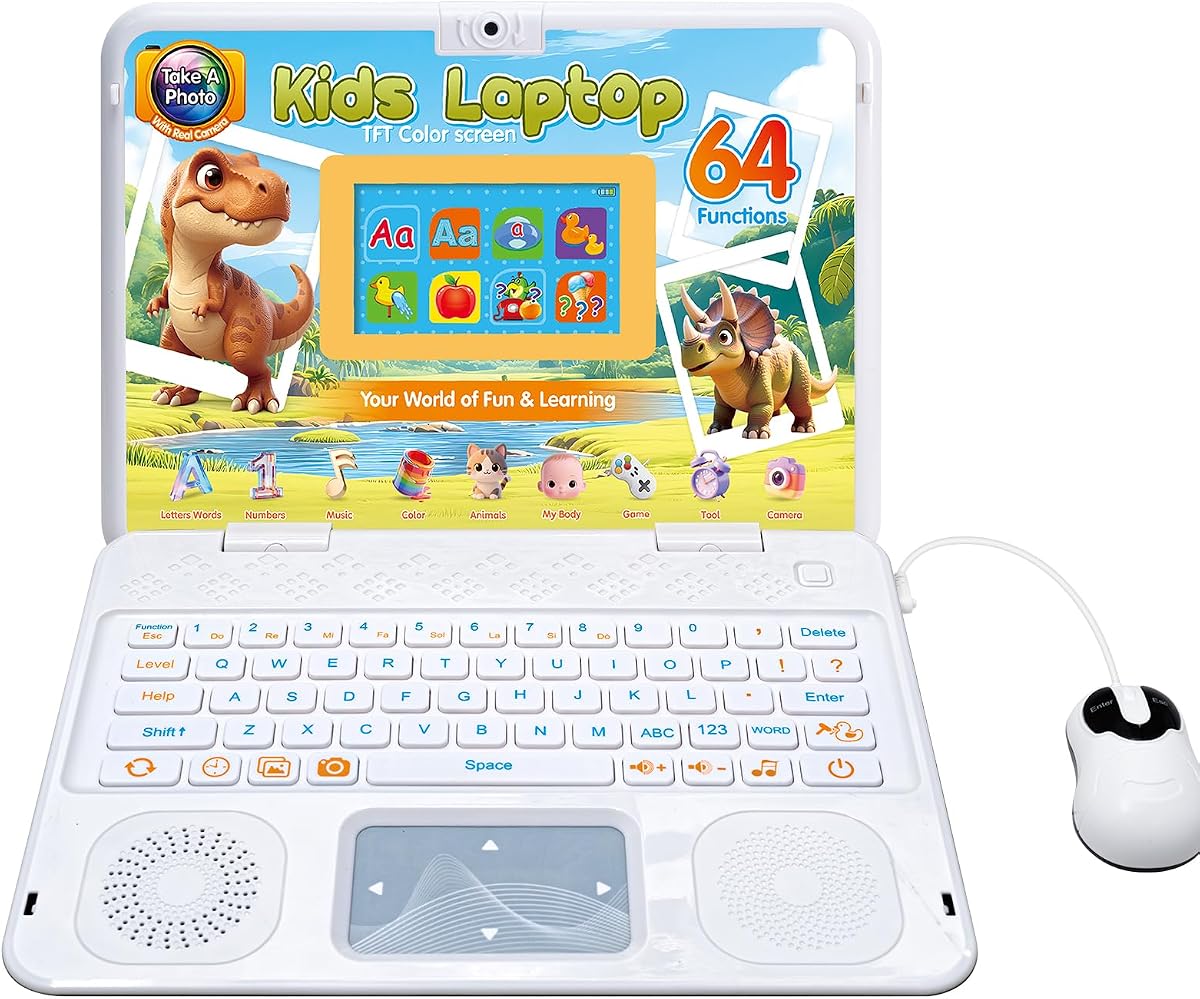
The 64-Mode Kids Camera Laptop combines a substantial educational activity set with a built-in camera, giving children a reason to explore the device creatively rather than only completing lessons. Its supplied rating is 4.6, and the product is intended for children aged five and older who can use a compact laptop-shaped device with a mouse and keyboard.
We may earn a commission when you buy through this link, at no additional cost to you.
Activities span the camera, alphabet, mathematics, colors, animals, music, and games. Photo mode adds frames and filters that let a child experiment with images of people, toys, or surroundings. The 4.3-inch TFT color display is designed as a compromise between visual clarity and comfortable handling, while the slim body remains easy for small hands to grip.
A camera in a children’s device requires clear family rules about when and where it can be used, especially around other people’s privacy. The supplied information does not detail connectivity, account requirements, or parental controls, so those points should be verified before regular use. The small display is also less suitable for extended reading, detailed writing, or complex visual material.
This is a good option for a child whose motivation improves when learning is paired with creative expression. It can provide a playful bridge between educational practice and imaginative play, but families should pair it with clear photography boundaries. It is less appropriate than a Chromebook for schoolwork requiring documents, web platforms, or a larger workspace.
Photo frames and filters offer an engaging way to practice camera skills and creative choice. Adults can turn the activity into a simple storytelling exercise by asking the child to explain what they photographed and why.
Sixty-four modes cover foundational topics, games, and creative tools. The variety supports short rotations between learning and entertainment without requiring a separate device for each category.
We may earn a commission when you buy through this link, at no additional cost to you.
The 10.1-Inch Android Mini Netbook is one of the most portable conventional computers in the selection, weighing only 1.76 pounds and offering a 10.1-inch HD IPS display. Its supplied rating is 3.3, and its strongest qualities are mobility, Android app access, and a ready-to-use bundle rather than extensive processing power.
We may earn a commission when you buy through this link, at no additional cost to you.
The 1.8GHz quad-core processor, 2GB RAM, and 64GB ROM handle basic browsing, communication, learning apps, and entertainment, while expandable storage up to 1TB offers room for additional files. Google Play and GMS support give the device more flexibility than a dedicated educational toy. A built-in webcam, Wi-Fi, Bluetooth, dual USB 2.0 ports, headphone jack, and TF card slot cover common needs.
The box includes a carrying bag, mouse, mouse pad, and power adapter, which is helpful for travel or a home learning station. However, 2GB of memory is constrained for several browser tabs and heavier applications. Android on a small notebook can also feel less consistent than Chrome OS, and the 1280-by-800 resolution is modest for detailed documents.
This mini netbook suits a child who needs a highly portable device for video calls, simple worksheets, reading, and supervised online learning. It can be a practical first general-purpose computer, especially with the included accessories, but adults should select apps carefully and supervise browser use. Its low supplied rating warrants closer attention to performance expectations.
At 1.76 pounds, the netbook is easy to move between rooms, classes, or trips. The included carrying bag and mouse further reduce the friction of setting up a portable learning station.
The TF card slot and expandable storage provide options beyond the included 64GB. Google Play access also allows adults to select age-appropriate learning, communication, and accessibility applications.
We may earn a commission when you buy through this link, at no additional cost to you.
The 10.1-Inch Android Learning Laptop is built around portability, familiar Google services, and a simple laptop form. It has a supplied rating of 3.4 and uses Android 12.0, allowing access to Google Docs, Google Drive, and the Google Play Store when an internet connection and appropriate account setup are available.
We may earn a commission when you buy through this link, at no additional cost to you.
Its Allwinner A133plus quad-core processor, 2GB RAM, and 64GB eMMC cover basic learning and entertainment rather than demanding productivity. The 10.1-inch IPS display has a 1280-by-800 resolution, and the stated battery life is five to seven hours. Two USB ports, a USB-C charging connection, a TF card slot, and a built-in camera make it a versatile small computer.
The package includes the laptop, charger, user manual, mouse, and carrying bag. The device weighs 0.75 kilograms, which supports easy portability. Limitations include 2GB of memory, modest local storage, and a screen that may require browser zoom or built-in accessibility settings for some children. The available configuration information also describes optional memory and storage variants, so buyers should confirm the selected configuration.
This laptop works for light reading, communication, documents, and entertainment in a supervised setting. It is a reasonable value-oriented option when portability matters more than high performance. Families should verify application compatibility and current parental-control options before relying on it for regular schoolwork.
Android 12.0 provides access to Google Docs, Google Drive, and the Play Store. This makes the device approachable for children already familiar with shared documents, cloud files, and downloadable educational activities.
A weight of 0.75 kilograms and an included bag make the laptop easier to transport than a full-size notebook. Its five-to-seven-hour stated runtime is useful for shorter learning sessions and travel.
We may earn a commission when you buy through this link, at no additional cost to you.
The Lexibook Unicorn Educational Laptop is a dedicated learning toy with a supplied rating of 4.3. Its playful unicorn theme and compact proportions make it visually inviting for younger children, while the activity set covers English and Spanish, mathematics, typing, general knowledge, logic, music, and clock reading.
We may earn a commission when you buy through this link, at no additional cost to you.
The activities use different difficulty levels, allowing children to learn, test, and improve rather than simply repeat a fixed exercise. Logic, memory, and speed games offer a change of pace after the main material. Music features are particularly notable, with activities for learning notes, composing, and playing melodies, which adds a creative outlet beyond conventional academic subjects.
The design imitates a real laptop and includes a realistic mouse and keyboard in an easy-to-hold body. However, the supplied specifications do not identify internet connectivity, account support, parental controls, or broad app compatibility. It is therefore best treated as a focused educational toy, not a laptop for online classes, documents, video calls, or conventional school assignments.
This device is well suited to a young child who responds to a colorful theme, music, and short levels. A caregiver can use the Spanish content, typing practice, and games to create a consistent routine. When the child becomes ready for internet-enabled learning or school platforms, an upgrade to a Chromebook or similarly capable computer would provide a more natural path.
The note-learning, composing, and melody activities offer an accessible way into music. They can support fine-motor practice while giving the child a creative task with a different rhythm from conventional lessons.
Activities are organized so children can learn, test, and improve. This progression may be especially helpful when a child benefits from repeated practice and clearly observable advancement.
We may earn a commission when you buy through this link, at no additional cost to you.
The right choice depends less on labels than on the child’s age, communication style, sensory preferences, learning goals, and need for supervision. Use the following factors to narrow the field before deciding which device or level of complexity best fits daily use.
Begin with the manufacturer’s stated age range rather than comparing screen size alone. The LeapFrog LeapTop Touch is designed for children ages two to five and emphasizes role-play, letters, numbers, music, and messages. The VTech Genio and several dedicated kids laptops target ages five and older, while the Chromebooks and Android mini laptops provide a more conventional computer experience for school-age children. A device that feels appropriately challenging can promote independence, but one with too many steps may increase frustration and lead to repetitive or avoidant behavior.
Identify what the computer needs to accomplish. A child working on letters, spelling, numbers, and early logic may be well served by a dedicated educational laptop. A learner completing school assignments, attending video classes, writing documents, or collaborating online needs an operating system with established productivity and communication tools. Chrome OS offers a consistent browser-centered environment, while the two Android mini laptops provide access to Google applications but may feel less consistent for intensive multitasking.
Predictable software can reduce uncertainty, and offline operation can prevent technical interruptions. The VTech Genio provides more than 80 preloaded activities that work without an internet connection, while the LeapFrog also keeps its learning experience contained. Chromebooks are inherently more web-oriented and therefore require a reliable connection for many tasks. For children who find unexpected advertisements, account prompts, or unstable connections stressful, a limited offline device may be worth considering for focused practice.
Screen size, color, brightness, sound volume, and input method can all affect comfort. The Acer Chromebook 315 provides a large 15.6-inch Full HD touchscreen, while the Lenovo offers a 14-inch Full HD IPS display. Smaller 10.1-inch Android screens improve portability but may be less comfortable for detailed reading, and the 4.3-inch educational screens suit short activities better than sustained schoolwork. Some autistic children also benefit from reduced motion, simple interfaces, predictable transitions, or the ability to disconnect from audio; those settings should be tested with the child’s actual routines.
The LEXiBOOK LapTab 10 stands out for customizable profiles, parental controls, time and app management, and the Qwant Junior browser. These features can help families define a consistent digital boundary, but no device substitutes for active supervision and clear expectations. For camera-equipped products, discuss photography consent, personal space, and when images may be taken. For web-enabled devices, review account settings, permissions, search filters, and the child’s ability to move between applications without prompts.
A device that is easy to carry and lasts through the intended schedule can be more useful than a larger machine that constantly needs charging. The Android mini netbook weighs 1.76 pounds, the 10.1-inch Android laptop weighs 0.75 kilograms, and the Acer Chromebook 315 weighs 2.76 pounds. The Acer also carries a stated 12.5-hour battery life, while the smaller Android laptop lists five to seven hours. Dedicated toy laptops add another consideration because they rely on replaceable batteries rather than rechargeable all-day power.
Young children may drop devices, press keys forcefully, or need tactile feedback. The dedicated learning laptops use smaller bodies and child-oriented mouse and keyboard layouts, while conventional laptops offer more standard typing surfaces. A full-size QWERTY keyboard can support faster word entry, and the Lenovo’s accessory bundle includes a wireless mouse and mouse pad. Families should also consider the child’s ability to carry the device without cables, the likelihood of spills, and whether a protective case or separate keyboard would create more complication.
Basic learning activities do not require a powerful processor, but remote classes and several browser tabs can expose limits in low-memory systems. The Lenovo pairs an octa-core MediaTek processor with 4GB RAM and a 64GB card, while the Acer uses a dual-core Celeron with 4GB RAM and 64GB storage. The two Android mini laptops each list 2GB RAM and 64GB storage. If the child expects heavier applications, cloud storage, or extensive local files, a higher-memory configuration and the option to expand storage are more important than a larger screen.
Introduce the device gradually by showing one clear activity or purpose at a time. A consistent location, brief session length, and visual schedule can make transitions easier. For a dedicated learning laptop, begin with the child’s strongest interest and move gradually toward less familiar subjects. For a Chromebook or Android device, configure the account, accessibility preferences, notifications, and parental rules before handing it over for regular use.
Set up the device in advance. Update the system, remove unnecessary applications, create clear user profiles, adjust text and display settings, and test audio volume. Discuss camera and microphone use, personal information, sharing images, and acceptable websites in age-appropriate language. Agree on what happens when a task becomes frustrating, and place the chosen device somewhere predictable so it is ready before the session begins.
Care for the hardware according to its type. Educational toys that use AA batteries should be checked regularly and kept free of moisture. Chromebooks and Android laptops should be transported in a sleeve or case, with chargers and cables stored together. Use a dry microfiber cloth to clean screens, avoid abrasive cleaners, and check ports for debris. Keep software updated, back up important files, and retire a device promptly if it becomes difficult to charge, hold, or use comfortably.
The best type depends on age, communication needs, learning goals, and the child’s response to different interfaces. A dedicated learning laptop can provide predictable, focused activities, while a Chromebook is better for school assignments, Google tools, communication, and online learning. The strongest recommendation is the least complex device that reliably supports the child’s current needs without causing unnecessary frustration.
A dedicated educational laptop is useful for young children learning basic computer concepts, letters, numbers, and simple subjects in a controlled environment. A Chromebook becomes more appropriate when the child needs remote classes, web-based assignments, documents, a larger screen, or access to a broad app ecosystem. Readiness for independent navigation should guide the transition.
They can be because offline devices avoid advertisements, unexpected notifications, account prompts, and changing webpages. The VTech Genio is particularly focused, with all activities preloaded and no internet connection required. Even an offline device should be introduced through a predictable routine, and caregivers should explain when play ends and what activity comes next.
Accessibility needs vary considerably, so the most useful features depend on the individual child. Some children may benefit from enlarged text, high contrast, reduced motion, speech support, keyboard navigation, or simple visual schedules. Full-size computers offer more operating-system settings, but dedicated learning devices are often easier to understand. Trial the device using the child’s real learning materials whenever possible.
There is no universally ideal size. A larger display can reduce visual crowding and make text easier to see, which favors the Acer Chromebook 315, while a compact screen may be easier for travel and short activities. Some children prefer less visual stimulation and benefit from a smaller dedicated device. Consider reading distance, motor control, fatigue, and the child’s personal preference.
The LEXiBOOK LapTab 10 includes customizable profiles, parental controls, time and app management, and the Qwant Junior browser. For Chromebooks and Android devices, families should configure account-level controls, safe search, app permissions, and screen-time boundaries. Technical controls are most effective when paired with simple family rules and regular adult supervision.
A computer can reinforce routine, communication, literacy, mathematics, creativity, and other selected learning goals, but it is not a substitute for individualized educational, behavioral, occupational, or medical support. The best activity is one matched to the child’s current goals and delivered consistently. A learning professional can help determine how technology should fit into the broader plan.
Check the age range, learning content, screen size, input method, battery requirements, offline behavior, parental controls, and compatibility with school tools. Also consider whether the child can follow the setup steps and whether the device's volume, motion, and interface are comfortable. Current listings and specifications should be verified because hardware configurations and software availability can change.
The Lenovo 14-inch Chromebook is the strongest all-around option for a school-age learner who needs a genuine touchscreen computer, broad connectivity, Google tools, and useful included accessories. The Acer Chromebook 315 is the premium pick for its large Full HD display and strong stated battery life, while the VTech Genio JuniorBook is the budget choice for contained, bilingual, offline learning with a familiar keyboard.
Prioritize the child’s developmental level, attention style, sensory comfort, and actual learning needs over the number of features a product advertises. A simpler dedicated laptop may be more useful than a powerful general-purpose computer, while a Chromebook may become necessary when remote classes and structured schoolwork begin. Whatever the category, consistency, clear routines, appropriate adult support, and a manageable software environment matter more than novelty.
Before ordering, verify the current listing, exact configuration, included accessories, connectivity requirements, and parental-control options. Prices and promotions can change, and availability may vary, so compare the current offer with the child’s present needs. Choosing a device the child can understand and use successfully is more valuable than choosing the most technically advanced model on paper.