
HUION KAMVAS Pad 12 2K+
4.5Editor score
2K+ 12.2-inch display
16,384 pressure levels
90Hz refresh rate
An iPad remains a capable digital-art tool, but it is not the only option for artists who want a pressure-sensitive screen, portable workflow, or a larger drawing surface. The strongest alternatives balance pen response, display quality, software access, battery life, and the freedom to work at a desk or away from one.
This guide compares ten standalone drawing tablets and computer-dependent pen displays using the supplied specifications, compatibility information, screen sizes, pressure levels, portability features, and included creative tools. It covers models for beginners, experienced illustrators, students, mobile sketchers, and artists who already work with professional desktop software.
Each numbered review explains the product's strongest features, practical trade-offs, and ideal user. The top selections are highlighted for particular strengths, while the comparison table offers a faster overview. Prices and availability can change, so readers should confirm current details before making a final purchase.
4.5Editor score

4.4Editor score

4.5Editor score
As an Amazon Associate we earn from qualifying purchases.
This side-by-side comparison highlights each tablet's operating approach, display size, pen-pressure capability, portability, and most important workflow consideration.


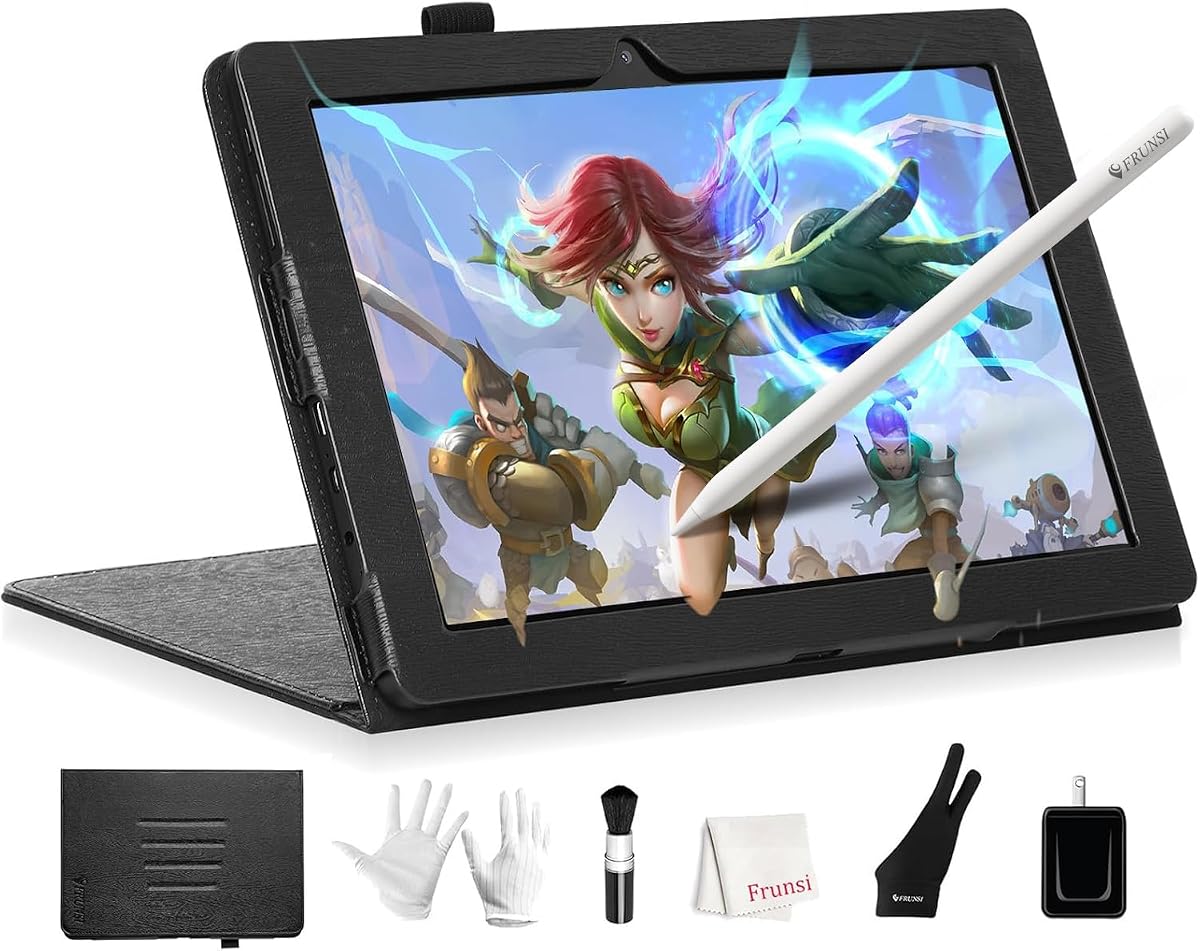

The Wacom MovinkPad 11 is an Android drawing tablet built around Wacom's established pen technology and a particularly focused mobile sketching workflow. It has a 4.4 rating and stands out through its matte etched glass, battery-free Pro Pen 3, and ability to launch Wacom Canvas by pressing and holding the pen on the screen. That quick-draw design makes the device feel closer to opening a notebook than starting a conventional computer workflow.
We may earn a commission when you buy through this link, at no additional cost to you.
Its 11.45-inch display provides a useful balance between portability and drawing space, while the etched surface is designed to feel more paper-like and reduce glare and fingerprints. The included slim Pro Pen 3 provides 8,192 pressure levels, three buttons, and stores replacement nibs in its back end. Wacom Canvas is preinstalled, and the package also includes two years of Clip Studio Paint DEBUT plus trials of Ibis Paint, Magma Blaze, and Artwod training.
The main trade-off is that the MovinkPad 11 is positioned as a premium specialized product rather than a budget tablet. Its 8GB of memory is also modest for people who want to keep many large illustration files and demanding applications open simultaneously. Because it runs Android rather than a full desktop operating system, users who depend on Photoshop or other computer-only applications will need to consider a pen display instead.
This is an excellent choice for an illustrator, concept artist, student, or sketcher who values immediate startup, a natural pen surface, and a highly portable form. It is especially attractive for users who want a dedicated creative device without managing a laptop, cables, or complex desk arrangements. For those priorities, the MovinkPad 11 is the most artist-focused iPad alternative in the group.
Holding Pro Pen 3 on the display opens Wacom Canvas, reducing the gap between inspiration and a usable canvas. The feature is especially useful for rapid observational sketching, thumbnail ideas, handwritten notes, and drawings made while moving between locations.
The matte etched glass provides subtle texture, lower glare, and fewer fingerprint distractions than a conventional glossy touchscreen. The 8,192 pressure levels and programmable pen buttons give the device the responsiveness expected from a dedicated creative tool.
We may earn a commission when you buy through this link, at no additional cost to you.
The HUION Kamvas Pro 16 is a 15.6-inch pen display designed for artists who want a large, colorful drawing surface connected to a desktop or laptop. Its 4.5 rating reflects a strong combination of visual quality, shortcut controls, and broad creative-software compatibility. The full-laminated, anti-glare glass has a slight texture intended to make stylus movement feel more natural.
We may earn a commission when you buy through this link, at no additional cost to you.
Color performance is a defining feature. The display covers 120% of sRGB, or 92% of AdobeRGB, with 16.7 million 8-bit colors and a 1000:1 contrast ratio. Six customizable express keys and a touch bar offer faster access to shortcuts for zooming, brush adjustment, and other actions. The included ST200 stand can move from 20 to 60 degrees, allowing users to find a more comfortable viewing and drawing posture.
Its important limitation is that this is not a standalone tablet. It must be connected to a computer or laptop, and although a three-in-one USB-C cable helps simplify the connection, the device is not designed for cable-free sketching. The large display also makes it less convenient to carry than a compact iPad alternative. Compatibility extends to Windows, macOS, and Linux, with support stated for Photoshop, Clip Studio Paint, SAI, Lightroom, and other creative tools.
The Kamvas Pro 16 is best for illustrators, graphic designers, retouchers, and concept artists working at a fixed desk. Its large canvas can reduce the need to zoom or pan constantly, while the shortcut controls improve efficiency in demanding applications. Choose it when display size, color coverage, and desktop software support matter more than untethered portability.
A 15.6-inch screen offers substantially more working space than a compact drawing tablet. That extra room is valuable when drawing characters, editing detailed images, or arranging multiple tools around the canvas without frequently changing magnification.
The touch bar and six express keys reduce repetitive mouse movements. Programmable actions can be adapted to different applications, helping artists brush-size changes, zooming, and other routine operations flow more smoothly.
We may earn a commission when you buy through this link, at no additional cost to you.
The RubensTab T14 combines a relatively large 14.1-inch Full HD screen with a fully standalone design. Rated 4.4, it is aimed at students, illustrators, and professionals who want a roomy digital canvas without carrying a laptop. The octa-core processor and 10000mAh battery support a cable-free workflow, while the included stand case provides an adjustable setup for desk or travel use.
We may earn a commission when you buy through this link, at no additional cost to you.
Its 1920-by-1200 IPS display is specified to provide vibrant color, sharp detail, and wide viewing angles. The active pen is pressure-sensitive and requires no battery, allowing the pen to offer adjustable pressure without charging. Multi-touch supports zooming, panning, and scrolling, and preinstalled drawing applications help users begin without immediately navigating an app store.
As with other Android-based products, software freedom depends on app availability and the quality of the port or native version. The supplied information does not quote an exact pressure-level count, so it is not possible to compare its pen sensitivity numerically with 8,192- or 16,384-level devices. Artists who depend on desktop-only Adobe functions should account for that limitation even though the tablet itself can operate independently.
The T14 is a compelling option for someone who values screen area and independence more than maximum portability. Its larger display is useful for detailed illustrations, presentations, notes, and multitasking, while the battery supports up to five hours of continuous use according to the supplied specifications. It is a practical choice for mobile creators who want more room than a compact 8- or 10-inch model without moving up to a full-size pen display.
The T14 avoids the computer connection required by pen displays. Artists can open the included applications, sketch, and save work wherever they are, making it suitable for classrooms, meetings, travel, and locations where carrying a laptop would be inconvenient.
Its adjustable stand case supports several working positions, while the IPS panel's stated wide viewing angles make the display practical for sharing during lessons or collaborative sketching sessions.
We may earn a commission when you buy through this link, at no additional cost to you.
The XPPen Artist 13.3 Pro V2 is a 13.3-inch pen display that combines a high-resolution laminated screen with an exceptionally detailed pressure range. It carries a 4.5 rating and is built for artists who already rely on desktop creative applications. Its 16,384 pressure levels, 60-degree tilt support, and low initial activation force are designed to produce smooth, natural marks.
We may earn a commission when you buy through this link, at no additional cost to you.
The full-laminated FHD display minimizes parallax and supports a 178-degree viewing angle. Color specifications include 88% NTSC, Adobe RGB of at least 91%, and sRGB of at least 123%. A red control dial positioned near the drawing area can be used for zooming, brush-size adjustment, and canvas flipping. Eight customizable shortcut keys add further workflow control, while the battery-free stylus includes two programmable buttons.
The compromise is that a computer or laptop is required. Although the included three-in-one cable streamlines setup, this product does not offer the cable-free convenience of the standalone models in the guide. Its 13.3-inch size is also less travel-friendly than a small standalone tablet, though it is still lighter and more compact than many conventional desktop pen displays.
For illustrators, designers, comic artists, and retouchers who want professional pen specifications without moving to the most premium tier, this is a strong option. It supports major software including Photoshop, Illustrator, SAI, and Blender 3D, as well as Windows, macOS, Chrome OS, and Linux. The combination of 16K pressure, low activation force, a laminated panel, and practical controls makes it the strongest value-oriented desktop choice here.
The 16,384 pressure levels and low initial activation force are particularly useful for line work, hatching, and smooth tonal transitions. The 60-degree tilt capability also lets illustrators angle the pen for broader strokes without repeatedly changing the brush orientation in software.
The red dial provides a central way to zoom, resize brushes, or turn the canvas without reaching for the keyboard. Eight customizable keys and two stylus buttons add further shortcuts for artists who perform repetitive editing tasks.
We may earn a commission when you buy through this link, at no additional cost to you.
The PicassoTab A10 is a compact standalone drawing tablet designed as an approachable entry point into digital art. Its 4.2 rating reflects a straightforward package with a 10-inch laminated display, an active pen, preloaded creative applications, and a substantial set of learning materials. Because it runs independently, users do not need a computer to begin sketching.
We may earn a commission when you buy through this link, at no additional cost to you.
Five preloaded apps cover drawing, painting, animation, tutorials, and guided lessons. The package also includes lifetime PRO access for Concepts and lifetime VIP access to Artixo tutorials. A premium case, drawing glove, universal power adapter, and installed screen protector round out the accessories. The laminated display reduces glare and parallax, while the 4096-level pressure pen supports expressive sketching and illustration.
Performance comes from an octa-core processor, 6GB of RAM, and 64GB of expandable storage, allowing the A10 to handle creative apps, schoolwork, streaming, and ordinary multitasking. The 4,096 pressure levels are adequate for many learning and illustration tasks, though they offer less numerical granularity than the 8,192- and 16,384-level pens found elsewhere in this guide.
The A10 makes the most sense for beginners, students, younger artists, or anyone who wants a complete portable creative package without assembling a separate computer setup. Its small size and included lessons lower the learning curve, while expandable storage provides room to grow. It is less compelling for advanced professionals who need a color-calibrated high-resolution pen display, but it is a focused and approachable standalone option.
Lifetime tutorial access, guided practice, and drawing guides provide structure for new artists. The included glove can reduce accidental contact smudges, while the preinstalled case and screen protector make the tablet easier to carry and maintain.
Combining the tablet, pen, case, glove, adapter, screen protector, apps, and lessons creates a ready-to-use setup. This convenience is particularly useful for students who want to practice digital art without investing in a separate computer and drawing display.
We may earn a commission when you buy through this link, at no additional cost to you.
The PicassoTab X14 is the largest model in the PicassoTab range and provides a spacious standalone alternative for sketching, design, and learning. It has a 4.2 rating, a fully laminated 14-inch screen, and a 4096-level pressure-sensitive pen. The display is intended to reduce glare and parallax, giving users a more paper-like drawing experience without requiring a connected computer.
We may earn a commission when you buy through this link, at no additional cost to you.
Five preloaded applications support drawing, painting, animation, tutorials, and guides. Lifetime PRO access for Concepts and lifetime VIP access to Artixo tutorials are also included. The accessory package adds a premium tablet case, drawing glove, universal power adapter, and preinstalled screen protector. These extras make the X14 feel more complete than a bare tablet-and-pen purchase.
An octa-core CPU, 6GB of RAM, and 128GB of storage support creative work, school tasks, streaming, and multitasking, with storage expandable to as much as 1TB. Compared with the A10, the X14 provides a considerably larger canvas and more base storage. Its trade-off is portability: a 14-inch device is more cumbersome than an 8- or 10-inch model even though the product is described as lightweight and travel-friendly.
The X14 is best for students and artists who want a generous standalone workspace, particularly those working on illustrations, animations, classroom projects, or detailed sketches away from a desk. Its learning resources also make it accessible to beginners. Experienced professionals seeking very fine pen control, high-resolution color accuracy, or professional desktop-software integration may prefer a higher-end 16K-pressure pen display.
The 14-inch display provides ample room for composition while preserving a self-contained workflow. This makes the X14 useful in classrooms, cafés, and shared workspaces where a full laptop setup would be unnecessary.
The included 128GB of storage is double the A10's listed capacity and can be expanded up to 1TB. That gives students and working illustrators more room to retain layered files, tutorials, reference images, and completed projects.
We may earn a commission when you buy through this link, at no additional cost to you.
The HUION KAMVAS Pad 12 2K+ is among the most feature-rich standalone drawing tablets in this guide. Its 4.5 rating is supported by a 2K+ 12.2-inch display, 16,384 pressure levels, a 90Hz refresh rate, and factory color calibration. It runs Android 16 and includes HiPaint, Clip Studio Paint, ibisPaint X, MediBang Paint, and Huion Note.
We may earn a commission when you buy through this link, at no additional cost to you.
Its 3:2 display offers more vertical working space than a typical 16:9 screen, while 236 PPI and 350 nits provide a clear canvas for drawing and reading. Color coverage is listed at 99% sRGB with a factory calibration difference of less than 1.8. The fully laminated, nano-etched glass reduces glare and fingerprints, and an AF coating helps touch response remain clear.
The included pen reaches ±60 degrees of tilt, has a low 2g initial activation force, and supports tilt auto-alignment to minimize cursor offset. Internally, an eight-core processor and 8GB of RAM support several open applications, while 256GB of expandable storage accommodates large illustration files. The 8000mAh battery is claimed to last up to a full day, and the 1.47-pound, 0.31-inch chassis is highly portable.
This tablet is best for serious digital artists who want standalone freedom without accepting basic pen or display specifications. It also suits students and families because of parental controls, split-screen multitasking, front and rear cameras, and built-in speakers. The principal trade-off is its premium cost and the continuing limitations of Android software compared with a desktop operating system.
The combination of 2K+ resolution, 236 PPI, 350-nit brightness, and calibrated sRGB presentation gives the artist a clear and consistent reference. The taller 3:2 format is particularly helpful for portrait illustrations and reading-oriented creative work.
The 16,384-level pen, low activation force, and broad tilt range support delicate lines, shading, and varied stroke shapes. A 90Hz screen improves visual fluidity, while the etched laminated surface helps keep the stylus experience controlled.
We may earn a commission when you buy through this link, at no additional cost to you.
The Wacom MovinkPad 11 uses Android 14 and Wacom's Quick Draw system to create a dedicated sketching environment. In addition to Wacom Canvas, it provides two years of Clip Studio Paint DEBUT and trials of several drawing or learning applications. The 4.4-rated device weighs only 1.3 pounds and supports popular pens from Dr. Grip, LAMY, and STAEDTLER, giving users some flexibility beyond the included Pro Pen 3.
We may earn a commission when you buy through this link, at no additional cost to you.
Its 11.45-inch screen is described as bright and sharp, with matte etched glass that reduces glare and fingerprint interference. The included Pro Pen 3 offers 8,192 pressure levels and three buttons, and replacement nibs can be stored inside the barrel. The result is a portable package with much of the convenience associated with a paper sketchbook.
The main limitation is its specialized pricing. It may not offer the same value as a general standalone Android tablet for users who want a large display, extensive memory, or broad accessory flexibility. With 8GB of memory and 128GB of storage, it is best treated as a focused creative computer rather than a general-purpose high-end tablet.
Despite those constraints, the MovinkPad 11 is an excellent choice for anyone who prioritizes immediate sketching and Wacom's pen ecosystem. It is well suited to travel, life drawing, field sketching, journaling, and quick concept development. Buyers who mainly want to draw or write will appreciate it more than users seeking maximum storage, display area, or application flexibility.
The 1.3-pound body and 11.45-inch display make the MovinkPad easy to carry without shrinking the canvas to an impractical size. Its textured glass also reduces the polished, slippery feel associated with some tablet screens.
Support for third-party pens gives users alternatives for different grip or nib preferences. Storing replacement nibs in the Pro Pen 3 barrel adds convenience for extended sketching sessions where nib wear is likely.
We may earn a commission when you buy through this link, at no additional cost to you.
The T8 Standalone Drawing Tablet is the smallest option in this guide, using an 8-inch 1200-by-800 display and Android 13. Its 4.4 rating and low weight make it relevant for mobile artists who prefer the size of a large phone or small notebook over a tablet with a broad canvas. It operates independently and comes with drawing applications, tutorials, and bonus items.
We may earn a commission when you buy through this link, at no additional cost to you.
The tablet is powered by an MTK quad-core processor with 4GB of RAM and 64GB of expandable storage. A 4000mAh battery is stated to provide up to 20 hours of drawing. Its Android integration allows the use of applications such as SketchBook, ArtFlow, and ibisPaint X, giving users a selection of familiar creative environments.
The obvious limitation is screen size. Eight inches makes the T8 excellent for quick sketches, thumbnails, notes, and portable practice, but detailed illustration will require frequent zooming or panning. The processor and memory specifications are also less ambitious than those of the larger standalone models. No exact pressure-level count is included in the supplied specifications, so pen sensitivity cannot be compared precisely with the other products.
The T8 is best for commuters, students, and casual artists who value battery life and a compact standalone canvas. It is also useful as a supplementary sketching device rather than the primary workstation for a professional illustrator. Users creating complex compositions or editing detailed artwork should consider a 10- to 14-inch model or a computer-connected pen display.
The 8-inch form factor is easy to transport and closer to a conventional mobile creative slate than a laptop or large pen display. It is a practical option for quick drawings in places where desk space is limited.
The stated 20-hour drawing battery provides substantial freedom for travel and field work. Artists can carry the T8 without planning around a wall outlet for the length of a typical sketching session.
We may earn a commission when you buy through this link, at no additional cost to you.
The Callsky-Tab 12 is a general-purpose Android drawing tablet that combines a large 2K screen with unusually generous internal specifications for its category. It has a 4.2 rating, 16GB of RAM, 256GB of storage, and a T616 octa-core processor. That configuration is intended to handle drawing, animation, 3D work, online teaching, meetings, and ordinary multitasking without the constraints of a small mobile slate.
We may earn a commission when you buy through this link, at no additional cost to you.
Its 12-inch IPS display offers 2K resolution, wide viewing angles, and anti-glare treatment. The included rechargeable stylus provides 4096 pressure levels and tilt support, while a magnetic attachment helps keep it available and reduce the chance of losing it. A drawing glove is included to limit unwanted contact with the screen. The three-mode flip case supports different viewing angles and protects the device during transport.
Pressure sensitivity is adequate for sketching, illustration, and learning, but it does not match the 16,384-level specifications of the XPPen Artist 13.3 Pro V2 or HUION KAMVAS Pad 12 2K+. The 8000mAh battery is stated to support up to six hours of video playback or creative work, which is solid for a portable tablet but not the longest claim in the group.
Callsky-Tab 12 is a good match for creators who need a larger screen and strong multitasking capability rather than a specialized desktop pen display. It is particularly relevant to online teachers, students, and artists who alternate between drawing, browsing, video calls, and entertainment. The included case and stylus bundle make it accessible to newcomers, while its specifications provide room for more demanding Android workflows.
The combination of 16GB RAM and 256GB storage provides comfortable room for creative applications and everyday Android tasks. Expandable storage up to 2TB is useful for artists who accumulate large project files or keep reference libraries on the device.
Three folding modes let the user change the viewing angle for drawing, typing, or video playback. The stylus attaches magnetically to the tablet, and the included glove provides a more comfortable palm-contact surface during longer sessions.
We may earn a commission when you buy through this link, at no additional cost to you.
The right drawing tablet depends on where you create, which software you use, and how much portability matters. Screen size, pen behavior, operating-system freedom, and workflow controls should be weighed together rather than focusing on one headline specification.
A standalone tablet contains its own operating system, apps, processor, and storage, allowing you to sketch without a laptop. This is the closest match to the convenience people often seek from an iPad. The RubensTab models, Wacom MovinkPad, PicassoTab tablets, T8, Callsky-Tab, and HUION KAMVAS Pad 12 2K+ fall into this group. Computer-connected pen displays, such as the HUION Kamvas Pro 16 and XPPen Artist 13.3 Pro V2, generally provide tighter integration with desktop creative software and may suit established professional workflows better.
Choose standalone for travel, field work, teaching, and quick ideas. Choose computer-connected when your art depends on the full versions of Photoshop, Illustrator, Blender, Lightroom, or other desktop tools.
An 8-inch model is easy to carry but offers a restricted canvas, while 10- to 12-inch screens balance mobility and drawing room. The 13.3-, 14.1-, and 15.6-inch options are better for detailed illustration and multi-window work, although they become less convenient to carry. The HUION Kamvas Pro 16 goes furthest toward a desktop replacement, while the T8 and PicassoTab A10 prioritize compact mobility.
For travel and quick sketches, favor 8 to 11 inches. For serious illustration at a desk, 12 inches or more offers a more comfortable working surface.
Pressure levels indicate how finely a tablet can register changes in stylus pressure. Higher numbers can offer more precise tonal and line control, but actual performance also depends on the screen surface, pen activation force, tilt behavior, and software support. The XPPen and premium HUION models list 16,384 levels, the Wacom pen offers 8,192, and the PicassoTab and Callsky-Tab styluses provide 4,096. The T8 and RubensTab specifications do not provide an exact count.
Treat pressure level as one part of the equation. Smooth tracking, low activation force, tilt response, and a stable surface can matter more in everyday sketching.
Resolution determines how much fine detail the screen can present, while color coverage and contrast affect how artwork and references appear. Full HD models provide a familiar baseline, but the Callsky-Tab 12 and HUION KAMVAS Pad 12 2K+ offer higher-resolution canvases. The HUION Kamvas Pro 16 specifies 120% sRGB coverage, while the KAMVAS Pad 12 2K+ claims 99% sRGB with factory calibration and a stated color difference below 1.8.
Check resolution, brightness, anti-glare treatment, and color coverage separately. High resolution does not automatically guarantee accurate or comfortable color.
Tilt recognition lets a stylus register its angle, which is useful for broad shading and varied brush shapes. The XPPen Artist 13.3 Pro V2 and HUION KAMVAS Pad 12 2K+ support 60-degree tilt, while the Kamvas Pro 16 also recognizes 60 degrees. Fully laminated screens reduce parallax, and matte or etched surfaces can improve glare control and create a more paper-like feel. Some pens also add programmable buttons or store replacement nibs internally.
Look for a combination you will actually use. Programmable controls can accelerate professional editing, while reliable tilt and a textured surface may matter more for illustrators.
Standalone Android tablets offer convenient app-based creation but may not include every feature available in desktop creative suites. The Wacom MovinkPad includes Clip Studio Paint DEBUT and selected trials, while the HUION KAMVAS Pad includes several major Android painting apps. The PicassoTab products emphasize drawing and beginner lessons. Desktop pen displays support major applications more directly, with the Kamvas Pro 16 listing compatibility with Windows, macOS, Linux, Photoshop, Clip Studio Paint, SAI, and Lightroom.
Confirm that your required tools exist in the correct version before buying. A strong hardware platform cannot compensate for missing software features.
Standalone models must balance screen size with battery capacity. The T8 lists up to 20 hours of drawing, the KAMVAS Pad 12 2K+ claims up to a full day, and the Callsky-Tab 12 lists up to six hours of creative work. Included accessories can add considerable value: the PicassoTab bundles include cases, gloves, adapters, screen protection, and app upgrades, while the RubensTab T11 Pro and T14 include adjustable stands.
Consider how you will carry and use the tablet before judging the bundle. A sturdy case, charger, and usable pen are more valuable than accessories that do not match your workflow.
Drawing applications benefit from adequate memory, processor capacity, and expandable storage even when the canvas itself is modest. The Callsky-Tab 12 combines an octa-core processor with 16GB RAM and 256GB storage, while the KAMVAS Pad offers 8GB RAM and 256GB. Both PicassoTab standalone models use 6GB RAM, with storage expandable up to 1TB. Larger layer-heavy files and multiple open apps can make these differences noticeable.
Choose enough memory for your usual app combination, not merely a large storage number. Artists should also consider whether cloud access or direct file transfer is important to their process.
Begin by charging the tablet with the supplied or manufacturer-approved cable, then install or update the pen and drawing applications. For standalone models, connect to Wi-Fi, confirm that the stylus is recognized, and complete a short calibration test if the software provides one. Computer-connected pen displays should be attached with the included cable before launching the chosen illustration program. Adjust the screen angle so your hand does not obscure the area where the cursor or brush tip is located.
Build your workspace around the application rather than drawing with every control visible. Use a manageable canvas zoom, establish a comfortable brush size, and rely on pressure sensitivity or tilt deliberately. Take short calibration strokes across different areas of the screen, particularly near the edges, to check for offset. For a new standalone tablet, explore the preinstalled learning materials before moving to a more complex program, and back up finished files to external or cloud storage.
Protect the display by using the supplied case and cleaning the glass with a soft, lint-free cloth. Avoid abrasive cleaners and placing the pen nib directly against the screen when the tablet is not in use. Keep the charging port free of debris, use compatible charging equipment, and avoid leaving the device in extreme heat or moisture. Replace worn nibs gradually so the stylus does not scratch the display, and follow the manufacturer's warranty and support guidance for firmware, battery, or pen problems.
The best choice depends on whether the artist needs desktop software or portable operation. The XPPen Artist 13.3 Pro V2 and HUION Kamvas Pro 16 are strong choices for professional desktop workflows, while the HUION KAMVAS Pad 12 2K+ offers high-end pen specifications in a standalone design. Consider software compatibility, pen feel, color requirements, and the balance between screen size and portability.
Standalone tablets are often easier for beginners because they need only one device and commonly include drawing apps or tutorials. Models such as the PicassoTab A10 and X14 arrive with learning resources and accessories. A pen display can still be more practical if the student already has a computer and wants to learn professional desktop applications from the beginning.
The HUION Kamvas Pro 16 and XPPen Artist 13.3 Pro V2 require a computer or laptop. All other listed products are standalone and can run drawing applications directly on the device. Standalone models can also support ordinary tasks such as browsing, streaming, note-taking, and online classes, depending on their stated operating-system features.
Not always. Higher pressure levels provide finer numerical resolution, but screen texture, tracking, activation force, tilt, and software can have a greater effect on the perceived drawing experience. A well-tuned 4,096-level pen may feel more natural than a poorly configured pen with a higher specification, so hands-on evaluation remains valuable.
The Wacom MovinkPad 11 is especially focused on immediate sketching, with a quick-draw launch, an 8,192-level pen, and a 1.3-pound body. The T8 and PicassoTab A10 are also compact alternatives, with the T8 emphasizing low weight and long stated battery life. Travelers should balance screen size against how comfortably the tablet fits in their bag.
The HUION Kamvas Pro 16 provides the largest listed screen at 15.6 inches, although it needs a computer. Among standalone devices, the RubensTab T14 and PicassoTab X14 both use 14-inch screens. The HUION KAMVAS Pad 12 2K+ offers a smaller 12.2-inch canvas but adds 2K+ resolution and 90Hz refresh performance.
Several models are designed for broader use rather than drawing alone. The RubensTab T11 Pro and T14 support note-taking and classroom work, while the KAMVAS Pad 12 2K+ includes split-screen multitasking, cameras, speakers, parental controls, and entertainment features. Software and accessory support vary, so check the specific apps and functions you need.
A fully laminated screen reduces the visual gap between the pen tip and the displayed line, which helps with detailed drawing. Matte or etched glass can reduce glare and provide more friction for a paper-like feel. The PicassoTab A10 and X14 combine lamination with paper-like surfaces, while the Wacom MovinkPad and premium HUION KAMVAS Pad emphasize etched matte surfaces.
The Wacom MovinkPad 11 is the most focused choice for mobile sketching because it launches quickly, feels lightweight, and provides a convincing paper-like surface. The HUION Kamvas Pro 16 leads for large desktop canvases and color coverage, while the XPPen Artist 13.3 Pro V2 delivers high-resolution pen control and professional software integration at a more accessible position in the range.
Prioritize the workflow you actually need. Choose a standalone model for travel, teaching, quick concepts, or working away from a computer. Choose a computer-connected display for Photoshop, Illustrator, Blender, and other established desktop workflows. Within either category, compare display size, pressure response, tilt, surface treatment, app availability, battery life, and included accessories rather than treating one specification as decisive.
Before buying, verify current software compatibility, included accessories, charging requirements, and warranty details. Product specifications, availability, and prices can change, and current listings should be checked for the latest information. With those final details confirmed, these ten options provide strong alternatives for different kinds of digital artists and a wide range of creative budgets.