
Acer 13-in-1 Laptop Docking Station
4.5Editor score
Triple independent display support
Included 110W power adapter
Aluminum enclosure with security slot
Our guide compares the best docking station with 2 HDMI ports, covering dual-display support, charging, data transfer, networking, and compatibility.
A docking station with 2 HDMI ports can turn a compatible laptop into a practical desktop workstation with two dedicated display connections, wired networking, USB peripherals, and convenient charging. The strongest choices balance display flexibility with dependable power delivery, useful port selection, and compatibility with the computer and monitors you already own.
We compared the available products by examining their HDMI configurations, supported display modes, maximum resolutions, charging capabilities, USB options, network support, card readers, and stated operating-system requirements. The guide covers compact hubs as well as larger workstation docks, with particular attention to the differences between Windows extension, macOS mirroring, and display performance limitations.
Each review explains the strongest reasons to consider a particular model, along with the compromises that may affect your setup. The top selections show where the category is strongest, but the right dock depends on your laptop ports, monitor standards, charging needs, and preferred display arrangement. Product prices and availability can change, so confirm current details before buying.
4.5Editor score

4.5Editor score

4.4Editor score
The table below compares display capacity, charging, data connectivity, and major compatibility considerations across all 10 listings, including one entry for which the supplied product details are unavailable.



The Anker Laptop Docking Station Dual Monitor combines two dedicated HDMI connections with a broad set of everyday ports, giving it the strongest overall balance in this guide. It carries a 4.5 rating and supports a single 4K display at 60Hz or two displays at up to 4K and 30Hz, making it suitable for users who value flexible dual-screen arrangements more than maximum refresh rates on both panels.
We may earn a commission when you buy through this link, at no additional cost to you.
Its eight-in-one layout includes a USB-C Power Delivery input, two USB-A data ports, two HDMI ports, Gigabit Ethernet, and a combined microSD and SD card reader. That selection covers the most common reasons to buy a dock: connecting two monitors, charging the host laptop, using wired internet, attaching peripherals, and moving media from a camera. The stated 85W passthrough charging is also meaningful for many mainstream ultraportable laptops.
The main compromise is display behavior. When two external monitors are connected through both HDMI ports, the listed maximum is 4K at 30Hz rather than 4K at 60Hz. macOS users should also note that the information states both external monitors will show identical content. Those restrictions make the dock less compelling for high-refresh dual-screen creative work or a Mac-based extended desktop, though they are acceptable for document editing, research, dashboards, and general office productivity.
The dock is best for Windows users with USB-C, USB4, or Thunderbolt connections whose laptops support DisplayPort Alternate Mode and Power Delivery. ChromeOS is also listed as compatible, while Linux is explicitly excluded. It is not the right choice for every Mac workflow, but its strong rating, balanced connectivity, and uncluttered port arrangement make it the most broadly satisfying recommendation for a typical dual-monitor setup.
Two independent HDMI outputs let the dock serve as the central connection point for a laptop and two displays. The stated 4K at 30Hz capability is well suited to high-resolution productivity screens, while single-display use can reach 4K at 60Hz.
Up to 85W of passthrough power helps reduce desk clutter, while Ethernet, USB-A peripherals, and card slots cover tasks that are awkward to perform over a single laptop connection. A compatible 100W USB-C wall charger and USB-C-to-C cable are required for the stated charging capability.
We may earn a commission when you buy through this link, at no additional cost to you.
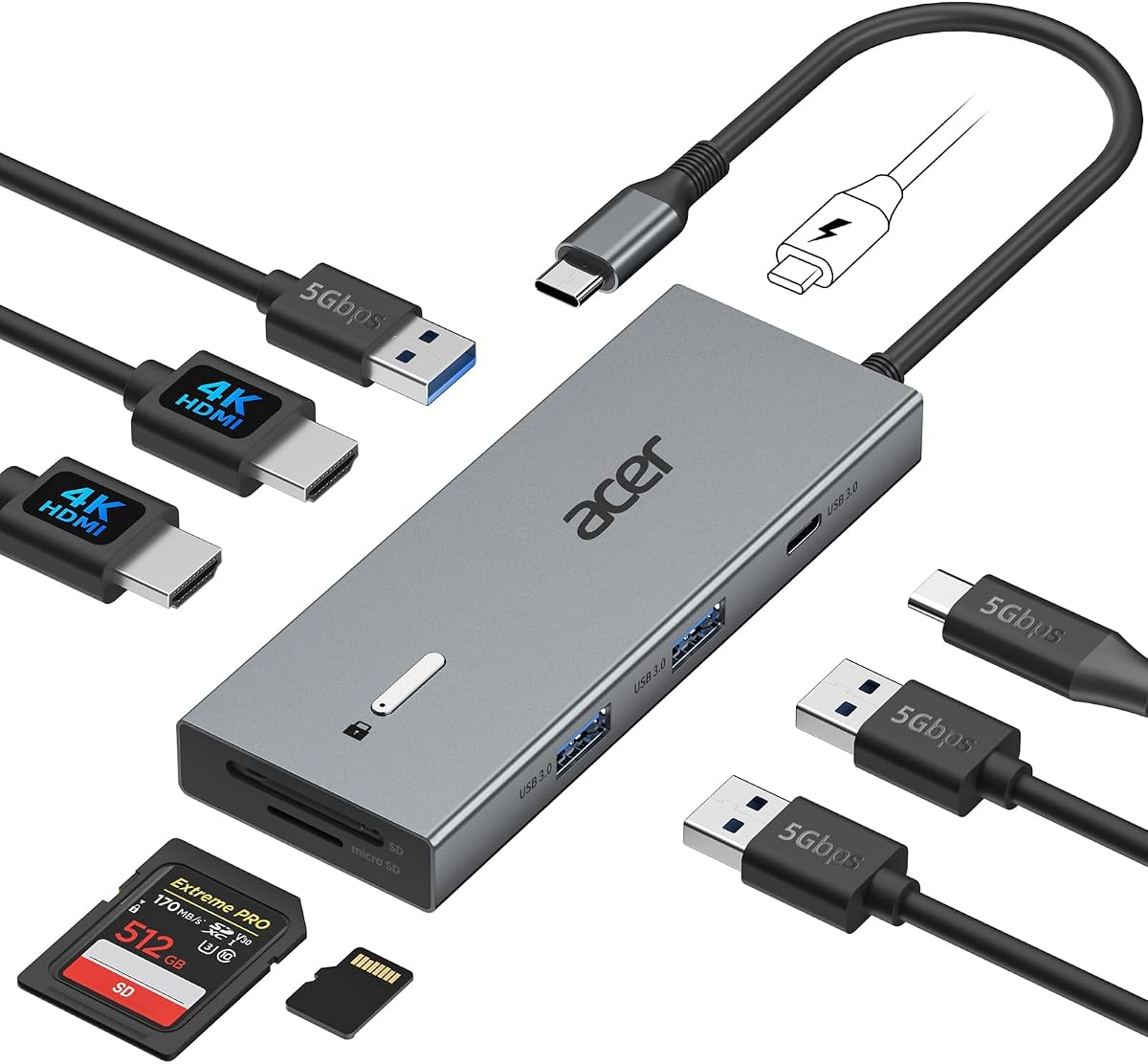
The Acer 13-in-1 Laptop Docking Station is the premium option in this roundup, with a 4.5 rating and a feature set aimed at command-center workstations. Its defining advantage is the combination of two HDMI ports and one DisplayPort output, allowing compatible Windows laptops to run three independent screens through MST. It also includes a 110W adapter rather than leaving the user to source one separately.
We may earn a commission when you buy through this link, at no additional cost to you.
Video flexibility is a major strength. The DisplayPort connection can support a single 8K-oriented display within the broader product line, while the two HDMI and DisplayPort outputs can drive three independent 4K monitors on compatible Windows systems with Display Stream Compression. The data side is equally ambitious, with four USB-A ports, two USB-C connections, Gigabit Ethernet, an audio jack, and simultaneous SD and microSD card reading and writing.
The important caveat is that the most advanced display modes depend heavily on the host computer. Windows users need compatible USB-C graphics capabilities and DSC for the stated triple-4K arrangement. macOS supports mirroring across multiple displays rather than an extended desktop, and the rear USB-C port is for data only. The included 110W adapter can also power external monitors or other peripherals when the host laptop is connected through the primary USB-C PD port.
This dock is ideal for Windows professionals who need more than two displays, a broad range of peripherals, and a more permanent desk setup. Its aluminum body, heat dissipation, included power supply, and integrated security slot also make it more appropriate for an office or shared workspace than a minimal travel hub. For a buyer who can use the additional DisplayPort and power capability, it offers the most complete workstation design in the list.
The third DisplayPort output distinguishes this model from conventional two-HDMI docks. Compatible Windows systems can use all three outputs independently, and systems with Display Stream Compression can support three 4K displays at 30Hz.
The aluminum enclosure, included 110W adapter, and integrated security slot create a more permanent workstation proposition. These details are especially relevant in an office, dorm room, or shared environment where a compact travel adapter would be less suitable.
We may earn a commission when you buy through this link, at no additional cost to you.
The Selore USB C Docking Station Dual Monitor delivers the core features many buyers seek at a comparatively accessible level of investment. It has a 4.4 rating, two HDMI ports capable of 4K at 60Hz according to the supplied information, and an eight-in-one layout that adds charging, USB data connections, and media-card access.
We may earn a commission when you buy through this link, at no additional cost to you.
The dock includes two USB-A 3.0 ports, one data-focused USB-C 3.0 port, a USB-C power-delivery connection, and an SD and microSD slot. Data-transfer speeds are listed at up to 5Gbps for USB, while card access reaches up to 104Mbps. The charging input is 100W, with up to 85W delivered to the laptop. The second USB-C port is limited to data, so it should not be treated as another charging input.
There are two important trade-offs. First, the power charger and charging cable are not included, so users wanting laptop charging must supply a compatible USB-C power adapter and cable. Second, the product does not provide extended dual-screen mode on macOS; MacBook users receive mirrored content. Windows laptops with MST support can extend two displays simultaneously, making the device most attractive for that platform.
This is a strong choice for a Windows user who wants two 4K-capable HDMI outputs, fast USB peripherals, memory-card access, and laptop charging without moving to a large premium dock. It requires a Thunderbolt or full-featured USB-C port that supports video, and the host must provide the charger if charging is desired. For those conditions, it covers the essentials with fewer frills than a premium workstation model.
Two HDMI outputs listed at 4K and 60Hz provide a straightforward way to connect a larger primary display and a secondary productivity screen. The approach is less complex than managing several different display standards.
The combination of 5Gbps USB connections and an SD and microSD reader is particularly useful for photographers, video editors, and office users who regularly move files between a laptop and removable media.
We may earn a commission when you buy through this link, at no additional cost to you.
The Acer USB-C Docking Station Dual Monitor combines two 4K-capable HDMI outputs with a practical nine-port layout. Its 4.2 rating reflects a generally capable product, while the built-in 0.65-foot host cable makes it convenient to carry and reduces the chance of leaving a critical USB-C cable behind.
We may earn a commission when you buy through this link, at no additional cost to you.
Display support is a highlight, with the supplied information specifying dual 4K at 60Hz output. The dock also provides three 5Gbps USB-A ports, one 5Gbps USB-C data port, separate SD and microSD slots, and a dedicated charging connection. Power Delivery accepts up to 100W and delivers up to 90W to the laptop, although the required 100W-or-higher wall adapter is not included.
macOS users face the familiar limitation: multiple external monitors show the same content in A-AA or A-BB mode, while A-B-C configuration is not supported. The privacy control also behaves differently by operating system, using a single click for Windows and a three-second press for Mac. These are not deal breakers for a mirror-based setup, but they should be understood before purchase.
The Acer is well suited to Windows users who want high-resolution dual displays, fast peripherals, card access, and charging in a compact unit without another permanently attached host cable. Users should confirm that their laptop has a full-featured USB-C port with DisplayPort Alternate Mode and that the computer and monitors support HDMI 2.0 or a higher standard. It is a compelling mid-range option when its integrated cable and access controls are priorities.
The integrated host cable removes one loose component from the setup. It is a small but meaningful convenience for people who move between a home desk, office, and meeting room without wanting to carry a separate docking cable.
Three USB-A ports and separate SD and microSD slots make it easy to connect existing keyboards, mice, storage devices, and memory cards. The USB data connections are listed at 5Gbps, while card access reaches up to 104Mbps.
We may earn a commission when you buy through this link, at no additional cost to you.
The Dell D3100 is a substantial desktop-style docking station with two HDMI ports, DisplayPort, three USB 3.0 ports, two USB 2.0 ports, Gigabit Ethernet, and 3.5mm audio connections. Its 4.2 rating and broad physical port selection make it a natural fit for users who prefer a traditional full-size dock over a compact travel hub.
We may earn a commission when you buy through this link, at no additional cost to you.
The combination of two HDMI and one DisplayPort output provides flexibility for dual-display work and potentially a third display. The included host connection is based on USB 3.0, and the product provides up to 65W of charging through the supplied power setup. For wired networking, the RJ45 port offers a stable alternative to Wi-Fi in offices where reliability matters.
The older design has some obvious constraints. The supplied compatibility information mentions Microsoft Windows XP, 7, 8, 8.1, and 10, along with a selection of Dell Inspiron, Latitude, and XPS models. That dated operating-system range is a reason to verify modern support before purchasing. Its two USB 2.0 ports are also modest by current standards, although they remain useful for keyboards, mice, and low-bandwidth peripherals.
The D3100 makes most sense for a compatible Dell or Windows business laptop that needs a permanent desk with multiple displays, wired internet, and numerous USB devices. Buyers using a newer operating system should confirm current driver and host compatibility, but the physical design and port assortment remain attractive for a fixed workstation.
The broad mix of legacy and current USB ports allows existing office accessories to remain connected. Legacy USB 2.0 devices can coexist with faster storage, while Gigabit Ethernet provides a dependable wired connection.
Two HDMI ports satisfy the core need for dual-screen setups, while the additional DisplayPort output can support a third display within the limits of the host computer. The included HDMI-to-DVI cable adds another option for compatible monitors and projectors.
We may earn a commission when you buy through this link, at no additional cost to you.
The supplied data for this listing contains an Amazon URL and ASIN but does not provide a product name, rating, image, price, or description. As a result, this entry cannot be evaluated on confirmed HDMI output, charging capability, USB configuration, or operating-system support. It remains in the comparison because the required list contains one entry for every supplied product.
We may earn a commission when you buy through this link, at no additional cost to you.
The absence of detailed specifications makes any claim about this dock's performance inappropriate. A listing with two HDMI connections may still differ dramatically from dedicated 4K, high-refresh-rate models, and the compatibility behavior could vary between macOS and Windows. Buyers should open the linked product page and confirm the current title, port layout, supported resolutions, and host requirements before considering a purchase.
Because the provided information cannot establish the dock's strengths or limitations, this listing does not receive an award. Its presence in the table should be understood as a data-completeness placeholder rather than a recommendation. The absence of an image and rating also means it cannot be compared fairly on customer feedback or physical design.
This entry is best treated as a product requiring independent verification. Check whether the laptop's USB-C port supports video output, whether the dock provides laptop charging, whether macOS users can extend rather than mirror displays, and whether the advertised HDMI resolution applies to one or two connected monitors. The other products in this guide provide substantially clearer information for making a comparison.
The linked listing should be checked for its current port layout, supported display modes, power requirements, and included accessories. Those details are indispensable when selecting a dock for a two-monitor setup.
No award is assigned because the supplied information does not substantiate any comparative advantage. A confident recommendation requires confirmed display, charging, and compatibility specifications.
We may earn a commission when you buy through this link, at no additional cost to you.
The Anker 7-in-1 USB-C Hub is built for users who value portability and fast data transfer over high-resolution dual-screen output. It has a 4.2 rating, two display connections that support an extended workspace at 1080p and 60Hz, a 10Gbps data port, and charging up to 85W.
We may earn a commission when you buy through this link, at no additional cost to you.
Its restrained seven-port design avoids unnecessary duplication. It supports USB-C, USB4, and Thunderbolt connections, along with macOS 12 and newer, Windows 10 and 11, and ChromeOS. Linux is not listed as compatible. The lack of Ethernet is explicitly noted, and the wall charger is not included, so the dock is best paired with power the user already owns.
The major limitation is display resolution. A 1080p and 60Hz workspace is still useful for email, messaging, spreadsheets, browser research, and a secondary status display, but it will not satisfy creative professionals or display-focused users who want two 4K panels. There is also no card reader, which may matter for photographers and video editors.
The Anker is an excellent traveling companion for a Windows or modern Mac user who mainly needs a second 1080p screen, fast file transfer, and convenient charging. Its compact format reduces desk and bag space, and the 10Gbps data connection is a notable feature. It is less appropriate as a permanent high-resolution workstation or for users who depend on a wired network connection.
The seven-port design offers enough connectivity for a temporary desk without the footprint of a large multi-display workstation. It suits travel, shared spaces, and hybrid work where the setup changes regularly.
A 10Gbps data port accelerates transfers of large files, while two 1080p displays provide a comfortable division between primary and secondary work. The resolution ceiling is the decisive trade-off for high-end visual work.
We may earn a commission when you buy through this link, at no additional cost to you.
The MOKiN USB C Docking Station Dual Monitor is the most port-dense option in this guide, combining two HDMI connections with Ethernet and eight USB data connections. Its 4.3 rating and stated support for dual 4K at 60Hz make it a strong candidate for users who want a single hub to support several kinds of equipment.
We may earn a commission when you buy through this link, at no additional cost to you.
The selection includes four USB-C 3.0 ports, two USB-A 3.0 ports, two USB-A 2.0 ports, an RJ45 Gigabit Ethernet connection, and a dedicated USB-C charging port rated up to 100W. Display users can choose between extension and mirrored layouts under the right host and operating-system conditions, although the listed SSD mode does not support extended displays.
An integrated privacy button is a distinctive feature. A short press turns off the connected screens, which can be useful when stepping away from a desk. The dock also supports full-featured USB-C connections and is designed for compatible Dell, HP, and Lenovo laptops, along with Thunderbolt 3 and 4 systems. Users should verify that the host port supports the required functions before purchasing.
This model suits a multi-device workspace where USB-C accessories, legacy USB peripherals, wired internet, dual 4K monitors, and host charging are all required. Its large port count may exceed the needs of a traveler, but it provides exceptional flexibility for a fixed desk. For users comfortable checking display modes and host compatibility, it is a versatile high-connectivity choice.
Eight USB data connections offer room for keyboards, mice, storage, webcams, and other peripherals without requiring repeated hub changes. The mix of USB-C and USB-A also supports newer and older accessories.
The dedicated button can turn off connected displays with a short press, creating a quick way to hide visible information. It is a useful addition for offices and shared workspaces where screen privacy matters.
We may earn a commission when you buy through this link, at no additional cost to you.
The Selore USB C Docking Station Dual Monitor stands out for accommodating modern and legacy display equipment. It has a 4.5 rating and combines two 4K at 60Hz HDMI ports with DisplayPort and VGA, allowing it to connect more than two monitors and support projectors or older displays through the same unit.
We may earn a commission when you buy through this link, at no additional cost to you.
For compatible Windows systems with DP1.4, the two HDMI outputs and DisplayPort can drive three independent 4K monitors. The DisplayPort output can also support a single display at up to 8K and 30Hz. A dedicated control button can turn connected monitors off or wake them, while a long press cycles through PC-only, duplicate, extend, and second-screen-only modes on Windows.
The other connections cover most fixed-desk needs: Gigabit Ethernet, two USB-A 3.0 ports, a USB-C 3.0 data port, and 100W PD input with up to 85W delivered to the host. The durable aluminum chassis is intended to dissipate heat during extended multi-monitor use, and the product includes an 18-month warranty.
macOS users should plan around mirrored output only, as the operating system does not provide the extended multi-display arrangement offered to compatible Windows users. The VGA connector may also feel unnecessary for some buyers, but it remains valuable for legacy projection setups. Overall, this dock is a strong choice for Windows users who want extensive monitor options and appreciate a broad range of connection standards.
HDMI and DisplayPort cover modern high-resolution monitors, while VGA preserves compatibility with older displays and projectors. That range of standards is especially useful for offices and event spaces with mixed equipment.
The multifunction button provides a convenient way to wake screens, blank them for privacy, or cycle among Windows display arrangements. It reduces the need to open system settings for routine changes.
We may earn a commission when you buy through this link, at no additional cost to you.
The Anker Laptop Docking Station is a full-featured 13-port desktop hub with a vertical enclosure designed to preserve desk space. It has a 4.0 rating, two HDMI ports, DisplayPort, multiple USB-C and USB-A connections, Gigabit Ethernet, card readers, audio, and an included 135W adapter.
We may earn a commission when you buy through this link, at no additional cost to you.
Power delivery is one of its most useful strengths. The host laptop can receive up to 85W through the primary USB-C connection while a phone receives up to 18W through another port. The included 135W adapter makes the package ready for desktop-style power delivery without requiring a separate high-wattage charger.
For displays, the dock can run up to three external monitors at 1080p and 60Hz, or one 4K and 60Hz display through HDMI or DisplayPort. Windows 10, Windows 11, and ChromeOS users with compatible USB-C, USB4, or Thunderbolt systems can use extended triple displays. macOS supports charging and data functions, but its external monitors are limited to mirroring.
This is a good choice for a fixed desk that needs many peripherals, a fast 10Gbps data connection, card access, wired networking, and simultaneous laptop and device charging. Its vertical form factor helps save horizontal desk space. The 1080p ceiling for a three-screen layout means it is less attractive to high-resolution creative users, but it remains a comprehensive option for office productivity and general multitasking.
The included 135W adapter supports the dock's most demanding charging arrangement, while 85W host charging and 18W device charging reduce the number of power bricks needed on the desk.
TenGbps USB-C data, faster USB-A connections, Gigabit Ethernet, SD and microSD readers, and audio support cover both daily office tasks and faster file workflows. The vertical body also helps preserve desk space.
We may earn a commission when you buy through this link, at no additional cost to you.
The right two-HDMI dock depends on more than connector count. Display modes, host compatibility, charging capacity, wired networking, and the number and speed of peripheral ports can have a greater effect on daily satisfaction.
Check whether the dock supports an extended desktop or only mirrored images. Windows systems with MST can often extend two or three displays, while macOS generally mirrors content across multiple external screens unless the dock and operating system offer a different supported arrangement. Resolution is equally important: some docks drive two panels at 4K and 30Hz, others at 4K and 60Hz, and more compact products may stop at 1080p and 60Hz. The source specifications also list 4K support as dependent on the host device, which must support HDMI 2.0 or the appropriate standard.
A USB-C port labeled only for data or charging may not transmit video. Look for a full-featured USB-C connection with DisplayPort Alternate Mode, or a Thunderbolt 3, 4, or 5 port. Some products explicitly require these capabilities, and compatibility can also depend on the laptop's graphics processor. A dock cannot create video output that the host lacks, so confirm the exact model of your computer rather than assuming every USB-C port behaves identically.
Power Delivery specifications have two parts: the amount accepted from the wall charger and the amount delivered to the laptop. A dock may accept 100W while providing 85W, allowing some power for connected displays or peripherals. Some models include a suitable adapter, while others require you to bring a USB-C charger and cable. A full-size workstation with a high power draw may need the included adapter to operate at its stated capacity, whereas a smaller hub may work with a charger you already own.
Count not only the number of USB ports but also their generations. USB 3.0 and USB 3.2 Gen 1 connections are commonly listed at 5Gbps, while some newer hubs offer a 10Gbps USB-C data port. Legacy USB-A 2.0 connections remain fine for keyboards and mice but are less useful for external storage. Consider the mix of USB-A and USB-C accessories you own, because a dock with many ports of the wrong type can still leave you searching for an adapter.
Gigabit Ethernet is valuable for stable video calls, large transfers, and environments with unreliable Wi-Fi. Not every compact hub includes it, so this is an important distinction. A 3.5mm audio jack may be useful for headsets or external speakers, while SD and microSD readers can speed up workflows involving cameras, action cameras, or portable storage. These features add convenience, but they are less essential than correct display and host compatibility.
A thirteen-port dock can consolidate several adapters, but it may be unnecessary if you only use a laptop, two monitors, and a mouse. Compact seven- or eight-port hubs are easier to carry, while larger 13-port models tend to suit permanent desks. Consider the shape, included host cable, and available space beside the monitors. A vertical enclosure can save horizontal desk area, and an integrated cable reduces the chance of losing an essential USB-C connection.
Read the compatibility notes rather than relying on a general platform label. The products in this guide differ in how they treat macOS, Windows, ChromeOS, and Linux, and some list specific Windows functions such as MST, DSC, A-AA, A-BB, or A-BC arrangements. Mirroring is not the same as extending a desktop, and DSC support may be required for multiple 4K outputs. These distinctions matter most for users who move windows between screens or work with color-critical applications.
Aluminum construction can improve heat dissipation during extended multi-monitor use, while an integrated security slot can help secure a dock in a shared office. Some products also offer a screen-off or privacy button. These details are valuable in permanent installations but may matter less for a travel accessory. A sturdy enclosure, clear status behavior, and accessible controls are generally more useful than decorative features that do not improve your routine.
Begin by confirming that the laptop has a full-featured USB-C port or a compatible Thunderbolt connection that supports display output, data transfer, and the charging functions you intend to use. Connect the host cable to the powered dock first, attach the HDMI cables to the monitors, and then connect any peripherals. If the dock includes a power adapter, use the specified adapter and cable, particularly when a listing states that full charging or multiple-display performance depends on them.
After connecting the equipment, open the computer's display and accessory settings. On Windows, enable the appropriate external-display arrangement and select extend, duplicate, or another supported mode. On macOS, use the Displays panel and confirm whether the arrangement is mirrored. Some Acer and Selore models include dedicated monitor controls or instructions for allowing accessories through system privacy settings. Allow a few seconds for the computer to recognize the dock, card reader, and newly connected displays.
For maintenance, keep the dock and ventilation surfaces away from liquids and prolonged direct heat. Use a soft, dry cloth to clean the aluminum or plastic enclosure, and avoid dragging connectors through dust or debris. Route cables to reduce strain, do not repeatedly yank a built-in host cable, and keep card slots free of dust. When changing laptops or monitors, verify display, charging, and data functions again because host compatibility can vary even when the physical connector matches.
Yes, provided the host computer and dock support the intended display mode. Connect each monitor to an HDMI output with a cable appropriate for its connector and resolution. Compatible Windows systems can often extend the desktop across both screens, while macOS generally mirrors the same image. A dock listing that supports 4K at 60Hz on one display may only support 4K at 30Hz when both are active.
Not always. A full-featured USB-C port that supports DisplayPort Alternate Mode can work with many compatible docks, as can suitable Thunderbolt 3, 4, or 5 systems. A USB-C port that only supports data or charging will not provide the desired video output. Check the specifications for your exact laptop model before choosing a dock.
The supplied information for several products states that macOS supports mirroring rather than an extended desktop for multiple external displays. This is an operating-system limitation rather than necessarily a cable or monitor problem. Windows systems with MST support are more likely to provide separate content on two extended screens.
Use an adapter that matches the dock's stated input requirement and delivers enough power for the host laptop and any attached displays or devices. Several models in this guide list 100W input, while others include a higher-wattage adapter for workstation use. A charger that powers the laptop directly may not provide sufficient input for a dock, so check the listing and included-accessory information.
Only if the dock includes an RJ45 Gigabit Ethernet port and you connect it to an Ethernet network. Models such as the Anker 8-in-1, Acer 13-in-1, MOKiN 13-in-1, and Selore 10-in-1 include Ethernet according to the supplied details. The Anker 7-in-1 does not, and other connectivity depends on the individual listing.
Not always. The useful figure is the power the dock can deliver to your particular laptop. A higher ceiling can support demanding notebooks, but it may be unnecessary for a lighter computer. Also consider whether a suitable wall charger is included, because some docks require one that is sold separately.
A 10Gbps port can transfer data at up to twice the headline rate of a 5Gbps connection, which can shorten transfers involving large files and fast storage. The actual speed also depends on the connected device, cable, file type, and computer. For keyboards and mice, the difference is rarely noticeable, but it matters for external SSDs and media workflows.
Not if your goal is strictly a two-monitor desk with no other displays or projectors. However, a DisplayPort output can add flexibility for a third screen, a high-resolution monitor, or an adapter-based setup. Models with HDMI, DisplayPort, and VGA are best for mixed equipment, while a simpler two-HDMI hub may be easier to manage.
The Anker 8-in-1 stands out as the best overall balance for most buyers because it combines two 4K-capable HDMI outputs with charging, Ethernet, USB ports, and media-card access in a manageable eight-port design. The Acer 13-in-1 is the strongest premium workstation option, with a third DisplayPort output, an included high-wattage adapter, and extensive connectivity. For budget-conscious Windows users, the Selore 8-in-1 provides two 4K HDMI ports and a practical set of peripherals connections.
Prioritize host compatibility, display extension, and the resolution your actual monitors require before considering extra ports. A dock with 13 connections is not automatically better than a smaller model if it is difficult to carry, does not support your operating system's preferred arrangement, or lacks a connection you use. Wired networking, card readers, privacy controls, and high-watt charging should be considered according to your actual workflow.
Finally, confirm the current product details and included accessories at the time of purchase. Docking-station specifications can change between listing revisions, and charger inclusion, host-cable design, or operating-system support can materially affect the value. Comparing the verified specifications with your laptop and monitors will help identify the model that remains suitable even as prices and availability change.