
HDMI KVM Switch 3 Monitors 2 Computers
Three HDMI displays
Two connected computers
Four USB 3.0 ports
Extended and copy modes
Our KVM Switch for Triple Monitors guide compares ten leading switches for display modes, 8K support, USB sharing, docking features, and setup ease.
A KVM switch for triple monitors lets one keyboard, mouse, and set of displays serve multiple computers without repeatedly changing cables. The right unit depends on your graphics outputs, desired resolution, peripheral sharing, and whether you also need docking, networking, or laptop charging. Good switches make switching dependable while preserving every screen.
The products in this guide were compared using the supplied specifications, including supported computer counts, display interfaces, maximum resolutions, display modes, USB connectivity, switching controls, and included accessories. The list covers dedicated two-computer switches, models for three or four computers, and all-in-one KVM docking stations for laptop-and-desktop workstations.
Each review identifies the setup that best fits a particular product, from straightforward HDMI sharing to high-resolution DisplayPort configurations and feature-rich docks. Ratings and specifications may change over time, as may availability and pricing, so confirm the current listing and verify your computer outputs before making a final purchase.

4.6Editor score

4.9Editor score
This side-by-side comparison highlights each switch's computer count, display interfaces, headline performance, and USB support, making it easier to match a unit to your computers, monitors, and preferred desk workflow.


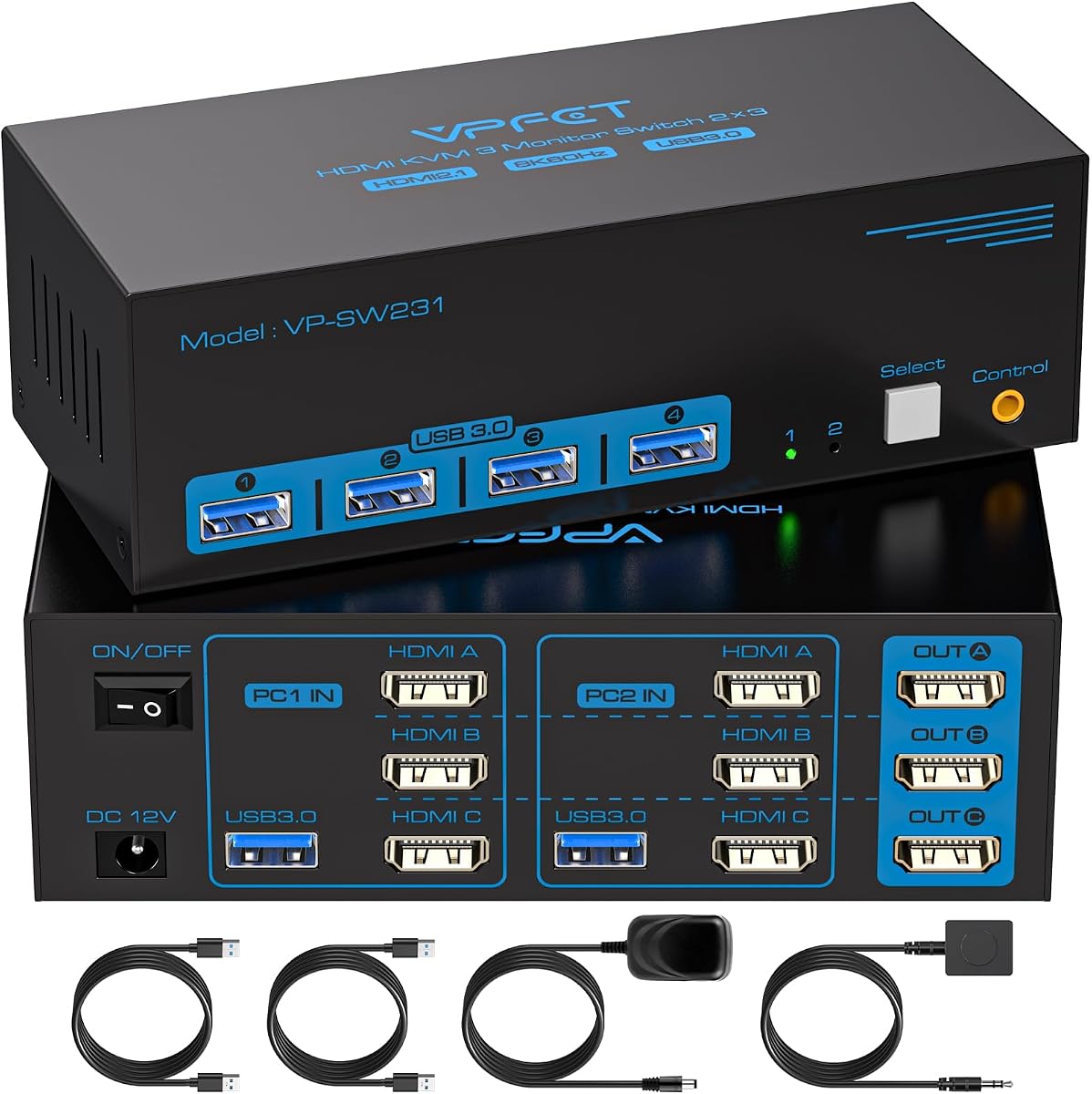

This HDMI KVM switch is built for two computers that each use three HDMI outputs, making it a budget-focused solution for offices, study desks, and creative workstations where an all-HDMI arrangement is easier to manage. No customer rating was supplied for this listing, so its appeal rests on its clearly defined specifications rather than a visible review history. It combines three-display switching with four shared USB 3.0 ports and both extended and copy display modes.
We may earn a commission when you buy through this link, at no additional cost to you.
Its main strength is straightforwardness. Each computer connects to the switch with three HDMI cables, while a USB connection handles shared peripherals. The switch supports resolutions up to 4K at 60Hz and is backward compatible with 4K at 30Hz, 1080p, and lower resolutions. That makes it appropriate for office applications, financial dashboards, code windows, and general multitasking where sharp 4K output is more important than extremely high refresh rates.
The included 12-volt power adapter is useful because it supports high-power USB devices such as hard drives and webcams. A panel button and external wired controller both provide switching methods, while an indicator light identifies the active source. The limitations are meaningful, though: hotkey toggles are unsupported, adapters are not recommended, and every source computer must be capable of driving all three displays.
This is the best budget option for a straightforward two-PC, three-HDMI setup. It is less suitable for gamers seeking 8K or 4K high-refresh performance, and buyers should confirm that both computers have enough HDMI outputs. If every monitor is already HDMI-based, its simple layout and shared USB functionality provide a practical way to avoid constant cable swapping.
The switch removes the need to move three monitor cables whenever you change computers. With both systems connected, one button or remote press changes the active source while the same three-monitor arrangement remains in place.
Four USB 3.0 ports let a keyboard, mouse, printer, and another peripheral move between computers. The powered design improves stability for storage devices and webcams that may draw more current than a computer port can reliably provide.
We may earn a commission when you buy through this link, at no additional cost to you.
The UGREEN 8K Triple Monitor KVM combines two DisplayPort 1.4 inputs and one HDMI 2.1 input for each of two computers. Its supplied 3.9 rating places it among the lower-rated options in this guide, but its specification sheet is broad for users with demanding displays. It supports up to 8K at 60Hz, multiple 4K refresh rates, HDR, VRR, FreeSync, and G-Sync.
We may earn a commission when you buy through this link, at no additional cost to you.
This is particularly interesting for mixed-interface workstations because many computers offer a combination of DisplayPort and HDMI rather than three identical ports. The package includes four DisplayPort cables, two HDMI cables, two USB A cables, a power adapter, a desktop controller, and a guide. The aluminum enclosure and desktop controller also suit a permanent installation near or under the desk.
There are several caveats. Both source computers must support three displays and each need two DisplayPort outputs plus one HDMI output. The product does not support EDID emulation, and signal converters or docking stations may introduce compatibility issues. For 8K at 60Hz, both the source and monitor must support that standard, and the supplied guidance recommends keeping cables within two meters.
Choose this model if you want flexible DisplayPort and HDMI connectivity, high refresh rates, and a generous accessory package. It is not the most broadly compatible option for laptops with limited ports, nor the easiest choice for users who need guaranteed EDID handling. For compatible desktops, however, it offers a well-rounded high-performance configuration.
Support for 8K at 60Hz and refresh rates up to 4K at 240Hz makes the switch relevant to demanding creative and gaming setups. The advertised VRR and adaptive-sync support can also help reduce visible stuttering when the entire source, cable chain, and monitor support those features.
The supplied DisplayPort, HDMI, and USB cables reduce the need to source additional leads immediately. This is useful for a first-time installation, although the number of connected displays means cable routing still requires some planning.
We may earn a commission when you buy through this link, at no additional cost to you.
The AV Access B23 is the most fully equipped premium option in this guide because it combines triple-monitor switching with docking, charging, networking, card access, audio, and high-speed USB. It pairs one USB-C laptop with one desktop PC and carries a 4.9 rating, the highest listed among the ten products. The desktop path can support 8K at 60Hz or 4K at 165Hz.
We may earn a commission when you buy through this link, at no additional cost to you.
Its single-cable laptop workflow is especially compelling for a mobile workstation. A compatible full-featured USB-C connection can carry display output, data, and up to 100 watts of power delivery. The device also includes two USB-A 3.2 ports and one USB-C 3.2 port rated for transfers up to 10Gbps, plus three additional 5Gbps USB-A ports, an SDXC reader, and a 3.5mm headset connection.
The product also keeps the shared 1Gb Ethernet connection active on both computers when the selected source changes, allowing background tasks to continue. Compatibility is the main limitation. Windows laptops with USB-C video can use MST for extended multi-monitor mode, while MacBooks are limited to mirrored output. HDMI and DisplayPort video cables are not supplied, and the laptop port must support the necessary video functions.
This is the top premium recommendation for a user who wants one box to replace a KVM, dock, USB hub, card reader, and potentially a separate charging arrangement. It is less compelling if you only need basic video and keyboard switching, but for a laptop-and-desktop station it combines the most complete feature set with convenient one-cable laptop operation.
Video, data, network access, and charging can travel through a compatible USB-C cable. That makes transitions between a portable computer and a desktop less disruptive, especially when the dock also manages shared monitors and everyday peripherals.
The shared 1Gb Ethernet connection remains active on both systems, so the unselected computer can continue cloud synchronization, downloads, remote access, and updates. This is a meaningful advantage over switching implementations that completely disconnect an inactive source.
We may earn a commission when you buy through this link, at no additional cost to you.
The AOOCOO four-computer KVM stands apart because most competing units in this guide handle only two or three sources. It allows four desktops to share three displays, four USB 3.0 ports, a keyboard, and a mouse. Its 4.5 rating and advertised 8K at 60Hz and 4K at 144Hz support make it a strong option for offices, editing rooms, and test benches with several workstations.
We may earn a commission when you buy through this link, at no additional cost to you.
The display layout uses two DisplayPort 1.4 connections and one HDMI 2.1 connection per computer. The HDMI side supports 8K at 60Hz and 4K at 120Hz, while the DisplayPort side supports 8K at 30Hz and 4K at 144Hz. USB 3.0 data transfer is rated at up to 5Gbps. Switching is available through the front panel or the included wired remote, and the package contains four USB 3.0 cables and a power adapter.
A four-source switch adds complexity to the initial wiring. Every computer needs two DisplayPort outputs and one HDMI output, and systems combining integrated and discrete graphics may require all three connections to originate from the discrete graphics card. Short HDMI 2.1 and DisplayPort 1.4 cables are recommended where possible to preserve signal stability.
This switch makes the most sense for a shared environment with more than two PCs. It removes repeated physical cable changes while retaining modern high-resolution support and easy source selection. For a simple two-PC home office, the additional inputs are unnecessary; for a multi-machine professional desk, however, they can eliminate a substantial amount of daily reconnection.
The four-computer capacity is the defining advantage. Each source can use the same trio of monitors and shared peripherals, making the unit useful for administrators, developers, and creators who regularly alternate among several machines.
A front-panel button provides quick local selection, while the wired remote can sit nearer the keyboard or under the desk. The included power adapter supports a stable installation, and four USB cables cover the computer-side peripheral connections.
We may earn a commission when you buy through this link, at no additional cost to you.
This two-computer KVM provides a balanced combination of triple-display support, modern video standards, four USB 3.0 ports, and straightforward switching. It uses one HDMI 2.1 and two DisplayPort 1.4 connections for each computer, earning a 4.3 rating. The stated applications include home offices, classrooms, meeting rooms, and gaming setups, making it one of the more broadly framed options in the list.
We may earn a commission when you buy through this link, at no additional cost to you.
The HDMI output supports up to 8K at 60Hz and 4K at 120Hz, while DisplayPort supports up to 8K at 30Hz and 4K at 144Hz. Its compatibility list includes laptops, desktops, PS4, Raspberry Pi, DVR systems, and major desktop operating systems. A panel button and 1.5-meter wired controller offer two switching methods, and LED indicators identify the active computer.
The external 12-volt power port and separate power switch are practical for high-power peripherals and signal re-recognition. A dedicated restart function can resolve recognition issues without unplugging every cable. On the other hand, users should favor native DisplayPort and HDMI connections; only active DisplayPort-to-HDMI adapters are recommended, and passive adapters may undermine performance.
This is a compelling middle-ground recommendation for a mixed two-PC workstation. It offers more advanced resolution support than a basic 4K model without the docking complexity of the AV Access units. It is best suited to desktops with one HDMI and two DisplayPort outputs and to users who value a visible power control alongside wired source selection.
The recommendation to use native DisplayPort and HDMI helps preserve signal integrity. Users who rely on passive adapters should reconsider or verify compatibility before installation, especially when pursuing high refresh rates or 8K output.
The dedicated external power supports demanding USB devices, while the separate power button offers a simple recovery action when a source needs to be recognized again. This makes the switch practical for permanent desk installations.
We may earn a commission when you buy through this link, at no additional cost to you.
The AV Access 8K KVM Dock is built for a laptop-and-desktop setup and places unusual emphasis on gaming performance. Its desktop source can support up to 8K at 60Hz, 4K at 165Hz, or 1080p at 480Hz and 360Hz. The USB-C laptop path supports up to 4K at 60Hz, 1440p at 165Hz, or 1080p at 240Hz. It carries a 4.2 rating.
We may earn a commission when you buy through this link, at no additional cost to you.
Like other advanced KVM docks, it consolidates a switch, dock, USB hub, network adapter, card reader, and audio interface. The laptop receives display, data, and up to 100 watts of charging over one compatible USB-C connection. Two USB-A 3.2 ports and one USB-C 3.2 port deliver up to 10Gbps, with three more USB-A ports rated at 5Gbps. Ethernet remains live on both computers, and SDXC and headset connections are integrated.
Compatibility remains the deciding issue. Windows laptops with compatible USB-C video can use extended output through MST, but MacBooks support mirrored displays only. The laptop's USB-C port must support video, and the source, displays, cables, and switch must all agree on the target resolution and refresh rate. Its very high refresh claims are therefore potential capabilities, not guarantees for every combination.
This model is best for a serious gaming desk or mixed workstation that benefits from high refresh rates and a full docking feature set. It may be excessive for standard office productivity, and MacBook owners should note the mirroring limitation. For a compatible Windows laptop and powerful desktop, however, it offers a remarkably integrated way to manage displays, peripherals, network access, and charging.
The broad refresh-rate support is the main differentiator, particularly for competitive or fast-motion content. Actual results depend on the graphics hardware and the resolution and refresh rate supported by every connected monitor.
Fast USB, Ethernet, card reading, charging, and audio are consolidated in the enclosure. This can replace several separate adapters in a permanently arranged laptop-and-desktop workspace.
We may earn a commission when you buy through this link, at no additional cost to you.
The CMSTEDCD 8K HDMI KVM is a strong alternative for users whose computers each provide three HDMI outputs. It supports two computers, three displays, and four shared USB 3.0 ports, with a 4.2 rating. The switch supports extended and duplicate modes, and its HDMI 2.1 platform can reach 8K at 60Hz or 4K at 120Hz.
We may earn a commission when you buy through this link, at no additional cost to you.
Its interface simplicity is valuable. Because all three display connections use HDMI, there is no need to balance HDMI and DisplayPort capabilities or investigate which connector carries the highest refresh rate. The unit is backward compatible with 4K at 30Hz, 1080p, 720p, and 3K. USB 3.0 ports support peripherals such as keyboards, mice, printers, scanners, and external storage, while older USB devices remain compatible.
The product is driver-free and plug-and-play. A physical select button on the enclosure and an included wired controller provide two ways to change sources. A 12-volt, one-amp adapter supports operation. Nevertheless, both computers must support multi-monitor output, and a laptop that lacks sufficient HDMI connections or graphics capability may not be able to drive all three screens.
This switch is a good fit for a two-PC desk where every display uses HDMI and the owner wants modern resolution support without a more complex dock. It is less flexible than mixed HDMI and DisplayPort models for desktops with different connector combinations, but its simpler wiring can make installation and daily use more approachable.
Using HDMI throughout eliminates many cable-compatibility questions. It also lets the switch deliver a strong combination of 8K at 60Hz and 4K at 120Hz without separating performance between different connector types.
No software installation is required, which is convenient for frequently changing desks. Users can select a source from the enclosure or the included wired controller while sharing four USB peripherals.
We may earn a commission when you buy through this link, at no additional cost to you.
The AOOCOO three-computer KVM fills the middle ground between common two-source switches and the less frequent four-computer model. It allows three PCs to share three monitors and four USB 3.0 ports, with a 4.1 rating. Each computer uses two DisplayPort connections and one HDMI connection, giving users a modern mixed-interface arrangement.
We may earn a commission when you buy through this link, at no additional cost to you.
The switch supports up to 8K at 60Hz and 4K at 144Hz, provided the source, monitor, and cables support the selected mode. Four USB 3.0 ports offer transfer rates up to 5Gbps, compared with 480Mbps for USB 2.0. The package includes three USB 3.0 cables, a wired remote, a 12-volt power adapter, and a user manual. Two color lights identify the active source.
An important setup requirement is that the USB input from every computer must be connected; otherwise, shared keyboards and mice may not be recognized. Each source also needs enough graphics outputs for all three displays. The manufacturer recommends HDMI 2.1 and DisplayPort 1.4 cables and advises keeping them short where the installation distance allows.
This model is most useful for a desk that regularly serves three systems, such as a development workstation, shared media room, or multi-role office. It offers more source flexibility than a two-PC model without adding the wiring burden of a four-computer switch. Its limitations are ordinary rather than unusual, but planning the cable routes before installation will help avoid frustration.
Three source capacity is useful for offices, laboratories, and creative spaces where a user alternates among workstation roles. All systems can use the same displays and shared USB devices, reducing the need for duplicate peripheral arrangements.
The shared USB 3.0 ports support data rates up to 5Gbps and remain backward compatible with slower devices. Colored indicators provide quick confirmation of the active computer without requiring software.
We may earn a commission when you buy through this link, at no additional cost to you.
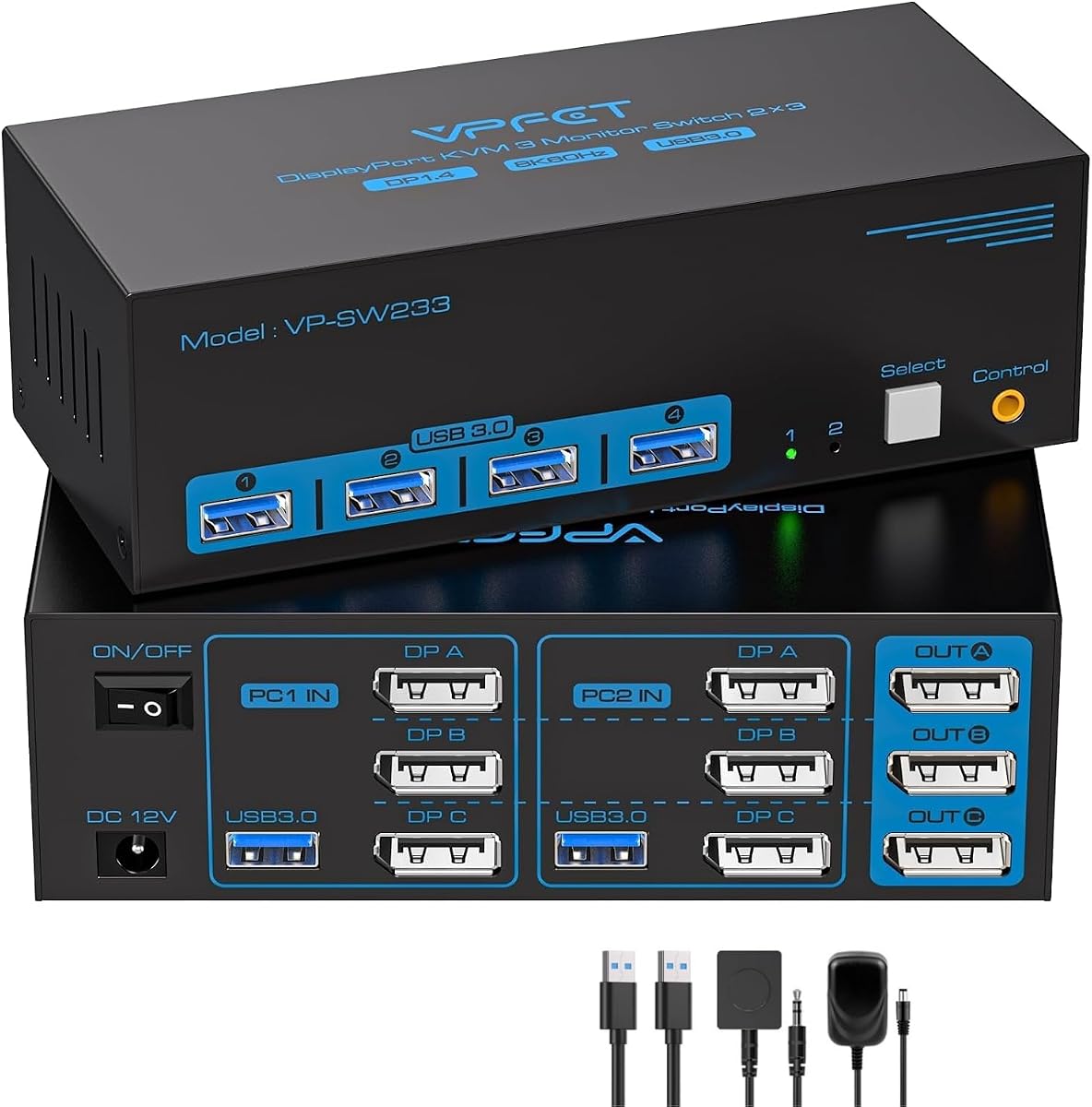
This DisplayPort-only KVM is built for workstations where each computer can provide three DisplayPort outputs. It switches two computers across three displays, a keyboard, a mouse, and other USB devices, earning a 4.4 rating. The product emphasizes 4K at 144Hz performance for video editing, graphic design, and professional applications, while its listing also identifies 8K at 60Hz support.
We may earn a commission when you buy through this link, at no additional cost to you.
The dedicated DisplayPort layout can simplify matching modern displays that favor DisplayPort for high refresh rates. USB 3.0 connectivity provides data transfer at up to 5Gbps, and the included wired controller allows one-button source changes. The plug-and-play design is aimed at home offices, gaming desks, and professional workstations where repeatedly disconnecting three video leads would be inconvenient.
The main requirement is significant: each computer needs three DisplayPort outputs. Users should also verify that their graphics card, motherboard, docking solution, and displays support the intended combination of resolution and refresh rate. Because the design is DisplayPort-only, it offers less flexibility than a model accepting both HDMI and DisplayPort, particularly for laptops that have only one universal USB-C port or a limited selection of outputs.
This switch is best for a carefully equipped desktop station with abundant DisplayPort connectivity. It removes the cable-swapping burden while providing a high-refresh option for motion-heavy work. If your source computer cannot natively drive three DisplayPort monitors, choosing a mixed-interface switch will offer a more practical installation path.
Keeping all three connections on one interface simplifies the topology for compatible desktops. It is a sensible match for graphics cards that provide several DisplayPort outputs and for displays designed around high-refresh DisplayPort operation.
The wired controller reduces the need to reach the switch enclosure when changing computers. At the same time, four USB 3.0 ports keep the keyboard, mouse, and other frequently used devices available to either source.
We may earn a commission when you buy through this link, at no additional cost to you.
The HDMI DisplayPort 8K KVM is the strongest all-around recommendation in this guide because it combines two-computer triple-monitor switching, high-resolution support, four USB 3.0 ports, and a helpful accessory package. It has a 4.6 rating, the second-highest listed score. Each computer connects through one HDMI and two DisplayPort outputs, supporting extended or mirrored layouts through the familiar Windows+P controls.
We may earn a commission when you buy through this link, at no additional cost to you.
The switch supports up to 8K at 60Hz and 4K at 144Hz, with backward compatibility for lower modes. Panel buttons and an included wired remote provide two source-selection methods, and an LED identifies the active computer. Compatibility extends across Windows, MacOS, and Linux, and the driver-free design is intended to work without additional software.
The box includes one HDMI 2.1 cable, two DisplayPort 1.4 cables, two 1.5-meter USB 3.0 cables, a wired remote, a manual, and a 12-volt power adapter. That is a notably complete package. The external power supply should remain connected for optimal operation. As with many comparable switches, EDID emulation is not supported, and converters or docking stations may create compatibility issues.
This switch is the best general choice for a dual-PC home office or professional workstation that uses a mix of HDMI and DisplayPort. It is particularly attractive for creators because 4K at 144Hz support can suit detailed and motion-sensitive workflows. Buyers should confirm that each source can drive three displays and use appropriate, preferably short, HDMI 2.1 and DisplayPort 1.4 cables.
The combination of 8K at 60Hz and 4K at 144Hz provides useful headroom for productivity, content creation, and demanding displays. Because the model accepts both HDMI and DisplayPort, it also matches the common connector mix found on many modern graphics cards.
Video, USB, remote-control, and power accessories are included, reducing the chance of discovering a missing essential cable after delivery. The external power adapter also supports stable operation and high-power shared peripherals.
We may earn a commission when you buy through this link, at no additional cost to you.
The most important choice is compatibility rather than headline resolution. Check how many sources you need, which video ports each computer provides, and whether the switch must also perform docking, charging, networking, or high-speed storage tasks.
A two-computer KVM is sufficient for a desktop and laptop, or for two workstations used on alternating schedules. A three-computer model adds flexibility in development, media, and shared-office environments, while the AOOCOO four-computer option is unusual and useful when several systems must use the same display wall. Remember that adding sources usually means adding video connections, USB input connections, and potentially more cables behind the desk.
Every source computer must physically provide enough outputs for all three monitors. An all-HDMI switch is simple when both PCs have three HDMI ports, while a mixed HDMI and DisplayPort model is more adaptable for modern graphics cards. A DisplayPort-only design may suit a professional workstation with abundant ports, but it can exclude laptops and compact systems. Also note that adapters and signal converters can reduce compatibility even when the switch itself supports the desired mode.
A headline 8K rating is only one part of the signal chain. The source graphics output, cable standard, switch, and monitor must all support the desired resolution and refresh rate. For productivity, 4K at 60Hz is often sufficient. Creative and gaming users may prefer 4K at 120Hz, 144Hz, or even higher, while some docks advertise extreme low-resolution refresh rates. These figures are maximum capabilities rather than guaranteed outcomes for every source-and-display combination.
Extended mode lets each monitor show different content, creating a large desktop across all three screens. Mirrored or copy mode shows the same image on multiple displays and is useful for presentations, demonstrations, or duplicated workflows. Some products use the operating system's display controls, while others require specific settings. Extended mode also requires a source computer with enough graphics outputs and adequate multi-display support.
Most dedicated switches include four USB ports for a keyboard, mouse, printer, storage, or webcam. USB 3.0 provides faster transfers than USB 2.0 and remains backward compatible with slower devices, but every source should also have a USB connection to the switch. Powered switches are preferable for external drives, scanners, and webcams. KVM docks add faster 10Gbps ports, card readers, and audio, making them better for file-heavy creative workflows.
A dedicated KVM primarily switches video, keyboard, mouse, and basic USB. A KVM dock also acts as a laptop interface, adding USB-C power delivery, gigabit Ethernet, high-speed data, card reading, and audio. These additional functions can simplify a mixed laptop-and-desktop desk, but they introduce stricter compatibility requirements. MacBook users should check the mirroring limitation, while Windows laptop owners should verify USB-C video support and MST behavior.
Panel buttons are convenient but may be difficult to reach beneath a desk. A wired remote controller provides more flexible placement and can keep the switch itself out of sight. LED indicators make it easier to know which source is active. Some products add a power button that can restart signal recognition, while others include an aluminum enclosure for a more permanent installation. Hotkey support is not universal, so do not assume keyboard shortcuts will work.
The number of cables included varies considerably. Some packages include enough DisplayPort, HDMI, and USB leads for every computer, while the AV Access B23 does not include HDMI or DisplayPort video cables. A power adapter, remote, and manual are also helpful additions. Compare the package against the exact connections your setup requires, because buying a long list of replacement cables can complicate installation and increase desk clutter.
Begin by confirming that each source computer supports three simultaneous displays and identifying the required HDMI and DisplayPort outputs. Unplug everything before changing connections. Connect each computer to the switch with the required video cables, connect the corresponding USB input, and attach the three monitors to the switch's output ports. Install the included power adapter before turning on or testing the system, particularly when using high-power USB devices.
Power on the computers and displays, then select a source using the front panel or wired remote. If the displays remain blank, try the other source, reseat the video cables, and confirm that the operating system recognizes three screens. For extended output, choose the extend option in the system's display settings; for duplicated content, choose the mirror or copy option. The supplied guidance recommends using the appropriate cable standards and keeping cable lengths short where possible for stable high-bandwidth signals.
For routine care, keep the enclosure away from moisture, direct heat, and heavy dust, and avoid repeatedly unplugging the power lead. Use the external power switch or power cycle only as needed rather than removing cables during normal operation. Periodically check that connectors remain firmly seated and that any cooling vents are clear. If a source is not recognized after a system update or cable rearrangement, test the computer directly with one monitor before suspecting the KVM.
No. The switch routes existing display signals but generally cannot add graphics processing capability to a computer. Each source must support three outputs, have suitable drivers and graphics hardware, and connect to the switch through the required number of ports. A laptop with only one external video port will usually need a compatible dock or graphics solution, and even then the full display arrangement must be verified.
Extended mode places different content across the three monitors, creating one large virtual desktop. Mirrored or copy mode shows the same content on multiple screens. Extended mode is more useful for productivity and multitasking, while mirrored mode is often better for presentations, demonstrations, or content duplicated across several displays. The computer's operating system normally controls the final display arrangement.
A keyboard and mouse work over slower USB connections, so USB 3.0 is not essential for basic input. It becomes useful for external storage, scanners, webcams, and other peripherals that move data between computers. A powered KVM is also useful for high-draw devices such as portable hard drives, which may behave more reliably when the included external power adapter is connected.
Adapters can work, but compatibility is not guaranteed. Several product descriptions specifically caution against passive adapters, and the AV Access dock warns that converters or other docking layers may cause issues. The safest approach is to use native HDMI and DisplayPort connections with cables that support the intended resolution and refresh rate. Verify any necessary adapter before installing a permanent multi-monitor arrangement.
Several products list Windows, MacOS, and Linux support, while the UGREEN model specifically states Windows and Linux compatibility. The advanced AV Access docks add an important distinction: MacBook systems can mirror displays but cannot show independent extended content across multiple external monitors through those docks. Windows laptops with compatible USB-C video can use MST for extended multi-monitor operation.
First, confirm that the selected computer itself supports three simultaneous displays and that all three source cables are connected. Then verify that the monitor is powered, selected through the correct input, and supported by the source at its current resolution. Try a direct connection to isolate the issue, reseat cables, and use the required video standard. If the switch offers a power cycle for signal recognition, use it before troubleshooting deeper compatibility questions.
A conventional switch may not, because the video and shared peripheral connections change but the inactive computer can remain running. The AV Access docking models go further by keeping their shared 1Gb Ethernet connection active on both computers. That allows downloads, synchronization, remote access, and other network tasks to continue on the unselected system while you work on the other.
A dedicated KVM is usually the simpler choice when you only need to switch three monitors, a keyboard, a mouse, and basic USB devices between two desktops. A KVM dock is better when you also want one-cable laptop operation, charging, always-active Ethernet, faster USB, card access, or audio. The dock costs more and demands closer compatibility checks, but it can consolidate several devices into one cleaner setup.
The HDMI DisplayPort 8K KVM is the best overall choice for most two-PC workstations because it balances mixed-interface connectivity, high resolution, four USB 3.0 ports, remote switching, and a useful included package. The all-HDMI CMSTEDCD model is an appealing alternative when simpler wiring matters, while the AV Access B23 is the best premium pick for a laptop-and-desktop station that needs docking, charging, networking, and fast USB.
Prioritize native port compatibility before every other feature. Confirm the number of computers, each computer's outputs, the target resolution and refresh rate, and the operating system you use. For three sources, consider the AOOCOO three-computer model; for four, the four-computer AOOCOO switch. Avoid assuming that a listed maximum resolution will be achieved through an adapter, an unsuitable cable, or a computer with limited multi-display support.
Finally, review the current listing before ordering because specifications, ratings, included accessories, and availability can change. Prices also fluctuate, so compare the complete package and feature set rather than focusing on a temporary cost. Investing a few minutes in a compatibility checklist can prevent blank screens, unstable peripherals, and the most common source of disappointment with a triple-monitor KVM.