
Elgato Game Capture Neo
5.0Editor score
Compact smartphone-sized design
4K60 HDR passthrough
1080p60 capture output
Ultra-low latency operation
Wide application support
PS5 capture cards compared for video quality, passthrough, latency, audio, compatibility, recording features, and value.
A PS5 capture card sends your console’s HDMI picture and sound to a computer for recording, streaming, or sharing. A worthwhile model should preserve smooth gameplay through HDMI passthrough while producing clean 1080p60 video, dependable audio, and an easy connection to your preferred streaming and editing software.
This guide compares ten external and internal capture options based on resolution, frame-rate support, passthrough capabilities, latency, audio features, platform compatibility, and practical usability. The selections include budget USB devices, portable Elgato hardware, an AVerMedia model with gaming-focused features, and PCIe cards intended for desktop builders.
Each review explains the strongest reason to choose the product while also identifying compromises that shoppers should consider. The ranking is designed to help streamers, tutorial creators, and players find the right balance of image quality, responsiveness, recording convenience, and hardware compatibility; current prices and availability can change.
5.0Editor score

4.4Editor score

4.3Editor score
The table below compares all ten capture cards by their fundamental capture, passthrough, connectivity, and compatibility characteristics, making it easier to identify the right model for a PS5 recording setup.



The Elgato 4K S is the most complete general-purpose choice in this guide, combining 4K60 capture, high-frame-rate support, HDR10 tone mapping, passthrough, and analog audio input. Its 4.4 rating reflects a well-rounded feature set for a PS5, particularly for creators who want more than a basic 1080p60 USB stick.
We may earn a commission when you buy through this link, at no additional cost to you.
Its standout capability is flexibility across resolutions. The card can capture at 4K60, play and capture in 1440p120 or 1080p240, and map HDR content for Windows workflows. A 3.5mm input also gives creators a direct way to add commentary or game-chat audio, a meaningful advantage over many compact alternatives.
The main limitation is that the richest HDR experience is tied to Windows tone mapping, so Mac users should verify their intended editing and streaming path. High-frame-rate modes can also place heavier demands on the source, computer, storage, and encoding software than standard 1080p recording.
This is the strongest recommendation for a PS5 creator who wants broad resolution support, current-console compatibility, and polished external capture in one device. It suits both streamers and editors better than the least expensive options without requiring a desktop-case installation.
The 1440p120 and 1080p240 options make this card relevant to fast PS5 games and creators who want smoother motion in recorded footage. Matching the output mode to the source and monitor helps preserve detail while keeping the capture workflow practical.
The 3.5mm analog input supports commentary or chat capture according to the supplied specifications. This makes the card more versatile for narrated gameplay, although it does not mean every on-screen or party-chat signal is captured automatically.
We may earn a commission when you buy through this link, at no additional cost to you.
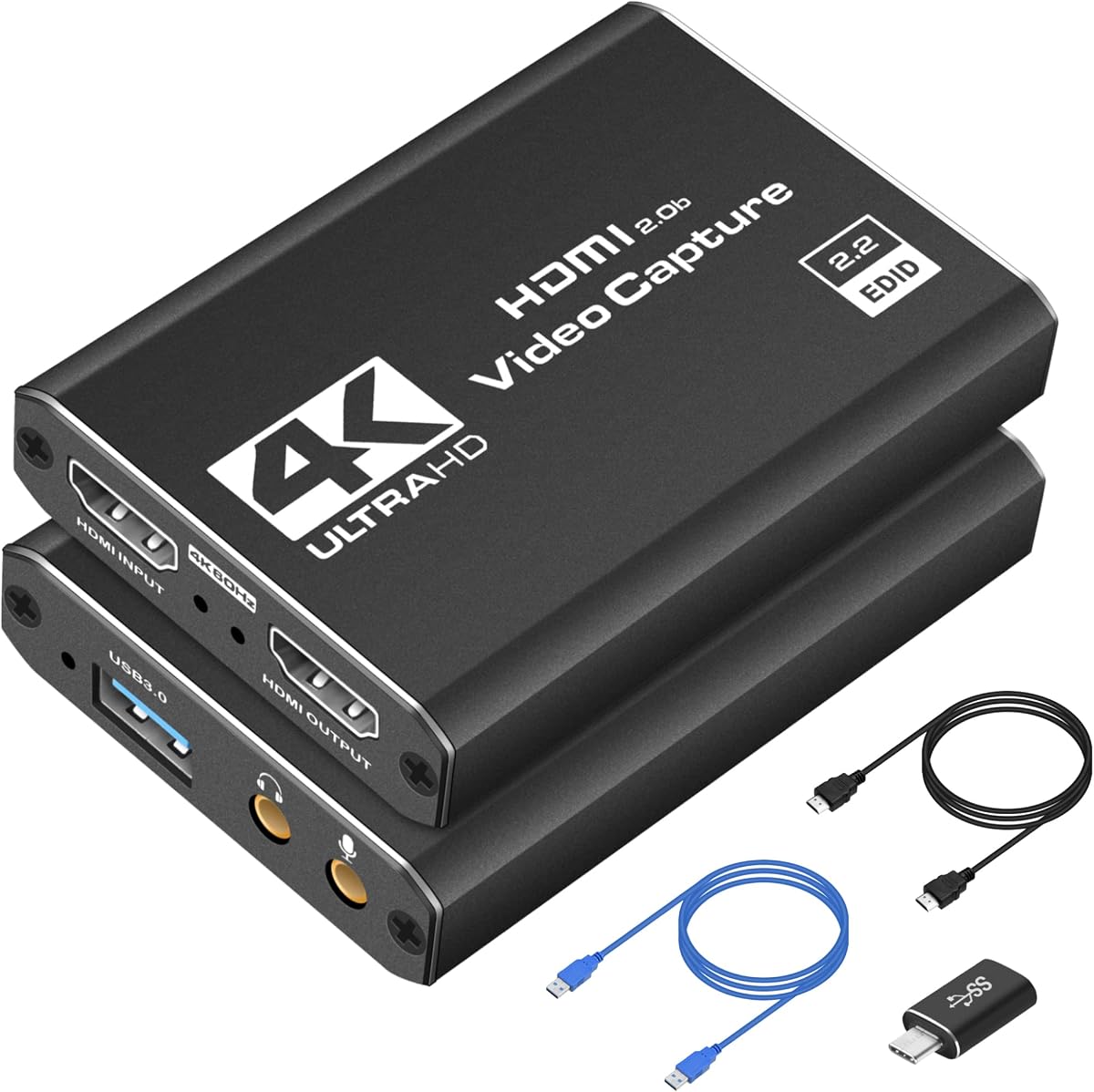
The Rybozen USB Capture Card is a cost-conscious option for recording PS5 gameplay at up to 1080p. It has a 4.3 rating and a simple proposition: connect the console over HDMI, connect the card to a USB 3.0 port, and begin using a computer as the source in common streaming or recording applications.
We may earn a commission when you buy through this link, at no additional cost to you.
Its strongest feature is accessibility. No driver installation or external power supply is required, and the device is automatically recognized as a webcam. The supplied information also lists OBS, Twitch, YouTube, Facebook, PotPlayer, and VLC support, giving new users several familiar software paths.
The specification ceiling keeps expectations in check. While the HDMI input can accept 4K30, 4K60, 1080p120, or 1080p144 signals, actual video capture is offered at 1080p and USB output is limited to 2K30. It also does not support 4K120 or 4K144 input, which matters for creators chasing very high refresh rates.
Choose this card when the goal is an uncomplicated 1080p recording setup rather than 4K or advanced HDR production. Its microphone input and loop-out functionality add practical value for commentary and monitoring, making it a sensible entry point for many PS5 streams.
Driver-free operation reduces the number of setup barriers for first-time streamers. Once the source and USB connections are in place, the card is designed to be recognized automatically, allowing recording software to treat it as a conventional camera source.
HDMI loop-out lets a second display show the PS5 image while the computer receives the capture feed. The supplied information describes the live-play path as delay-free, though overall latency can also depend on the display, application, and system configuration.
We may earn a commission when you buy through this link, at no additional cost to you.
This compact USB 3.0 capture card is built around 1080p60 recording and straightforward plug-and-play operation. Its 4.4 rating is strong for a generic device, and the absence of a driver requirement makes it appealing to streamers who want to move quickly between a desktop, laptop, event, or LAN-party setup.
We may earn a commission when you buy through this link, at no additional cost to you.
Compatibility is the central selling point. The supplied data identifies OBS Studio, Streamlabs, and XSplit as supported applications, while the HDMI source can come from a PS5, Xbox Series X, Nintendo Switch, DSLR camera, or PC. Passthrough lets the creator continue using the console while the card sends a separate signal to the computer.
Its limitations are technical rather than functional. Capture is specified at 1080p60, so users looking for 4K files, HDR workflow, surround audio, or advanced high-frame capture will need more specialized hardware. The product description also does not promise the same range of controls found in premium capture software ecosystems.
This is a useful pick for a streamer who prioritizes portability, familiar software support, and a simple 1080p workflow. It is less appropriate for a creator whose production quality depends on 4K resolution, HDR, or advanced recording features.
The card is designed to behave like a familiar webcam source in popular broadcasting software. This makes it less intimidating for beginners and also simplifies troubleshooting when a creator uses more than one application or computer.
Its lightweight, portable form is useful for creators who record away from a permanent desk. A PS5 can be routed through HDMI to the card and then to a laptop, although the host computer still needs enough USB bandwidth and processing power for reliable 1080p60 capture.
We may earn a commission when you buy through this link, at no additional cost to you.
The XIIXMASK USB 3.0 is a strong budget pick because it separates source handling from capture output effectively. It accepts a 4K60 HDMI signal and loops that image out while capturing at 1080p60 or 2K30 over USB, allowing the PS5 to remain connected to a high-resolution display.
We may earn a commission when you buy through this link, at no additional cost to you.
Build quality and connectivity add value. The aluminum alloy housing is designed to dissipate heat, while the five-port arrangement simplifies source, display, power, and audio connections. Its 3.5mm input can accept a headset or microphone for commentary, and the operating system list includes Windows, macOS, Linux, and Android environments.
There are some workflow details to account for. The supplied guide says OBS must be restarted after audio configuration or sound may not appear. It also does not advertise native HDR capture, so buyers should not confuse 4K60 loop-out with 4K HDR recording.
For a beginner or cost-conscious creator, this model delivers the most important pieces: reliable Full HD capture, high-resolution passthrough, broad software compatibility, and commentary input. It is a better fit for standard streams and tutorials than for professional 4K HDR production.
The card can loop a 4K60 source to a television or monitor while the computer receives a Full HD capture feed. This separation is especially useful because the playback display can retain the PS5's high resolution even when the recorded file is 1080p.
An aluminum housing helps manage heat during sustained capture, and the included USB 3.0 cable can connect to USB-A or USB-C hosts. Those details make the device more adaptable than a minimal stick-style card.
We may earn a commission when you buy through this link, at no additional cost to you.
The Elgato Game Capture Neo is the most polished portable option in this collection, earning a perfect 5.0 rating from the supplied data. Its design is no larger than a smartphone, yet it combines 4K60 HDR passthrough, 1080p60 capture, ultra-low latency, and broad console compatibility.
We may earn a commission when you buy through this link, at no additional cost to you.
The feature balance is especially attractive for PS5 users who want their television to retain a high-quality HDR image while a separate 1080p60 feed is recorded. It works with PlayStation, Xbox, Switch, and other HDMI sources, and the listed applications include Elgato capture software, OBS Studio, QuickTime, Discord, Microsoft Teams, and Zoom.
The important limitation is the capture ceiling. Despite 4K60 HDR passthrough, the recorded or streamed output is specified at 1080p60. A creator who needs 4K files or 4K HDR capture should examine the 4K Pro or Live Gamer Ultra S instead.
This model is best for creators who value a tidy, reliable setup and may record away from home. Its portability, strong rating, unrestricted recording approach, and low-latency behavior make it the premium choice for polished 1080p PS5 content.
The capture card can bridge a console and computer while also fitting into broader communication workflows. Discord, Teams, Zoom, and QuickTime support make it useful for sharing gameplay in calls as well as producing recorded content.
The small enclosure is easy to carry and does not require internal installation. Elgato also states that there are no time constraints, watermarks, or subscription requirements, giving creators predictable access to its capture functions.
We may earn a commission when you buy through this link, at no additional cost to you.
The Elgato 4K Pro is aimed at desktop creators who want more than an external 1080p workflow. It captures at up to 4K60, supports 8K60 passthrough, can record high frame rates up to 240fps at 1080p, and includes VRR passthrough for smoother variable-refresh-rate gaming.
We may earn a commission when you buy through this link, at no additional cost to you.
Its HDMI 2.1 connectivity is the defining feature. The card can serve a demanding display while providing a separate 4K60 capture feed to the host system. Compatibility with OBS, Streamlabs, Twitch Studio, Restream, Zoom, Teams, and major streaming platforms makes it adaptable to established creator workflows.
The tradeoff is installation. This is an internal PCIe card, so the builder needs a compatible motherboard, free expansion slot, suitable internal HDMI routing, and a Windows environment or otherwise confirmed operating-system support. A console-only setup with a laptop cannot use it without a more complicated desktop arrangement.
It is the appropriate choice for a serious PC creator with modern hardware who wants 4K60 files, 8K60 display passthrough, and VRR. For a simple PS5-to-laptop capture, its capabilities would be difficult to exploit and the installation would be unnecessary.
Recording at 4K60 provides more detail and editing flexibility than 1080p60. This is particularly useful for cinematic PS5 gameplay, slow-motion timelines, and creators who crop or reposition footage during post-production.
HDMI 2.1 passthrough supports 8K60 output, while VRR passthrough helps maintain smooth gameplay on a compatible display. The host graphics system still needs to support the desired resolution and refresh rate for the full chain to operate as intended.
We may earn a commission when you buy through this link, at no additional cost to you.
The AVerMedia Live Gamer Ultra S is built for gamers who want an unusually broad set of display and recording formats. It supports 4K60 HDR and VRR passthrough, high-refresh playback at 1440p144 or 1080p240, ultrawide input, VRR recording on Windows, and 5.1-channel audio through AVerMedia software.
We may earn a commission when you buy through this link, at no additional cost to you.
The hardware supports a range of hosts beyond desktop Windows PCs. The supplied information lists Windows 10 or 11, macOS 13 or later, and iPadOS 17 or later, while the console list includes PS5, PS5 Pro, Xbox Series X/S, and Switch 2. OBS Studio and Streamlabs compatibility supports standard creator applications.
The platform distinctions matter. VRR recording at 1440p60 or 1080p240 requires Streaming Center, and 5.1-channel audio is listed for Windows through Streaming Center or its OBS plug-in. A user expecting every advanced feature to work identically in every application could encounter a more complicated setup.
This is a compelling choice for a performance-focused streamer who values high refresh rates, ultrawide support, surround audio, and VRR recording. Its feature set is broader than many alternatives, although the lower 4.2 rating and software-specific workflows deserve attention before purchase.
The Live Gamer Ultra S can preserve high refresh output and record VRR content on Windows at 1440p60 or 1080p240. That combination is valuable for games where smooth motion and changing frame rates are central to the viewing experience.
Support for 3440×1440 and 2560×1080 input caters to 21:9 and other wide displays. This avoids the need to downscale those sources before they reach the capture card, provided the monitor and graphics system can output the selected format.
We may earn a commission when you buy through this link, at no additional cost to you.
The Elgato HD60 S+ remains a well-regarded external capture card for PS5 creators, with a 4.6 rating. Its combination of 1080p60 HDR10 capture, 4K60 HDR10 passthrough, Instant Gameview, and flashback recording offers a mature and approachable feature set.
We may earn a commission when you buy through this link, at no additional cost to you.
Flashback recording is particularly useful for fast-paced games. It allows creators to save moments shortly after they occur rather than needing to decide instantly whether an event was worth recording. Unlimited capture directly to the hard drive further supports long sessions without relying on a capture limit.
Its key boundary is resolution. The card records at up to 1080p60 but can pass through 4K60 HDR10 to a compatible television, so it is best for creators who want a high-quality console display and a practical Full HD recording feed. It does not offer the 8K60 passthrough of the newer Elgato 4K Pro.
Choose the HD60 S+ for a dependable external unit with mature features and broad platform support. It is particularly suitable for PS5 and PS4 Pro owners who prioritize passthrough quality, easy monitoring, and the ability to retrieve overlooked highlights.
Flashback recording reduces the pressure of monitoring every moment in real time. Creators can save recent gameplay highlights after a difficult boss fight, rare drop, or unexpected victory.
The HD60 S+ can send 4K60 HDR10 to the television while providing a 1080p60 HDR10 feed to the computer. This is a practical split for creators whose viewers do not all need 4K files but whose local display should preserve the console's intended presentation.
We may earn a commission when you buy through this link, at no additional cost to you.
The Elgato HD60 S is a straightforward 1080p60 capture solution with a strong 4.6 rating. It supports the PS5, PS4 and PS4 Pro, Xbox Series X/S, Xbox One X/S, OBS, Twitch, YouTube, Windows, and macOS, covering the fundamental needs of most gameplay creators.
We may earn a commission when you buy through this link, at no additional cost to you.
True Passthrough and Instant Gameview are the main workflow features. The former allows the console to remain connected to a television while its signal reaches the computer, while the latter provides a low-latency view for monitoring the captured feed. Unlimited direct recording and flashback recording make long sessions easier to manage.
Compared with newer devices, the HD60 S lacks 4K passthrough and an explicit HDR capture feature in the supplied specifications. A creator who wants the PS5 displayed in 4K HDR may therefore need to use the console's own display output alongside a separate route for capture, depending on the available outputs and adapters.
It remains a sensible choice for users who need a proven 1080p workflow and value simple operation. The HD60 S is especially attractive for first-time streamers, classroom demonstrations, and retro-style console recording where 4K is not essential.
Recording directly to the host hard drive helps keep the capture path straightforward. It also means creators should plan sufficient storage and verify that their editing application or recording software recognizes the card correctly.
Flashback recording provides a safety net for memorable moments. A creator can return to recent footage instead of maintaining constant alert throughout every play session.
We may earn a commission when you buy through this link, at no additional cost to you.
The AVerMedia Live Gamer 4K 2.1 is an internal PCIe capture card for creators who want a direct, high-bandwidth path between a PS5 and a desktop. It is specified for 4K60 recording and ultra-low latency, with support for refresh rates reaching 240Hz, making it relevant to high-performance gaming and competitive content.
We may earn a commission when you buy through this link, at no additional cost to you.
An internal design can provide a stable connection and avoid the bandwidth limitations associated with some external USB capture paths. The card is also explicitly positioned for PS5, PS4 Pro, Xbox Series X/S, Xbox One X, and Switch gaming, so its core purpose is clear from the outset.
The tradeoff is host compatibility. A compatible motherboard with a suitable PCIe slot and a desktop environment are required, and the graphics output and display configuration must be planned carefully. The supplied product data contains fewer details than some competing listings, so buyers should examine the package contents and current documentation before assuming specific audio or passthrough features.
This is a practical choice for a desktop creator already comfortable installing expansion cards and seeking 4K60 capture. Those wanting a simple console-to-laptop setup should choose an external USB model instead.
A PCIe connection can offer a direct route for high-resolution and high-frame-rate source data. This can be attractive in a fixed studio where a clean internal installation matters more than portability.
The listed console support includes current-generation PlayStation and Xbox systems alongside PS4 Pro and Switch. The desktop still needs suitable graphics output and the correct source configuration for the intended resolution and refresh rate.
We may earn a commission when you buy through this link, at no additional cost to you.
The right PS5 capture card depends on how you record, what resolution matters to your audience, and whether your computer is a laptop or a desktop. These factors cover the practical differences between inexpensive USB devices and specialized external or internal cards.
Resolution and frame rate determine how much detail and motion your recordings preserve. A 1080p60 device remains suitable for many Twitch and YouTube channels, while 4K60 is valuable for cinematic gameplay, editing flexibility, and viewers with suitable displays. High-frame options such as 1440p120 or 1080p240 can make fast games look smoother, but they require a matching source, display, capture path, computer, and encoding setup.
Do not assume every advertised 4K label means 4K recording. Some cards accept a 4K60 source and loop it to the display while capturing only at 1080p. Check the separate input, passthrough, and USB output specifications before buying.
Passthrough lets the PS5 feed a television or monitor while the capture card sends a separate signal to a computer. Look for 4K60 HDR support, VRR passthrough, and compatibility with your display and graphics output. The pass-through resolution is the quality seen locally on the television, whereas the capture resolution determines the quality of the stream or file.
Newer standards such as HDMI 2.1 and 8K60 passthrough are useful on compatible hardware, but they are not essential for every creator. A reliable 4K60 HDR path may be more valuable than headline features that the user's monitor, GPU, or television cannot use.
Low latency is important in competitive games because even a small delay between an action and its display can affect responsiveness. Capture cards with low-latency passthrough are best for a local display arrangement, but end-to-end delay also depends on the console, television game mode, capture device, operating system, preview application, encoder, and streaming platform.
For commentary and editing workflows, modest delay may be acceptable. For competitive play, test the complete chain before committing to a broadcast or ranked-game setup.
A useful capture card should capture the PS5's HDMI audio without requiring a separate console connection. Some models also provide a 3.5mm input for commentary, game chat, or a headset microphone. That input is a benefit for narrated content, but it does not automatically capture every party-chat or in-game sound.
For surround audio, check the operating system and required capture software. The AVerMedia Live Gamer Ultra S lists 5.1-channel audio on Windows through Streaming Center or its OBS plug-in, so its advanced audio workflow is more specific than that of a basic USB card.
External USB capture cards offer portability and work with both laptops and desktops. They are easier to move between systems and generally require less complicated installation. Internal PCIe cards can provide a direct high-bandwidth connection and suit permanent studio builds, but they require a compatible desktop, a free slot, careful card placement, and appropriate routing of the display output.
Choose external for flexibility and internal for a fixed high-end workstation. Check whether the computer's USB port, especially on a laptop, is positioned close to the cable connection and capable of sustained USB 3.0 data transfer.
The capture device should appear as a normal camera or video source in the creator's preferred software. OBS Studio, Streamlabs, XSplit, Elgato capture software, QuickTime, Discord, Teams, and Zoom appear across the featured product specifications, but advanced functions may still require vendor utilities or platform-specific workflows.
Budget cards that are automatically recognized as webcams can be the easiest for beginners. Premium devices may provide stronger control over resolution, HDR mapping, VRR recording, high-frame capture, and audio. Consider these tools only if the corresponding editing or broadcasting application is part of the intended workflow.
A creator who streams from one desk can prioritize a larger, cooled enclosure, while a creator who travels to tournaments or events benefits from a compact card. The Elgato Game Capture Neo is explicitly pocket-sized, whereas budget USB models vary widely in size and housing material. Aluminum construction and passive heat dissipation can be advantageous during long sessions.
Portability also depends on cable length and host layout. A short cable can prevent strain on the console port, while a compact card can fit behind a television or beside a laptop without creating a large desktop footprint.
HDR preserves a wider range of brightness and color, while VRR adjusts the display refresh rate to match the console's output frame rate. High refresh rates improve motion clarity, but each feature requires compatible hardware throughout the chain. A capture card alone cannot enable HDR or VRR if the source, graphics output, television, and game do not support them.
If these features are priorities, review the exact capture and passthrough modes rather than relying on broad 4K or gaming language. Budget devices are usually safer choices for conventional 1080p workflows, while premium cards make the most sense when the rest of the setup can exploit their capabilities.
Begin by identifying how the PS5 video will reach the capture card. Connect the console's HDMI output to the card's HDMI input, then use the card's HDMI output to connect a television or monitor. Next, connect the card to the recording computer with the supplied USB 3.0 cable for an external model, or install an internal PCIe card in a compatible desktop. Confirm that the display and capture source are configured before opening streaming or recording software.
In OBS Studio or another compatible application, select the capture card as the video source and choose the correct resolution and frame rate. A 1080p60 device should generally use a matching Full HD configuration, while a 4K-capable model may capture 4K60 while passing a separate image to the display. Enable the appropriate audio source, add any microphone or commentary input, and test for delay, dropouts, color, and sound before beginning a long session.
Handle the capture card as an active electronic device. Keep it uncovered, away from obstructed airflow and excessive heat, and avoid sharply bending HDMI or USB cables. Connect it to a reliable USB 3.0 port, periodically inspect the contacts, and update the associated capture software when the manufacturer provides improvements. For internal cards, power down the computer, use safe electrostatic precautions, and reseat the card if the operating system stops detecting it.
A capture card is the most flexible way to record PS5 gameplay directly from the console, although the PS5 also has a native capture function for screenshots and gameplay clips. A dedicated card provides a separate recording feed, supports OBS and streaming workflows, and can preserve the console's local display quality through passthrough. The PS5's built-in capture options may be sufficient for short clips, but a card is better for long sessions, commentary, and editing.
No. A card may accept a 4K signal while recording at a lower resolution, so input and output specifications must be checked separately. The Elgato 4K Pro and AVerMedia Live Gamer 4K 2.1 list 4K60 recording, while several external options capture 1080p60 even when passing 4K to a display. Your television, graphics output, capture card, computer, software, and storage must all support the selected workflow.
A properly configured low-latency capture card should not create a meaningful delay, but the complete signal chain matters. Passthrough, television game mode, preview software, encoding, and streaming services can each affect perceived latency. Test locally before relying on a setup for competitive gaming, and use a direct display connection for the lowest possible delay.
Use a USB 3.0 port or faster, preferably one connected directly to the main system controller rather than through an unpowered hub. Sustained 1080p60 or high-frame capture requires reliable data transfer, and a shared or low-bandwidth port may cause dropped frames, recording interruptions, or device disconnects. Check the capture card's included cable and the host computer's port markings.
Yes, most external capture cards are designed for exactly this type of setup. Connect the PS5 to the card, connect the card's HDMI output to the display, and plug the USB cable into the laptop. Add the capture device as a video source in OBS Studio, configure 1080p60 unless the hardware explicitly supports another mode, and verify audio before streaming or recording.
Passthrough sends the source image onward to a television or monitor, allowing the PS5 to be viewed normally while connected to a capture card. Capture is the separate signal sent to the computer for recording or streaming. A card can therefore offer excellent 4K HDR passthrough while producing a 1080p recording feed, making it important to evaluate both specifications independently.
No, but an internal card may offer a direct high-bandwidth path to a suitable desktop. External USB 3.0 devices can also record 1080p60 and some premium models provide stronger 4K or high-refresh features. An internal card is most useful for a permanent workstation with compatible hardware, while external cards offer easier portability and simpler installation.
Use the specified USB 3.0 cable, connect directly to the computer, close unnecessary background applications, and select a resolution and frame rate the card can genuinely capture. Confirm that the game, console, display, and capture application agree on the source format. Test audio and recording stability before a full session, and keep the device ventilated during long recordings.
The Elgato 4K S is the most complete overall recommendation because it combines 4K60 capture, high-frame-rate options, HDR tone mapping, and analog commentary input. The Elgato Game Capture Neo is the premium portable choice, while the XIIXMASK USB 3.0 provides the strongest budget balance of 4K60 passthrough, 1080p60 capture, broad compatibility, and microphone input.
Prioritize the features your actual workflow can use. Simple streamers may get excellent results from a driver-free 1080p60 card, while creators editing cinematic footage should look toward 4K60 internal capture. HDR, VRR, surround audio, and 240Hz modes are worthwhile only when the complete computer, display, software, and television chain supports them.
Before purchasing, recheck the current specifications, package contents, operating-system requirements, and price for the selected model. Capture-card technology changes quickly, and promotions or bundle changes can alter the value of a particular option. Confirm that the product still matches the resolution, latency, audio, and portability priorities of your PS5 setup.