
Acer Chromebook 315
4.4Editor score
15.6-inch Full HD IPS display
Simple Chrome OS interface
Wi-Fi 6 and USB-C connectivity
An easy to use laptop for seniors should make communication, browsing, entertainment, and routine computer tasks feel approachable without overwhelming the user. Screen clarity, comfortable controls, dependable battery life, and a simple setup process are especially important when buying a computer for an older adult.
We compared ten laptops using the supplied specifications, customer ratings, operating systems, displays, processors, memory, storage, ports, cameras, and wireless capabilities. The list covers Windows laptops and Chromebooks, including portable 14-inch models and larger screens suited to comfortable viewing.
Each review highlights the features most relevant to senior users and identifies where a model may be better for one buyer than another. Product ratings and availability can change, and prices fluctuate, so readers should confirm current details and compare the complete system specifications before purchasing.
4.4Editor score

4.8Editor score

4.3Editor score
As an Amazon Associate we earn from qualifying purchases.
The comparison below organizes all ten laptops by display, operating system, core performance specifications, and practical connectivity, making it easier to identify the model that matches an older adult’s preferred workflow.



The 15.6 Inch N4020 Windows 11 Laptop combines a conventional Windows desktop experience with a large, clear display, making it our overall choice for an easy to use laptop for seniors. Its 4.8 rating is the highest among the listed Windows-oriented models, and the supplied specifications indicate a system designed around uncomplicated everyday computing rather than demanding workloads.
We may earn a commission when you buy through this link, at no additional cost to you.
The 15.6-inch Full HD panel provides 1920 by 1080 resolution and an anti-glare finish, offering more room for reading messages, viewing websites, and following video calls than a compact model. The Intel Celeron N4020 is designed for low-power operation, while 4GB of LPDDR4 memory is adequate for document editing, email, online classes, and web browsing. Storage can be expanded by as much as 1TB through the integrated TF card slot.
Some compromises are worth noting. Four gigabytes of memory and 128GB of eMMC leave less headroom than systems with 8GB or conventional SSD storage, particularly when several browser tabs and applications are open simultaneously. Nevertheless, the fanless design keeps operational noise to a minimum, and the included 38Wh battery, 45W USB-C charging, and full-featured Type-C ports provide a practical foundation for regular use.
This laptop is a strong recommendation for a senior who prefers Windows, wants a large screen, and values a quiet machine with straightforward connectivity. It also suits users who may need to connect peripherals such as an external keyboard, mouse, display, or storage device. Those seeking more processing power or onboard capacity should consider one of the newer Intel N150 models later in the guide.
The 15.6-inch anti-glare display gives text and video more space than a typical compact laptop. Its 1920 by 1080 resolution also makes menus, web pages, and small interface elements easier to distinguish during extended sessions.
A fanless construction means the laptop does not need a cooling fan to manage routine tasks. That can make the computer feel calmer in a shared room and avoids the distracting noise associated with continuously running fans.
We may earn a commission when you buy through this link, at no additional cost to you.
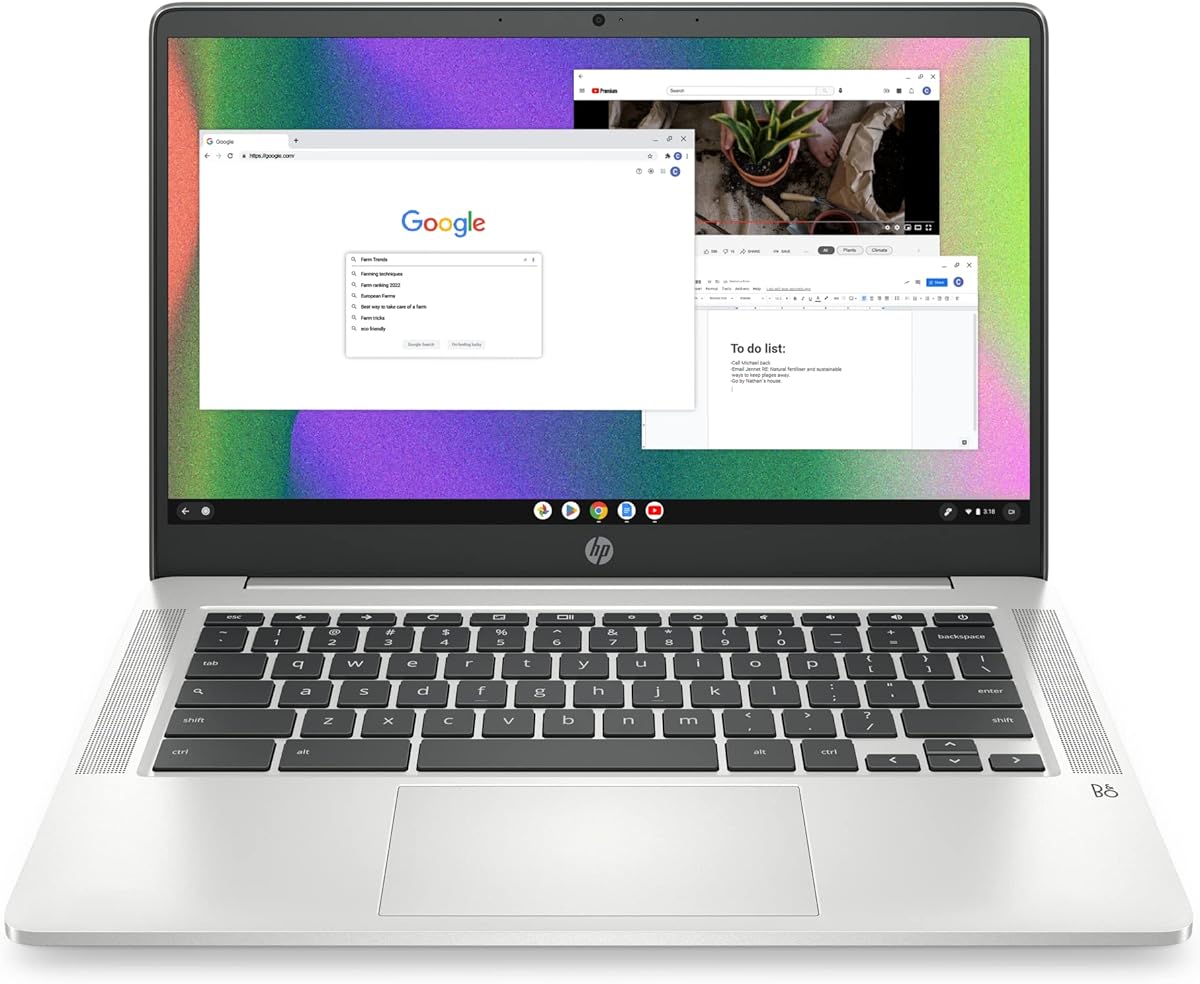
The HP Chromebook 14 is an approachable choice for seniors who spend most of their time in a web browser. It combines Chrome OS, a 14-inch anti-glare display, custom-tuned stereo speakers, and an advertised battery life of up to 14 hours. Its 4.3 rating reflects a generally positive reception, although performance and storage remain oriented toward lightweight applications.
We may earn a commission when you buy through this link, at no additional cost to you.
The quad-core Intel Celeron N4120 handles everyday browsing, school assignments, communication, and streaming, while Intel UHD Graphics 600 supports 4K content. Four gigabytes of RAM is suitable for typical Chromebook activity, and 64GB of eMMC storage can hold essential files. The multi-touch touchpad supports scrolling, zooming, and four-finger gestures, which can make navigation feel more natural once the gestures are learned.
The main limitation is the 64GB storage capacity. Google applications and online services reduce the need for local files, but users who download substantial media or keep many offline applications may eventually need external storage. The 1366 by 768 HD display is also less detailed than a Full HD panel. In return, the system provides fast charging, a thin portable design, Wi-Fi and Bluetooth, and a one-year limited hardware warranty.
Choose this Chromebook for web-centered routines, video communication, Google services, and uncomplicated productivity. It is particularly attractive when the primary goal is an easy to use laptop for seniors without needing specialized desktop software. Buyers who rely heavily on Microsoft Office, advanced file management, or local storage should look toward a Windows model instead.
Chrome OS is built around web-based workflows and provides access to Google tools and Android applications. This focused environment can reduce the number of installed utilities a user needs to manage for common online tasks.
HP Fast Charge can bring the battery from zero to approximately 50 percent in around 45 minutes. That makes a short visit to a power outlet more practical when the user is not ready to sit beside one for an extended session.
We may earn a commission when you buy through this link, at no additional cost to you.
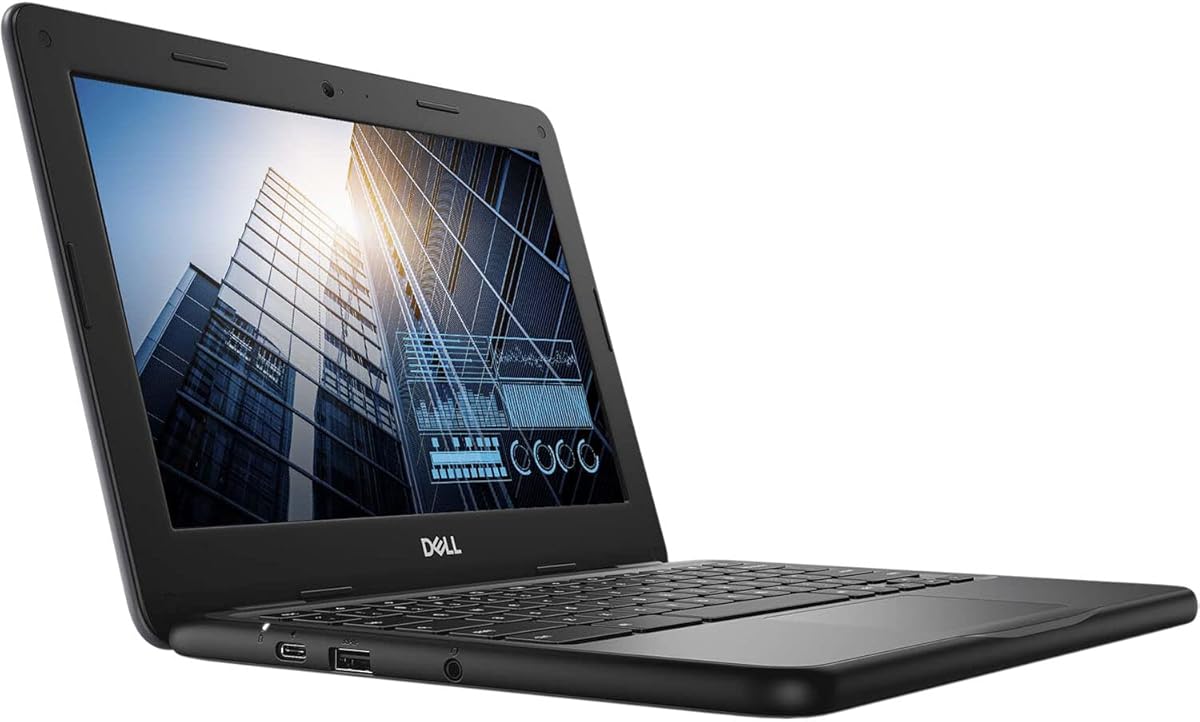
The renewed Dell Chromebook 11 3100 is the most compact option in this guide, offering an 11.6-inch display and Chrome OS in a smaller format. Its 4.1 rating is lower than the ratings of the leading picks, so buyers should consider the individual listing carefully. The model may suit seniors who want a portable computer for email, browsing, and basic online communication.
We may earn a commission when you buy through this link, at no additional cost to you.
Its Intel Celeron N4020 processor is intended for efficient everyday work, and 4GB of RAM supports the light multitasking typical of Chrome OS. The 1366 by 768 screen is adequate for common online tasks, while the English US keyboard and Bluetooth connectivity cover essential everyday functions. Because this is a renewed product, the available condition, warranty terms, and included accessories should be confirmed directly with the seller.
The most important trade-off is storage: the supplied data lists only 16GB of flash memory. That is less than every other model in the comparison and leaves little room for downloaded applications, photos, or offline files. Online storage can reduce the pressure on internal capacity, but users should be comfortable working primarily through cloud-connected services.
The Dell Chromebook 11 3100 is most practical for a senior who values portability over a large display or abundant local storage. It can be a sensible secondary computer or travel device. Buyers seeking more room for files, a larger screen, or a full Windows environment should examine the Acer Chromebook 315 or one of the HP Windows laptops.
The 11.6-inch form factor is easier to carry than the larger laptops in this guide. Its compact screen can be useful on a small table, in bed, or while traveling, provided the user is comfortable with the reduced viewing area.
With 16GB of flash memory, this Chromebook is best used with online storage and web applications. Keeping important files synchronized and avoiding large offline downloads will help prevent the limited capacity from becoming frustrating.
We may earn a commission when you buy through this link, at no additional cost to you.
The HP 14-Inch Windows 11 provides a conventional laptop experience in a renewed configuration. It has a 4.2 rating and includes a 14-inch BrightView WLED-backlit display, a Windows 11 operating system, an Intel Celeron dual-core processor, 4GB of RAM, and a 64GB SSD. That makes it relevant for seniors who want Windows and prefer a familiar interface.
We may earn a commission when you buy through this link, at no additional cost to you.
The 1366 by 768 panel is backlit, which can improve visibility in dim rooms. Three USB Type-A ports are useful for a mouse, flash drive, printer, or other familiar peripheral, while the SD card reader and combined headphone and microphone jack add further flexibility. Wi-Fi, Bluetooth, an HP webcam, and an integrated digital microphone support communication and everyday connectivity.
As a renewed system, its physical condition, battery condition, included accessories, and warranty may differ from a new unit. The 4GB of memory is also modest, and 64GB of SSD space may require regular file management. Nevertheless, an SSD generally offers a more responsive storage experience than a comparable flash-based system, while the broad port selection is beneficial for users who prefer full-size accessories.
This model is a sensible option for a budget-conscious senior who wants a Windows laptop and is comfortable with a renewed purchase. It is a good match for web browsing, email, video calls, and light document work. Buyers seeking a current warranty, a more advanced processor, or a higher-resolution display should compare the full-size 15.6-inch N4020 model.
The WLED-backlit panel is useful when ambient light is limited. It can make text and controls more visible during evening use, although brightness settings should still be adjusted for comfort and eye strain.
Three full-size USB Type-A ports simplify the connection of existing accessories. That is especially valuable for a senior who already owns a wired mouse, printer, or external storage device and wants to avoid replacing it.
We may earn a commission when you buy through this link, at no additional cost to you.
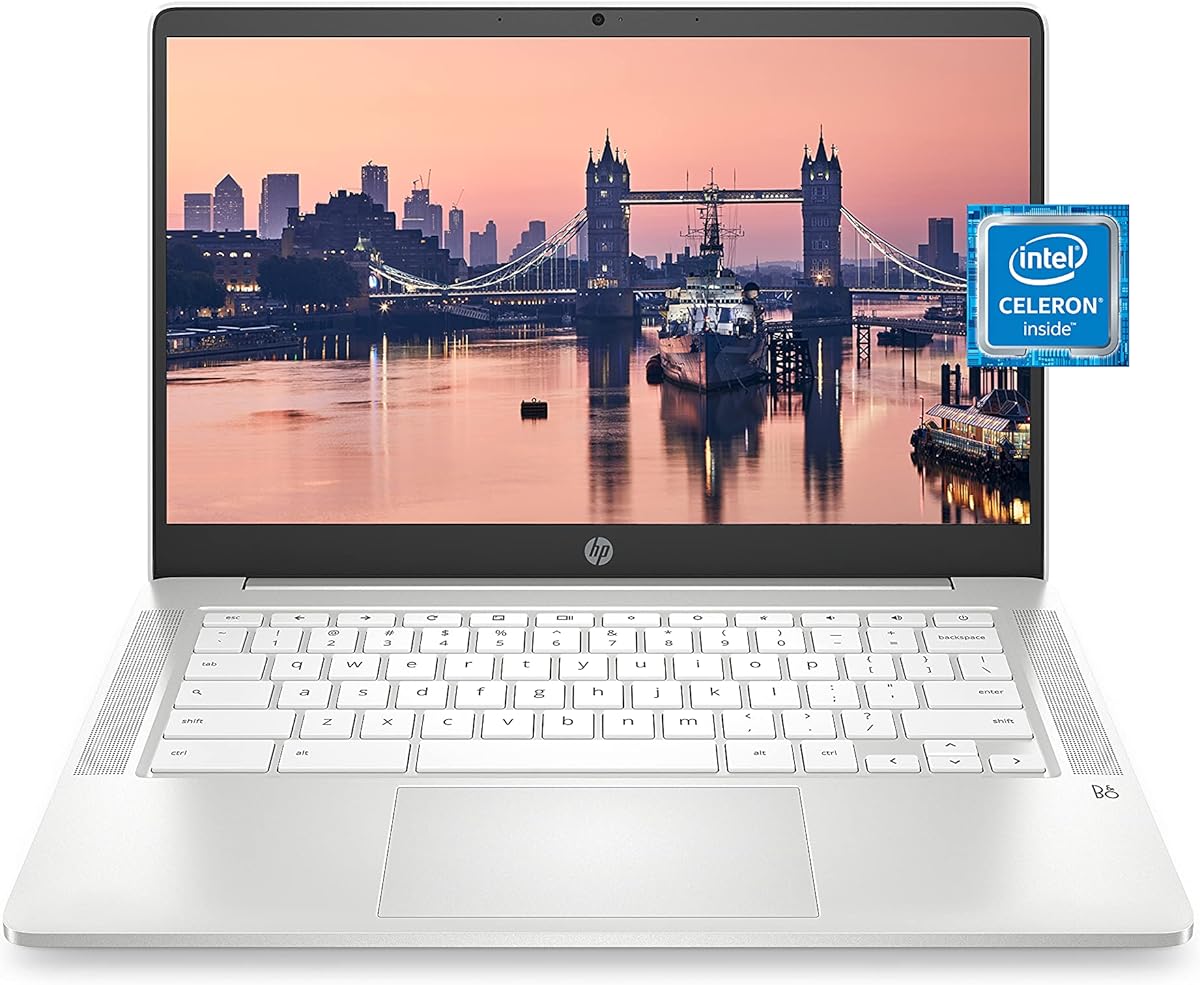
The HP Chromebook 14 N4000 is a lightweight 2021 Chromebook built for home use, school, communication, and entertainment. Its 4.4 rating is among the stronger results in the group. The combination of Chrome OS, a 14-inch anti-glare display, a 3.24-pound chassis, and an advertised battery life of up to 13 hours and 30 minutes makes it a portable option for many senior users.
We may earn a commission when you buy through this link, at no additional cost to you.
The Celeron N4000 and 4GB of RAM are intended for everyday browsing, music, video, and general Chromebook tasks. A Wide Vision HD camera and integrated dual array microphones make it suitable for video calls. Wi-Fi 5 and Bluetooth 5.0 handle everyday wireless connections, while the anti-glare display can reduce reflections during long viewing sessions.
Its 32GB eMMC drive is the principal limitation, and the model is listed as a 2021 design, so buyers should not expect the newest generation of components. Older or lower-cost Chromebooks can still be highly effective when the main activities involve web browsing, communication, and streamed content. The Energy Star certification and EPEAT Silver registration also indicate attention to efficiency and environmental considerations.
This Chromebook works well for a senior who wants a light, portable device and is comfortable using Google-based services. It is a stronger fit for video communication than the Dell Chromebook 11 3100 because of its higher storage capacity, larger display, and stated camera and microphone features. Users with significant local files should choose a model offering more storage.
The Wide Vision HD camera and dual array microphones provide the core tools for communicating with family or joining online meetings. The 14-inch display also gives callers a more comfortable view than the 11.6-inch Dell model.
At 3.24 pounds, the laptop is designed to move comfortably between rooms or travel locations. Its advertised streaming battery life makes it practical for watching videos and listening to music away from a charger.
We may earn a commission when you buy through this link, at no additional cost to you.
The Acer Chromebook 315 is our best budget recommendation because it pairs a large, detailed display with a straightforward Chrome OS environment and modern wireless connectivity. Its 4.4 rating reflects solid customer feedback, while the 15.6-inch Full HD IPS panel makes it especially attractive to users who prefer larger text and more room for open applications.
We may earn a commission when you buy through this link, at no additional cost to you.
Chrome OS is designed to update automatically, boot quickly, and keep the web-focused experience responsive. Google applications are included, Microsoft Office files can be edited through Google Docs, Sheets, and Slides, and access to more than two million Android apps is available through Google Play. The supplied specifications also note an additional 100GB of Google Drive space, which helps compensate for the modest 64GB eMMC capacity.
The Intel Celeron N4500 and 4GB of LPDDR4X memory are suitable for routine web use, communication, and document editing, but they are not intended for demanding creative software or intensive multitasking. The 10-hour advertised battery life is shorter than the maximum figures claimed by some HP Chromebooks, although actual use varies. USB-C charging and display output, dual USB-A ports, Bluetooth 5.1, and DTS audio add practical flexibility.
This Acer is a strong fit for a senior who uses email, video calls, streaming, and online productivity tools, especially if a large display is a priority. Its clean Chrome OS interface and automatic updates reduce ongoing maintenance. Those who need desktop applications, extensive local storage, or a more flexible operating system should consider a Windows laptop.
The 1920 by 1080 IPS panel provides more usable space and finer detail than the HD displays offered by several other picks. IPS technology is also a sensible choice for general viewing because it is designed to maintain clear images from a broad range of angles.
Chrome OS handles many operating-system updates automatically, reducing the need for manual maintenance. This makes the laptop approachable for users who want a computer that stays ready for browsing and communication without frequent system administration.
We may earn a commission when you buy through this link, at no additional cost to you.
The Samsung Galaxy Chromebook Go offers a refined portable design and strong integration with Android phones, making it our premium pick for an easy to use laptop for seniors. It has a 4.3 rating, a slim 14-inch form, and a stated 12-hour battery life. Its clean Chrome OS interface includes familiar Google applications such as Gmail, Docs, Photos, and YouTube.
We may earn a commission when you buy through this link, at no additional cost to you.
The laptop is built with premium craftsmanship and is described as military tough, with an intention of withstanding occasional drops or dings. That makes it appealing for travel or a household where the computer may be moved frequently. Users can transfer files between their phone and Chromebook and control their phone from the laptop, adding convenience for relatives who rely on Android devices.
The Intel Celeron N4500, 4GB of RAM, and 64GB of storage are modest specifications, and the HD display is not especially detailed. The included promotional Google AI Pro offer and temporary cloud-storage terms should also be understood as time-limited rather than permanent hardware features. Even so, the 12-hour battery claim and durable construction provide practical value for mobile users.
Choose the Samsung model for seniors who want an elegant, highly portable Chromebook and use an Android phone. It is especially appropriate for communication, documents, and web-based tasks. Buyers who need a larger or sharper display, more local storage, or a full Windows desktop should consider the Acer Chromebook 315 or an HP Windows model.
The ability to transfer files and control an Android phone from the Chromebook reduces the friction of moving information between devices. This can be especially helpful when a senior wants to share photographs, messages, or links without complicated transfer software.
The stated drop and ding resistance adds reassurance for a portable computer that may be carried around a home or taken on trips. Its slim construction preserves portability without abandoning the durability focus.
We may earn a commission when you buy through this link, at no additional cost to you.
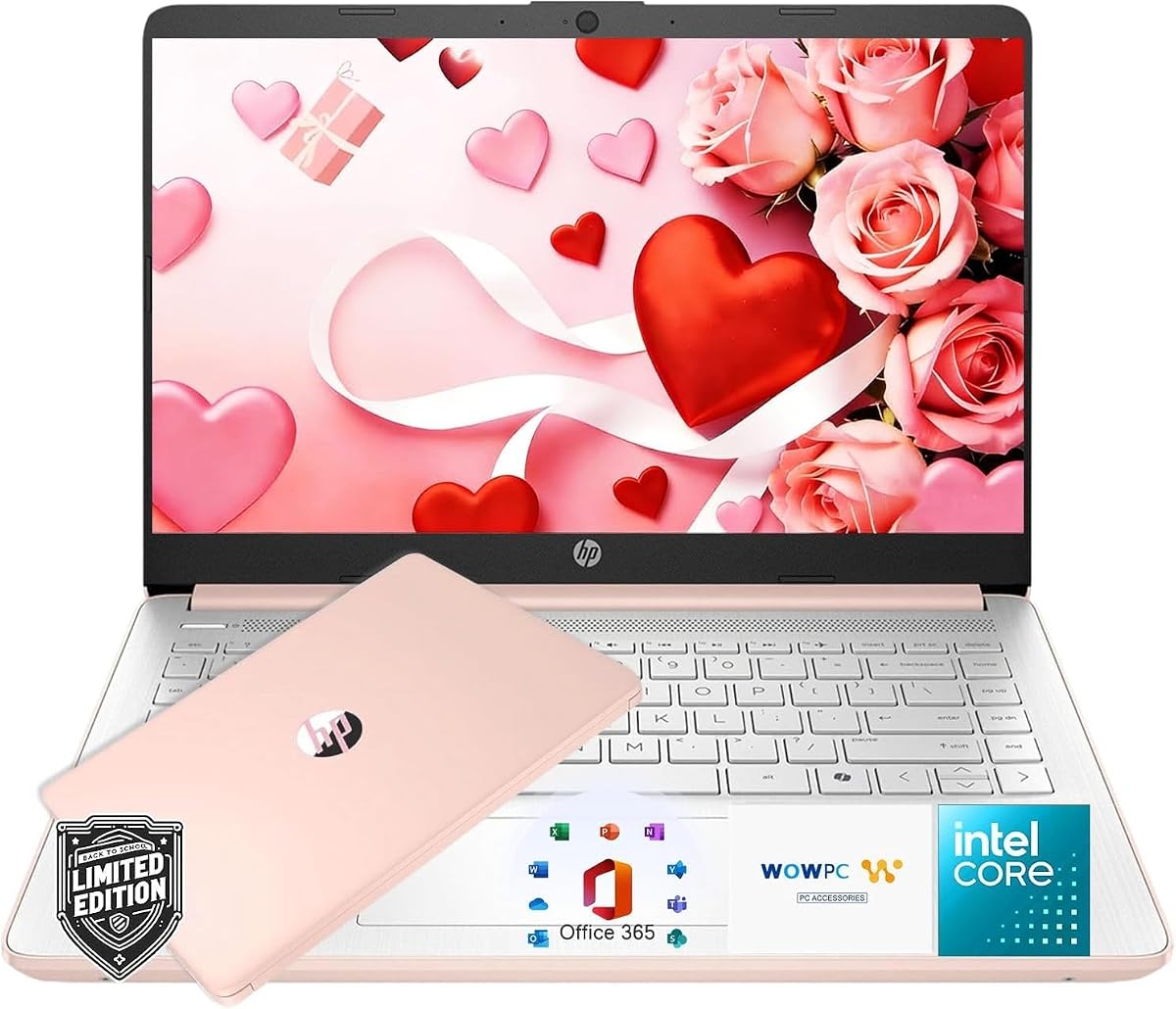
The HP Rose Gold Ultrabook brings together Windows 11, 8GB of memory, a 64GB solid-state drive, and a distinctive finish. Its 4.0 rating is the lowest among the ten listings, but the extra system memory and stated inclusion of one year of Microsoft Office 365 make it worth considering for users who value a familiar productivity environment.
We may earn a commission when you buy through this link, at no additional cost to you.
The Intel Celeron N4500 has two cores, two threads, and a maximum boost clock of 2.80GHz. It is intended for everyday office, study, communication, and multimedia tasks rather than demanding professional software. The supplied information states that 8GB of DDR4 memory supports multi-application and multimedia workflows more smoothly than a basic 4GB configuration, while the SSD contributes to responsive file operations.
Its 64GB capacity is restrictive for local files, although Microsoft Office 365 inclusion and cloud-based tools can offset that limitation. The lower rating may reflect buyer expectations or experiences not captured in the specifications, so reviewing the current customer feedback is important. It is also important to confirm what the current listing includes, particularly the operating-system edition and Office 365 term.
This laptop is a good option for a senior who wants Windows, values the appearance of a lightweight ultraportable, and wants more memory than most of the Chromebooks in this guide. It is suitable for email, Office documents, browsing, and video calls. Users who need more storage should consider one of the 128GB SSD laptops near the end of the list.
The 8GB memory configuration is a meaningful advantage over 4GB systems, especially when a browser, video call, and document are used together. It does not transform the entry-level processor, but it gives routine work more room to operate.
The listed Microsoft Office 365 package provides access to familiar productivity applications. Buyers should verify the current subscription details and ensure they are comfortable using cloud-based account features to edit and back up documents.
We may earn a commission when you buy through this link, at no additional cost to you.
The HP Everyday Slim N150 combines Windows 11, an Intel N150 processor, 8GB of memory, and a 128GB SSD, giving it a more modern foundation than most of the entry-level systems in the guide. It carries a 5.0 rating based on the supplied information, and the included Copilot key, Wi-Fi 6, Bluetooth 5.4, and 720p camera make it especially relevant to buyers interested in current everyday technology.
We may earn a commission when you buy through this link, at no additional cost to you.
The N150 is designed to handle browsing, online classes, office work, and streaming efficiently. A 128GB solid-state drive provides considerably more local capacity than the 32GB, 64GB, and 16GB alternatives elsewhere in the comparison, while 8GB of memory supports simultaneous everyday applications. The product listing also states that one terabyte of cloud storage is included, though the exact offer terms should be confirmed.
The 14-inch HD display has a 1366 by 768 resolution, 250-nit brightness, and anti-glare treatment. It is less detailed than the Acer Chromebook 315’s Full HD IPS panel, but its portability, modern processor, and local storage make it a more balanced Windows option. Battery figures include up to 11 hours of video playback or 7.5 hours of wireless streaming, depending on usage.
This is a compelling recommendation for a senior who wants a current Windows laptop without stepping up to a high-end processor. The full-size keyboard, multi-touch touchpad, useful port selection, and 720p camera make it appropriate for communication, productivity, and learning. A buyer who prioritizes screen resolution above local storage may prefer the Acer Chromebook 315.
The Intel N150 is a newer processor option that targets efficient everyday workloads. It is well matched to browsing, classes, office applications, and streaming without pretending to handle advanced professional computing.
Wi-Fi 6 and Bluetooth 5.4 provide up-to-date wireless capabilities, while the 720p camera with temporal noise reduction and dual microphones supports video communication. These features are relevant to remote learning and staying in contact with family.
We may earn a commission when you buy through this link, at no additional cost to you.
The HP New Everyday Slim Laptop with Copilot AI is another strong all-around Windows choice, rated 5.0 in the supplied data. It uses the same broadly capable Intel N150 platform, 8GB of memory, and 128GB SSD found in the preceding HP model. Its advertised battery life reaches up to 12 hours of video playback, and the 3.24-pound chassis prioritizes easy carrying.
We may earn a commission when you buy through this link, at no additional cost to you.
Windows 11 Home 64-bit provides a familiar environment for document editing, browsing, online learning, communication, and streaming. The 14-inch anti-glare display uses an HD LED micro-edge panel with 250-nit brightness. A full-size keyboard, multi-touch touchpad, dedicated Microsoft Copilot key, and True Vision HD camera with dual microphones support both ordinary productivity and video calls.
The 1366 by 768 screen is not as sharp as a Full HD alternative, and this model is very similar to the preceding HP Everyday Slim. Buyers should compare the current listings carefully to see which includes the more specific cloud-storage offer and which better matches the desired color. The port selection is practical, with USB-C, two USB-A ports, HDMI, an SD media card reader, and a headphone and microphone jack.
Choose this model for a senior who prioritizes a thin Windows laptop, modern features, and strong advertised battery life. It is particularly suitable for travel, video calls, and general productivity. If the difference between the two nearly identical HP systems is unclear, the preceding model may offer a more clearly stated cloud-storage benefit, while this one lists the higher maximum video playback duration.
The N150 processor, 8GB of memory, and 128GB SSD provide a balanced configuration for daily computing in a slim enclosure. The laptop can move from a kitchen table to a sofa or travel bag without requiring substantial setup changes.
A dedicated Copilot key provides quick access to an AI assistant directly from the keyboard. For users comfortable with voice or written prompts, it may offer an approachable way to help organize questions, draft text, or explore unfamiliar features.
We may earn a commission when you buy through this link, at no additional cost to you.
The best easy to use laptop for seniors balances a familiar interface, comfortable display, adequate performance, reliable connectivity, and simple maintenance. Consider the user’s existing devices, preferred software, vision needs, and comfort with technology before choosing a system.
Windows laptops offer the broadest compatibility with familiar desktop software, including Microsoft Office programs and many specialist applications. They are generally the safer choice when a senior already owns a Windows computer, receives Windows-based files, or needs a more traditional desktop with a Start menu and movable application windows. Windows 11 also introduces a modern interface, but additional setup and updates may be required.
Chrome OS centers the experience on web browsing, Google applications, and Android apps from Google Play. It updates automatically, starts quickly, and can be easier to maintain when the user primarily checks email, watches videos, attends online classes, and communicates through web-based services. However, software that is not designed for Chrome OS may not work as expected.
In short, choose Windows for traditional software compatibility and Chrome OS for a focused, web-centered experience. Consider both the programs the user already uses and the likelihood that those programs may change in the future.
A larger display can make text, buttons, and video calls easier to see, particularly for users with reduced visual acuity. The 15.6-inch laptops in this guide provide a spacious canvas, while 14-inch models offer a more portable compromise. The 11.6-inch Dell Chromebook is the most compact and may be easier to carry, but it gives users less room to display information.
Resolution also matters. Full HD panels provide 1920 by 1080 pixels and generally render text and images with more definition than the 1366 by 768 HD displays used by several models. Anti-glare finishes are useful for reducing reflections, although display brightness and viewing comfort remain individual preferences. A large screen is helpful, but it should still be positioned at a comfortable distance.
Choose a 15.6-inch Full HD model when readability is the priority. A 14-inch HD display may be a better fit for portability, while the 11.6-inch option makes sense only when compact size matters more than viewing space.
Entry-level Intel Celeron processors are designed for web browsing, email, video streaming, online classes, and basic document work. The N4020, N4120, N4000, and N4500 chips in this guide belong to that general class, while the Intel N150 models provide a newer foundation for similar everyday tasks. None should be judged as if intended for intensive professional workloads.
Memory influences how comfortably several applications can remain open at once. The 4GB configurations can work for basic activity, but 8GB offers more headroom for a browser with many tabs, a video call, and a document editor. The HP Rose Gold Ultrabook and the two N150 laptops have 8GB, making them better aligned with multi-application use.
For typical senior use, prioritize the operating system and screen first, then choose 8GB when possible. A newer processor is helpful, but more memory and adequate storage often produce a better everyday experience than chasing a high-performance specification.
Storage determines how many applications, photographs, videos, and offline documents can be kept on the computer. The models in this guide range from 16GB of flash memory on the Dell Chromebook to 128GB of SSD storage on both N150 HP laptops. The Acer and HP Chromebooks generally rely more heavily on cloud storage, which is convenient when internet access is dependable.
Solid-state drives generally provide faster response than flash-based storage, while 128GB gives room for applications and locally stored files. Larger-capacity drives are preferable when a senior works with photo collections, extensive media libraries, large downloads, or programs that cannot be used entirely in a browser. External storage can expand a system, but it also requires an extra step to access files.
Choose 64GB or 128GB when local storage matters, and use cloud storage carefully if selecting a smaller model. Do not assume free cloud space will replace a local drive for every task, particularly for files that need to remain available offline.
Battery-life claims are useful for comparison, but actual runtime varies with screen brightness, wireless use, video playback, and processor activity. The HP Chromebook 14 lists up to 14 hours, the Samsung Chromebook Go 12 hours, and the Acer Chromebook 315 up to 10 hours. The HP N150 models advertise as much as 11 or 12 hours of video playback, depending on the specific listing.
Ports determine which accessories can be used without adapters. USB-A is useful for mice, flash drives, and printers, while USB-C may support charging, data, and display output. An HDMI port is useful for a larger television or monitor, an SD card reader simplifies photo transfer, and the audio jack allows a user to retain familiar wired headphones.
Prioritize the ports matching accessories the senior already owns. A long advertised battery is valuable, but a convenient charging setup and accessible connections are equally important for comfortable daily use.
Video calling has become a central way many older adults maintain contact with family, participate in classes, and attend appointments. A built-in webcam, microphone, and speaker can make those activities more convenient than relying entirely on a phone. The HP N150 models specify a 720p HD camera with temporal noise reduction and dual microphones, while the HP Chromebook 14 N4000 has a Wide Vision HD camera and dual array microphones.
The Dell Chromebook 11 3100 includes Bluetooth, but its supplied specifications do not list camera quality. A senior who makes frequent video calls should review the full listing and confirm that the camera, microphones, speakers, and compatible application are included. Screen size also matters because a large display makes it easier to see another person during a conversation.
For regular video communication, choose a model with a clearly documented camera and microphone arrangement. If calls are occasional, audio quality, screen legibility, and the ability to use familiar messaging applications may matter more.
Portability determines whether a laptop stays on a desk or is used around the home. The HP Chromebook 14 N4000 and the N150 HP models are listed at 3.24 pounds, while the Samsung Galaxy Chromebook Go emphasizes a slim, lightweight design. The 15.6-inch models are generally easier to view but may be more cumbersome to carry and position on a small table.
For a senior who only uses a computer while seated at a desk, screen size and keyboard comfort may outweigh weight. For someone who reads in bed, watches television in another room, or travels, a lighter 14-inch model may be preferable. Consider where the computer will be placed and whether another person can help with carrying it.
Choose a compact model when mobility is essential and a larger display when stationary comfort matters most. A laptop used in several locations should ideally be light enough to move without strain and easy to set up in each location.
Renewed and new listings require different levels of scrutiny. The Dell Chromebook 11 3100 and HP 14-Inch Windows 11 are marked as renewed, so buyers should review the seller’s condition description, battery expectations, included accessories, warranty coverage, and return terms. A renewed product can offer strong value, but the exact unit may not match a new model cosmetically.
Software inclusions also need verification. Several products mention Microsoft Office 365, Google AI Pro, cloud storage, or Google Play access. These may involve trial periods, promotional terms, or subscription conditions, so it is important to read the current listing and understand what is included after any promotion ends.
For any purchase, confirm the operating-system version, included applications, warranty, and return policy. A clear understanding of these details is more useful than assuming every similarly named listing offers identical benefits.
Begin with a simple setup that fits the user’s routine. Place the laptop on a stable table at a comfortable height, connect the power adapter, turn on the display, and connect the mouse and keyboard if the user prefers them. Sign in once, connect to the home Wi-Fi network, and adjust the text size, display brightness, volume, and date and time settings before opening many applications.
Create a simple set of folders for documents, photographs, and downloads, and choose a consistent place to save important files. For a Chromebook, check that important information is synchronized with the included cloud services. For a Windows laptop, confirm that Microsoft Office or other required applications are installed and that essential files are backed up to an appropriate location. Avoid storing the only copy of an important document on the laptop.
To keep the computer in good condition, clean the screen with a soft microfiber cloth, avoid placing food or drinks near the keyboard, and use a surge-protected outlet when available. Update the operating system when prompted, save work regularly, and avoid installing unfamiliar programs. For a renewed or older system, allow extra storage space and keep the device plugged in during long tasks when battery health is uncertain.
For a user who primarily browses the web, checks email, watches videos, and uses online applications, Chrome OS is often approachable because it updates automatically and presents a focused set of tools. Windows 11 is generally more familiar to people who already own a Windows computer and is necessary for many traditional desktop programs. The best choice depends on the software and devices the user already understands.
A 15.6-inch laptop can be easier to read because it provides more room for text, controls, and video calls. It may still be a good choice if it will rest on a table and does not need to be carried frequently. A 14-inch model offers a more manageable balance, while an 11.6-inch screen prioritizes portability over viewing space.
Eight gigabytes is preferable for comfortable everyday multitasking, especially when a browser with many tabs, a video call, and a document editor are open together. Four gigabytes can still support basic browsing and communication, though performance may become less comfortable during heavier use. The processor, memory, storage type, and software all influence the overall experience.
A Chromebook can be an excellent choice for email, video calls, streaming, web browsing, and Google-based productivity. It is especially convenient for users who are comfortable with Google applications and want a system that requires less manual maintenance. It may be less suitable if the user depends on Windows-only software or needs to maintain large collections of local files.
A renewed laptop can be a practical option when the seller clearly documents the condition, warranty, battery expectations, and return policy. The HP Windows 11 and Dell Chromebook listings in this guide are renewed, so buyers should review those details carefully. A new laptop may offer more certainty, but a well-described renewed unit can reduce the initial cost.
A larger display, higher resolution, anti-glare coating, and adjustable brightness can make text and controls more comfortable. Full HD resolution is clearer than the 1366 by 768 HD screens used by several models. Screen size alone cannot solve every vision issue, so users with significant difficulty reading may also need magnification, larger system text, or a separate monitor.
Having both can be convenient because many older accessories still use full-size USB-A connectors, while newer devices and chargers may use USB-C. The HP N150 laptops include one USB-C and two USB-A ports, and the Acer Chromebook 315 includes two of each. Check the accessories already in use before deciding whether an adapter is acceptable.
Storage needs depend on whether the user keeps photographs, downloaded films, large documents, or applications locally. A 128GB SSD offers the most local flexibility in this group, while smaller Chromebooks work best with cloud storage. Avoid buying based on storage alone, but ensure the operating system and frequently used files can be stored without frequent cleanup.
The 15.6 Inch N4020 Windows 11 Laptop is the strongest all-around recommendation because it combines a large anti-glare Full HD display, a familiar operating system, quiet fanless operation, expandable storage, and useful connectivity. For a web-focused and budget-conscious buyer, the Acer Chromebook 315 provides a large detailed screen and modern wireless features, while the Samsung Galaxy Chromebook Go stands out for its refined portability and phone integration.
Prioritize the needs that will affect daily comfort rather than chasing a specification that may never be used. A larger, sharper display may help with readability; 8GB of memory may help with multitasking; a familiar operating system may reduce training; and the right ports can make existing accessories easier to connect. Users who depend on specific software should confirm compatibility before making a final choice.
Finally, compare the current listing details before purchasing because ratings, configurations, promotional cloud benefits, Office inclusion terms, and availability can change. The current cost, seller condition, warranty, and return policy should also be reviewed. A careful comparison ensures that the selected easy to use laptop for seniors fits the buyer’s actual routine rather than only matching a specification list.