
UGREEN Bluetooth 5.3 Adapter
4.4Editor score
Bluetooth 5.3 BR/EDR
Five simultaneous device connections
Driver-free modern Windows setup
Compact low-profile design
This Bluetooth Adapter for Keyboards guide compares 10 options for compatibility, range, multi-device support, setup, and everyday performance.
A Bluetooth adapter can give a desktop or older laptop the wireless connectivity needed for a compatible keyboard, mouse, headphones, or other accessory. The best choice depends on your operating system, available USB ports, range requirements, and whether you want to connect several devices at once.
We compared all 10 products using their supplied specifications, including Bluetooth version, Windows compatibility, simultaneous device connections, driver requirements, range features, antenna design, and physical format. The list covers standard USB dongles, long-range receivers, and converters designed to make wired peripherals wireless.
Each review explains the strongest use case and important limitations, while the comparison table highlights the differences at a glance. Product ratings and availability can change, and current prices vary, so check the latest listing details and confirm compatibility before purchasing.
4.4Editor score
4.5Editor score

4.4Editor score
The table below compares Bluetooth versions, operating-system support, connection capacity, and distinguishing physical features. These specifications show which adapters are best suited to a basic keyboard setup, a multi-accessory workstation, or a long-range installation.


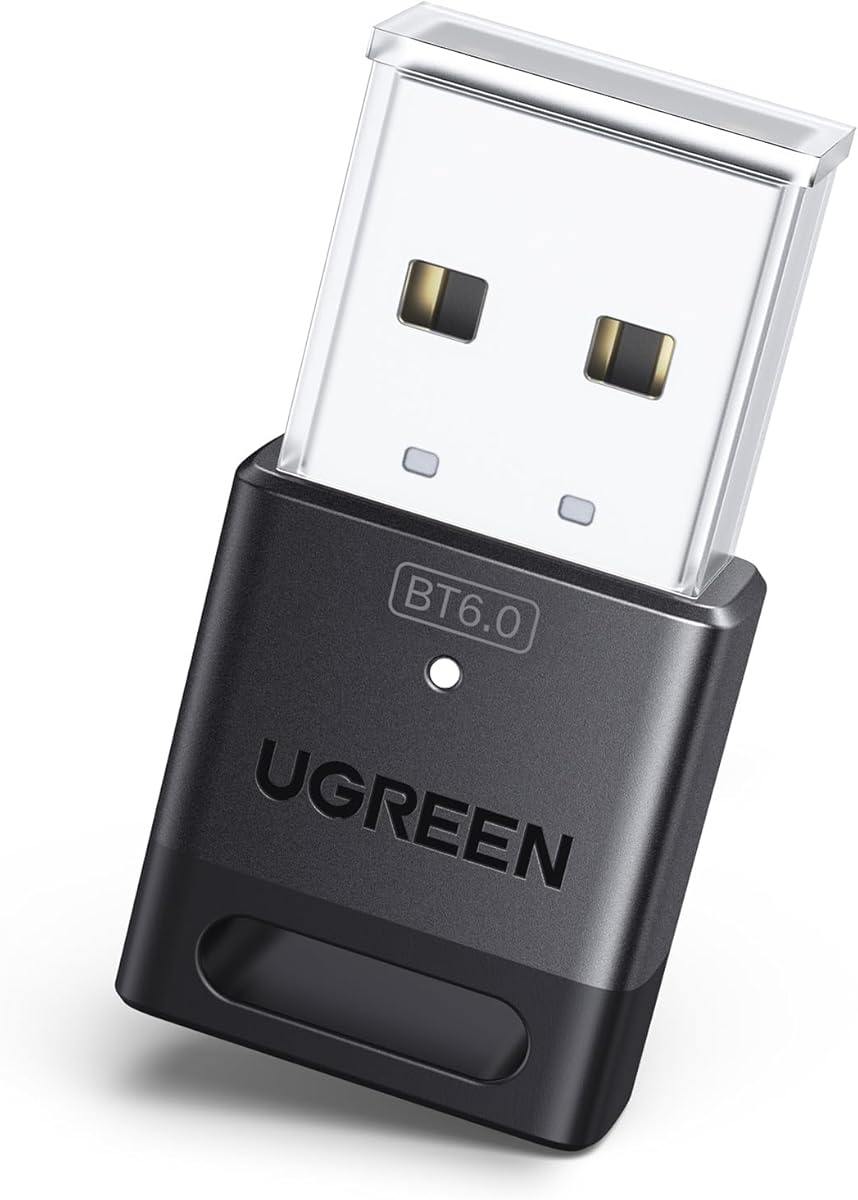


The UGREEN USB Bluetooth 5.3 Adapter is a practical choice for adding Bluetooth to a compatible Windows computer. It carries a 4.4 rating and stands out for supporting up to five different device types at once, including keyboards and mice. Its plug-and-play behavior on Windows 8.1, 10, and 11 also keeps the initial setup uncomplicated.
We may earn a commission when you buy through this link, at no additional cost to you.
Bluetooth 5.3 BR/EDR technology is intended to improve connection stability, data-transfer performance, and power efficiency. The dongle can maintain simultaneous links to several classes of peripheral, which is useful for a desk containing a wireless keyboard, mouse, phone, and headphones. As with many adapters, only one audio device of the same type can actively play music.
The main compromise is platform support. UGREEN explicitly excludes Windows 7, Linux, macOS, televisions, cars, and gaming consoles, so the adapter is not a universal solution for mixed-device workspaces. If the computer already has active internal Bluetooth, the supplied guidance recommends disabling that hardware in Device Manager to avoid conflicts.
This is a strong budget recommendation for a Windows 8.1, 10, or 11 system that needs several wireless peripherals and values a small footprint. It is particularly convenient for owners of a Bluetooth keyboard who want to connect it to a desktop without replacing the entire keyboard-and-mouse set.
Supporting up to five device types at the same time makes this adapter useful for a keyboard, mouse, phone, and audio setup. The limitation is that multiple audio devices of the same type cannot play simultaneously.
No driver installation is required on supported modern Windows versions, and the small receiver can remain in a USB port. Its size helps prevent interference with neighboring ports on a compact desktop or laptop.
We may earn a commission when you buy through this link, at no additional cost to you.
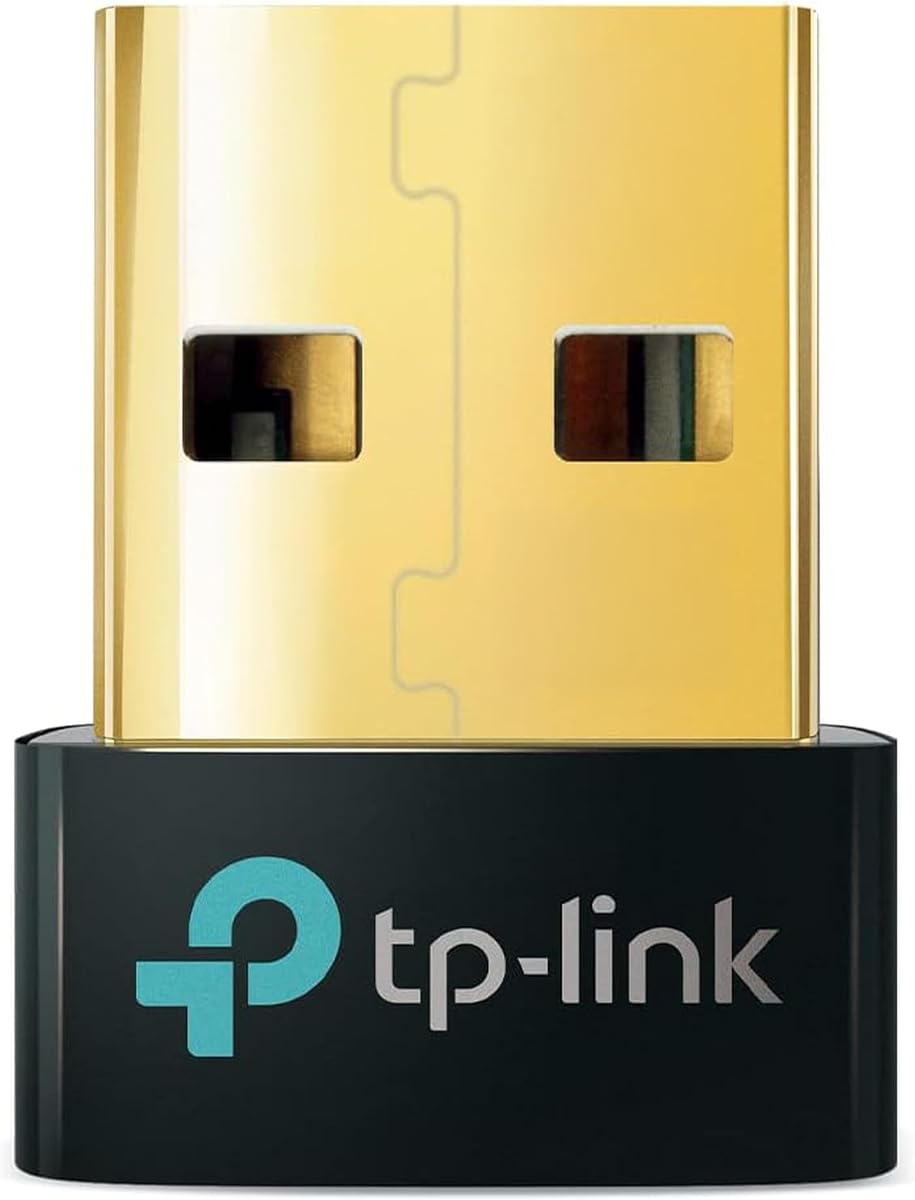
The TP-Link UB500 Bluetooth 5.4 adapter is the strongest all-around choice in this group. Its 4.5 rating is the highest listed rating among the ten products, while its combination of Bluetooth 5.4, EDR, and BLE provides a modern foundation for keyboards and other wireless accessories. It remains compact enough to leave permanently installed in an available USB port.
We may earn a commission when you buy through this link, at no additional cost to you.
TP-Link states that the UB500 is backward compatible with Bluetooth versions ranging from 5.3 and 5.0 down to 1.1. That broad support improves the likelihood that a compatible keyboard using an earlier Bluetooth standard can pair successfully. EDR supports faster data rates, while Bluetooth Low Energy is designed to improve power consumption.
Setup is straightforward on Windows 8.1, 10, and 11, although an internet connection is required for the plug-and-play process. Windows 7 is also supported when the appropriate driver is downloaded from TP-Link. The adapter cannot be used with macOS, Linux, televisions, Windows 8, or directly with PlayStation and Xbox consoles, and two UB500 units cannot pair with one another.
This is the recommendation for most Windows users adding a Bluetooth keyboard, especially when backward compatibility and a tiny footprint matter. It also suits users who want the adapter to handle communication with a printer, phone, or headset in addition to keyboard input.
Support for numerous Bluetooth generations helps the UB500 work with both newer and older peripherals. It can communicate with compatible desktops, laptops, printers, phones, and headsets while keeping the physical footprint very small.
The nano-sized body is intended to stay inserted without obstructing adjacent USB ports. This makes it convenient for a permanent desktop setup or for carrying a laptop with the receiver already installed.
We may earn a commission when you buy through this link, at no additional cost to you.
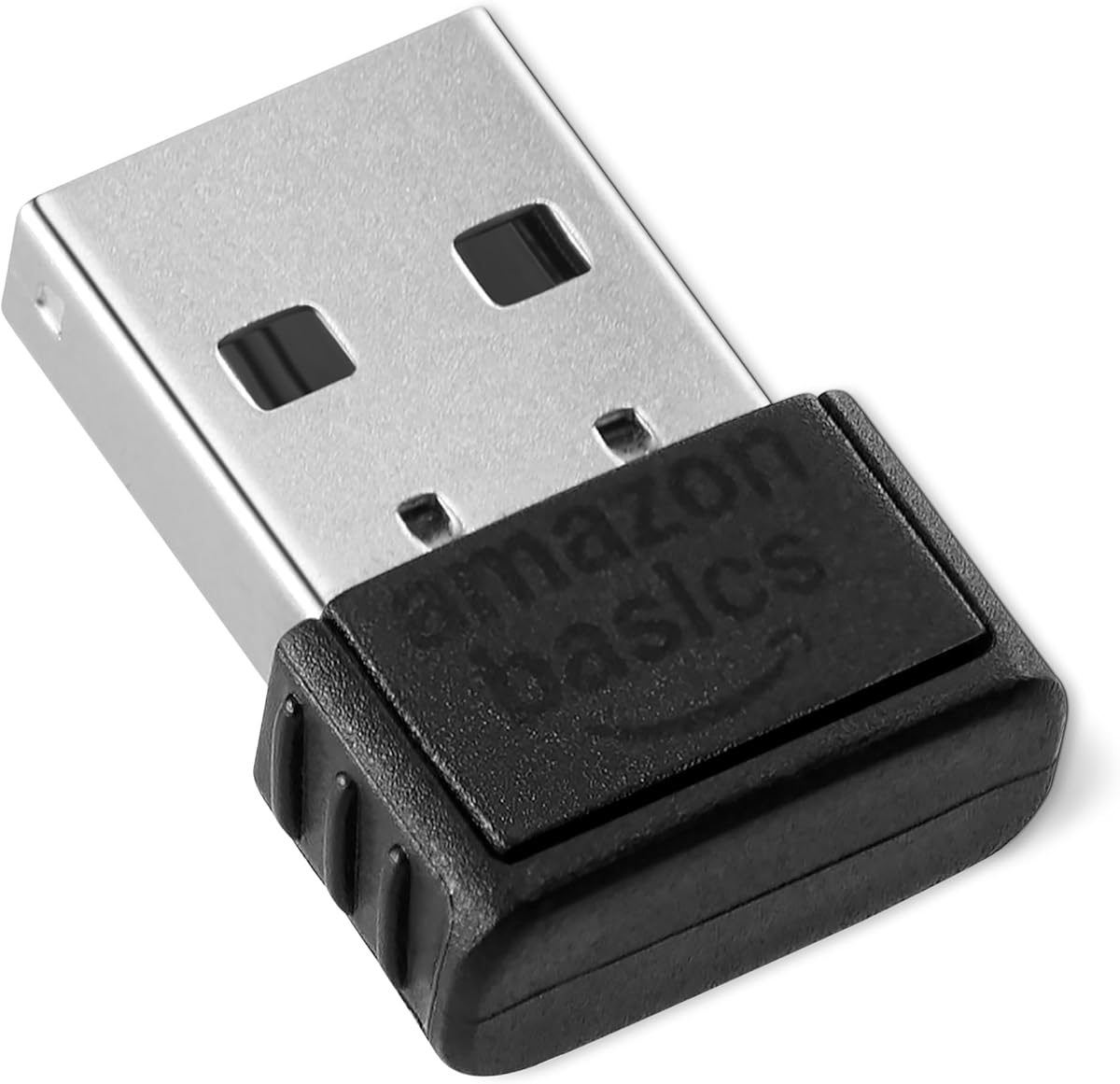
The Amazon Basics Bluetooth 5.4 USB Adapter is a capable option for Windows users who want to connect more peripherals than a simple keyboard-and-mouse arrangement requires. Its 4.3 rating reflects a solid feature set, and the stated ability to connect up to six devices simultaneously makes it suitable for a crowded wireless desktop.
We may earn a commission when you buy through this link, at no additional cost to you.
The adapter supports Bluetooth 5.4 and is backward compatible with versions 5.3, 5.2, 5.1, 5.0, 4.2, 4.0, 3.0, 2.1, 2.0, and 1.1. EDR is included for enhanced data rate, while BLE is intended to reduce energy use. The nano receiver can fit into a standard USB port and remain connected without taking up much desk or laptop space.
Compatibility is the central limitation. It works only with Windows 8.1, 10, and 11, excluding Mac, Linux, Chrome, Unix, PlayStation systems, and Windows 7 or earlier. The product guidance also advises disabling any built-in Bluetooth before using the adapter, reducing the chance of a driver conflict.
Amazon Basics is a sensible pick for a home or office Windows workstation that pairs a keyboard with several other supported devices. It may be especially attractive to users who value a higher simultaneous connection count without needing an adjustable antenna or 2.4G conversion features.
The stated six-device capacity is higher than several conventional options in the list. It can support a mixed peripheral arrangement containing a keyboard, mouse, phone, and other compatible accessories.
The nano format and broad Bluetooth backward compatibility make this straightforward for recent Windows systems. Checking operating-system support and disabling internal Bluetooth before pairing avoids the most common setup concern.
We may earn a commission when you buy through this link, at no additional cost to you.
The cablecc 2.4G Bluetooth Converter serves a different purpose from the standard PC dongles in this roundup. Rather than merely adding Bluetooth to a computer, it converts compatible wired USB keyboards and mice into wireless devices. Its 3.9 rating is lower than those of the conventional USB adapters, but its device-switching capabilities serve a distinct multi-computer workflow.
We may earn a commission when you buy through this link, at no additional cost to you.
The converter can operate in Bluetooth or 2.4G wireless mode. A physical button or the Ctrl+Alt+Shift+0 shortcut changes between the two modes, with a blue indicator representing Bluetooth and a red indicator representing 2.4G. It supports switching among eight computers and phones, using Ctrl+Alt+Shift+1 through Ctrl+Alt+Shift+8, and the stated switch takes approximately one to three seconds.
The package includes one wireless adapter and one 2.4G receiver, but the supplied information notes that an additional receiver may need to be purchased for eight-device 2.4G operation. The converter uses a Type-C power connection and is designed for compatible laptops, tablets, and phones. It is not a general-purpose USB Bluetooth receiver for arbitrary wireless accessories.
Choose this product when the goal is to reuse existing wired keyboards and mice across several systems. It is less appropriate for someone who already owns a native Bluetooth keyboard and simply needs a straightforward Windows receiver.
The main benefit is conversion rather than replacement. Compatible wired USB peripherals can become wireless, reducing the need to buy a separate set for every computer in a multi-device workspace.
Eight saved profiles and numbered keyboard shortcuts make it possible to move between systems without reconnecting manually. Physical and LED indicators help users confirm whether Bluetooth or 2.4G mode is active.
We may earn a commission when you buy through this link, at no additional cost to you.
The TP-Link UB600 6.0 is aimed at users who want the newest Bluetooth generation represented in this roundup. It has a 4.2 rating and supports as many as seven different device types at the same time, including keyboards, mice, smartphones, tablets, controllers, and printers. Its nano body is designed to remain in a USB port without blocking nearby connections.
We may earn a commission when you buy through this link, at no additional cost to you.
Bluetooth 6.0 is presented as providing faster transfers, stable connections, low latency, and improved resistance to interference. That makes it relevant to wireless productivity setups where a keyboard must feel responsive and coexist with other connected peripherals. The adapter's simultaneous support for several device classes gives it more flexibility than a dedicated single-keyboard receiver.
System support is broad within Windows: Windows 11, 10, 8.1, and 7 are listed, but installation differs by version. Windows 10 and 8.1 offer plug-and-play installation, while Windows 11 and 7 require the latest driver from TP-Link's official website. The product is not presented as a cross-platform solution for macOS or Linux.
This is an appealing choice for a modern Windows workstation that will eventually use several compatible wireless accessories. It is best suited to users who are comfortable handling a driver download on Windows 11 and value a very small, high-capacity receiver over the widest cross-platform support.
The multi-device capacity is a major distinction for offices that combine a keyboard, mouse, phone, printer, and controller. A keyboard can remain part of a broader wireless setup without occupying the only adapter slot.
The ultra-compact body is intended to stay in place during travel or daily use. Its small footprint helps preserve access to adjacent USB ports on laptops with closely spaced connectors.
We may earn a commission when you buy through this link, at no additional cost to you.
The UGREEN USB Bluetooth 6.0 Dongle Receiver provides a modern upgrade for compatible Windows computers that lack built-in Bluetooth. Its 4.2 rating reflects a well-rounded specification set: Bluetooth 6.0 with EDR, BLE support, backward compatibility with Bluetooth 5.4 and 5.3, and room for five simultaneous device types.
We may earn a commission when you buy through this link, at no additional cost to you.
The advertised benefits include faster data transfer, high-quality audio and video streaming, and efficient large-file transfers. For keyboard use, the most relevant benefit is stable simultaneous communication with a mixed collection of peripherals. The same five-device limit also applies when a mouse, phone, and headphones are connected alongside the keyboard.
As with UGREEN's Bluetooth 5.3 model, setup is driver-free on Windows 8.1, 10, and 11. Linux, macOS, and Windows 7 are not supported, and the dongle cannot operate directly on PlayStation, Xbox, Switch, or televisions. Range can be reduced by walls, physical obstructions, and wireless interference, so claims of Bluetooth capability should not be mistaken for guaranteed distance.
This UGREEN model is a good fit for a modern Windows desktop that wants a current Bluetooth version and several connected accessories. Choose it over the 5.3 version when working with Bluetooth 6.0 peripherals, or when future-oriented compatibility is a priority; otherwise, the earlier model offers a similar connection count and workflow.
Support for Bluetooth 6.0 is combined with backward compatibility for 5.4 and 5.3 accessories. This lets a single receiver cover newer and recently introduced wireless peripherals without changing the Windows system.
EDR and BLE are designed to balance data handling with energy efficiency. Five simultaneous device types provide enough flexibility for a typical keyboard, mouse, phone, and audio arrangement.
We may earn a commission when you buy through this link, at no additional cost to you.
The TP-Link UB500 Plus is the premium choice in this guide because its adjustable, multi-direction antenna distinguishes it from the tiny plug-and-stay receivers. It uses Bluetooth 5.3 with EDR, carries a 4.4 rating, and is intended for users who need better reception positioning than a basic desktop dongle can provide.
We may earn a commission when you buy through this link, at no additional cost to you.
The antenna can be rotated and adjusted to find a favorable signal direction in different environments. That feature makes sense when the computer and keyboard are separated by furniture, distance, or obstructions, although actual range still depends on the environment and the keyboard's own radio. TP-Link also states up to twice the speed and four times the coverage of Bluetooth 4.0 when comparing with that older baseline.
Compatibility covers Bluetooth versions from 4.2 through 1.1 in addition to 5.3. Windows 8.1, 10, and 11 support plug-and-play use with an internet connection, while Windows 7 requires a downloadable driver. The larger antenna makes this receiver less discreet than a nano dongle, but the extra adjustability is the reason to choose it.
Buy the UB500 Plus when reliable reception and directional placement matter more than a nearly invisible form factor. It is especially suitable for a keyboard used across a large desk, a media area, or a room where the computer sits away from the user's seating position.
The rotatable antenna can be aimed toward the keyboard or another paired peripheral. This provides practical control when a fixed receiver position does not produce the desired connection quality.
The receiver is less compact than the nano models because it includes a visible, adjustable antenna. That trade-off suits users who prioritize reach and placement flexibility over a minimal desk footprint.
We may earn a commission when you buy through this link, at no additional cost to you.
The Bluetooth 6.0 Mini Dongle has the highest listed rating in the roundup at 4.6. Its defining specification is a stated range of up to 65 feet, or 20 meters, in open environments. It also supports Bluetooth 6.0 and remains backward compatible with devices using Bluetooth 5.4, 5.3, 5.2, and 4.0.
We may earn a commission when you buy through this link, at no additional cost to you.
This adapter is explicitly positioned for keyboards, mice, headphones, speakers, printers, and game controllers. That broad peripheral support makes it useful for a full wireless workstation rather than only a keyboard-only arrangement. The compact low-profile design is intended to stay connected without obstructing adjacent USB ports, benefiting both travel setups and permanent desktop installations.
Installation is plug-and-play on Windows 11 and 10, while Windows 7 requires driver installation for audio-device support. The 65-foot figure applies to an open environment, so walls, furniture, and interference can reduce the effective distance. Users should evaluate that statement in relation to the room in which the keyboard will be used.
This dongle is the best fit for users who want a small receiver with a strong stated range and a high rating. It is especially attractive for larger rooms, open desks, and situations where the computer may be farther from the keyboard than a standard desk setup.
A stated 65-foot open-area range gives the adapter more flexibility than a conventional close-range desktop receiver. Actual performance will vary with walls, interference, and the position of both devices.
The listed device categories include keyboards, mice, headphones, speakers, printers, and controllers. Backward compatibility expands the practical range of existing wireless accessories.
We may earn a commission when you buy through this link, at no additional cost to you.
The USB Wired Keyboard and Mouse Convert to Wireless 2.4G Bluetooth Converter shares a key feature with the cablecc model: it can make compatible wired peripherals wireless. Its 2.8 rating is the lowest in the group, so buyers should place more weight on whether this specific conversion and switching workflow matches their needs.
We may earn a commission when you buy through this link, at no additional cost to you.
The converter operates in Bluetooth and 2.4G modes, with a button or Ctrl+Alt+Shift+0 shortcut used to switch between them. A blue LED indicates Bluetooth mode and a red LED indicates 2.4G mode. Up to eight computers and phones can be stored, and Ctrl+Alt+Shift+1 through Ctrl+Alt+Shift+8 changes between the numbered profiles, with a stated transition time of roughly one to three seconds.
The package includes one wireless adapter and one 2.4G receiver, although the supplied data says another receiver must be purchased to use eight devices in 2.4G mode. The unit is powered through Type-C and is intended for laptops, tablets, and phones that need compatible wireless keyboards or mice. It is not intended to serve as a general receiver for a pre-existing Bluetooth keyboard.
Despite its lower rating, the converter may be valuable to a user who already owns good wired peripherals and regularly moves between several machines. For a straightforward Bluetooth keyboard-to-PC connection, a standard USB dongle will generally be easier to understand and more directly compatible.
Switching between Bluetooth and 2.4G provides flexibility for different systems and receivers. LED colors communicate the selected mode, while the shortcut provides a quicker alternative to reaching the physical button.
Numbered keyboard shortcuts make it easy to move between saved computers and phones. This is useful for shared workspaces, although eight-device 2.4G operation requires additional hardware.
We may earn a commission when you buy through this link, at no additional cost to you.
The Avantree DG45 is a straightforward USB Bluetooth adapter for Windows PCs and laptops. Its 4.3 rating reflects a dependable feature set for adding Bluetooth accessories, including keyboards, mice, headphones, speakers, printers, phones, tablets, smartwatches, and supported controllers. It is designed for a user who wants one adapter to cover several common peripheral categories.
We may earn a commission when you buy through this link, at no additional cost to you.
Up to seven Bluetooth devices can be paired, and non-audio accessories such as a keyboard and mouse may be used at the same time. Only one Bluetooth audio device can be active at once, so the adapter cannot stream to two pairs of headphones simultaneously. Its audio capabilities include stereo music and voice calls through a compatible headset's microphone, including use with services such as Skype, Zoom, and Teams.
The DG45 works with Windows 11, 10, 8.1, and 8, but not with Windows 7, XP, Vista, macOS, ChromeOS, Linux, televisions, car stereos, or gaming consoles. It also does not work with 2.4G peripherals that need their own USB receiver, nor with Wi-Fi-only devices. These distinctions are important because the word wireless does not always mean Bluetooth compatible.
The DG45 is most appropriate for a user who wants a simple Windows adapter for a Bluetooth keyboard and other supported accessories. It may lack the newest radio standard or adjustable antenna found in other choices, but it remains a focused option for common desktop and laptop peripherals.
The DG45 can maintain pairing relationships with up to seven Bluetooth devices. A keyboard and mouse can operate alongside other non-audio peripherals, making it practical for a versatile desk.
The adapter does not support 2.4G devices that require a proprietary USB receiver or Wi-Fi peripherals. Checking the connection standard on the keyboard before buying prevents an otherwise compatible-looking mismatch.
We may earn a commission when you buy through this link, at no additional cost to you.
The correct Bluetooth adapter depends first on the keyboard's radio, followed by the computer's operating system and intended range. Device count, installation method, and physical design then determine which model is most convenient.
Most of the adapters reviewed are designed for Windows computers, and several exclude Windows 7, macOS, Linux, ChromeOS, and Unix outright. A Bluetooth 5.4 label does not make an adapter cross-platform. Check the keyboard's platform requirements as well, because some wireless keyboards include a proprietary 2.4G receiver that is not interchangeable with a standard Bluetooth USB adapter.
Modern Bluetooth versions are backward compatible with many earlier peripherals, but the oldest device paired with the adapter can influence the connection features that can be used. Every product here provides backward compatibility, although the oldest explicitly supported version differs. For a new keyboard using an established standard, a current adapter with Bluetooth 5.3, 5.4, or 6.0 is generally sufficient.
A keyboard-only setup may need only one connection, but many desks also contain a mouse, phone, headphones, speaker, printer, or controller. Listed simultaneous capacities range from five to seven devices on standard dongles. The converter options support eight saved device profiles, but they are designed to convert wired peripherals and should not be judged by the same criteria as a general Bluetooth receiver.
A standard nano receiver is usually sufficient when the computer and keyboard share a desk, while an adjustable antenna can help in larger rooms or when obstructions interfere. The TP-Link UB500 Plus includes a rotatable multi-direction antenna, while one mini dongle states up to 65 feet in an open environment. Stated range is not guaranteed indoors because walls, furniture, radio interference, and peripheral design all affect the result.
Several Windows 8.1, 10, and 11 models support simple plug-and-play operation, but some still require an internet connection or a current driver download. Windows 7 support commonly requires a separate driver. If the computer already contains internal Bluetooth, the manufacturer may recommend disabling it in Device Manager so the USB adapter is recognized without conflicts.
Nano-sized receivers can usually remain permanently inserted without blocking neighboring ports. The TP-Link UB500 Plus has a more visible adjustable antenna, while the cablecc and wired-to-wireless converters need a Type-C power connection and take up more attention. Consider whether the computer has an available port, whether the receiver can remain inserted during travel, and whether a permanently protruding device is acceptable.
Bluetooth and 2.4G are different wireless methods, even though both may be marketed as wireless. A standard USB Bluetooth adapter pairs with a keyboard that has Bluetooth enabled. A keyboard that includes a proprietary 2.4G USB receiver generally must use that receiver with the computer. The two converter products are intended to transform compatible wired peripherals into Bluetooth or 2.4G peripherals.
Several adapters can maintain several simultaneous connections while allowing only one active audio device. That restriction is not a concern for a keyboard, but it matters when the same receiver is expected to handle speakers, headsets, or calls. A keyboard and mouse can generally operate at the same time, and some adapters can also keep a phone or printer paired alongside them.
Begin by confirming that the keyboard has a Bluetooth mode and that the computer runs a supported Windows version. If the computer already has internal Bluetooth, open Device Manager, locate that Bluetooth hardware, and disable it as the product guidance recommends. This reduces the chance that Windows selects the internal radio instead of the USB adapter.
Insert the adapter into an available USB port. On supported modern Windows systems, allow the operating system to complete its automatic setup and install any requested driver. If the keyboard is already paired to the adapter, open the Windows Bluetooth settings, select the keyboard, and confirm it is connected. A dedicated adapter button, if the keyboard has one, may need to be pressed to begin pairing.
After pairing, test typing, mouse movement, and any keyboard shortcuts that depend on Bluetooth. Keep the receiver away from unnecessary electrical interference, avoid sharply bending the USB connector, and do not obstruct its casing or antenna. If the connection becomes unstable, check for internal-Bluetooth conflicts, reconnect the keyboard, and confirm that the computer remains within the practical range of the adapter and keyboard.
No. The keyboard must support standard Bluetooth and be able to pair through the computer's Bluetooth settings. A keyboard designed only for a proprietary 2.4 GHz USB receiver will not work with these adapters, even if both products use wireless technology. Check the keyboard's manual for a Bluetooth mode, pairing button, and supported platform list.
It is often recommended, but not every setup requires it. If the computer includes internal Bluetooth, disabling it in Device Manager can prevent the system from choosing the built-in radio or encountering driver conflicts. The manufacturer guidance for several products in this guide specifically recommends disabling existing Bluetooth before using the USB adapter.
Yes, if both peripherals support standard Bluetooth and the adapter supports enough simultaneous connections. Most standard dongles here allow five to seven device types at once, while the converter products are specifically intended to handle compatible keyboards and mice. An active Bluetooth audio device may have separate restrictions from keyboard and mouse connections.
Usually, when the keyboard uses a standard Bluetooth version covered by the adapter's backward-compatibility list. The included dongles state support for several earlier Bluetooth generations. However, compatibility still requires a supported computer operating system, and a keyboard built exclusively around a proprietary 2.4 GHz USB receiver will remain incompatible.
Distance, walls, furniture, and wireless interference can reduce effective range. A compact desktop setup usually keeps the radio close to the keyboard, while a larger room may benefit from an adjustable antenna or a model with a higher stated range. Reorienting the receiver, moving it away from obstructions, or pairing again can also resolve an unstable connection.
Most of the products listed are explicitly Windows-only. The UGREEN, Amazon Basics, TP-Link, Avantree, and mini dongle models either exclude macOS and Linux or identify themselves as Windows devices. Check the current listing before buying if your computer runs another operating system, and do not assume the USB form factor guarantees cross-platform support.
A standard dongle adds Bluetooth capability to a computer and pairs with accessories that already support Bluetooth. A wired-to-wireless converter accepts compatible wired USB keyboards and mice, then makes them wireless through Bluetooth or 2.4 GHz. The converter options are better for reusing existing peripherals across several systems, while a dongle is the direct solution for a native Bluetooth keyboard.
Modern Windows models often install the needed driver automatically, though some specify an internet connection during setup. Windows 7 generally requires a separately downloaded driver, and Windows 11 behavior varies among the TP-Link models. The manual and the manufacturer's driver page should be checked before installation, particularly if the device manager does not recognize the adapter immediately.
The TP-Link UB500 Bluetooth 5.4 is the most balanced overall recommendation because it combines a high rating, broad backward compatibility, a nano-sized design, and support for several peripheral categories. The UGREEN Bluetooth 5.3 model is an attractive budget option with five simultaneous connections and simple modern Windows setup, while the TP-Link UB500 Plus is the premium choice when an adjustable antenna and long-range positioning matter.
Before buying, verify that the keyboard speaks standard Bluetooth rather than relying on a proprietary 2.4 GHz receiver. Then check operating-system support, driver requirements, the number of accessories you plan to connect, and the physical space available around the computer. If multiple devices are involved, pay particular attention to the restriction that often allows only one Bluetooth audio stream at a time.
Ratings, product details, and current prices can change, so consult the latest Amazon listing before making a final decision. The supplied links provide direct access to each adapter's current page, where compatibility notes, availability, and updated customer feedback can be reviewed.