
VENTION 6-in-2 USB C Hub
4.3Editor score
Designed for MacBook Neo
Detachable magnetic connector
Up to 140W PD charging
80Gbps Thunderbolt bandwidth
Docking Station for MacBook Neo comparisons cover display support, charging, ports, networking, portability, and compatibility to help you choose the right
A docking station can turn a MacBook Neo into a more practical workstation by adding displays, faster networking, card readers, and a cleaner way to connect accessories. The best choice depends heavily on port layout, charging requirements, display support, and whether your everyday setup is portable or desk-based.
The products in this guide were compared using their published specifications, including supported displays, power delivery, data speeds, Ethernet options, included accessories, and stated Mac compatibility. The list covers compact hubs, full desktop docks, vertical stands, and high-speed Thunderbolt models rather than assuming every docking station works with every MacBook.
Each review identifies the strongest use case, important limitations, and the people most likely to benefit. Rankings reflect the supplied product information and compatibility notes, while product availability and pricing can change over time. Always verify the connector, display capabilities, and charging requirements before ordering.
4.3Editor score

4.3Editor score

4.1Editor score
This side-by-side comparison highlights the most important differences among the ten docking stations, including Neo compatibility, display support, charging capacity, wired networking, and the number and speed of available ports.





The Anker 8-in-1 USB-C Hub is a compact desktop dock with a 4.5 rating and a useful balance of displays, charging, networking, and data connections. Its two HDMI outputs, Ethernet port, two USB-A data ports, and SD and microSD readers provide substantially more flexibility than the MacBook's built-in connectors.
We may earn a commission when you buy through this link, at no additional cost to you.
The dock supports USB-C Power Delivery pass-through charging up to 85W, which is useful for keeping a compatible laptop charged through a single upstream connection. Display output reaches 4K at 60Hz on one screen, while two connected displays can operate at 4K at 30Hz each. On macOS, however, both external displays show identical content.
Its principal limitation is that macOS mirroring behavior means this is better suited to one detailed display plus a duplicate presentation screen than to two separate extended workspaces. The product also does not support Linux, and its stated compatibility requires USB-C with DisplayPort Alt Mode and Power Delivery. A 100W PD wall charger and USB-C-to-C cable are required for the full charging arrangement.
This is a good pick for users who want one dock to cover monitors, wired internet, removable media, and basic USB accessories without moving to a large Thunderbolt workstation. Buyers who need two independently extended screens should favor a model with explicit modern Mac support. Confirm the MacBook Neo connection and display behavior before purchase.
The combination of dual HDMI, Ethernet, two USB-A ports, and both SD and microSD readers covers many daily desk accessories without requiring separate adapters. It is especially useful for transferring camera files, connecting a wired network, and driving two presentation displays.
The 85W pass-through charging limit is suitable for many USB-C laptops, but the dock does not include the required 100W PD wall charger and USB-C-to-C cable. Verify that your power adapter and cable support the required power delivery profile.
We may earn a commission when you buy through this link, at no additional cost to you.
The iVANKY 12-in-2 FusionDock 1 earns the Editor's Choice distinction because it explicitly addresses the MacBook Neo rather than merely claiming broad MacBook compatibility. Its supplied notes state that MacBook Neo supports only a single display, avoiding the ambiguity that can affect dock selection.
We may earn a commission when you buy through this link, at no additional cost to you.
It is otherwise a full-featured desktop platform with four 5Gbps USB 3.0 ports, SD and TF card slots, Gigabit Ethernet, and a 150W power adapter. Laptop charging reaches up to 96W, while an additional USB-C PD device can receive up to 18W. That makes it appropriate for a permanent desk where power, networking, and media transfers matter.
Display capability is impressive across supported MacBook families. M4 and M5 base models and Pro or Max variants can support dual 4K at 120Hz, while M1, M2, and M3 base models are limited to one 4K at 120Hz display. Intel MacBooks from 2016 through 2020 can support dual 4K at 60Hz. These distinctions are important because chipset limitations often matter more than the dock's headline specifications.
The FusionDock 1 is the most straightforward recommendation for a MacBook Neo owner seeking an explicitly supported, full-sized desk dock. The tradeoff is that Neo users receive only a single display according to the product information. The included 24-month warranty and responsive replacement policy add reassurance for a fixed workstation investment.
Many generic docking-station listings avoid discussing chipset display restrictions. This product's notes explicitly identify the MacBook Neo's single-display limitation, helping buyers set realistic expectations before ordering.
The 150W adapter, 96W laptop charging, Gigabit Ethernet, and multiple USB-A ports make the dock most suitable for a desk that remains connected throughout the day. It is less compelling for users who need to move frequently.
We may earn a commission when you buy through this link, at no additional cost to you.
The Anker Nano 13-in-1 Dock is distinctive because it combines a desktop docking station with a detachable six-in-one portable hub. That arrangement can reduce the number of adapters needed when moving between a home office, hotel desk, and shared workspace. It carries a 4.2 rating and includes a 140W power adapter.
We may earn a commission when you buy through this link, at no additional cost to you.
Its 13-port desktop section includes two HDMI ports, DisplayPort, two USB-C data ports, three USB-A ports, Gigabit Ethernet, a 3.5mm audio jack, SD and TF card readers, and DC power. It can support a single 4K at 60Hz display, two 2K at 60Hz displays, or three 1080p displays when the host and macOS configuration permit it.
The main caution is display operation on macOS. The supplied information says multiple external displays operate in mirrored mode only, and the product's compatibility list primarily names Windows laptops such as Dell XPS, Lenovo ThinkPad, and HP Spectre models. A MacBook Neo buyer should therefore verify both physical connectivity and expected desktop-extension behavior rather than assuming the Windows-oriented claims apply without qualification.
The 100W laptop charging and 10Gbps data transfer make the main dock suitable for a serious office setup, while the detachable hub is handy for travel. It is a particularly appealing option for buyers who value flexible accessories, but it is not the clearest pick when explicit MacBook Neo assurance is the primary priority.
The detachable hub lets users leave the larger desktop dock at work while carrying a smaller set of ports for travel. This can be valuable for people who alternate between a permanent setup and mobile working arrangements.
The hardware advertises several multi-display modes, but macOS uses mirrored output across multiple external displays. Confirm your desired screen arrangement and ensure the MacBook Neo supports the selected resolution and refresh rate.
We may earn a commission when you buy through this link, at no additional cost to you.
The Anker 7-in-2 Mac Hub is a compact, highly rated option for compatible MacBook Air and MacBook Pro systems. Its design avoids obstructing the MagSafe charging area, while a multifunction USB-C port handles charging and display output alongside a dedicated data port, HDMI, two USB-A ports, and SD and microSD readers.
We may earn a commission when you buy through this link, at no additional cost to you.
The multifunction port supports up to 100W charging, 40Gbps data transfer, and display output as high as 5K at 60Hz. The HDMI port supports 4K at 60Hz. This combination gives the hub useful multimedia and charging flexibility for a compact desk, although users should use cables and displays appropriate for the selected mode.
Most importantly for this guide, the supplied product information explicitly states that the hub is not compatible with MacBook Neo. It also notes that M1, M2, and M3 MacBooks do not support dual external displays. Those are major exclusions for anyone searching specifically for a Neo dock.
The hub remains well suited to owners of compatible MacBook Air and Pro models seeking a small all-in-one adapter. Its 4.5 rating reflects a strong general-purpose design, but compatibility overrides other strengths in a MacBook Neo-specific buying guide. Prospective Neo buyers should select a product whose listing explicitly addresses their device.
The compact body and MagSafe-conscious design reduce desk clutter while preserving access to the MacBook's charging area. It is a sensible solution for compatible MacBook models that need a modest port expansion.
Because the product information directly excludes MacBook Neo, this model is included as a contrast rather than a recommended purchase for readers searching by that device name. Confirm every product's stated support before buying.
We may earn a commission when you buy through this link, at no additional cost to you.
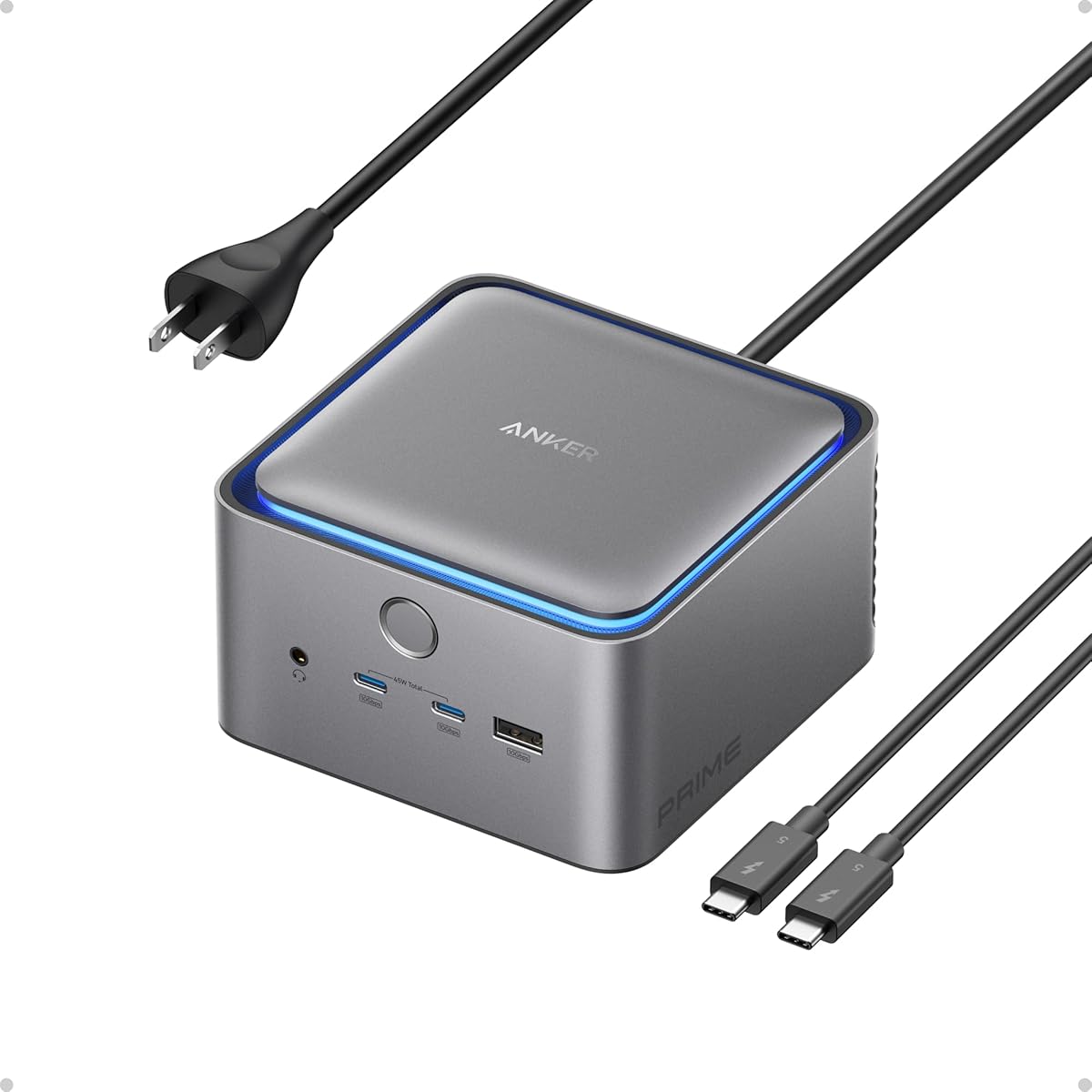
The Anker Prime 14-in-1 Dock is aimed at power users who need more than a simple laptop adapter. Its 4.3 rating reflects a broad feature set, with 160W total output, charging for up to four devices, dual displays, high-speed data, and a variety of USB connections.
We may earn a commission when you buy through this link, at no additional cost to you.
Three USB-C ports can each deliver up to 100W, while one USB-A port supplies up to 12W. Data connections reach speeds of up to 10Gbps, and the dual HDMI outputs support 2K at 60Hz with a DisplayPort 1.4 laptop or 1080p at 60Hz with a DisplayPort 1.2 host. A 5120-by-1440 monitor is explicitly unsupported.
macOS users should note that the two external displays show identical content. Compatibility also excludes Linux, while USB-C, USB4, and Thunderbolt hosts with DisplayPort Alt Mode and Power Delivery are supported. The supplied information does not explicitly mention MacBook Neo, so a Neo owner would need to confirm that its connection, power delivery, and display functions are recognized.
This dock is best for a desk shared by several powered devices or for a demanding office setup that prioritizes charging capacity and broad USB connectivity. Its limitation is not physical power but display flexibility: the resolution ceiling and mirrored macOS behavior make it less suitable for users requiring two independent extended desktop areas.
The unusual strength of this dock is its ability to charge four devices simultaneously while still handling data and displays. It can simplify setups involving a laptop, phone, tablet, and another USB accessory.
The dual-display modes are less advanced than the headline charging specifications. Mac owners should verify whether mirrored output suits their workflow and whether their target monitors require resolutions above the stated limits.
We may earn a commission when you buy through this link, at no additional cost to you.
The VENTION 6-in-2 USB C Hub is the Best Budget selection because it is explicitly designed for MacBook Neo, Air, and Pro devices and combines a detachable magnetic connector with modern charging and display specifications. Its 4.3 rating and clearly stated Neo focus distinguish it from generic docks in this list.
We may earn a commission when you buy through this link, at no additional cost to you.
The hub supports up to 80Gbps bandwidth and offers a fixed USB-C connection plus a detachable magnetic USB-C connection. It includes USB-C power delivery, HDMI, two USB-A 3.0 ports, and one 5Gbps USB-C port. A dedicated PD pathway can handle up to 140W pass-through charging, with 100W available through the standard PD port according to the supplied information.
Display options include HDMI at 4K and 60Hz, while the USB-C outputs support 8K at 60Hz and higher refresh modes in the stated configurations. Eight-knot output requires a Thunderbolt-enabled host, and actual results depend on the MacBook Neo's supported display configuration. The product's unusually high refresh-rate claims should therefore be treated as capability limits rather than guaranteed results for every setup.
The magnetic connector is convenient for frequent attachment and removal, and the product supports Mac, iPadOS, Windows, and Android or Linux environments. A bottom-mounted case may prevent the standard connector from fitting properly, and the alternative seven-shaped single plug may affect appearance or stability. For a compact Neo setup, however, it offers the clearest combination of device-specific design and modern specifications.
The detachable magnetic connection lets a user leave the adapter attached briefly or remove it without repeatedly reconnecting a conventional plug. That makes it useful for quick transitions between a desk and a bag.
The standard connector may not fit when a case covers the bottom of the MacBook. Confirm clearance before ordering, and verify the refresh rate and resolution your Neo can actually drive alongside the selected monitor.
We may earn a commission when you buy through this link, at no additional cost to you.
The Anker Prime TB5 Dock represents the highest-speed option in this roundup, with a Thunderbolt 5 upstream connection, two downstream Thunderbolt 5 ports, and a total of 14 connections. Its 4.1 rating does not lead the group, but its published performance targets are intended for professionals moving very large files or operating advanced display setups.
We may earn a commission when you buy through this link, at no additional cost to you.
Thunderbolt 5 provides the foundation for the claimed transfer performance, including the ability to move a 150GB file in 25 seconds under the stated conditions. An active cooling system is designed to manage heat under sustained full load, while the 2.5Gbps Ethernet port offers a faster wired network than the more common Gigabit alternative.
Display support includes one HDMI 2.1 or DisplayPort 2.1 output and two downstream Thunderbolt 5 video outputs. A single display can run at up to 8K at 60Hz, and dual 8K at 60Hz is specified for Thunderbolt 5 Windows laptops. The upstream port supports up to 140W charging under PD 3.1, while two front USB-C ports share 45W.
This model is most compelling for a professional workstation using compatible Thunderbolt hardware, high-speed storage, and demanding displays. A MacBook Neo owner should not assume that every advertised Windows-oriented display mode will be available. The product information does not explicitly confirm Neo compatibility, so physical and protocol support should be verified before purchase.
Thunderbolt 5 makes the dock most relevant to photographers, video professionals, developers, and engineers who routinely exchange large files. The performance advantage is most visible with compatible Thunderbolt storage and accessories.
Thunderbolt 5 offers no benefit if the connected host or cable cannot negotiate it. MacBook Neo buyers should verify the exact port type and supported display modes rather than relying on the dock's broad Thunderbolt 5 branding.
We may earn a commission when you buy through this link, at no additional cost to you.
The TobenONE MacBook Pro/Air Docking Station Stand combines a vertical laptop stand with extensive connectivity, earning a 4.5 rating. It is aimed at users who want a tidier desk, better screen positioning, and one cable-based connection to a collection of peripherals.
We may earn a commission when you buy through this link, at no additional cost to you.
Two HDMI ports support dual 4K at 60Hz through HDMI 1 and HDMI 2, while the VGA connection mirrors HDMI 2 for presentation setups. Power delivery accepts 100W PD3.0 input and supplies up to 87W to the MacBook. A 100W charger is included, reducing uncertainty about which power supply to use.
Port selection is generous: a data-only USB-C port, PD3.0 USB-C, two 5Gbps USB 3.0 ports, two USB 2.0 ports, simultaneous SD and microSD card access, Gigabit Ethernet, 3.5mm audio, and two host USB-C connections. This should serve office, editing, and presentation workstations that rely on both legacy and modern accessories.
Compatibility is described for several MacBook Pro and Air generations through Intel, M1 through M5 families, but the supplied information does not list MacBook Neo. Base M1, M2, and M3 systems also support only single-screen expansion. Buyers should therefore verify the exact model and connector. The stand format itself is excellent for reducing desk clutter, but only when the Neo's charging and display behavior are confirmed.
Holding the MacBook vertically can free desk area and align its screen closer to external monitors. The integrated stand makes this a practical choice for compact offices and clean workstation setups.
The included charger and 87W laptop charging remove much of the setup guesswork, while dual HDMI makes the stand useful for a main display and a mirrored presentation screen. Neo compatibility still requires direct verification.
We may earn a commission when you buy through this link, at no additional cost to you.
The TobenONE 18-in-2 Dock is a feature-rich desktop model with a 4.5 rating. Its selection of two HDMI ports, a 4K USB-C video port, seven USB-C and USB-A data connections, 2.5Gbps Ethernet, SD and TF card slots, audio, and charging makes it suitable for complex, permanently connected offices.
We may earn a commission when you buy through this link, at no additional cost to you.
The included 150W adapter can deliver up to 100W to a MacBook, while two front USB-C ports provide 30W each for phones, tablets, or earbuds. The dual display configuration can reach 4K at 60Hz when using HDMI or the USB-C video connection. A USB-C upstream cable and Thunderbolt cable are included with the dock.
Data-focused features are particularly strong. The 2.5Gbps Ethernet port supports faster transfers than Gigabit Ethernet, and the SD 4.0 reader can reach speeds up to 312MB/s with simultaneous read and write support. The dock also supports USB data connections up to 10Gbps, making it useful for external storage and professional media workflows.
However, the supplied product information explicitly says the dock is not compatible with MacBook Neo. It also warns that base M1, M2, and M3 Macs support only one monitor and that ultrawide displays may require reduced settings. This is consequently a useful reference for other compatible MacBooks, but it should not be selected for a Neo without additional confirmation from the manufacturer.
The 2.5Gbps Ethernet and high-speed card reader distinguish this dock from many basic hubs. Photographers, editors, and network-heavy users may appreciate the reduced transfer bottlenecks when paired with compatible equipment.
The listing directly identifies MacBook Neo as unsupported. That clear warning prevents a costly mismatch, but it also means this product should not be presented as a viable Neo recommendation.
We may earn a commission when you buy through this link, at no additional cost to you.
The Plugable Thunderbolt 4 Dock is the Best Premium pick for its polished 13-port layout, strong display support, and broad compatibility with modern M-series MacBooks. Its space-gray aluminum enclosure gives it a professional appearance, while the 4.1 rating reflects a capable alternative to larger 14-in-1 docks.
We may earn a commission when you buy through this link, at no additional cost to you.
It supports up to two 4K at 60Hz HDMI displays on M4 and M5 systems, M-series Pro and Max models, and M3 systems in clamshell mode. No driver downloads are required, making deployment straightforward in offices, hot desks, and development studios. Pro and Max M1 through M3 models are also supported, while base M1 and M2 systems are limited to a single external display.
Connectivity includes a downstream Thunderbolt 4 port with 40Gbps bandwidth, one USB-C connection, four USB-A ports, UHS-II SD and microSD readers, Ethernet, 3.5mm audio, and 100W host charging. This combination suits a user who transfers large media files, reads camera cards, connects a wired network, and needs two high-resolution displays without installing additional software.
MacBook Neo compatibility is not explicitly stated, so buyers should verify the device's port and display support before ordering. The dock is also compatible with Windows systems using Thunderbolt 4 or USB4. Plugable's lifetime support and emphasis on dependable deployment make it a strong premium choice for organizations that value long-term usability and straightforward setup.
The extensive Mac compatibility makes the dock attractive for shared or flexible offices where users may move between M-series generations. Driverless operation reduces friction when a new device connects.
Thunderbolt 4, UHS-II card readers, 100W charging, Ethernet, and dual 4K HDMI cover the priorities of creative and technical professionals. It provides a balanced mix of speed, media access, and display flexibility.
We may earn a commission when you buy through this link, at no additional cost to you.
The right MacBook Neo dock depends less on the number of ports printed on the box and more on how the dock connects, what it must display, how much power it delivers, and whether you need a permanent workstation or a portable adapter.
Start with the manufacturer's device-specific compatibility notes rather than assuming that a USB-C dock will behave like every other accessory. Some products in this category explicitly support MacBook Neo, while others name MacBook Air and MacBook Pro but exclude Neo. Even when the physical connector appears correct, the dock may require particular power delivery, DisplayPort Alt Mode, or Thunderbolt capabilities. Read the full description and recent product questions for the exact model before buying.
In short, explicit Neo support is the safest criterion, followed by confirmation of the required connector and display protocol.
A dock may advertise one display at 4K and 60Hz, two displays at lower refresh rates, or high-resolution output over USB-C rather than HDMI. macOS can also mirror multiple external displays even when the hardware is physically capable of more. For a MacBook Neo, confirm whether the desired arrangement is one extended desktop, multiple mirrored screens, or dual independent displays. Also check whether the listed maximum resolution applies to one screen or every screen simultaneously.
Choose based on the exact number, resolution, and refresh rate of your monitors, not merely the number of display connectors.
Power delivery figures describe maximum output under compatible conditions, not necessarily what reaches the laptop at every moment. A dock that advertises 100W or more may still require a sufficiently powerful wall adapter and a cable that supports the relevant USB-C Power Delivery profile. Some products include their power supply, while others require you to bring one. Check whether the dock charges the MacBook directly, supports pass-through charging, or includes separate phone and tablet outputs.
For a permanent desk, prioritize the included adapter wattage and sustained laptop charging. For travel, a smaller hub with lower charging output may be more practical.
A large port count can include inputs, outputs, power connections, and upstream links in different ways, so examine the actual layout. USB-A is ideal for keyboards, mice, webcams, and older storage; USB-C is more versatile for modern accessories; SD and microSD readers benefit photographers; and 3.5mm audio can support a wired headset or speakers. Avoid paying for a dock loaded with duplicate interfaces if your real setup needs only a few dependable connections.
Create a short list of the peripherals you connect every day and choose the smallest dock that covers them with room for occasional upgrades.
The headline USB generation matters when moving files from fast SSDs, but the slowest shared component can limit the result. USB 3.0 and USB 3.1 Gen 1 are commonly rated at 5Gbps, while faster 10Gbps ports are useful for high-speed storage and demanding workflows. Thunderbolt 4 provides up to 40Gbps, and Thunderbolt 5 increases the theoretical bandwidth further. Pay attention to whether card readers support high-speed standards such as UHS-II or SD 4.0 when media workflows are central.
Match data speed to your storage and files, but do not pay heavily for ports you will never use. Actual transfer results also depend on the connected device and macOS configuration.
A fixed desktop dock can support a larger power supply, more displays, stable Ethernet, and a broader port selection. A portable hub prioritizes compact size, detachable connectors, and minimal desk footprint. A vertical stand can improve screen positioning while reducing clutter. Magnetic adapters are convenient for repeated attachment, but bottom cases or protective sleeves may affect alignment. Consider where the dock will live and how often you will disconnect it.
Choose a permanent dock for a full office desk and a portable hub for travel. Select a stand when vertical storage and monitor alignment matter.
Most MacBook Neo setups include wireless networking, but a dock's Ethernet port can provide a stable wired connection, simpler large-file transfers, and compatibility with corporate networks. Gigabit Ethernet is widely sufficient, while 2.5Gbps Ethernet provides extra headroom for fast networks and storage workflows. Audio support may include a 3.5mm jack or USB-C audio devices. Check whether your preferred conferencing headset connects directly or requires separate adapters.
Prioritize 2.5Gbps Ethernet for high-speed networks, but do not pay a premium for it if your service and router do not support the faster standard.
The upstream cable and power adapter can materially affect the total setup. Thunderbolt docks need appropriate cables to reach their advertised performance, and charging docks may need a powerful adapter that is not included. Warranty length, responsive replacement policies, and manufacturer support can also distinguish otherwise similar products. A driverless design is convenient for users who do not want to manage accessories that may be blocked by workplace security settings.
Confirm that the box contains the cable and power supply needed for your intended setup, and keep the included warranty information accessible.
Begin by positioning the dock near the MacBook and identifying which accessories you intend to connect permanently. Read the compatibility chart and locate the upstream USB-C port. Connect displays first, followed by Ethernet, storage, and input devices, so the computer establishes each connection in a predictable order. Use the supplied or manufacturer-recommended upstream cable for the best chance of reaching the listed charging and data speeds.
For a permanent desk, connect the appropriate power adapter and then the MacBook. If the dock includes a detachable or magnetic adapter, attach it only when the case is removed and confirm that it sits evenly. Test one display before adding the second, and verify that macOS recognizes the intended extended or mirrored arrangement. For removable media, use the card reader and safely eject the card before transferring it to another device.
To keep the dock reliable, avoid sharply bending any USB-C cable near its connector and do not force a connector into a port that does not fit naturally. Keep the dock away from long-term moisture, excessive heat, and obstructed ventilation, especially around models with active cooling. Periodically disconnect and reconnect the upstream connection if an accessory stops being recognized, and consult the manufacturer's support page if a firmware, display, or charging issue persists.
No. A physical USB-C connection is only the first requirement, and the dock must also support the relevant display, charging, and data protocols. Some listings in this guide explicitly support MacBook Neo, while others name only MacBook Air and MacBook Pro or explicitly exclude Neo. Check the manufacturer's compatibility notes and verify the exact MacBook model before ordering.
The supplied iVANKY compatibility notes state that MacBook Neo supports only a single display, even though other compatible M-series MacBooks may support more. This limitation makes display mode an essential part of dock selection. Check both the Neo's supported output behavior and the dock's resolution, refresh rate, and macOS mirroring limitations.
Choose a dock whose maximum Power Delivery output comfortably matches the power draw of your MacBook Neo configuration. Products in this guide range from 85W to as much as 140W pass-through charging, though actual delivery depends on the power adapter, cable, workload, and protocol. A dock may also require a separate 100W charger to reach its stated maximum.
A Thunderbolt dock is better when you need maximum data bandwidth, high-resolution displays, advanced networking, or more high-speed ports. A basic USB-C hub is usually more appropriate for simpler accessories, one display, charging, and portability. The extra capability only matters when your MacBook and connected devices can negotiate the faster protocol.
That depends on both the hardware and macOS. Some docks offer multiple display outputs, but certain Mac configurations mirror the external screens rather than extending them independently. The Anker 8-in-1, Anker Prime 14-in-1, and Anker Nano products specifically note mirrored multi-display behavior on macOS. Verify extended-display support before buying for a side-by-side workspace.
A case can cover the bottom connector area or alter the alignment of a magnetic adapter. The VENTION hub specifically warns that its standard connector may not fit with a bottom-mounted case and offers a seven-shaped alternative that may affect appearance or stability. Remove the case or verify physical clearance before connecting the adapter.
Usually, one upstream USB-C cable can carry display, data, and power-delivery functions if the dock and computer support the required profiles. Display cables may still be needed for HDMI or DisplayPort monitors, although some docks include video outputs for direct connection. Use appropriate cables for every function and avoid assuming an ordinary charging-only cable supports high-speed data or video.
The Anker Nano 13-in-1 is designed around portability because its six-in-one hub detaches from the larger desktop dock. The VENTION 6-in-2 is another compact option with a magnetic connector and broad charging support. The best travel choice still depends on whether you need the full port selection, the power supply, or more than one display.
The iVANKY 12-in-2 FusionDock 1 is the strongest overall choice for a MacBook Neo because its product information addresses the device directly, explains its single-display limitation, and provides a complete fixed-workstation feature set. The VENTION 6-in-2 stands out as the Best Budget and most portable option, while the Plugable Thunderbolt 4 Dock is the Best Premium option for compatible modern MacBooks.
Prioritize explicit device compatibility before considering port count or headline speed. Confirm whether you need one extended display or two mirrored screens, select a charger and cable that support the desired output, and choose between a permanent desktop dock and a portable magnetic or detachable hub. Faster Ethernet and Thunderbolt can be worthwhile for professionals, but they are unnecessary for users who only need basic accessories.
Product specifications and prices can change, and compatibility notes may be updated as new MacBook models arrive. Before purchasing, check the current listing, confirm the exact connector, and verify display, charging, and data specifications for your particular MacBook Neo configuration.