
4K HDMI Splitter 1 in 2 Out
4.1Editor score
Driver-free HDMI splitting
4K at 30Hz
Synchronized audio output
Compare the best Dual HDMI Monitor Adapter options for resolution, extended displays, charging, compatibility, and everyday productivity.
A dual HDMI monitor adapter can transform a single computer connection into a productive two-screen workspace, but the best model depends heavily on your ports, operating system, display goals, and power requirements. The right adapter should support the intended resolution without relying on unverified performance claims.
This guide compares ten adapters using their stated connection types, supported resolutions, display modes, charging capabilities, operating-system compatibility, and included accessories. It covers USB-A, USB-C, DisplayPort, and HDMI solutions, highlighting important differences between extended and mirrored output.
Each review explains who benefits most from the adapter and where compromises may arise, while the comparison table offers a quicker way to narrow the field. Product specifications and availability can change, so check the current listing, your device ports, and your monitor requirements before purchasing.
4.1Editor score
4.5Editor score

4.2Editor score
The table below compares all ten adapters by source connection, maximum stated display mode, extended-display support, and major functional strengths. These details reveal why an inexpensive HDMI splitter, a USB-C dock, and a DisplayPort MST hub may suit very different computers.


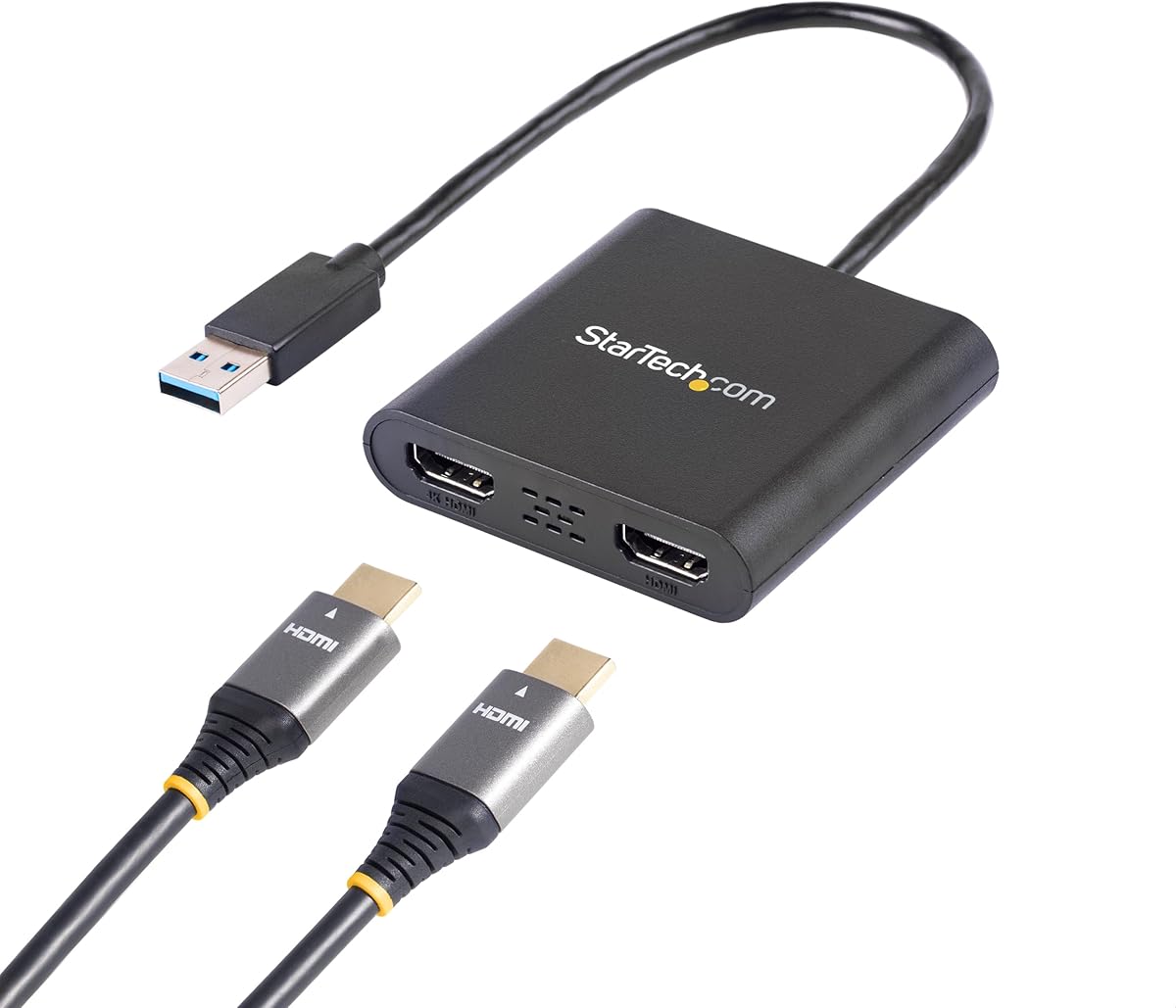
The StarTech USB-A 3.0 to Dual HDMI Adapter is a strong overall choice for Windows users who want to add two external displays to a computer with a USB-A port. It carries a 4.5 rating and stands out for its mixed-resolution support, sturdy 9.8-inch cable, and focus on dependable workstation use rather than adding unrelated hub functions.
We may earn a commission when you buy through this link, at no additional cost to you.
Its principal strength is purposeful display support. One output can deliver 4K at 30Hz while the other handles 1080p at 60Hz, which is practical when combining a detailed productivity screen with a standard secondary monitor. The adapter also supports 2-channel HDMI audio and HDCP 1.4, while a USB 5Gbps interface provides the bandwidth needed for those simultaneous outputs.
The trade-offs are significant enough to understand before ordering. It is explicitly limited to Windows and does not support macOS, ChromeOS, or Linux. Installation requires administrator rights, which can be an obstacle on a managed work laptop, and the 4K output is limited to 30Hz rather than the 60Hz found on several newer USB-C and DisplayPort alternatives.
This is the right recommendation for a Windows professional who values a simple, established USB-A connection and does not need laptop charging. It is particularly useful for offices, hot desks, and shared desktops where adding two monitors to an existing USB-A machine is the priority. Verify that the host has an available USB-A 3.0 port and permission to install the required drivers.
Supporting one 4K display at 30Hz and one 1080p display at 60Hz is a useful compromise for users who want detailed workspace space alongside a fluid standard-resolution panel. The arrangement can support documents, spreadsheets, communication applications, and reference material without requiring identical monitors.
The adapter is aimed squarely at Windows computers, including Intel, AMD, and Snapdragon X Copilot+ platforms. Its administrator-driven driver requirement should be considered before purchase, especially if company policy restricts software installation.
We may earn a commission when you buy through this link, at no additional cost to you.
The Acer 4-in-1 USB C Hub combines dual 4K at 60Hz display support with data transfer and laptop charging in a compact four-port design. Its 4.2 rating reflects a versatile feature set, making it a compelling option for USB-C users who want more than a simple display converter.
We may earn a commission when you buy through this link, at no additional cost to you.
Two HDMI 2.0 outputs can support single or dual 4K displays at 60Hz according to the listed specifications. A USB-A 3.0 port provides transfer speeds up to 5Gbps, while the USB-C Power Delivery port accepts up to 100W and is stated to charge the host at a stable 90W. The host must support DisplayPort Alternate Mode, and the monitors, cables, and computer must also support the desired resolution.
There are some boundaries to keep in mind. The short 20cm cable may be inconvenient for more permanent desk arrangements, and a suitable external power adapter and cable are not included. Mac users receive mirrored output across the external displays rather than two independent extended desktops, which is a common operating-system limitation reflected in the product information.
Choose this adapter for a modern laptop user who values high-refresh 4K output and wants charging and one high-speed USB-A port in the same accessory. It is less suitable for someone with a short USB-C cable length requirement, a Mac needing separate extended desktops, or a setup unable to support DisplayPort Alternate Mode. Check all connected-device capabilities before buying.
Combining two HDMI outputs, 5Gbps USB-A data transfer, and 100W Power Delivery reduces the number of accessories needed at a desk. This integration is especially useful for USB-C laptops whose built-in port count is limited.
The stated HDMI 2.0 support allows for a high-refresh 4K presentation on each display when every part of the chain is compatible. A laptop, two monitors, and both HDMI cables must all meet the necessary standards.
We may earn a commission when you buy through this link, at no additional cost to you.
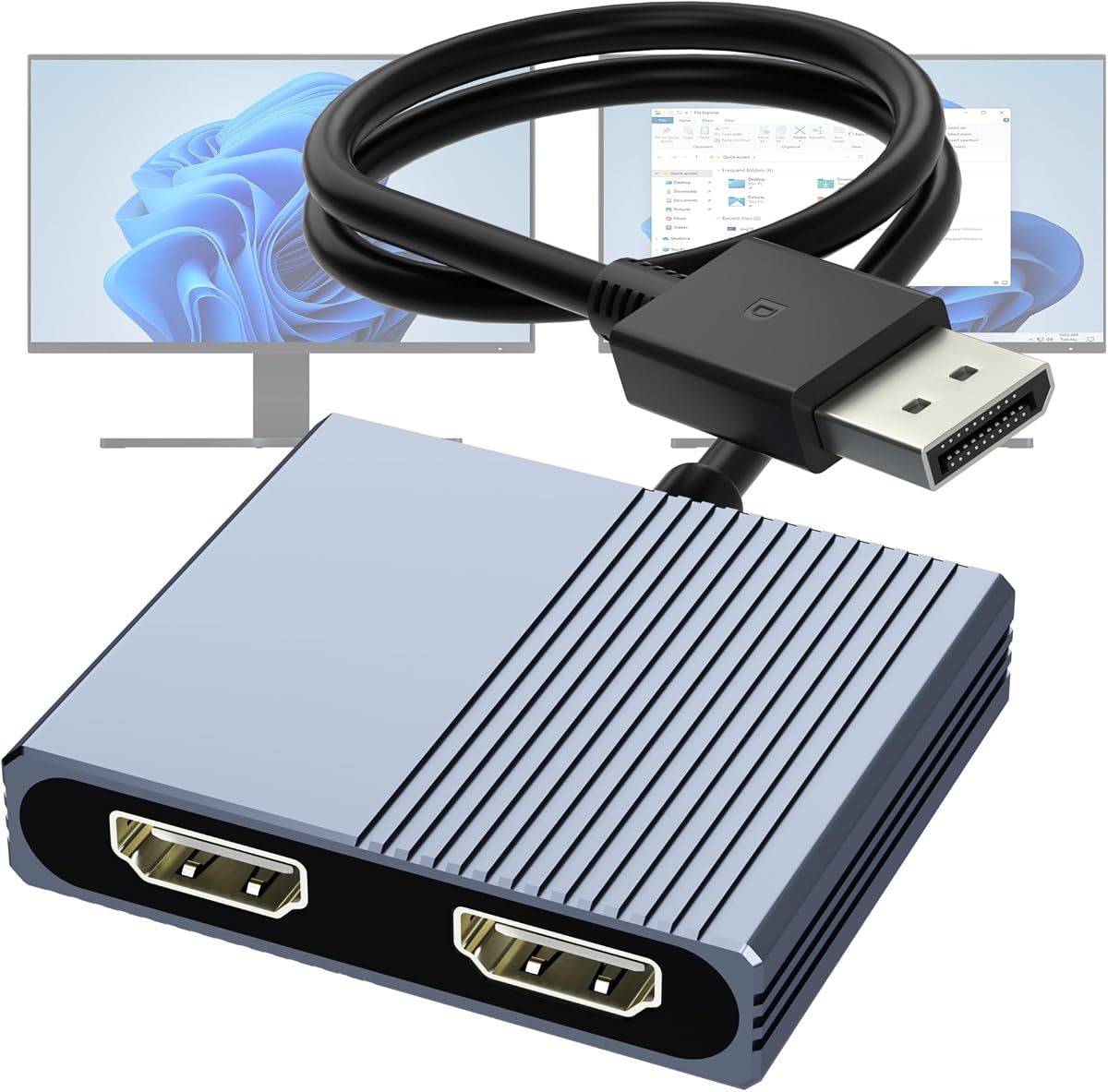
This DisplayPort to Dual HDMI Splitter is aimed at desktop graphics cards, mini PCs, and compatible laptops that need one DisplayPort source to feed two HDMI displays. It has a 4.1 rating and supports both mirrored and extended output through MST and SST operation.
We may earn a commission when you buy through this link, at no additional cost to you.
With a DisplayPort 1.4 source, the adapter can deliver dual 4K at 60Hz. It also remains backward compatible with 4K at 30Hz and 1080p, although the exact multi-display resolution depends on the source, graphics capability, and cable limitations stated in the product information. A built-in chip and layered shielding are intended to support stable signal transmission.
The setup is less casual than a basic HDMI splitter. Before use, the included USB power cable must be connected so the internal chipset receives power. The adapter cannot be used with docking stations, USB hubs, or KVM switches, and the product information recommends a dedicated graphics-card DisplayPort because integrated graphics may not support extension.
This is a practical choice for a desktop owner who already understands DisplayPort and wants dual HDMI outputs without installing display drivers. It may suit users listed in the compatibility guidance, including systems with supported discrete graphics. Confirm your DisplayPort version, graphics card, monitor inputs, and willingness to provide USB power before ordering.
Unlike a simple one-to-two HDMI splitter, MST support can place different content across two external displays. This is valuable for editing windows, reference panels, and productivity applications when the source hardware permits extended output.
The listed guidance favors a dedicated graphics card because integrated graphics may lack the necessary display output or extended-mode support. Connecting directly from that card can provide a more predictable path for two external screens.
We may earn a commission when you buy through this link, at no additional cost to you.
The WAVLINK adapter is a versatile USB-A or USB-C to dual-HDMI solution for users building a three-screen workstation around a host computer. Its 4.4 rating and support for one 2560×1440 display plus one 1920×1080 display make it especially relevant to productivity users who do not require two identical 4K panels.
We may earn a commission when you buy through this link, at no additional cost to you.
The adapter can extend or mirror the two external screens, and its USB-C side is compatible with USB4 and Thunderbolt 3 or 4 connections. Windows, macOS, Chrome OS, and Android with OTG are listed as supported, although Android is limited to mirrored output at 1080p. Product documentation is provided through a card containing driver-download links.
This is not a plug-and-play product. The latest driver must be installed, and company-managed computers may prevent that step. The product information also advises against gaming, graphics-intensive work, or design tasks and notes that protected streaming content from services such as Netflix and Hulu is not supported.
The WAVLINK is a good match for a knowledge worker who values flexible operating-system support, asymmetric display resolutions, and a three-display arrangement. It is less attractive for a gamer, creative professional, or Mac user expecting broad media support. Confirm the host port, driver policy, and intended applications before purchase.
One 2560×1440 screen at 60Hz alongside a 1920×1080 screen at 60Hz can improve workspace organization. The arrangement gives a primary display more detail without forcing both panels to use identical settings.
Windows, macOS, Chrome OS, and compatible Android systems are covered, making the adapter useful across a wider range of personal and professional devices. Linux and iPadOS are explicitly excluded.
We may earn a commission when you buy through this link, at no additional cost to you.
The OREI SplitExtend HDMI Splitter is designed to add two external screens to a laptop or desktop, creating a three-display arrangement when the computer's own panel remains active. It has a 4.1 rating and supports mirrored or extended viewing across a broad set of desktop-oriented operating systems.
We may earn a commission when you buy through this link, at no additional cost to you.
Its integrated USB-A-to-USB-C adapter adds flexibility for USB-C, USB-A, Thunderbolt 3 or 4, and USB4 systems. The product supports Windows, macOS, Chrome OS, and Android, with Android limited to 1080p mirroring. The stated maximum resolution is 4K at 30Hz, which is more suitable for office documents and general productivity than demanding motion-heavy work.
A required Silicon Motion driver is the main complication. The product is not plug-and-play, and users of managed work laptops may need administrator approval. The recommended hardware baseline is an Intel Core i5 processor or higher, and Linux, Unix, and iOS are not supported.
Pick the OREI for a straightforward productivity setup where two external displays are the goal and the host can install drivers. It is a sensible option for office workers, students, and home users who need more screen area but do not require high-refresh 4K. Confirm driver access, processor suitability, and connector requirements before ordering.
Keeping the laptop display active while adding two external monitors can separate communication, reference material, and primary work. Extended mode makes the two external screens independently useful rather than simple copies.
The integrated USB-A-to-USB-C adapter allows the same dual-HDMI unit to serve several host connection styles. This makes it easier to carry between USB-A, USB-C, Thunderbolt, and USB4 equipment.
We may earn a commission when you buy through this link, at no additional cost to you.
The Selore 8-in-1 USB C Docking Station is the most functionally expansive product in this guide, combining two HDMI outputs, charging, several USB data ports, and removable-card readers. Its 4.4 rating makes it a strong choice for a permanent desk setup built around a compatible Thunderbolt or full-featured USB-C laptop.
We may earn a commission when you buy through this link, at no additional cost to you.
Both HDMI ports are stated to support 4K at 60Hz, while MST allows Windows laptops to extend content across two external displays. A USB-C port supports up to 5Gbps data transfer, two USB-A 3.0 ports also reach 5Gbps, and the SD and microSD readers are listed at up to 104Mbps. The power-delivery input accepts 100W and is stated to output 85W to the laptop.
The dock requires a host port that handles data, charging, and video; a data-only or charge-only USB-C port will not provide the advertised display function. Its power charger and charging cable are not included. Mac users should also note that the product supports mirrored external output rather than the Windows-style MST extension.
This dock is ideal for someone who wants one accessory to connect displays, storage, input devices, and charging. It is less attractive if you only need mirrored screens or do not want to supply a compatible power setup. Confirm USB-C capabilities, operating system, and card-reader needs before buying.
Two displays, multiple USB peripherals, charging, and card readers are combined in a single unit. This reduces cable clutter and makes the dock practical for repeated office or home-office use.
The SD and microSD readers make it convenient to move images or video from a camera. The stated transfer rate is useful for routine media handling, though it is lower than the maximum rate of the USB-A data ports.
We may earn a commission when you buy through this link, at no additional cost to you.
The 4K HDMI 1-in-2-Out Splitter is a basic display-sharing solution for a computer, game console, or set-top box connected to two displays. It has a 4.1 rating and distinguishes itself with a simple driver-free design, synchronized audio, and broad compatibility with common source devices.
We may earn a commission when you buy through this link, at no additional cost to you.
The splitter duplicates one source across two HDMI screens and supports resolutions up to 4K at 30Hz, as well as 2K at 60Hz, 1080p at 60Hz, and 720p at 60Hz. Audio travels with the HDMI signal, so no separate audio cable is required. It can also connect combinations of monitors, televisions, and projectors according to the product information.
The critical limitation is that the two outputs display the same content and cannot form a separate extended desktop. The title and product description use extended-display wording in places, but the more specific mirror-only explanation makes mirrored output the safer interpretation. Actual resolution also depends on the source device and display settings, which may need adjustment during the first connection.
Choose this splitter for presentations, shared viewing, retail demonstrations, or a second screen that should mirror the main display. It is not appropriate for users who need separate documents on two monitors. It also falls short of high-refresh 4K applications, making it most suitable as a straightforward dual-display accessory.
The adapter works by connecting the source and displays, then selecting the appropriate display setting. This makes it approachable for users who do not want to install software or configure an MST system.
Synchronized HDMI audio means the splitter can distribute sound without requiring a separate output connection. It is a convenient feature for presentations, media viewing, and shared displays.
We may earn a commission when you buy through this link, at no additional cost to you.
The Selore&S-Global USB-C to Dual HDMI Adapter combines compact display expansion, data transfer, and charging in a four-port design. With a 4.5 rating, it is a strong option for a mobile workstation that needs two high-quality external displays without carrying a full-size desk dock.
We may earn a commission when you buy through this link, at no additional cost to you.
The two HDMI outputs are listed as supporting 4K at 60Hz, while 1440p and 1080p at 60Hz are also supported through DisplayPort MST. A 5Gbps USB-A port handles data transfer, and the USB-C Power Delivery input accepts up to 100W with stated laptop charging at 90W. Compatibility is centered on Thunderbolt 3, 4, and 5, full-function USB-C, and USB4 ports.
Windows supports both SST and MST arrangements, while macOS is limited to mirrored output across the external screens. The package does not include a power adapter, data cable, or standard HDMI cable, so the user must supply compatible accessories. The product also emphasizes that a full-resolution 4K result requires supporting devices and HDMI 2.0 cables or better.
This adapter suits a mobile professional who wants a compact way to connect dual 4K monitors, charge a laptop, and retain one USB-A data port. Confirm that the host USB-C port supports video and charging, and obtain suitable cables before the first use. It is a flexible portable option with very strong stated specifications.
Two HDMI ports, one USB-A data port, and a charging input provide the core functions of a small dock in a portable format. This helps travelers and hybrid workers avoid carrying several separate adapters.
Windows users can choose between extending different content across two screens or mirroring the desktop. macOS users are limited to mirrored output, so the host operating system is a central purchasing consideration.
We may earn a commission when you buy through this link, at no additional cost to you.
The DisplayPort to Dual HDMI MST Hub is built for a desktop with a dedicated graphics card and a need for two independent HDMI displays. Its 4.4 rating, metal housing, and stated support for dual 4K at 60Hz make it a practical option for a fixed workstation.
We may earn a commission when you buy through this link, at no additional cost to you.
The adapter sends one DisplayPort 1.4 source to two HDMI outputs that can run at 4K at 60Hz. It is backward compatible with 4K at 30Hz, 1440p, and 1080p. Windows supports extended and mirrored layouts, while macOS is described as supporting SST configurations. No display driver installation is needed.
The source hardware must be suitable. The product information calls for DisplayPort 1.4, recommends a graphics card with at least 18Gbps bandwidth, and cautions that integrated graphics may only mirror or fail to provide display output. It cannot be used with other hubs, docking stations, or KVM devices, and it supports only one DisplayPort source feeding two HDMI displays.
Its aluminum alloy housing and gold-plated DisplayPort connector add physical durability for a permanent desk. The connector is stated to have been tested through more than 25,000 insertion cycles. Choose this model for a compatible AMD or NVIDIA desktop and a clean two-monitor layout, and verify the source and cables before ordering.
MST support can divide the desktop across two displays with different content, supporting research, analysis, and general multitasking. The source graphics card must have enough bandwidth to carry the selected output configuration.
The aluminum housing helps with heat dissipation and gives the adapter a more permanent-workstation feel. A gold-plated connector and stated cycling test support durability in setups that are plugged and unplugged regularly.
We may earn a commission when you buy through this link, at no additional cost to you.
The UANTIN 6-in-1 USB C Hub provides dual 4K display support, three USB-A ports, and laptop charging in a compact, driver-free package. Its 4.3 rating makes it an appealing option for users who want a simple all-in-one adapter without installing display software.
We may earn a commission when you buy through this link, at no additional cost to you.
Two HDMI 2.0 outputs are stated to support 4K at 60Hz for single-screen or dual-screen use. The USB-C Power Delivery port accepts up to 100W and is listed as delivering 90W to the host. Three USB-A ports support peripherals at up to 480Mbps, covering common accessories such as keyboards, mice, flash drives, and printers.
The host must have a USB-C port with DisplayPort Alternate Mode, and the entire chain must support HDMI 2.0 for the advertised resolution. A compatible external power adapter and a cable rated at 65W or higher are required for charging but are not included. The attached host cable is only 30 centimeters, which may be short for some arrangements.
The UANTIN is a strong fit for a Windows user who wants two extended 4K displays, several USB-A peripherals, and a compact charging solution without driver installation. macOS users are limited to mirrored AAA output or extending to one additional display in the stated configuration. Confirm port direction, cable length, and charging needs before purchasing.
Plug-and-play operation makes this hub convenient for offices, shared desks, and mobile work. It avoids the separate driver installation required by some other multi-display adapters.
Three USB-A ports allow several common accessories to remain connected through one USB-C hub. Their listed 480Mbps rate is suitable for ordinary peripherals rather than demanding storage workflows.
We may earn a commission when you buy through this link, at no additional cost to you.
The correct adapter depends less on the number of HDMI sockets than on how your computer creates two displays. Start with the source port, operating system, target resolution, display mode, charging needs, and physical setup before choosing a model.
The source port determines which adapters will work at all. USB-A adapters suit older and current PCs that lack a modern video-capable USB-C port, while USB-C and Thunderbolt options serve modern laptops. DisplayPort adapters are designed for systems with a suitable DisplayPort output, commonly a desktop graphics card. An HDMI splitter expects an HDMI source and therefore does not solve a computer that lacks HDMI output.
Choose the adapter that matches the port you actually have and want to use. A USB-C port that only supports data or charging cannot drive these displays.
An extended desktop lets you move different windows between two screens and is usually the main reason to buy a dual-monitor adapter. Mirroring sends the same image to both displays, which is useful for presentations but does not increase usable workspace. Some adapters support both, while others are splitter-only products. Mac support is particularly important because many listed models mirror the external screens rather than providing two independent desktops.
Read the operating-system notes carefully. If separate windows on two screens are essential, look for explicit extended-mode or MST support on your specific operating system.
Maximum resolution alone does not tell the whole story. A 4K display at 30Hz can be excellent for documents but less suitable for motion, while dual 4K at 60Hz places greater demands on the source, cables, graphics hardware, and adapter. The product information often distinguishes between single-display and dual-display maximums, so read those details rather than assuming the headline resolution applies to both screens.
For mixed monitor setups, also check whether the adapter supports a higher-resolution primary display alongside a standard 1080p secondary display.
USB-C video output generally depends on DisplayPort Alternate Mode, and newer docks may require Thunderbolt or a full-featured USB-C connection. DisplayPort adapters may need DP1.4 for their highest stated modes. HDMI output standards also matter because the computer, adapter, cable, and display must all support the target resolution and refresh rate.
Do not assume that any USB-C port is suitable. Check the manufacturer specifications for video output and, where relevant, the required graphics bandwidth.
A docking adapter with Power Delivery can keep a laptop charged while it drives two displays and peripherals. The input rating and actual host charging output are different numbers, so compare both. Some products require an external power adapter and cable that are not included. USB-A data ports can be useful for keyboards, mice, storage, or card readers, but their stated transfer speeds differ substantially.
Choose extra ports only when they serve your setup. Paying for unused data functions is unnecessary, while insufficient charging or peripheral capacity can undermine a desk setup.
Driver-free models are easier to deploy, especially on managed computers, but some multi-monitor adapters require a vendor driver for correct operation. Administrator access may also be necessary. Products that require drivers can offer broader operating-system support, yet they create an installation step that is inconvenient on shared or locked-down devices.
Check company IT policies before choosing a driver-based adapter. If simple plug-and-play operation matters most, favor one of the models that explicitly works without additional display software.
The adapter's own cable length can determine whether it works neatly at your desk. Some products include a very short 20cm or 30cm lead, while the StarTech option has a 25cm cable. Long display and power cables may also be needed but are not always included. DisplayPort products may recommend specific cable lengths or qualities for stable 4K transmission.
Measure the distance between the computer and displays before ordering. A compact adapter with a fixed short cable is convenient for travel but may be awkward for a permanent workstation.
General office productivity, presentations, and mirrored viewing have different requirements from gaming, animation, or graphic-intensive design. Some listed products explicitly discourage demanding graphics work, and high-refresh dual 4K support does not guarantee smooth performance in every title. Protected streaming services may also be unsupported on display adapters that lack relevant content-protection support.
Choose the most capable model your source hardware can actually drive, and use the stated limitations as firm boundaries rather than treating a maximum specification as a promise for every workload.
Begin by confirming that the source computer has the required port and video capability, and that each monitor supports the resolution and refresh rate you intend to use. Connect the source cable first, attach HDMI cables to the two displays, and then power on the monitors before adjusting the computer's display settings. The operating system should recognize the available screens once the hardware is connected.
For extended use, open the display arrangement control in your operating system and select Extend rather than Duplicate. Position the screens to match their physical arrangement, choose the desired primary display, and set each monitor's native resolution. Adapters requiring drivers should have the current software installed before configuration, while products needing auxiliary USB power should receive that connection before use.
Treat the adapter as an active electronic component and avoid sharply bending its attached cable, pulling on the connector, or covering the housing while it is operating. Disconnect it from the computer when changing ports or moving a permanent setup. For travel, keep the hub in a padded compartment and use the correct source port and any required external power supply.
Yes, but only when the adapter supports extended display mode and the source device and operating system support it. Mac systems commonly limit these products to mirrored output, while Windows systems with compatible USB-C, USB-A, or DisplayPort hardware may support independent screens. Check the product's operating-system notes before buying.
In most cases, yes. A USB-C port that only handles data or power cannot transmit the display signal required by a dual-HDMI adapter. Look for explicit DisplayPort Alternate Mode or Thunderbolt compatibility and confirm that the host computer can drive two external displays through that port.
Choose based on your displays and workload rather than seeking the largest advertised number. Dual 4K at 60Hz is attractive for detailed or high-refresh use, while 4K at 30Hz plus 1080p at 60Hz can provide a useful balance for office productivity. The source computer, graphics system, cables, and monitors must all support the selected mode.
No. A basic splitter generally duplicates one source image across two displays, while an MST-capable adapter can create an extended desktop with different content on each screen. If you need to move separate windows between monitors, choose an adapter that explicitly supports extension rather than mirroring.
Many USB-C dual-HDMI adapters support only mirrored output on macOS, even when Windows can extend the desktop. The operating system and internal display-management limitations determine the available modes. Confirm the exact macOS compatibility statement in the listing and review your display settings after connecting the adapter.
It depends on the model. The Acer, UANTIN, and DisplayPort MST products described here are presented as driver-free, while the WAVLINK and OREI adapters require driver installation, and the StarTech model requires drivers with administrator access. Check these requirements before ordering, particularly for a managed work computer.
Several USB-C options in this guide also include Power Delivery and USB-A data ports. They generally require a compatible full-featured USB-C port, and some need an external power adapter and cable that are not included. MacBook Pro and MacBook Air users should also account for the stated mirroring-only limitation.
The full stated mode may require a specific source standard, compatible graphics capability, suitable cables, and matching monitors. The adapter may also have a lower maximum when two displays run simultaneously. Set both displays to matching supported resolutions, verify cables meet the stated standards, and connect directly to a dedicated graphics port when required.
The StarTech USB-A adapter is the strongest overall pick for a Windows workstation that needs two HDMI displays and values mixed 4K and 1080p output. The Acer 4-in-1 hub stands out as the feature-rich premium option with dual 4K at 60Hz, USB-A data transfer, and charging, while the basic 4K HDMI splitter offers a straightforward mirrored-output solution for shared viewing.
Prioritize source compatibility first, followed by the need for extension rather than mirroring, maximum resolution, and power requirements. A USB-C dock is appropriate for a modern video-capable laptop, a DisplayPort MST hub better suits compatible desktop graphics, and an HDMI splitter serves duplicate-display tasks. Avoid selecting solely by advertised resolution when operating-system or source-port limits apply.
Before purchasing, review the latest product listing and current accessory inclusions. Prices, firmware details, driver availability, and compatibility information can change, and the host computer, cables, and monitors must form a compatible chain. Checking those details will prevent a promising adapter from becoming a frustrating desk accessory.