
Linux Mint 22.3 Bootable USB
4.6Editor score
Linux Mint 22.3 included
Useful offline applications
Direct live-system operation
This Bootable Linux USB Drive guide compares ten options across distributions, capacity, boot modes, hardware compatibility, portability, and ease of use for
A bootable Linux USB drive puts an entire operating system in your pocket, making it useful for testing distributions, recovering an inaccessible computer, installing Linux, or carrying a portable workspace. The best option depends on which distributions you want, your computer architecture, expected storage needs, and how much setup you are comfortable handling.
This guide compares ten bootable Linux USB drives based on operating-system selection, storage capacity, UEFI and legacy BIOS support, connector design, customization options, and intended use. It covers single-distribution media, curated multiboot drives, lightweight alternatives for older hardware, and drives suited to installation, maintenance, or experimentation.
Each review explains the product's strongest attributes, limitations, ideal users, and most practical scenario. The three leading selections are highlighted separately, while the full ranking considers how much choice a drive provides, how readily it supports common tasks, and how clearly its compatibility boundaries are defined. Prices and availability can change.
4.6Editor score

4.1Editor score

5.0Editor score
This side-by-side comparison highlights each drive's distribution strategy, storage, boot-mode support, connectivity, and strongest use case, helping you select media that matches your computer and Linux experience.



This 64GB drive combines Linux and Windows options in one of the broadest selections in the guide, earning a 4.1 rating. Its list includes Linux Mint, Kali, Ubuntu, Tails, Debian, Zorin, Garuda, Fedora, Manjaro, Pop!_OS, and several other environments, making it a practical testing station for users who do not want to maintain separate media for every distribution.
We may earn a commission when you buy through this link, at no additional cost to you.
The most useful feature is breadth. Linux Mint and Ubuntu suit general desktop exploration, Kali serves technical testing, Tails emphasizes privacy-oriented use, and Debian, Fedora, and Archcraft provide options for users with different preferences about release cycles and software sources. A 64GB capacity also leaves more room than many smaller multi-distribution drives, which can become constrained when users add files or install packages during a live session.
The trade-off is that flexibility does not equal simplicity. The drive is structured as a multiboot device, so users may need to consult the referenced instruction images and identify the correct boot-menu key before selecting an operating system. Secure Boot may need to be disabled if a system does not launch the drive. Its many choices can also intimidate someone who only wants a straightforward way to try one reliable Linux desktop.
This is the strongest choice for curious users, educators, IT technicians, and anyone who expects to compare several Linux environments before committing. It is less suitable for a buyer seeking one familiar operating system with a completely automatic boot process. Even so, the combination of 64GB capacity, modern distribution coverage, and UEFI plus legacy support makes it the most versatile option listed.
With sixteen included environments, the drive lets you compare polished desktops, lightweight systems, privacy tools, and specialist distributions without repeatedly creating installation media. It is especially useful for finding the right Linux flavor before making permanent changes to a computer.
The 64GB capacity is a meaningful advantage over 16GB and 32GB alternatives. It provides additional room for saved documents, downloaded installers, updates, and packages, although the included image set still determines how much space remains available for personal use.
We may earn a commission when you buy through this link, at no additional cost to you.
The 32GB 9-in-1 Linux Bootable USB Drive for Beginners receives a 4.2 rating and stands out for making a broad set of desktop distributions approachable. Its included selections include Ubuntu, Linux Mint, MX Linux, Elementary OS, Linux Lite, Manjaro, Peppermint, Pop!_OS, and Zorin OS, giving new users several familiar ways to enter the Linux ecosystem.
We may earn a commission when you buy through this link, at no additional cost to you.
The drive is designed around a simple workflow: connect it, select a distribution from the boot menu, and try the system before installing anything. A printed guide and available support reduce the uncertainty that often accompanies installation media. It also supports both UEFI and legacy BIOS computers, which makes it useful when a user owns an older desktop alongside a newer laptop.
Its limitations are compatibility boundaries rather than core functionality. Macs, Chromebooks, and ARM-based devices are not supported, and UEFI systems may require Secure Boot to be disabled. Some included 32-bit and older distribution entries are aimed at legacy hardware, while the general 32GB capacity offers less room than the 64GB products for extensive live-session customization.
This drive is a good match for Windows users evaluating Linux, students, and anyone who wants a straightforward way to compare several beginner-friendly systems. It may be unnecessary for a developer who already knows which distribution and version they need, but for discovery it balances selection, capacity, and guidance particularly well.
The distribution mix emphasizes desktop usability, useful preinstalled applications, and systems suitable for exploring everyday computing. That makes it easier for a first-time Linux user to compare interface styles, software bundles, and performance without committing to a full installation.
You can try each included environment from the USB without immediately modifying the internal drive. This is valuable for checking Wi-Fi, sound, graphics, peripheral support, and general comfort with Linux before deciding whether a permanent installation is appropriate.
We may earn a commission when you buy through this link, at no additional cost to you.
This dedicated Linux Mint 22.3 drive holds a 4.6 rating, the second-highest result in the guide. Its focus is straightforward: provide a current, polished Linux Mint environment that can run directly from USB. For users who already favor Mint's Cinnamon desktop, that narrow focus eliminates the menu decisions associated with a multiboot drive.
We may earn a commission when you buy through this link, at no additional cost to you.
The preinstalled software makes the system immediately useful. LibreOffice supports word processing, spreadsheets, presentations, drawings, and databases, while GIMP, Inkscape, and Blender cover image editing, vector graphics, and 3D work. Multimedia applications, Spotify, online radio, podcast support, Steam, Heroic Games Launcher, and Lutris add entertainment and gaming options without requiring a conventional operating system already installed.
Because it is a single-distribution device, it does not provide the instant choice offered by the 16-in-1 or 9-in-1 products. It also cannot resolve every troubleshooting scenario if a particular specialist tool is missing. As with any Linux live medium, hardware behavior may vary, and live operation can be slower than a native installation depending on the USB interface and computer.
This is an excellent pick for a user who wants an approachable desktop, productive applications, and the ability to test a computer before changing it. It also suits anyone learning Linux Mint or seeking a reliable recovery environment. The 4.6 rating reflects a well-rounded product with broad everyday functionality and a clear, uncomplicated purpose.
Linux Mint's Cinnamon environment is designed to work out of the box, making this drive approachable for Windows users. Its bundled office, creative, media, and gaming tools reduce the setup required before the system becomes useful.
Running Mint directly from USB provides a low-commitment way to check network connectivity, audio, display behavior, and application performance. It can also help identify whether a suspected Windows or Linux problem is related to the installed system rather than the hardware.
We may earn a commission when you buy through this link, at no additional cost to you.
The Debian Linux 13.7 drive is the highest-rated product in this comparison, with a 5.0 rating. It provides a current Debian environment through a 64GB flash drive, supporting both live operation and installation. That combination gives it a strong foundation for users who prioritize stability over a broad collection of desktop distributions.
We may earn a commission when you buy through this link, at no additional cost to you.
Debian is presented as fast and lightweight across modern and older computers. Its open-source design, absence of tracking, lack of bloatware, and regular security updates make it attractive to privacy-conscious users, students, IT professionals, and developers. The package ecosystem also offers a deep catalog of software that can be added once the system is running.
Compared with Linux Mint, Ubuntu, or Zorin, Debian can demand more patience from an absolute beginner. A new user may need to learn unfamiliar terminology and handle some configuration decisions, particularly if the goal is a permanently installed workstation. The single-image design is also less convenient when the user wants to compare several Linux flavors from one drive.
The drive is best suited to users who know they want Debian, particularly developers, system administrators, students studying Linux, and technically confident owners of older computers. Its top rating, current release, strong stability positioning, and live-and-install flexibility justify its place as a premium specialized recommendation rather than a universal first choice.
Debian's well-established release structure makes it a useful environment for learning system administration, command-line work, networking, and server concepts. The drive lets users explore those topics without first replacing their primary operating system.
The absence of tracking and bloatware is part of the product's core appeal. Debian provides a comparatively clean starting point, while its extensive package repositories let users add only the tools and services they actually need.
We may earn a commission when you buy through this link, at no additional cost to you.
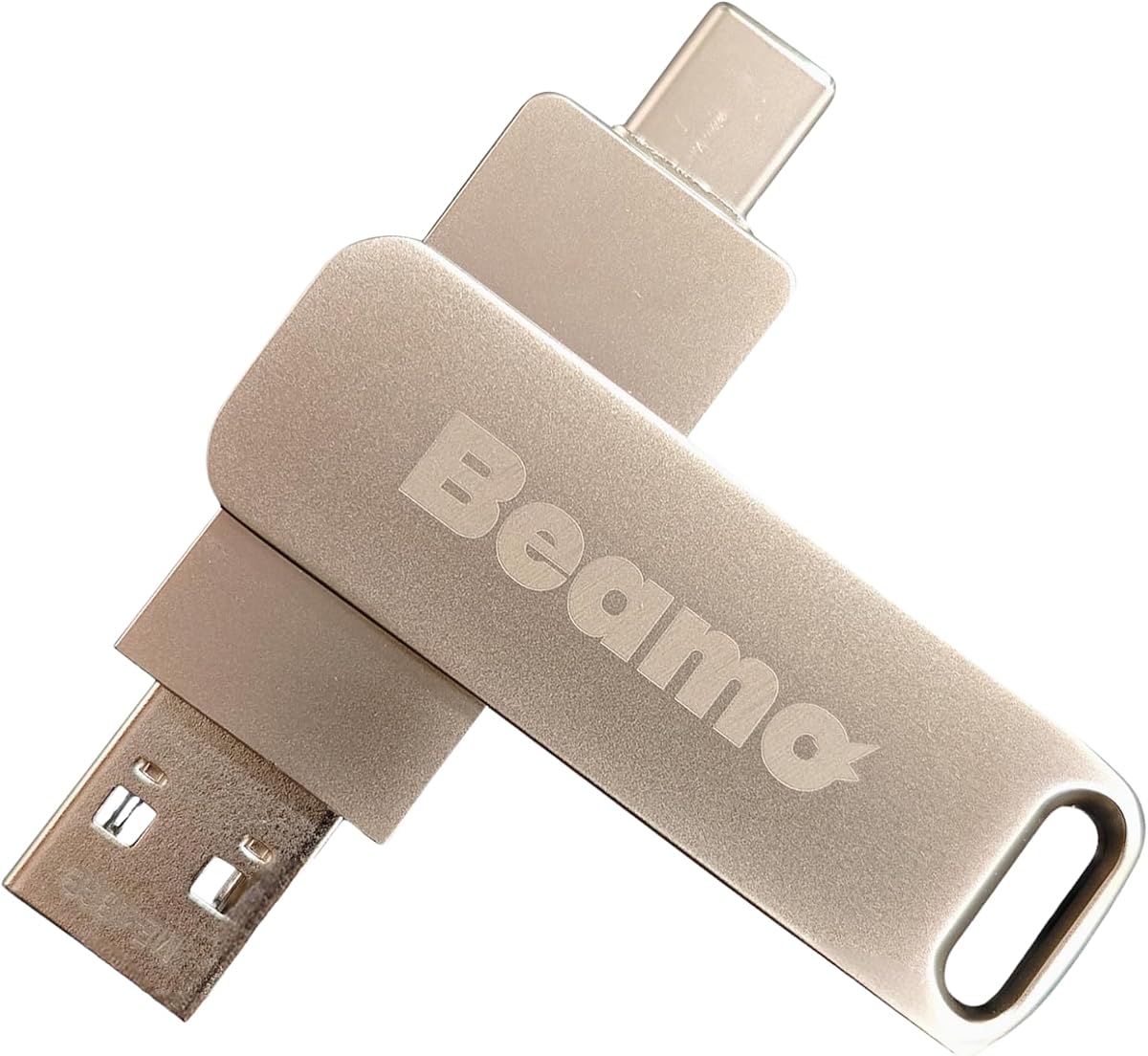
The Beamo Linux Mint 22.3 drive earns a 4.3 rating and prioritizes a specific job: installing or repairing Linux Mint on a compatible x86-64 PC. It provides a 16GB bootable medium with both the live environment and installer, which is sufficient for installation, basic recovery, and testing a system without permanently altering the internal drive.
We may earn a commission when you buy through this link, at no additional cost to you.
Its product information is notably clear about boundaries. It warns that Apple Silicon and other ARM-based computers are not supported, acknowledges that boot-menu keys and UEFI settings differ between manufacturers, and emphasizes checking CPU architecture and USB-boot capability. Those warnings reduce the chance that a buyer will expect the drive to work on hardware it was never designed to support.
The main limitation is storage. A 16GB drive leaves limited room for personal files, extra installers, or extensive package additions. It also contains only Linux Mint, so users seeking to compare multiple environments or need a specialist recovery image will need another source of boot media. As with every installer, careless partitioning can erase data or an existing operating system.
Beamo is a strong choice for a user who has already chosen Mint, owns compatible PC hardware, and wants a compact installation or repair tool. The included warnings make it suitable for careful beginners as well. It is less appropriate for Mac users, Chromebook buyers, and people who want one drive to handle many unrelated Linux tasks.
The drive focuses on a coherent workflow: boot the live environment, evaluate compatibility, and proceed to the installer if Mint suits the machine. This simplicity is valuable for users who do not need multiple distributions or advanced ISO management.
The guidance recommends backing up important information, disconnecting nonessential drives, and preserving the USB until installation is complete. Those practices reduce the risk of accidental data loss and make the drive more approachable for first-time installers.
We may earn a commission when you buy through this link, at no additional cost to you.
This 3-in-1 Linux Mint drive offers a distinctive compatibility advantage by including Mint 22 and 21.3 in 64-bit form alongside Linux Mint 19 in 32-bit form. Its 4.1 rating reflects a practical product for users who may need to test Mint on both modern and genuinely older computers.
We may earn a commission when you buy through this link, at no additional cost to you.
The included 32-bit image is the most important reason to consider this drive. Although it represents an older release rather than a current feature set, it can be valuable when a legacy 64-bit processor cannot run a modern Linux distribution. The 64-bit options provide more current choices, while the drive as a whole supports both UEFI and legacy BIOS boot modes.
Its 19.3GB capacity is unusual and less generous than the 32GB or 64GB alternatives. That can restrict how much can be stored alongside the three images. The product also excludes Apple computers, Chromebooks, and ARM-based devices, and Secure Boot may need to be disabled for UEFI operation. Only Mint users benefit from its narrower family focus.
This is a practical pick for a household that includes both a current 64-bit system and a legacy 32-bit PC, particularly if Mint is already the preferred desktop. It is not the best general option for modern-only users because the larger 32GB and 64GB alternatives provide more room or more distribution variety. Its differentiator is compatibility coverage across Mint generations.
A 32-bit Linux image can be a practical fallback for computers that cannot boot current 64-bit releases. This makes the drive useful for owners of legacy equipment who still want a graphical Mint environment rather than a text-only maintenance tool.
Keeping multiple Mint generations on one device allows a user to compare older and newer releases or select the image that best matches a machine. It also reduces the need to download a separate installer for every family of hardware.
We may earn a commission when you buy through this link, at no additional cost to you.
The 16GB 7-in-1 drive is a compact Linux and Windows toolkit with a 3.9 rating, the lowest in this ranking. Its selection includes Windows XP Professional, Linux Bodhi, Kali, Debian, Tails, TrixiePup, and Clonezilla, combining desktop exploration, privacy use, and disk-cloning or recovery functions in a relatively portable package.
We may earn a commission when you buy through this link, at no additional cost to you.
Clonezilla is particularly valuable for users who need imaging, cloning, or system-restoration capabilities, while Tails supports a privacy-oriented live workflow. Kali caters to security testing, and Debian provides a stable general-purpose environment. The drive supports UEFI and legacy BIOS, which broadens its potential use across generations of computers.
Its 16GB capacity is the primary constraint, especially with seven included images. The drive also contains Windows XP Professional, an old operating system with limited modern utility and security relevance, and it may require Secure Boot to be disabled. The lower rating suggests that its strengths are narrower than those of the larger, more comprehensive alternatives.
This drive is best for a technically inclined user who values a compact recovery and experimentation kit, particularly one who needs Clonezilla or Tails. It is less attractive for ordinary desktop exploration, large file storage, or a polished beginner experience. The trade-off is clear: less capacity and less refinement in exchange for specialized tools on one drive.
The inclusion of Clonezilla changes the drive's role from a simple distribution installer to a broader maintenance toolkit. That makes it relevant for users who want disk imaging or recovery options available without preparing separate media.
A 16GB device is easy to carry and often sufficient for basic live use, but seven installed images consume a meaningful share of its capacity. Additional personal files and packages should be planned carefully rather than treated as unlimited storage.
We may earn a commission when you buy through this link, at no additional cost to you.
The dual USB-A and USB-C Linux Mint drive earns a 4.2 rating and combines broad connector compatibility with a customizable media layout. It can boot Linux Mint Cinnamon directly, install it permanently, or serve as a portable live environment. Its dual connectors make it easier to use across older desktops, modern laptops, and systems without a matching port.
We may earn a commission when you buy through this link, at no additional cost to you.
The strongest differentiator is flexibility. The drive supports adding, replacing, or upgrading compatible bootable ISO applications, installers, or utilities, and the package includes step-by-step instructions. This means it can evolve beyond its original Mint image without being treated as a disposable, single-purpose installer.
It also includes office tools, a browser, email, image-editing applications, and media software, while supporting Steam, Epic, and GOG gaming through Lutris or Heroic Launcher. The live environment can operate without an internet connection, though some streaming and online functions naturally still require connectivity. The preinstalled focus remains Mint, and incorrect customization can prevent the device from booting.
This is a good option for users who want a drive they can keep updating, especially those moving between USB-A and USB-C computers. It also suits people who want to revive an older computer with Linux Mint. Users who require several preinstalled distributions may prefer the larger 16-in-1 option, but this product offers greater long-term DIY potential.
Having both USB-A and USB-C connectors reduces the need to carry an adapter for many modern and legacy computers. The physical design is especially convenient for users whose available ports vary between a desktop tower and a newer laptop.
Replaceable ISO support turns the drive into a reusable utility rather than a fixed installer. Users can add compatible tools for recovery, installation, or diagnostics, provided they follow the included instructions and maintain a working boot configuration.
We may earn a commission when you buy through this link, at no additional cost to you.
This 3-in-1 Ubuntu drive holds a 4.2 rating and combines Ubuntu 24.04 LTS, Ubuntu 22.04 LTS, and Lubuntu 18.04 LTS 32-bit. The two 64-bit Ubuntu versions provide familiar long-term-support choices, while Lubuntu offers a lighter path for older PCs that may struggle with the full Ubuntu desktop.
We may earn a commission when you buy through this link, at no additional cost to you.
The drive's appeal lies in version selection within a recognizable Ubuntu family. Users can try a newer LTS release, fall back to an earlier LTS image, or use the 32-bit option on legacy hardware. All three are intended for live testing or installation, and the package includes a printed user guide and support.
Lubuntu 18.04 is considerably older than the other two images, so its software repositories and capabilities may be limited. The product excludes Apple computers, Chromebooks, and ARM-based devices. It also does not state the presence of a USB-C connector, making it less convenient for newer systems that lack full-size USB-A ports without an adapter.
This is a sensible choice for a user committed to Ubuntu or Lubuntu who wants both current LTS options and a 32-bit fallback. It is less suitable for cross-distribution testing or Apple hardware. For standard desktop use, the newer Ubuntu images are the main attraction, while Lubuntu adds useful flexibility for older machines.
Keeping Ubuntu 24.04 and 22.04 together gives users a way to compare a newer release with an established LTS option. The older image may also be useful when a driver or application behaves differently in the latest release.
Lubuntu is designed as a more resource-conscious Ubuntu flavor, and the included 32-bit image adds support for compatible older machines. Although the version is old, it can still be valuable as a temporary desktop or recovery environment for appropriate hardware.
We may earn a commission when you buy through this link, at no additional cost to you.
The Ubuntu Linux Bootable USB for PC Desktop & Server earns a 4.1 rating by covering a wider set of roles than a conventional desktop installer. It includes desktop and server options, supports both amd64 and arm64 environments, and provides USB-A and USB-C connectivity for use across many modern and legacy systems.
We may earn a commission when you buy through this link, at no additional cost to you.
The server component makes it useful for administrators and students who want to practice installation, networking, hosting, and Linux administration. The desktop installer handles ordinary productivity, entertainment, and recovery needs, while the customizable media layout lets users add, replace, or upgrade compatible bootable ISO applications and utilities.
The added breadth introduces complexity. Server installation is less approachable for a complete beginner, and the product's claims about compatibility depend on the target device actually supporting the relevant architecture and boot method. Updating the image collection also requires care, since an incorrect write operation can damage the media.
This drive is a compelling choice for technical users who want both Ubuntu Desktop and Ubuntu Server on a reusable, connector-flexible device. It is also relevant to users reviving older or slow computers with a lightweight Ubuntu environment. Beginners who only need a simple graphical Linux desktop may find a dedicated Mint or Ubuntu-focused option easier to manage.
The paired installers cover two distinct use cases. Desktop mode supports everyday computing, while Server mode offers a path into command-line administration, networking, hosting, and infrastructure education.
Supporting amd64 and arm64 installers broadens the potential hardware range beyond drives limited to conventional PC processors. Users should still confirm that their specific computer supports the architecture, boot mode, and installation method they intend to use.
We may earn a commission when you buy through this link, at no additional cost to you.
The right bootable Linux USB drive depends on whether you want one polished desktop, several distributions for comparison, a recovery toolkit, or server installation media. Capacity, architecture, firmware support, connectors, and ease of use should be considered before purchase.
A single-distribution drive offers the simplest experience because the operating system is already selected. Linux Mint, Debian, Ubuntu, and Lubuntu images each appeal to different priorities: approachable desktop use, stability, broad support, or lightweight performance. A multiboot drive is more useful when you want to compare a polished desktop, a lightweight distribution, a privacy tool, a security environment, and a recovery utility without preparing separate media. The 16-in-1 model offers the widest selection, while the 9-in-1 and 7-in-1 products provide more focused menus.
Capacity matters more when a drive must hold several installed images, personal files, additional packages, or downloaded installers. A 16GB device is compact and adequate for basic live use, but a multiboot configuration can consume a substantial portion of that space. A 32GB drive is a more comfortable general-purpose compromise, while 64GB provides the most breathing room. If your main goal is installing one system and occasionally running a live environment, a smaller drive may still be sufficient. If you plan to save work directly to the device, customize it, or keep several tools available, larger capacity is preferable.
Linux images must match the processor architecture of the computer on which they will run. Most current desktop and laptop systems use 64-bit x86 processors, but specialized 32-bit systems still exist, and some modern devices use ARM processors. Several products in this guide explicitly exclude ARM-based devices, while the Ubuntu Desktop and Server drive includes both amd64 and arm64 installers. Beamo Mint is limited to compatible x86-64 computers. A Linux live system that boots on one processor family does not automatically work on another, so checking the target hardware is essential before buying.
Newer computers commonly use UEFI firmware, while older systems may rely on legacy BIOS. A drive advertised for both modes can serve a mixed collection of hardware, but you may still need to change boot order, enable USB booting, or disable Secure Boot. Secure Boot verifies signed boot components, and some Linux media may not launch while it remains active. The product descriptions in this guide repeatedly mention this setting, but the exact procedure varies by manufacturer. Look up your computer's boot-menu key and firmware controls before starting, particularly if the drive is intended for a system that cannot currently boot its installed operating system.
Connector design affects whether the drive can be used without an adapter. A USB-A drive fits many desktops and older laptops, while USB-C is increasingly common on modern laptops and tablets. Products with both connectors offer greater flexibility across device types. The dual-connector Mint drive and Ubuntu Desktop Server drive are particularly convenient for users who switch between older and newer computers. A single USB-A connector is not inherently inferior, but it may require a suitable adapter on a USB-C-only system. Adapters also add another point of failure and can be inconvenient when the drive is needed for emergency recovery.
Some users want a sealed, ready-to-boot distribution, while others want to replace ISO images as their needs change. Customizable drives are more useful for technicians, developers, and Linux enthusiasts who may need recovery tools, installers, or different operating systems over time. They also require more care because an incorrect image-writing process can leave the drive unable to boot. A dedicated Mint or Debian drive is easier for someone who only wants that environment. Before replacing images, create a backup of important files and follow the supplied instructions closely, preserving a working copy of the original media when possible.
A useful live environment should support more than installation. Linux Mint's bundled office, creative, multimedia, and gaming applications make it convenient for everyday tasks, while Debian offers a broad package ecosystem for technical work. Clonezilla specializes in imaging and recovery, and Tails provides a privacy-oriented live workflow. If you need to connect to a broken computer, inspect storage, copy files, or create a disk image, prioritize a drive with recovery utilities. If you want a portable daily computer, focus on desktop applications, input-device support, battery behavior, and adequate free storage.
A USB 3.0 or 3.2 interface is preferable for transferring large images and running a live desktop, but the speed experienced also depends on the computer, controller, and drive itself. Some products include a printed guide, video boot instructions, or customer support, which can reduce setup friction. A 5.0 rating does not guarantee flawless behavior on every computer, and a lower-rated product may still be ideal for a specific recovery task. The most important support consideration is clarity: look for explicit firmware guidance, architecture limits, boot-menu instructions, and warnings about data loss before installation.
Before booting, back up important files and confirm that the target computer is compatible with the drive's architecture. Insert the USB device, restart or fully power on the computer, and use the manufacturer's boot-menu key to select the USB option. If it does not appear, enter the firmware setup, confirm that USB boot is enabled, and choose the appropriate UEFI or legacy mode. Some systems require Secure Boot to be disabled before the media will start.
After the boot menu appears, select the desired Linux image. A dedicated Mint or Debian drive may start its environment more directly, while a multiboot product requires choosing an operating system. Use the live session to test Wi-Fi, sound, video, keyboard, mouse, trackpad, and essential applications. Avoid treating live-mode changes as permanent unless the drive is designed to save them; removable media can be reset, lost, or damaged.
For installation, back up data, disconnect nonessential internal drives, and review every partition target carefully. The installer can overwrite an existing operating system or erase files, so never proceed if the selected disk is uncertain. Preserve the boot drive until installation and first boot are complete. Afterward, shut down the computer before removing the USB, use safe eject procedures, protect the connector from moisture and impact, and keep the drive in an anti-static or protective pouch during storage.
The best choice depends on whether you want one focused experience or several options. Linux Mint provides an approachable desktop with useful preinstalled applications, while a 9-in-1 or 16-in-1 drive is better for comparing distributions. Begin with the computer you plan to use and verify architecture, firmware mode, and connector support before making a selection.
Yes, all of the listed products support installation workflows, although the exact method depends on the included image. Start the installer from the boot menu, follow the partitioning prompts, and verify the destination disk before confirming. Existing systems and personal files can be erased, so a complete backup and careful disk review are essential.
Detection problems commonly result from USB boot being disabled, an incorrect boot-order choice, Secure Boot restrictions, or an incompatible processor architecture. Enter the firmware setup, enable USB boot, choose UEFI or legacy mode to match the image, and try another USB port. Apple Silicon, Chromebooks, and ARM-based systems are excluded by several drives in this guide, so hardware support must also be confirmed.
It depends on the drive and the computer. The product descriptions for several options state that Secure Boot may need to be disabled for UEFI booting. Linux distributions with signed boot support can work with Secure Boot enabled, but a multiboot configuration may be more restrictive. Disabling it can improve compatibility, although it also changes a security setting and should be done only if necessary.
A 16GB drive can be enough for a single Linux live environment or a small recovery toolkit, but space becomes limited when several images are installed. Additional packages, documents, and updates quickly consume free capacity. A 32GB drive is a more practical general-purpose choice, while 64GB is preferable for customization and multiple distributions.
Only if the drive is configured to persist data or you save files to another storage device. Many live sessions run entirely in temporary memory and discard changes when the computer shuts down. To protect important work, copy it to the internal drive, an external disk, or cloud storage, and confirm that the live environment is actually saving changes before relying on the USB.
Yes, particularly for legacy hardware that cannot run current 64-bit releases. A 32-bit image can provide a graphical environment for compatible older computers, and stable older releases may be useful for testing application or driver compatibility. Such images should not be assumed to include current security updates, so their role is best limited to compatible legacy tasks.
Use a protective pouch, avoid moisture and physical impact, and safely eject the device before removing it. Keep personal files off a shared or public computer, and remember that Tails is designed around a privacy-oriented live workflow while other distributions persist data normally. If the drive contains customized installers or sensitive documents, encrypt or securely erase it when it is no longer needed.
The 64GB 16-in-1 drive is the most versatile recommendation because it combines broad distribution choice, useful specialist environments, and UEFI plus legacy support. The Linux Mint 22.3 drive is the most approachable all-round desktop option, while the Debian 13.7 drive leads for users who prioritize stability, privacy, and technical depth. Each serves a different need while providing a dependable route into Linux without immediately changing the internal drive.
Prioritize compatibility before features. Confirm the processor architecture, connector type, firmware mode, and Secure Boot requirements of the exact computer you want to use. Then choose between a ready-to-run single distribution and a multiboot toolkit based on how much variety you need. Capacity matters when adding files, and a 32GB or 64GB device offers more flexibility than a compact 16GB option.
Finally, check current pricing, availability, seller information, and the latest product details at the time of purchase. These details can change, and the same drive may be sold under different package configurations. Reading the current listing and boot instructions will help ensure that the selected bootable Linux USB drive matches both your computer and intended use.