
ASUS TUF Gaming VG259QMR5A
4.6Editor score
Overclocked 310Hz refresh rate
Fast IPS 0.3ms response
99% sRGB color coverage
A monitor for AI development must balance clear code, accurate visual output, useful screen space, and dependable responsiveness. While many models carry gaming credentials, their high refresh rates, fast response times, and adaptive synchronization can also make demanding development workflows feel fluid. Resolution and color capabilities deserve equal attention because they influence productivity and visual evaluation.
The ten monitors in this guide were compared using the specifications supplied for each model. The evaluation considers panel type, resolution, refresh rate, response time, color coverage, HDR support, connectivity, adjustable stands, eye-comfort features, and included utilities. The list also considers how each display can serve general software development, GPU-accelerated experimentation, data visualization, and content-oriented AI tasks.
Each review identifies a different practical strength, from high-refresh Full HD value to QHD and QD-OLED color performance. No single monitor is ideal for every developer, so the recommendations distinguish budget, balanced, and premium priorities. Product prices and promotions can change, meaning buyers should verify the current cost, warranty terms, compatibility, and feature availability before purchasing.
4.6Editor score

4.7Editor score

4.5Editor score
As an Amazon Associate we earn from qualifying purchases.
The comparison below places all ten displays side by side, emphasizing the specifications that matter most to AI developers: working resolution, panel technology, motion performance, color capability, and practical connectivity.


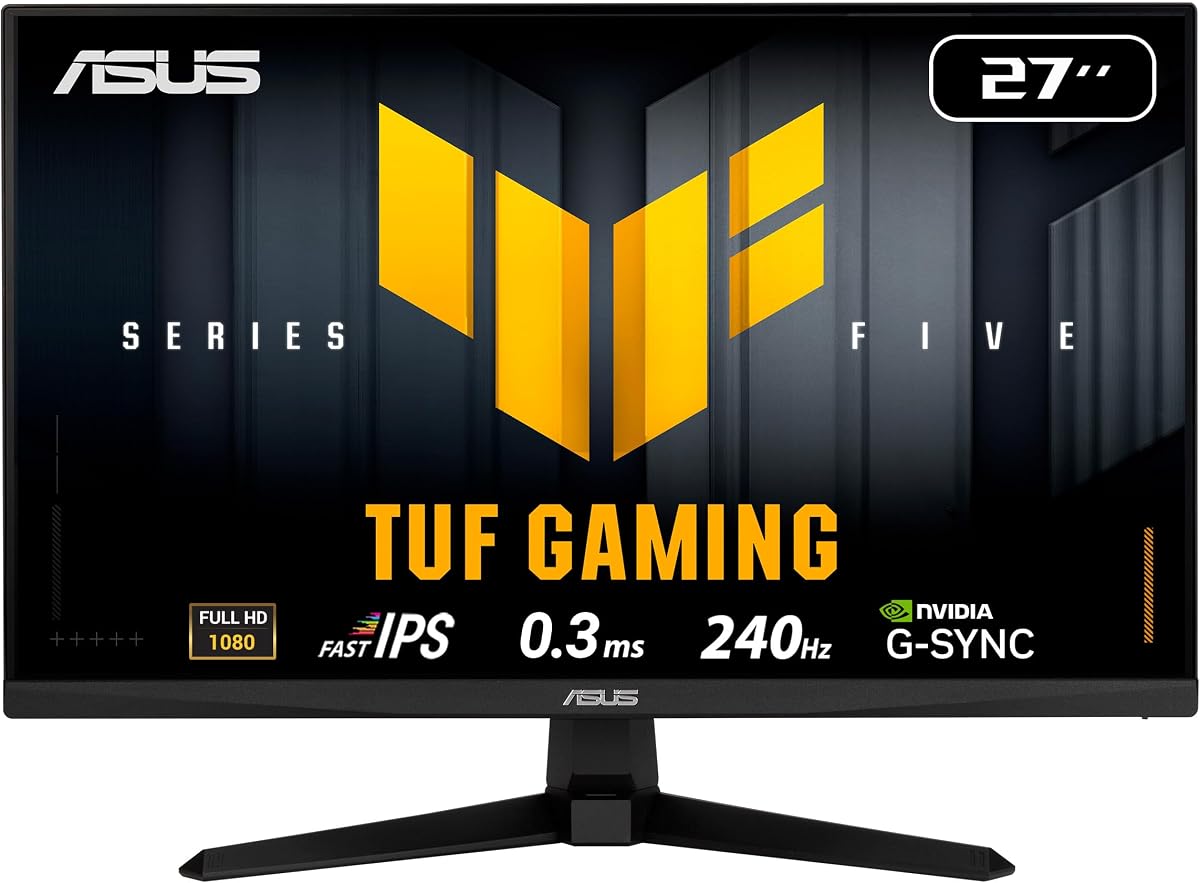

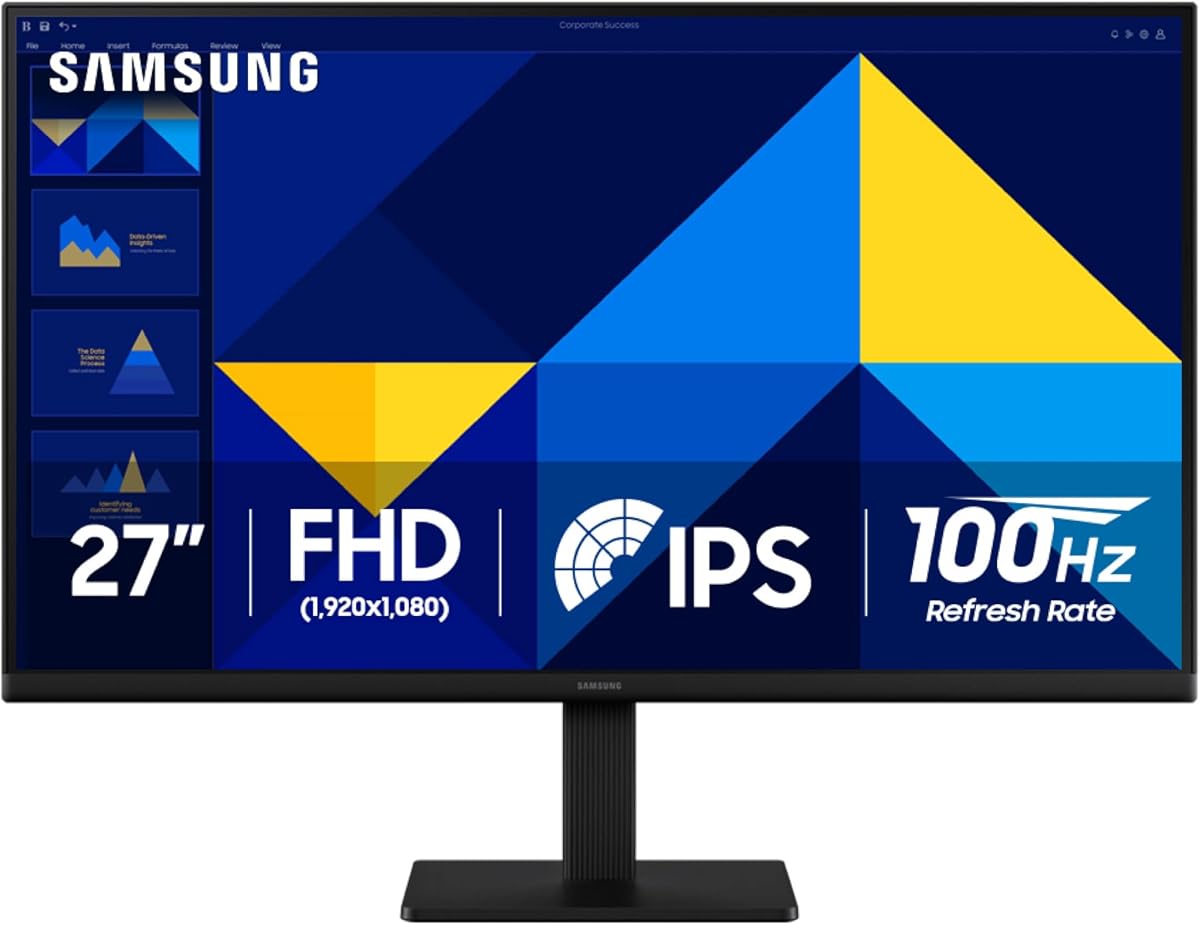
The ASUS TUF Gaming VG259QMR5A combines a 24.5-inch Fast IPS panel with an overclocked 310Hz refresh rate, making it an unusually capable entry point for AI development. Its 4.6 rating reflects a strong overall proposition, especially for programmers who spend long hours in editors, terminals, and browser-based notebooks. The wide format also provides more lateral room than a conventional 24-inch display.
We may earn a commission when you buy through this link, at no additional cost to you.
Response performance is particularly useful when the same computer handles both development and gaming. ASUS lists a minimum 0.3ms GTG response, while FreeSync Premium and G-SYNC compatibility can keep frame delivery smooth with compatible graphics hardware. The 99% sRGB gamut is also practical for ordinary interface design, image review, and development-related content, although it does not match the wider DCI-P3 coverage offered by the premium OLED choices.
There are clear compromises. Its 1920 x 1080 resolution means more windows and more visual density are needed for complex code, terminal output, and side-by-side model dashboards. The supplied feature list does not mention HDR certification, USB-C connectivity, or an adjustable stand. These omissions do not prevent productive use, but they make it less suitable for color-critical work or a polished single-cable laptop setup.
This is a strong recommendation for developers who want a responsive, wide workspace without moving into the premium OLED category. It also works well as a general-purpose monitor for programming, technical learning, and GPU testing. Buyers who routinely compare fine gradients or need multiple dense panels should favor a QHD model, while most coding and AI experimentation tasks will benefit from the exceptional smoothness here.
The 2560 x 1080 canvas gives editors, terminals, documentation, and browser tools more side-by-side room than a standard Full HD screen. Combined with a 310Hz overclocked refresh rate, it makes scrolling through logs and switching between applications feel exceptionally immediate.
The 99% sRGB coverage suits general development and creative reference, but buyers conducting precise color analysis should examine a display with wider gamut specifications. Check the ports and stand adjustment options for the exact configuration, because the supplied information does not list USB-C support or height adjustment.
We may earn a commission when you buy through this link, at no additional cost to you.
The ASUS ROG Strix XG27ACDNG is a high-end development display built around a 26.5-inch QHD QD-OLED panel. Its 4.5 rating reflects flagship capabilities rather than a basic recommendation, including 360Hz refresh, 0.03ms response, true 10-bit color, and 99% DCI-P3 coverage. It is especially compelling for AI developers who evaluate generated imagery, inspect model output, and also value fluid interaction.
We may earn a commission when you buy through this link, at no additional cost to you.
The 2560 x 1440 resolution provides materially better working space than Full HD without requiring the power and desk footprint of a 4K display. A custom heatsink, advanced airflow design, ROG anti-flicker technology, and OLED Care+ functions address several concerns associated with premium OLED use. DisplayWidget Center puts OLED maintenance and monitor adjustments within mouse-controlled software, which simplifies routine management.
This model also provides strong development utility beyond gaming. Wide color coverage and a stated Delta E below 2 make it better suited to visual inspection than the sRGB-focused Fast IPS alternatives. G-SYNC compatibility can improve synchronization, though actual behavior depends on the graphics system and user configuration. The three-year warranty with advance replacement and burn-in coverage helps address OLED concerns more directly.
The main trade-off is obvious: this is a premium display, and its specification set is excessive for users who only need readable code and a large editor. It also remains an OLED panel, so static desktop elements still deserve sensible task management. For developers who want the strongest combination of QHD workspace, color quality, speed, and protection, it remains one of the most complete choices in this guide.
True 10-bit output, 99% DCI-P3 coverage, and a stated Delta E below 2 provide a much stronger foundation for judging image-generation and visualization results. The QHD canvas can also expose more model previews and debugging panels without scaling down a Full HD interface.
A custom heatsink, advanced airflow, anti-flicker technology, OLED Care+, and a warranty that includes burn-in coverage form a useful protection package. DisplayWidget Center also simplifies maintenance features, although buyers should still review the recommended care procedures.
We may earn a commission when you buy through this link, at no additional cost to you.
The Samsung Odyssey G55C is a 32-inch QHD curved monitor aimed at users who want more screen area without moving to a 4K panel. Its 4.4 rating reflects a strong combination of 165Hz motion performance, a 1ms MPRT response, and QHD clarity. For AI development, the generous canvas can hold consoles, documentation, notebooks, and model dashboards at the same time.
We may earn a commission when you buy through this link, at no additional cost to you.
The 1000R curvature creates a pronounced wraparound effect that fills more of the peripheral field of view. That can be engaging for games and immersive visualization, although some developers may prefer a flat panel for precise alignment. AMD Radeon FreeSync is included to reduce image tearing, while HDR10 support can improve highlight and shadow presentation in compatible content.
Compared with the OLED choices, the supplied specifications offer fewer details about color accuracy, bit depth, and calibration. Developers whose work is limited to code, logs, dashboards, and documentation may not need those specifications, but those comparing generated color output should investigate them before purchase. The 165Hz refresh rate and 1ms MPRT figure also differ from native panel response measurements, so they should not be interpreted as identical metrics.
Eye Saver Mode and reduced screen flicker are valuable for lengthy development sessions. Overall, the G55C is most attractive to developers who prioritize a large, curved QHD workspace and frequently switch between work and entertainment. It is less compelling for desk-limited builders or anyone whose workflow requires validated professional color accuracy.
A 32-inch QHD display offers enough room for an IDE beside a terminal, browser documentation, and a live inference dashboard. This makes it practical for developers who regularly compare code, logs, and model results without switching between virtual desktops.
The 1000R curve creates an enveloping field of view that can improve immersion in games and visualization tools. Eye Saver Mode and reduced flicker help manage fatigue, though large curved displays require adequate desk depth and a comfortable viewing distance.
We may earn a commission when you buy through this link, at no additional cost to you.
The ASUS ROG XG27AQDMGR offers a 26.5-inch QHD TrueBlack glossy WOLED display with a 240Hz refresh rate and 0.03ms response time. Its 4.6 rating makes it one of the strongest-rated models here. For AI development, the combination of QHD resolution, wide color coverage, and true 10-bit color is especially relevant for visually inspecting generated content.
We may earn a commission when you buy through this link, at no additional cost to you.
Color specifications are a major strength. The display covers 99% of DCI-P3, supports true 10-bit color, and has a stated Delta E below 2. DisplayHDR 400 True Black compliance adds HDR capability, while the high refresh rate and rapid response make the monitor well suited to interactive visualization and GPU-based demonstrations.
ASUS OLED Care Pro and a Neo Proximity Sensor help reduce the risk of burn-in. The sensor detects when the user is away and can switch the panel to a black screen, while the three-year warranty includes advance replacement and burn-in coverage. DisplayWidget Center provides mouse-based access to these features and regular settings, reducing the need to navigate a physical menu.
The glossy finish is the main caveat. It can produce sharp reflections under bright ambient lighting, which may make a matte display preferable in a bright room. OLED static content also deserves deliberate management, and this large model requires a suitably deep desk. Even so, developers who prioritize image quality, color depth, and responsive interaction should find this a compelling premium workstation display.
The glossy WOLED panel, QHD resolution, and high pixel density can make fine interface elements and generated images appear crisp. Its 240Hz refresh rate also makes cursor movement and previews feel immediate during iterative testing.
OLED Care Pro, a proximity sensor, and the included burn-in coverage provide a layered approach to long-term use. Users should still avoid leaving static interfaces unattended and follow the manufacturer's recommended care guidance.
We may earn a commission when you buy through this link, at no additional cost to you.
The ASUS TUF Gaming VG249QML5A is a compact 23.8-inch Fast IPS display built for fast interaction, with a 240Hz refresh rate and minimum 0.3ms response time. Its 4.4 rating reflects a competitive gaming-oriented specification set. It also remains useful for AI development because high refresh rates make code editors, terminals, and browser-based interfaces feel more responsive.
We may earn a commission when you buy through this link, at no additional cost to you.
FreeSync Premium and G-SYNC compatibility can help maintain fluid frame delivery, while ELMB SYNC combines motion blur reduction with variable refresh rate. DisplayWidget Center allows settings to be adjusted with a mouse, and the height-adjustable stand is helpful when fitting the monitor into a compact workstation. The supplied package information and color coverage are not as comprehensive as on some alternatives.
The primary limitation is its 1920 x 1080 resolution. At 23.8 inches, it offers less code and less visual workspace than the 27-inch and 32-inch QHD options. A developer who regularly needs a terminal beside a large editor may find the smaller canvas restrictive, especially when working with wide debugging interfaces or data dashboards.
This monitor is best for a focused setup: a smaller desk, a single development workspace, and a preference for immediate input response. Its 99% sRGB coverage is sufficient for ordinary interface work but not a compelling choice for specialist color evaluation. As an affordable, responsive secondary display or a compact primary screen, it delivers a useful mix of speed and practicality.
A 240Hz panel and 0.3ms minimum response make scrolling, cursor movement, and interactive previews feel highly immediate. This is useful when a developer is frequently switching between a terminal, browser tools, and graphical debugging interfaces.
The 23.8-inch footprint and height-adjustable stand make the display easier to integrate into a smaller desk. Its Full HD resolution keeps the overall setup uncomplicated, but the user should be comfortable with the limited amount of simultaneous information.
We may earn a commission when you buy through this link, at no additional cost to you.
The Samsung 27-inch Odyssey OLED G6 is a balanced QD-OLED development display with QHD resolution, 240Hz refresh, and 0.03ms response time. Its 4.7 rating is the highest among the listed products, making it an especially strong all-around recommendation. The 27-inch size offers more workspace than a compact monitor without demanding the desk depth of a 32-inch curved screen.
We may earn a commission when you buy through this link, at no additional cost to you.
Color is a decisive strength. The Pantone Validated screen reproduces more than 2,100 colors and over 110 skin-tone shades, while HDR10 support improves highlights and shadow detail. Those features are valuable when comparing generated images or reviewing visual data, although developers should still calibrate the display to the standards of their specific project.
Samsung's OLED Safeguard thermal modulation system actively works against burn-in. Glare Free technology reduces distracting reflections from ambient light, which is a meaningful advantage for a glossy-style OLED workflow. AMD FreeSync Premium, a height-adjustable ergonomic stand, and 240Hz operation round out a specification set that suits both development and interactive GPU testing.
Compared with the 360Hz ASUS ROG Strix XG27ACDNG, this Samsung offers a more conventional 27-inch form and an arguably more approachable feature balance. It does not surpass the ROG model in maximum refresh rate, and OLED users still need sensible screen habits. Even so, the combination of color validation, QHD workspace, fast response, glare handling, and adjustable ergonomics makes the G6 our Editor's Choice.
Pantone validation across more than 2,100 colors and 110-plus skin-tone shades gives this monitor a strong foundation for visual AI review. It is still important to use application-level calibration when exact output matters.
The 27-inch format, adjustable stand, Glare Free surface, and 240Hz response create a comfortable balance for long coding sessions. This makes the G6 easier to recommend as an all-purpose development display than some larger or more specialized alternatives.
We may earn a commission when you buy through this link, at no additional cost to you.
The ASUS ROG XG27ACS combines a 27-inch QHD Fast IPS panel with a 180Hz refresh rate, 1ms GTG response time, and a built-in USB Type-C hub. Its 4.4 rating reflects a well-rounded productivity display with gaming features. The USB-C hub is particularly relevant to developers using a laptop, as it can support video transmission and wired peripherals through one central connection.
We may earn a commission when you buy through this link, at no additional cost to you.
The QHD resolution provides enough space for a code editor, terminal, and browser documentation to coexist, while 180Hz and ELMB SYNC keep motion clean. FreeSync and G-SYNC compatibility, along with DisplayWidget Center for mouse-based OSD control, make the display easy to tailor to different development and interactive workloads.
The supplied specifications do not state the color gamut coverage, bit depth, or detailed brightness targets. That leaves less evidence for color-critical AI visualization than the QD-OLED models, which explicitly specify DCI-P3 coverage and true 10-bit color. The 180Hz refresh rate is also below several Fast IPS rivals, though it remains more than adequate for most coding and noncompetitive applications.
The standout use case is a clean laptop-based development desk. Instead of occupying several separate USB ports with displays and peripherals, the user can consolidate connections through the monitor's hub. Buyers should verify the exact power-delivery capabilities and included cables for their device. For everyone else, this remains a capable QHD panel centered on useful connectivity and smooth interaction.
USB Type-C video transmission and hub functionality can reduce desk clutter and simplify peripheral management. This is particularly helpful when a portable development system docks directly to the monitor.
The 180Hz refresh rate, 1ms GTG response, ELMB SYNC, and adaptive synchronization produce fluid everyday interaction. The QHD canvas is the more important feature for prolonged coding, while the motion specifications benefit interactive previews and testing.
We may earn a commission when you buy through this link, at no additional cost to you.
The ASUS TUF VG279QM5A uses a 27-inch Fast IPS panel with Full HD resolution, a 240Hz refresh rate, and a minimum 0.3ms response time. Its 4.5 rating reflects a solid all-around specification set. The larger 27-inch size offers a comfortable balance between a familiar Full HD workflow and enough physical screen area to keep more application windows open.
We may earn a commission when you buy through this link, at no additional cost to you.
Adaptive synchronization is supported through FreeSync Premium and G-SYNC compatibility, while ELMB SYNC addresses blur during fast movement. DisplayWidget Center provides mouse control over monitor settings. The 99% sRGB color space is suitable for interface work, general graphics, and content creation, although a wider-gamut display would be preferable for professional visual evaluation.
As with the other 27-inch Full HD choices, the main limitation is pixel density. Code and small interface elements remain readable, but a QHD monitor provides a materially sharper canvas for dense files, multiple panes, and professional dashboards. This model also lacks a stated USB-C hub, making it less compelling for a minimalist laptop setup than the ASUS ROG XG27ACS.
It is a good recommendation for developers who prioritize screen size, fast interaction, and a straightforward 27-inch format over maximum resolution. The included DisplayPort cable, power cord, screwdriver, quick-start guide, and warranty card support a simple installation, while the three-year warranty provides added reassurance. It works particularly well for general programming, technical content, and developers who also value fast gaming.
A 27-inch panel gives Full HD users more physical workspace without introducing a complex multi-monitor layout. The 240Hz refresh and 0.3ms response make menus, scrolling, and terminal output feel immediate.
The 99% sRGB coverage is well matched to ordinary development, web interfaces, and content creation. Adaptive sync and motion blur reduction provide a fluid experience when the workstation is also used for games.
We may earn a commission when you buy through this link, at no additional cost to you.
The Samsung 27-inch Essential S3 is a curved Full HD monitor designed around comfortable viewing and flexible entertainment. Its 4.5 rating indicates a generally positive user experience, while the 1800R curve creates a wider, more immersive field of view. For AI development, it can serve well as a secondary display for logs, documentation, terminal sessions, and monitoring dashboards.
We may earn a commission when you buy through this link, at no additional cost to you.
The 100Hz refresh rate reduces perceived lag and motion blur during scrolling and fast content. A Game Mode can optimize a game to fill the screen, while adjustable color and contrast help users reveal details in dark scenes. These features are more directly associated with gaming, but they can also be useful when viewing training visualizations or animated model results.
Advanced eye comfort technology certified by TÜV is an important feature for programmers who spend long sessions reading text. Reduced blue light and reduced flicker may improve comfort, though individual responses vary. Curvature can also reduce peripheral distraction by bringing the edges of the display closer to the user's field of view.
The main constraints are Full HD resolution and a 100Hz refresh rate. The former limits fine detail when multiple code panes are open, while the latter is modest beside 180Hz, 240Hz, and 310Hz options. This monitor makes the most sense for developers seeking a comfortable secondary screen or a practical display that balances work, browsing, and gaming.
TÜV-certified eye comfort technology reduces blue light and screen flicker, which can be valuable during long coding sessions. A comfortable viewing position remains essential, so users should adjust the curve and screen distance to their desk.
A 27-inch curved display can provide room for terminal output, documentation, and system monitoring away from the primary editor. Full HD resolution keeps the layout accessible for text-heavy tasks without demanding a high-end GPU.
We may earn a commission when you buy through this link, at no additional cost to you.
The Samsung 27-inch Essential S30GD is a straightforward IPS monitor for developers who value clear text, consistent viewing angles, and a modern appearance. Its 4.5 rating reflects a well-received general-purpose display. The IPS panel is designed to maintain bright, clear colors across the screen as viewing angles change, which helps when leaning toward a large code editor or moving between reference windows.
We may earn a commission when you buy through this link, at no additional cost to you.
The 1920 x 1080 resolution is familiar and easy to scale, while the 100Hz refresh rate produces smoother everyday motion than a conventional 60Hz display. This benefit becomes noticeable when scrolling long logs, moving between virtual desktops, or watching animated training and visualization content. The screen also includes reduced blue light and flicker features for longer work sessions.
A 100Hz rate is the most significant limitation for a modern development display, particularly when compared with the 180Hz to 360Hz models in the guide. For AI development, the absence of stated wide-gamut coverage, HDR certification, or high-bit-depth specifications also makes this more suitable for coding and general productivity than professional color assessment.
The slim design and ultra-thin border bezels help the monitor fit neatly into a modern workstation, while Game Mode and adjustable color and contrast provide useful options for visual testing. This is a sensible entry recommendation for developers who do not need extreme refresh rates or advanced connectivity. It can also serve as a reliable secondary screen for documentation and remote development environments.
IPS technology is useful in a wide workspace because colors remain more consistent as viewing angles change. That makes the display suitable for users who frequently shift position or view content from slightly off-center.
Ultra-thin bezels give the 27-inch monitor a modern appearance and keep visual distractions low. The 100Hz refresh rate supports smooth everyday interaction, while the restrained feature set suits straightforward development setups.
We may earn a commission when you buy through this link, at no additional cost to you.
Choosing a monitor for AI development starts with the work performed on the screen. Code density, dashboard complexity, image evaluation, and local model testing all create different priorities, so the most important factors are resolution, color behavior, responsiveness, connectivity, ergonomics, and long-term reliability.
Resolution determines how much information can be displayed without shrinking interface elements. Full HD at 1920 x 1080 can be adequate for a single editor, lightweight notebooks, and code review, but QHD at 2560 x 1440 offers a noticeably better balance for terminals, documentation, and debugging panels. A 27-inch Full HD panel may feel roomy because of its size, yet it still provides fewer pixels than a 27-inch QHD display. Developers working with dense code, large logs, or multiple application panes should prioritize pixel density rather than diagonal size alone.
Choose QHD when your workflow needs additional desktop space without moving to a 4K display. For general development, 2560 x 1440 is often the practical middle ground, while the 32-inch QHD model can make text appear smaller and require more desk space.
IPS panels provide stable color and viewing angles, making them a dependable choice for code, dashboards, and general productivity. QD-OLED and WOLED models go further with 99% DCI-P3 coverage, true 10-bit color, and low Delta E figures on the supplied specifications. That additional color capability is relevant when comparing generated images, checking synthetic data visualizations, or reviewing HDR output. Color validation does not replace calibration, so projects with exact requirements still need an appropriate software and hardware workflow.
Prioritize wide-gamut coverage when image quality is central. Choose IPS or standard Full HD models when coding, documentation, and system monitoring matter more than professional color evaluation.
High refresh rates make cursor movement, scrolling, terminal output, and interactive previews feel more immediate. Rates from 180Hz to 240Hz are already exceptionally smooth for general development, while 310Hz and 360Hz models benefit interactive graphics and gaming. Fast IPS response figures of 0.3ms and OLED figures of 0.03ms look impressive, but the values may represent different measurement methods. Comparing response specifications should therefore be done cautiously.
Choose a higher refresh rate when the same machine is used for development and gaming or when interactive visualization is central. For conventional coding, a 100Hz panel may still provide a smoother experience than older 60Hz displays.
Adaptive synchronization can reduce tearing and keep frame delivery consistent when the graphics card and display are operating within a supported range. ASUS models in this guide support combinations of FreeSync Premium and G-SYNC compatibility, while the Samsung OLED G6 lists AMD FreeSync Premium and the Samsung Odyssey G55C lists Radeon FreeSync. These technologies are especially useful when testing GPU-accelerated AI applications or training visualizations that render in real time.
Confirm the exact synchronization standard and connection method before purchasing. A supported feature is most useful when the computer has a compatible graphics system, the correct cable is used, and the operating system can configure it correctly.
OLED displays offer exceptional response and contrast, but they require attention to static content. ASUS models in the guide use OLED Care+ or OLED Care Pro functions, and the ROG XG27AQDMGR adds a Neo Proximity Sensor that can switch to a black screen when the user leaves. Samsung's OLED Safeguard system uses thermal modulation to help prevent burn-in. Warranty terms also matter: several premium models include burn-in coverage and advance replacement.
Choose OLED when visual quality justifies the care requirements. If you routinely leave dashboards, terminals, or documentation open for long periods, use screen-saver and sleep settings, rotate visible content where practical, and review the manufacturer's care recommendations.
USB-C docking support can simplify a laptop-based AI development setup by carrying video and providing access to wired peripherals through one monitor connection. The ASUS ROG XG27ACS explicitly supports USB Type-C video transmission and hub functionality. Other products in this list emphasize DisplayPort, power, and standard connections without specifying equivalent USB-C hub features. If you regularly connect storage, keyboards, mice, network adapters, or external compute devices, the difference can materially affect desk organization and reliability.
Verify the exact USB ports, supported peripherals, power delivery, and included cables before buying. A monitor that looks like a dock may not supply the power, data bandwidth, or external display support required by your system.
A development display may remain active for many hours, so stand adjustment and viewing comfort deserve attention. Height adjustment appears on the ASUS TUF VG249QML5A and Samsung Odyssey OLED G6, while several other models emphasize display features without listing the full ergonomic range. The Samsung Essential S3 and Odyssey G55C use curved panels, which can feel immersive but may not suit users sensitive to edge distortion. Blue-light reduction, reduced flicker, and TÜV-certified eye comfort features are available on the Samsung models.
Choose a stand that supports your eye level and viewing distance, and use the monitor's recommended scaling for Full HD or QHD content. Comfort depends more on correct placement and sustained habits than on a single eye-care feature.
A long warranty can reduce concern about high-refresh IPS panels and OLED burn-in, although it should complement rather than replace sensible care. The TUF models list three-year coverage, while the ROG OLED options include three years with advance replacement and burn-in coverage. DisplayWidget Center gives ASUS users mouse-based access to OSD and OLED maintenance functions. Some ASUS products also include a three-month Adobe Creative Cloud subscription offer, but the promotional validity and current terms should be confirmed directly.
Check the warranty type, included accessories, software support, and any time-limited promotional offer before checkout. These details can be as important as headline refresh rate when selecting a monitor intended for long-term work.
Begin by connecting the computer with the interface and cable that support the intended resolution and refresh rate. After installation, use the monitor's on-screen display or DisplayWidget Center where available to select the proper resolution, confirm the expected refresh rate, and adjust brightness to a comfortable level in the room's ambient lighting. For color-sensitive work, use a controlled profile, application-level calibration, and neutral test patterns rather than relying only on a gaming preset.
Organize the development workspace around the panel's usable resolution. Full HD models work well with a focused IDE or one main auxiliary window, while QHD displays can support an editor, terminal, and documentation more comfortably. For a curved display, position it at a suitable distance so the edges remain easy to view without excessive head movement. Activate screen-saver, sleep, or blank-screen settings when stepping away, especially on OLED models.
Care for the panel by cleaning it with the manufacturer's recommended soft, dry method and avoiding abrasive or liquid cleaners that have not been approved for the finish. For OLED displays, avoid leaving bright static interfaces onscreen for long periods and use the available OLED care or safeguard functions. Keep ventilation openings clear, avoid placing the screen under direct heat, and review the warranty guidance before changing stand parts or mounting the display differently.
Yes, a gaming monitor can be an excellent AI development display because high refresh rates, fast response times, and adaptive synchronization make code editors and interactive visualizations feel responsive. Resolution and color gamut matter more when the work involves image generation, color grading, or detailed visual inspection. The best choice depends on whether your priority is responsiveness, workspace density, color accuracy, or gaming performance.
QHD provides 2560 x 1440 pixels and offers more usable space than Full HD, making it easier to keep an editor, terminal, browser documentation, and debugging tools open together. Full HD can still be sufficient for a focused single-window workflow. A higher-resolution panel also presents smaller text unless operating-system scaling is configured appropriately.
An OLED is optional, not essential, for most coding and model-training workflows. It becomes more attractive when you inspect generated images, need broad color coverage, value deep contrast, or frequently use interactive visualization. The models in this guide include OLED protection features and warranty coverage, but sensible screen habits remain important because static interfaces can contribute to long-term wear.
Refresh rate does not directly increase the computational speed of model training, but it controls how smoothly the desktop and any real-time visualization update. It is relevant when monitoring inference results, interacting with GPU-accelerated tools, or using the same machine for games. Compute performance depends much more heavily on the processor, graphics card, memory, storage, and software configuration.
A 100Hz display is generally sufficient for code editing, documentation, terminal use, and ordinary application work. It also provides smoother scrolling and cursor movement than a traditional 60Hz panel. Users who also demand high-refresh gaming, rapid previews, or competitive motion performance may prefer one of the 180Hz, 240Hz, 310Hz, or 360Hz choices.
Developers doing general coding can be satisfied with a standard display, while those reviewing generated images benefit from a wide-gamut monitor. The QD-OLED and WOLED options listed here provide 99% DCI-P3 coverage and true 10-bit color, with stated Delta E values below 2. Wide coverage is only one part of accurate output, so application calibration and controlled lighting remain necessary for exact color work.
USB-C docking can be very useful with a laptop because it may carry display video and connect wired peripherals through a single setup. It can reduce desk clutter and make external storage, input devices, and network accessories easier to manage. Confirm power delivery, data bandwidth, and supported peripherals because USB-C capabilities vary between monitors and do not always match the product name.
A single QHD or large Full HD display is simpler and can provide ample space for code, terminals, and documentation. Two smaller monitors can separate general editing from logs, remote sessions, or monitoring dashboards, but they occupy more desk area and require compatible positioning. Consider your available space, operating-system scaling, GPU outputs, and whether you need different applications visible simultaneously.
The ASUS TUF Gaming VG259QMR5A stands out as the value-focused recommendation, combining a wide 2560 x 1080 canvas with an overclocked 310Hz refresh rate and fast IPS response. The Samsung 27-inch Odyssey OLED G6 is the most balanced choice, pairing QHD resolution with validated color, 240Hz motion, glare-free handling, and an adjustable stand. For users wanting maximum performance, the ASUS ROG Strix XG27ACDNG provides QHD QD-OLED visuals, 360Hz refresh, true 10-bit color, and extensive OLED protection.
Prioritize the specification that solves the bottleneck in your actual workflow. QHD resolution helps developers who need denser code and more simultaneous windows, while wide-gamut OLED benefits visual AI evaluation. High refresh rates suit mixed development and gaming setups, and USB-C docking is valuable for laptop-centered work. Lower-cost Full HD and 100Hz displays remain sensible for text-heavy, secondary-screen, or desk-conscious configurations.
Before buying, verify the current cost and promotion, exact port configuration, graphics-card compatibility, stand adjustments, and warranty terms. Prices and bundled offers can change, and product details may vary by configuration. The right monitor is ultimately the one that provides the screen space, visual quality, and interaction your AI development work requires without becoming inconvenient to use every day.